Joomla 5 and 6 · no Joomla password or API token shared
Your spreadsheet, published as Joomla articles. Reviewed first, updated later.
Drop in the Excel or CSV file you already have. Content Uploader turns each row into a Joomla article with its category, tags, dates and images, shows you every change before anything is written, and updates the same articles from the next file.
- Articles with categories, tags, custom fields and images
- Publishes as the account you choose
- The next file updates what it published
The Lindgren Opera House · Season 2027
Review firstseason-2027-programme.xlsx
42 rows · 13 columns
- Headers read, separator detected
- All 13 columns found
- 42 rows checked, field by field
- Compared with your Joomla site
season-2027-programme.xlsx
42 rows checked against what you published last time
- New
- 6
- Updated
- 11
- Unchanged
- 25
- Errors
- 0
- Updated
La Traviata · 14 May
Conductor
Jonas Wiklund→ Sofia Hallin · Curtain19:00→ 19:30 - New
Swan Lake · 3 June
New category: Ballet › 2027 season
- New
Così fan tutte · 21 June
Access: Registered · Start Publishing 1 March
Dropping the 2027 season programme.
An example: the 2027 season programme of a fictional opera house, the Lindgren Opera House.
What it does for your site
Many articles from one file, and a look before any goes live.
Content Uploader is a web service that turns a spreadsheet into content on your Joomla site. You install a connector and approve the connection once. Then you drop an Excel or CSV file, and it creates or updates your articles, after showing you every change.
Joomla’s own fields, from your columns
Title, alias, intro and full text, one category, tags, status, publishing dates, access level, language, images and custom fields, each from a column you choose, in files of up to 10,000 rows.
What a row can fillSee it first, publish as an account you choose
The review lists what is new and what changes, field by field, and names every row with a problem. Nothing is written until you approve it, and then Joomla checks the permissions of the account you chose, as it would for a person.
The publishing accountThe next file is one drop
You map the columns once. The next file updates the articles Content Uploader published and adds the new rows. What did not change is left alone, and an article someone has open is left as it is.
How it avoids duplicatesCategories, tags, custom fields and pictures
A category path such as Opera › 2027 season, tags that can be nested, every custom field type Joomla brings and those of Advanced Custom Fields (the free version), and images for the intro and the full article.
Joomla custom fields
How it works for Joomla
Install, connect, map: once. Then every file is drop, review, publish.
Your site gets one small connector. After that, the file is the only thing you bring each time.
- 1
Install the connector
Download the connector package from the Sites page, or from its public download page, and install it in Joomla under System › Install › Extensions. It adds a screen under Components and the web services plugin it needs, and sends nothing to Content Uploader.
- 2
Connect, and choose who publishes
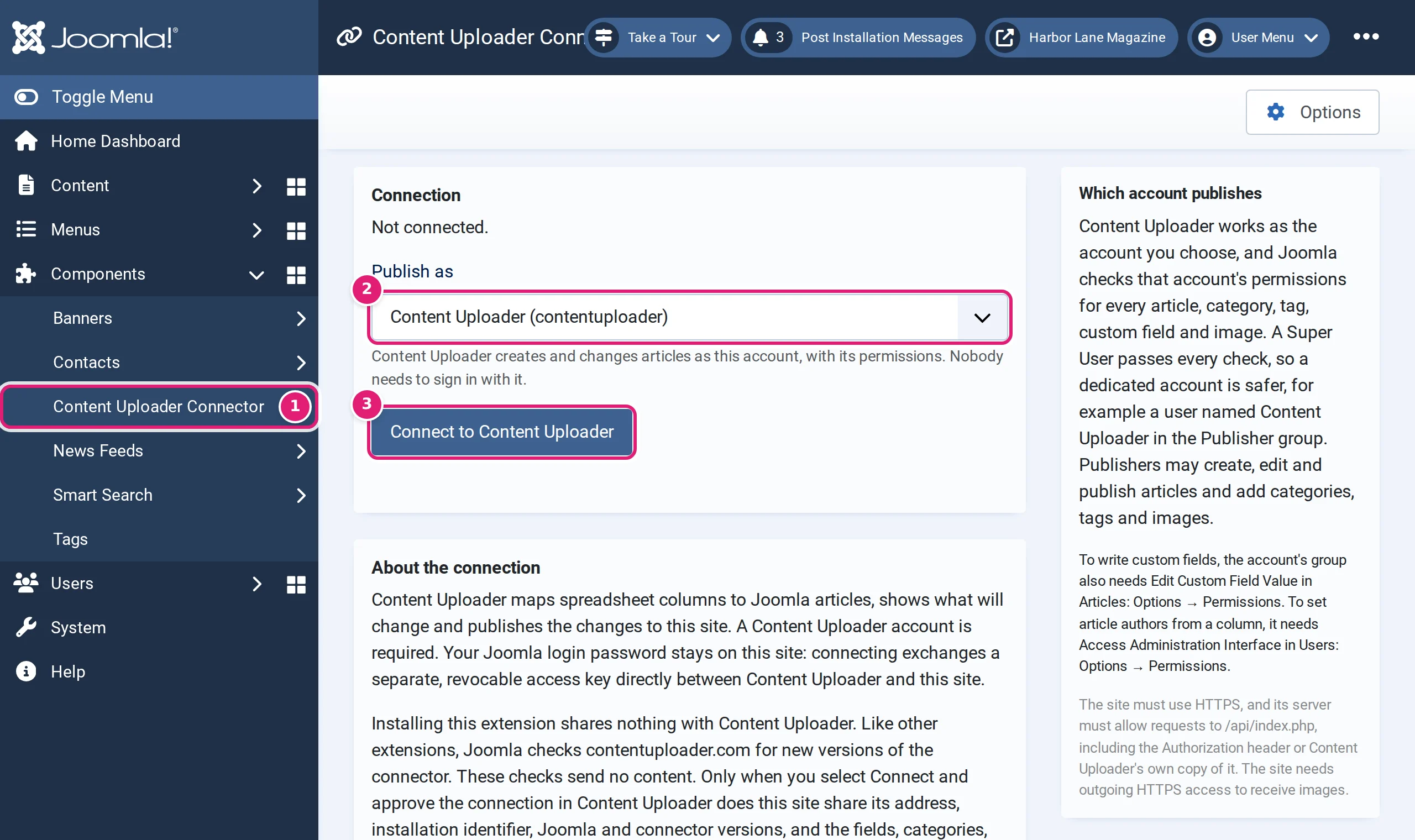
In Components › Content Uploader Connector, choose the account Content Uploader publishes as, then select Connect and approve the connection in Content Uploader as a workspace owner. No Joomla password or API token is entered anywhere.
- 3
Map once, then drop each file
Choose Articles and say which column becomes the title, the intro text, the category and so on; Joomla needs exactly one category for each article. Then drop the file, read the review and publish. The next file starts at the drop.
What a row becomes
Joomla’s own fields, filled from the columns you choose.
The opera house’s programme has a row for each performance and 13 columns. Here is where each one goes.
- Record ID
CodeWhat makes a performance the same article in the next file.- Title
TitleThe performance, as the article’s title.- Alias
- No column: Joomla makes it from the title, unique within the category.
- Category
CategoryOne for each article, and required: a path such as Opera > 2027 season. A missing level can be created, parents first.- Tags
TagsSeveral for each article, nested if you like.- Intro Text
IntroThe teaser, and the whole text when there is no more.- Full Text
Full textThe part after a Read more marker, which Content Uploader adds between the two.- Intro Image
ImageFrom a ZIP you drop with the file, a web address or the site’s images folder.- Featured
FeaturedYes for a premiere.- Access
AccessPublic, or Registered for the members’ preview. A cell may use the level’s title or its ID.- Start Publishing
- The on-sale date, one fixed date for the whole season: the article is shown from then on.
- Finish Publishing
DateThe night of the performance: the article is hidden after it.- Custom fields
ComposerConductorCurtainFields defined on the site under Content › Fields.
Every field and what it accepts: Joomla article fields you can map. Start Publishing, Finish Publishing, Featured and Status need Edit State on the account that publishes.
In the connector, the editor and Joomla
What you see on the way.
These pictures are from the Help Center’s tutorials: a sailing magazine, not the opera house above.
Who publishes
You choose the account Content Uploader publishes as
Content Uploader does not act as itself: it acts as one Joomla account, and Joomla checks that account’s permissions for every article, category, tag, custom field and image, as it would for a person using the administration.
A dedicated account in the Publisher group is safer than a Super User, and what the account may not do is simply not offered in the editor. The publishing account
One category, required
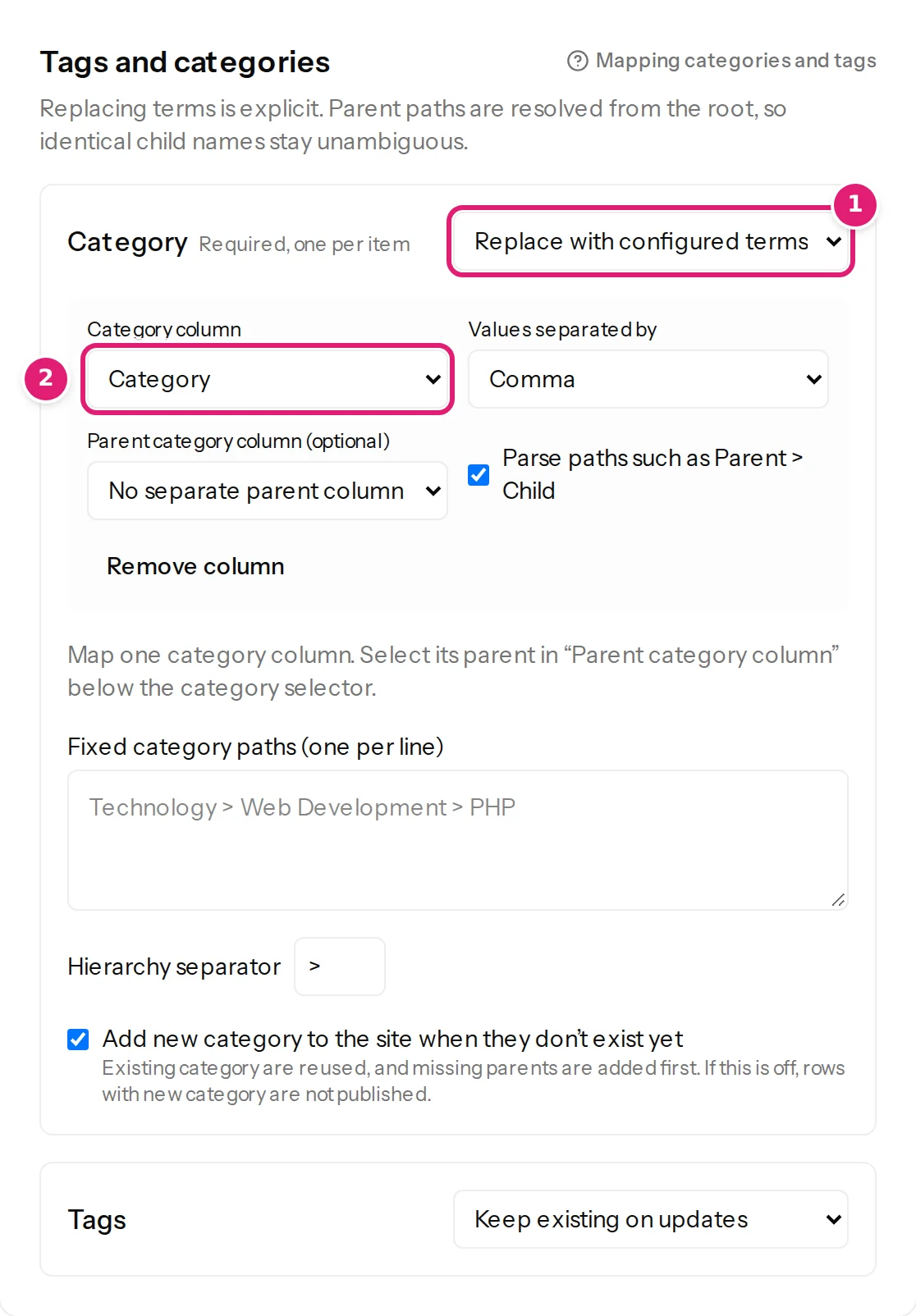
Every article has exactly one category
Joomla’s rule shows in the editor: a configuration without a category cannot be saved, and a row with none, or with two, is an error.
A path such as Opera > 2027 season puts the article in the last level, and a level that is missing can be created, parent first. Tags can be nested too. Categories · Tags
Afterwards
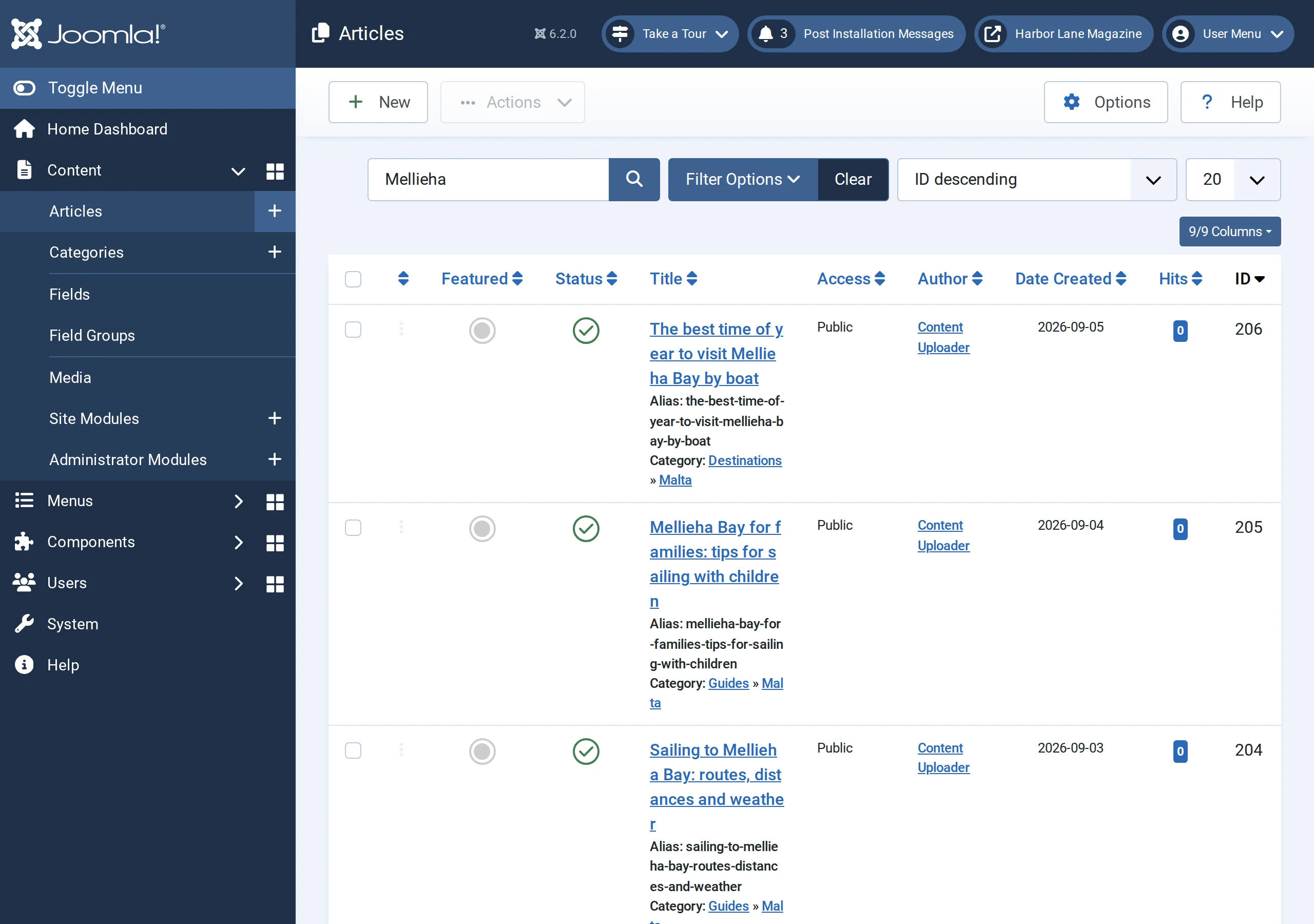
In Joomla’s own list, as if an editor had saved them
Content Uploader saves through Joomla’s own article model, so content plugins, content history, tags and custom fields behave as when an editor saves. Each save appears in the article’s Versions with the note Content Uploader.
Joomla’s own rules
Where Joomla decides, and Content Uploader follows.
The upload, the review and the publish are the same on every platform. These are the places where Joomla’s own rules show through.
One category for each article
Exactly one, so the configuration must set it, and a row with none or with two is an error. A WordPress post may have several.
Why it is requiredAliases are unique in their category
Left unmapped, Joomla makes the alias from the title. A mapped alias that another article in the category already uses makes that article fail when it is published.
AliasesIntro text and full text
The text is in two parts joined by a Read more marker. Map only Intro Text for a single text, or both, and the marker is added between them.
Article fieldsWorkflows
When they are switched on for articles, Joomla refuses a change of state outside a workflow: Status and Featured are not offered, and new articles start in the workflow’s default stage.
Status, featured and workflowsDates in the account’s time zone
A date without a time zone is read in the publishing account’s time zone, and stored by Joomla as UTC, as in the article form. Add an offset when you need to be certain.
Time zonesArticles someone has open
An article another user has checked out is not written: the review skips it, and a later file updates it once it is closed. The trash is the same.
Articles that someone is editing
All of them, with what each platform does: WordPress and Joomla compared.
Said plainly
What it does not do.
Before you install anything.
Joomla 4 and earlier
Content Uploader needs Joomla 5 or 6, and the same package serves both. The installer refuses an older site and installs nothing.
MySQL or MariaDB only
MySQL 8.0.13 or later, or MariaDB 10.4 or later. PostgreSQL is not supported, and the installer says so. PHP is what Joomla itself needs: 8.1 or later for Joomla 5, 8.3 or later for Joomla 6.
The API must be reachable
Content Uploader reaches your site at /api/index.php, over HTTPS, at a public address. A host that blocks it, puts it behind a password or an allow-list, or redirects the site’s address stops the connection.
Articles only
Menus, contacts and web links are not available. A custom field of an Advanced Custom Fields Pro type cannot be filled, and a Joomla field cannot be added by name: it must exist on the site first.
Articles made by hand are not matched
Content Uploader updates the articles it published. One written by hand, or brought in by another tool, matches nothing, so its row makes a new article beside it.
Nothing is deleted, and you upload each file
A row you take out of the file does not take its article off your site. A spreadsheet is never fetched from a web address or from the cloud, and nothing runs on a schedule.
Joomla requirements and compatibility · Every known limitation
Try it
Try it with a small file first.
Files from the Help Center’s tutorials, about a made-up sailing magazine. Use a test site: publishing creates real articles.
A first import, and the same file again later
Eight sailing articles with an ID, a title, an HTML body, a category and tags: the file for a first import to WordPress or Joomla. In the second file, two are new, three are edited and five are unchanged.
A status for each row
Five articles with a Status column that uses Joomla’s names: Published, Unpublished and Archived.
One hundred articles
A hundred articles for twenty places, with an alias, a category path, tags, an HTML body and a publish date: the file of the tutorial that imports them into Joomla.
To see a whole file go through, follow Import one hundred articles into Joomla from one spreadsheet, about 15 minutes.
FAQ
What Joomla site owners ask first.
The questions that come up before the connector is installed.
Which Joomla versions does it work with?
Joomla 5 and 6, with one package for both: it keeps its connection and mappings when a site is upgraded from 5 to 6. Joomla 4 and earlier are not supported. The site needs MySQL 8.0.13 or later, or MariaDB 10.4 or later, and the PHP version Joomla itself needs, 8.1 or later for Joomla 5 and 8.3 or later for Joomla 6.
Which account publishes?
One Joomla account that you choose when you connect, with exactly its permissions: Joomla checks them for every article, category, tag, custom field and image, as it would for a person. A dedicated account in the Publisher group is safer than a Super User, which passes every check. Nobody has to sign in with it. Setting Status, Featured or the publishing dates needs Edit State, and custom fields need Edit Custom Field Value.
Can it fill custom fields?
Yes: every type Joomla brings, and those of Advanced Custom Fields (the free version), with subforms and image fields. The field has to exist on the site first, and the publishing account has to be allowed to edit its value. A field that cannot be filled is listed in the editor with the reason, such as an Advanced Custom Fields Pro type.
Does an article have one category?
Yes, exactly one, and it is required: a configuration without a category cannot be saved, and a row with none or with two is an error. Categories and tags are found by title under their parent, created parent first when you allow it, and a name that matches several is refused instead of guessed.
Can an article disappear after a date?
Yes. Finish Publishing is a field like any other, so it can come from a column: the article is hidden after that date. Start Publishing holds an article back until a date. Both need Edit State.
Can I update articles I wrote by hand?
No. Rows are matched only against articles Content Uploader published itself, on the same site. An article written by hand, or brought in with another tool, is not matched by ID, alias or title, so its row makes a new article beside it. Publish it from a spreadsheet first, remove the old copy by hand afterwards, and try the first import on a copy of your site.
Where do I download the connector?
On the Sites page in Content Uploader, in the Connect a Joomla site box, or on the public download page at /joomla/connector, which also lists every version with its changes and how to update.
Do I have to share my Joomla password?
No, and no API token either. You install the connector, choose the account that publishes and approve the connection from Joomla. Content Uploader and your site then exchange a separate access key, which you can revoke at any time with Disconnect in Joomla or by disabling the web services plugin.
Put your next spreadsheet on your Joomla site.
Create your workspace, install the connector and drop your spreadsheet. The review comes first: Joomla only gets what you approve.
Ready to install? Download the connector. On WordPress too? Posts, pages and custom post types. A page for every town or service? Location pages. Listings that keep changing? Listings and directories. Moving from another system? Migration from an export. Choosing between tools? Content Uploader and WP All Import.