Categories: columns, paths and parent categories
Map categories from a column, a path such as Destinations > Malta > Gozo or a parent column; how missing categories are created, and Joomla's one-category rule.
- 5 min read
- Updated October 13, 2026
A category column is the most common way to organise imported content. Content Uploader can read categories from a plain column, from a path in one column, or from two columns (a parent and a child), and it can create the ones that do not exist yet.
Under Tags and categories, the box for the hierarchical taxonomy (WordPress: Categories; Joomla: Category) starts with a list:
| Choice | Meaning |
|---|---|
| Keep existing on updates | The file does not touch an item's categories on an update. Not offered where a category is required (Joomla). |
| Replace with configured terms | The item's categories become exactly what the file says. Choose this to use the settings below. |
| Remove from every item | Every item the file publishes loses its categories. Not offered where a category is required. |
With Replace chosen, Map category column adds the controls:
- Category column: the column that holds the category.
- Values separated by: a comma, a semicolon or a pipe, when one cell may name several categories (WordPress). Joomla articles have one category, so a row that names more than one is an error.
- Parent category column (optional): a second column that holds the parent of the category.
- Parse paths such as Parent > Child: read
A > B > Cas three levels. - Hierarchy separator: the one character that separates levels in a path. The default is
>. - Fixed category paths (one per line): categories added to every row, in addition to what the columns give.
- Add new categories to the site when they don't exist yet.
One column, one level#
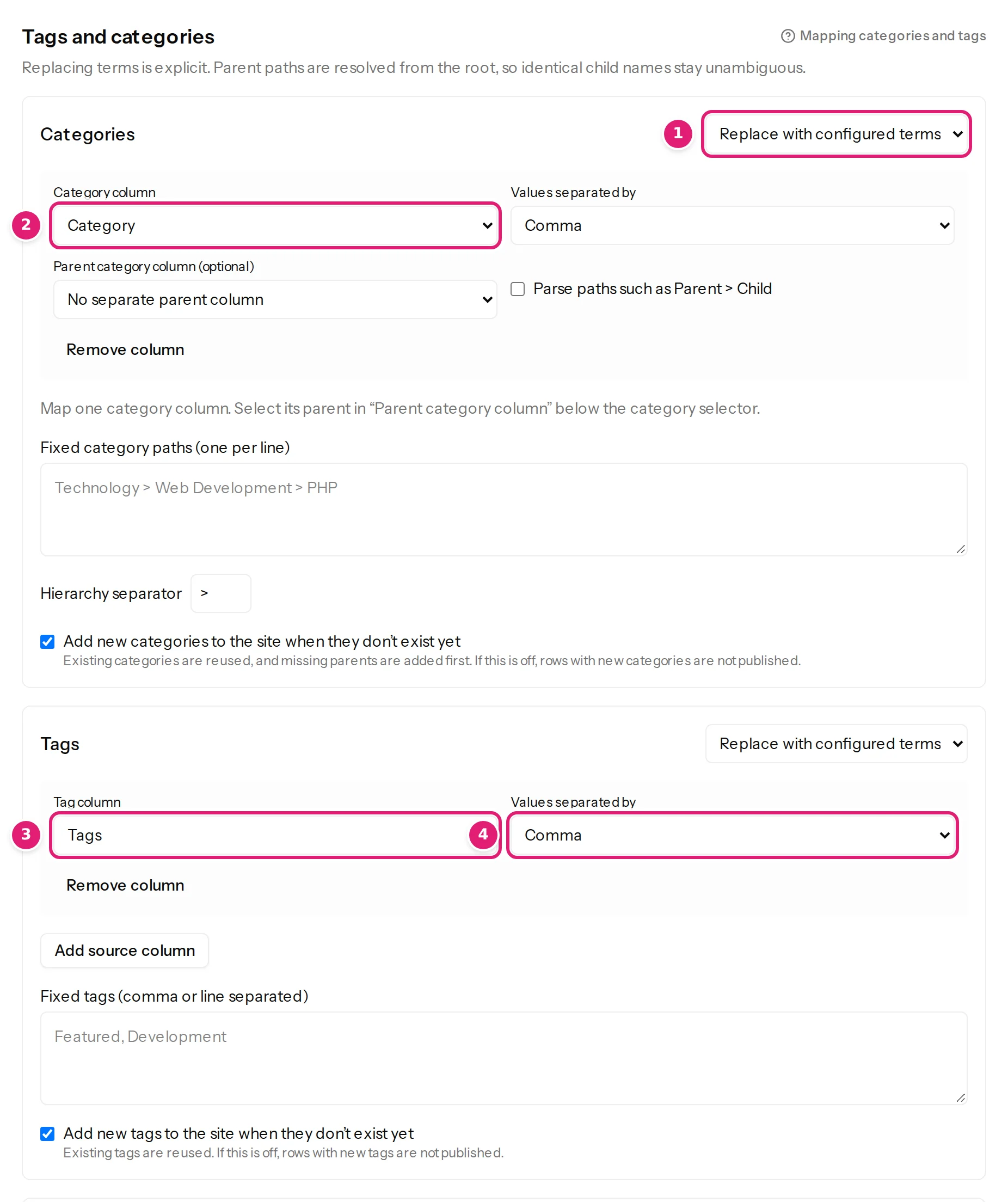
A column Category with Guides, Boat care, Gear is the simplest case. Each cell is the name of a top-level category. Choose Replace with configured terms, Map category column, then the column.
One column with a path#
For nested categories, put the whole path in the cell, parent first: Destinations > Malta > Marsaxlokk. Tick "Parse paths such as Parent > Child"; the separator is > unless you change it.
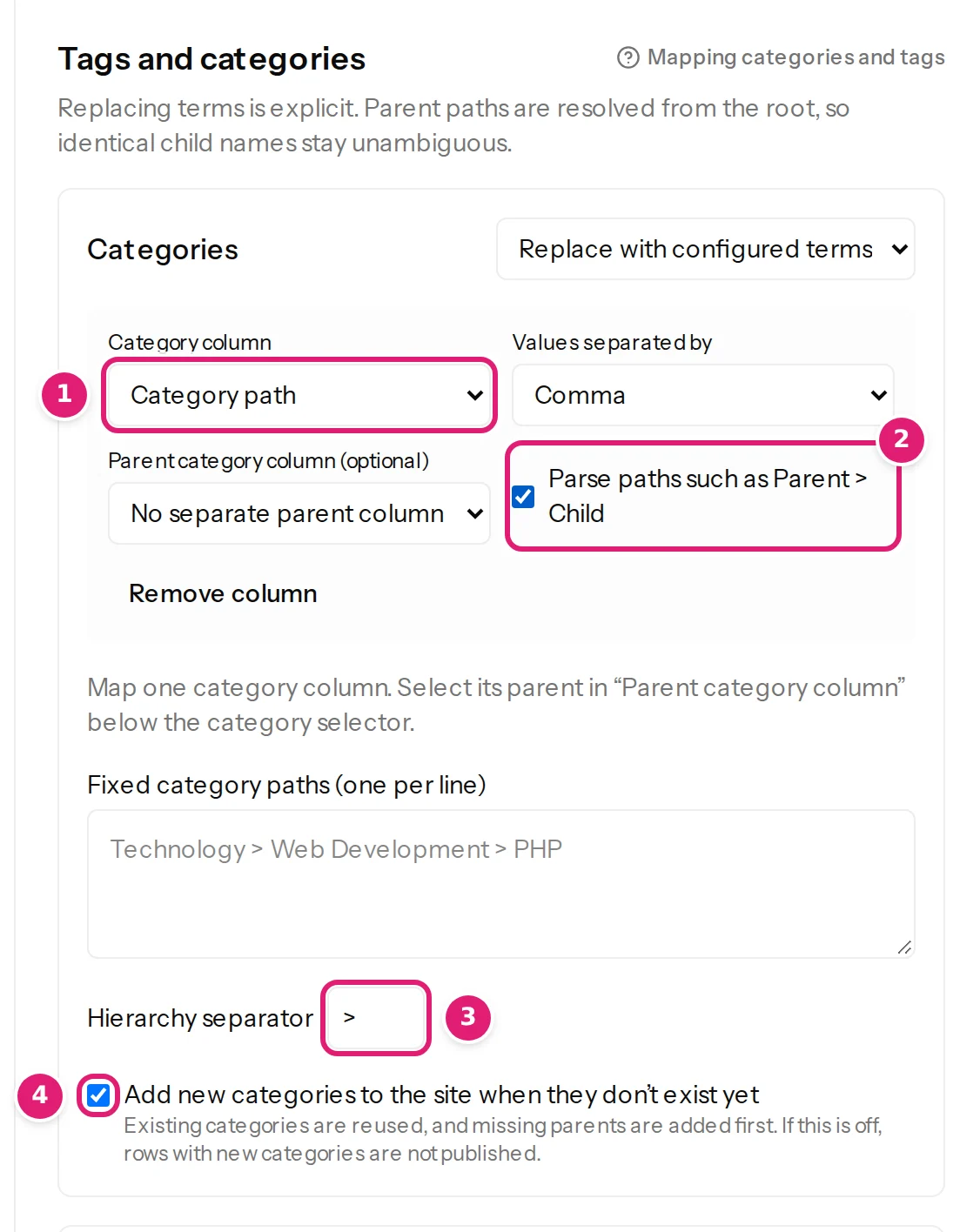
- The item is placed in the last level (here Marsaxlokk). The levels above it are its parents, and they are used or created too.
- Each level is looked up under the one before it (the first under the top), so two categories with the same name in different branches stay separate.
- Without the tick, the whole cell is taken as one category name,
Destinations > Malta > Marsaxlokk, with the symbols in its name. Remember the tick whenever your cells contain paths.
With several categories in one cell, separate them with the Values separated by character and give each its own path: Guides > Navigation, Gear > Safety.
Two columns: parent and child#
If your spreadsheet has the parent and the child in separate columns (the example file 03-categories-and-tags.xlsx has Section and Topic), choose the child column as Category column and the parent column under Parent category column: a row with Section Destinations and Topic Malta is placed in Destinations > Malta. This gives two levels; for three or more, use a path.
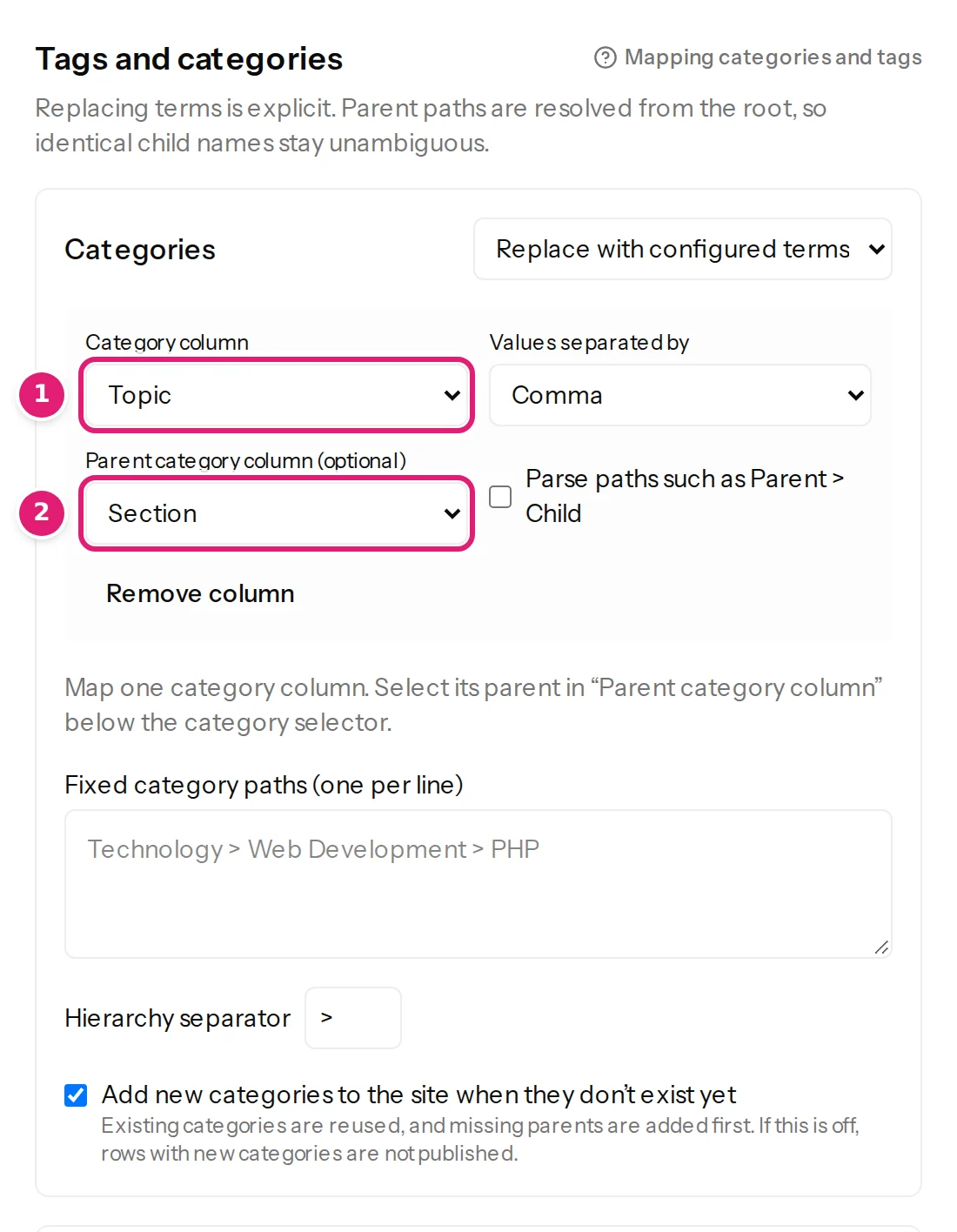
Only one category column can be mapped. A saved mapping with several shows This saved mapping has multiple category columns. Remove the extra source columns and use "Parent category column" for the parent before saving or publishing.
Categories that do not exist yet#
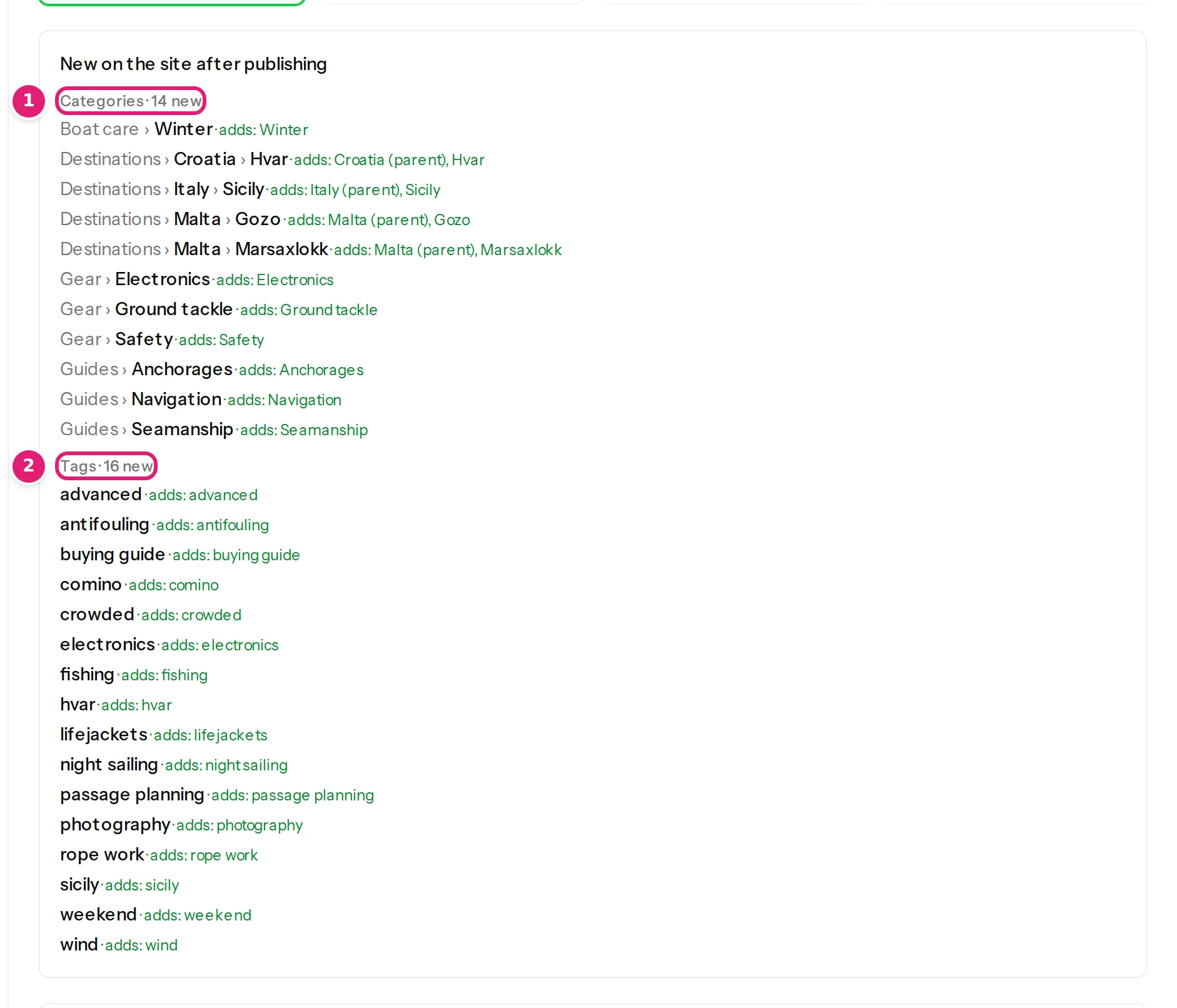
With Add new categories to the site when they don't exist yet ticked (the default where the connecting account may create them), missing categories are created when you publish, parents first, and existing ones are reused. The review lists what is about to be created under New on the site after publishing, with the levels each row adds, so nothing is a surprise:
If the box is not ticked, or the account may not create categories, a row that needs a missing category is skipped and the review says which: N items are skipped because they use categories that don't exist on the site yet. Turn on adding new categories in the configuration and check the file again, or create the categories on the site first. If the account may not create categories at all, the box cannot be ticked: The account Content Uploader publishes as on this site may not add new terms in this taxonomy. (permissions).
Joomla: one category, required#
A Joomla article has exactly one category and the field is required: a configuration without a category source cannot be saved (Every item needs a Category. Set it from a column or a fixed value.), and a row with no category or with several is an error. Joomla matches category names by title ignoring case, then by alias, and refuses a name that matches several categories under the same parent or only a trashed one (Joomla specifics).
WordPress: several categories, and "Uncategorised"#
A WordPress post can have many categories. Existing categories are found by name under their parent; new ones get a slug from their name.
An empty category cell with Replace with configured terms gives the item no category at all: the existing ones are taken off, and Content Uploader does not add the site's default category (Uncategorized) in their place (empty cells). If you want every post to have a category, give every row one, or add one under Fixed category paths.
Check#
Use the Preview to see, for a chosen row, the categories as resolved (Destinations > Malta > Marsaxlokk), before saving anything (preview). After publishing, Posts → Categories in WordPress or Content → Categories in Joomla shows the tree.
Was this article helpful?
Related articles
- Mapping columnsTags: several per item, from one or two columnsMap tags from a column of comma, semicolon or pipe separated values, merge two tag columns, add fixed tags and create missing ones. Joomla's nested tags too.
- Reviewing and publishingNew categories and tags in the reviewThe review lists the categories and tags that publishing will create, and the items skipped because a term is missing. What the lists mean and how to fix them.
- JoomlaPublishing to Joomla: categories, aliases, status and checked-out articlesThe rules particular to Joomla: one required category, how categories and tags are matched, unique aliases, status and workflows, articles being edited, and image storage.
- TroubleshootingCategories or tags are wrong, missing or duplicatedWhat to do when categories show a > in their name, tags are glued together, near-identical categories appear, items are skipped or tags disappear from an item.