Prices, sales and stock
The regular price, the sale price with its start and end dates, and the stock quantity. A quantity is set to the number in your file, never added to or subtracted from.
How prices, stock and sales are readWooCommerce 9.0 or later, on a connected WordPress site
Drop in the price list your supplier sends. Content Uploader finds your products by their SKU and shows every price and stock change next to what your shop holds now. You publish when you have looked.
Aurelius & Vogt · March price list
Review firstmanufacturer-prices-march.csv
38 rows · 9 columns
manufacturer-prices-march.csv
38 rows checked against what the shop holds now
Calibre 8 Chronograph
Price CHF 8,400 → CHF 8,900 · Stock 2 → 1
Meridian 40 Steel
Price CHF 12,900 → CHF 1,290
A large move: look at this one
Regatta 42 Automatic
New product, SKU AV-2201-RG
Tourbillon Travel Set
A grouped product: left as it is
Dropping the manufacturers’ March price list.
An example: the March price list of a fictional watch boutique, Aurelius & Vogt.
What it does for your shop
Content Uploader is a web service that turns a spreadsheet into products on your WooCommerce shop. You upload the price list or stock file you already have. It checks every row, shows what would change on your shop, and writes the changes once you approve them.
Update prices, sale prices, stock and more for every product in an Excel or CSV file of up to 10,000 rows, in one go.
What it readsThe review lists what the file would change, with the price and stock your shop holds now next to the file’s numbers. Nothing is written until you approve it.
How the review shows productsYou set it up once. Every later list with the same columns updates the same products, found by their SKU, even ones you made by hand. It makes no copies.
Update products already on your shopA price that suddenly moves a long way waits for your confirmation. A row with a problem is reported with its reason, and the rest of the file goes on.
How the price check worksHow it works for a shop
Your shop is a WordPress site, so it connects like one. After that, the file is the only thing you bring each time.
Install the Content Uploader plugin on your WordPress site and approve the connection from its settings. No shop password is entered anywhere. With WooCommerce 9.0 or later on the site, Products appears next to Posts and Pages.
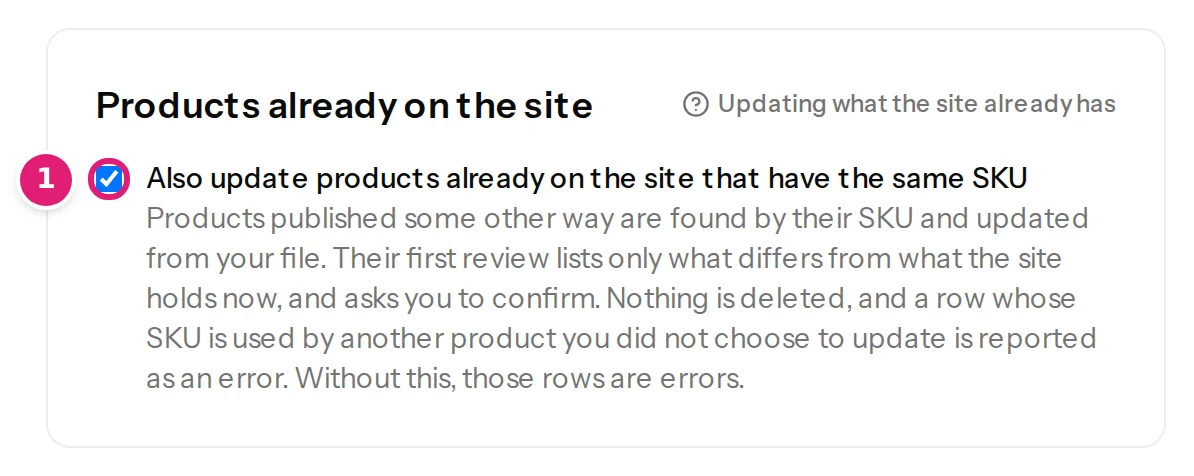
Choose Products and use your SKU column as the record ID. A row whose SKU your shop has updates that product, even one made by hand, instead of making a second one. The first review lists only what differs.
The review counts what the file does to prices and stock, shows what the shop holds now beside the file’s number, and marks a price that moves a lot. One click publishes in the background, and the next list updates the same products.
The review
These pictures are from the Help Center’s tutorial: an example shop that sells outdoor gear, not the watch boutique above.
Products you already have
Your products were made by hand, by an import plugin or by another system long before the first file. Content Uploader finds them by SKU, so the file updates them and makes no twin.
The first review compares everything the file sets with what the shop holds now and lists only what differs. Because it changes products Content Uploader has not touched before, it asks you to confirm. Nothing is deleted. How it takes over products
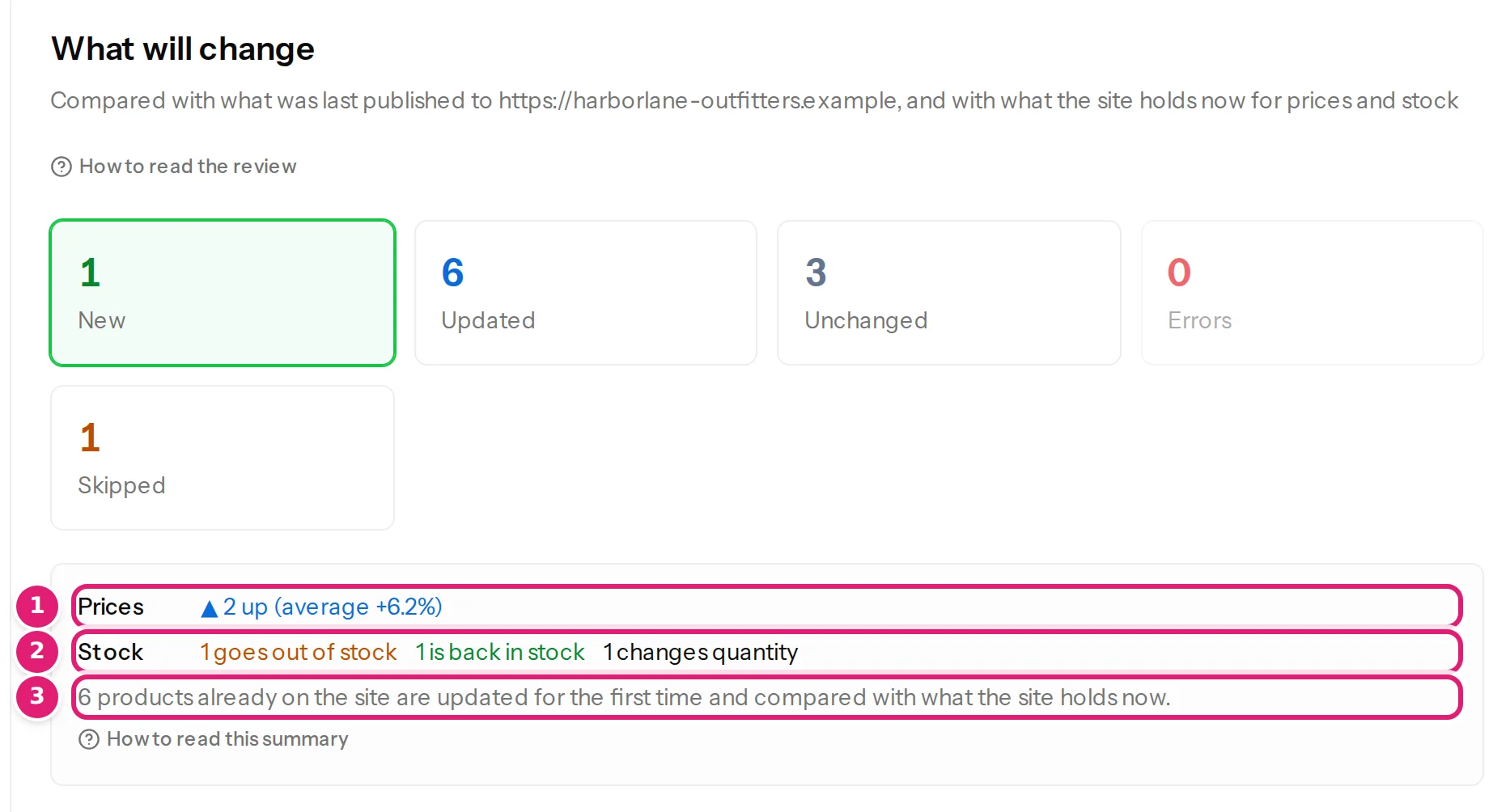
At a glance
Above the list, a box counts the changes: how many prices go up or down and by how much on average, which products sell out, come back or change quantity, and which sales start or end.
Select a line to see only those products. Read the whole review
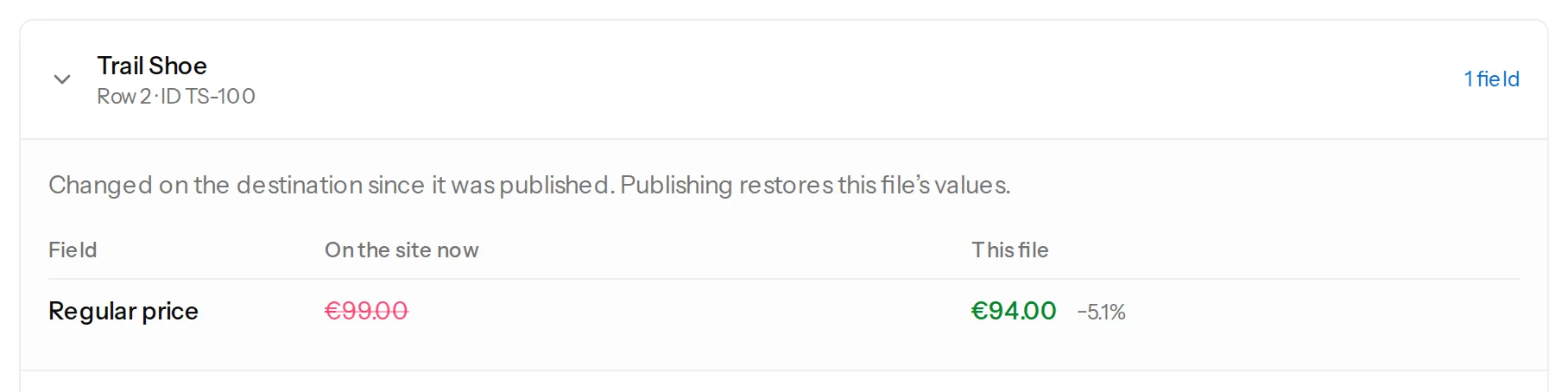
Your shop, next to the file
For every price, sale and stock quantity the file sets, the review reads the shop and shows its value beside the file’s, with how far a price moves.
If a colleague changed a price by hand, or an order took a unit, the review says so. By default publishing puts the file’s value back, and you see what that would be first. Each field can instead be compared only with the last file. What if I change a price by hand?
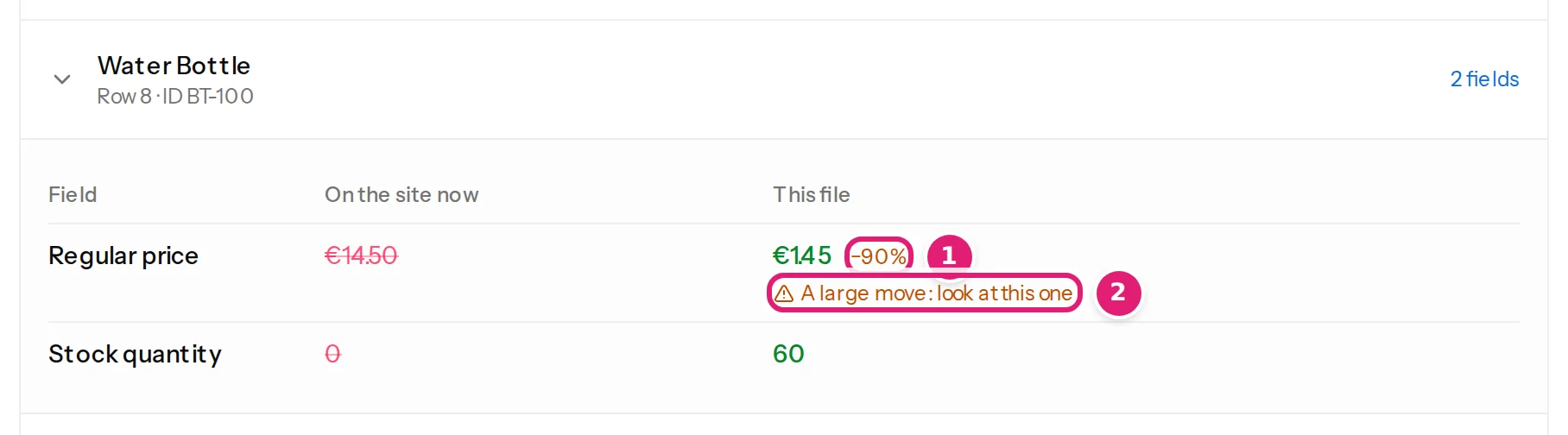
A net under typos
A price in cents, or one that lost a digit, is a mistake, not a decision. When a price moves by more than 30%, the review marks it, and the publish button waits until you tick that you looked.
A configuration that publishes automatically waits too, and you are emailed. Correct the file and upload it again: the next review has the right price. How the price check works
What you can update
A new configuration picks the columns whose names match a field, and the SKU column as the record ID, so a list with SKU, name, price and stock needs almost no setup.
The regular price, the sale price with its start and end dates, and the stock quantity. A quantity is set to the number in your file, never added to or subtracted from.
How prices, stock and sales are readThe product name, its short and long description, the SKU, and the GTIN, UPC, EAN or ISBN where your shop has the field.
Every product fieldCategories with their parents, written as paths, tags from one column or several, and brands and shipping classes where your shop has them.
CategoriesThe shop’s own attributes and ones made on the product, with several values in one cell, shown or hidden on the product page.
Set a product’s attributesThe product’s own picture and a gallery of several more, in the order you write them, from a ZIP you drop with the file, your media library or a web address.
Fill a product’s galleryWeight and dimensions, tax status and class, catalogue visibility and featured products: the fields your shop has switched on.
Which settings change the fieldsLinked products by SKU. Before anything is sent, the review checks that each SKU is a product your shop has.
Linked productsA variable product, a Tidewater 300 on a rubber strap or a steel bracelet, is made from two files: the products, then the variations with their SKU, price and stock. Variations the shop has are updated by SKU.
Make variable products and their variationsBuilt-in care
Prices and stock are money. Each of these is checked before anything is sent.
A decimal comma or a decimal point, with or without a currency symbol. A number that could mean two things, like 1,299, is not guessed at: you say how the file writes numbers, or the row is refused with the reason.
Nothing is converted. A currency symbol in a cell is ignored, and a currency code that is not your shop’s is refused. Convert a list that is in another currency before you publish it.
In the file or on the shop. A sale cannot end before it starts, and a date without a time means the start, or the end, of that day in your shop’s time zone.
7,5 is refused. A quantity is the number in your file, never added to or subtracted from a number read earlier.
When your shop sells products between two files, choose for each field whether a number is compared with the shop’s or only with the last file, so a file does not put sold units back on the shelf.
Each product is saved once, through WooCommerce’s own functions, so its price filters and sorting stay in step. Nothing is deleted.
How numbers, currencies, dates and stock are read: prices, stock and sales.
Said plainly
So that you do not find out after you start.
They are not written yet. A row for a grouped product is named in the review and left alone.
A price is a number in your shop’s currency. A shop that sells in several currencies through a plugin gets its base currency only.
They are not read, written or offered. Orders and customers are never touched.
A person uploads each file. Nothing is fetched from a web address, from a spreadsheet in the cloud or on a schedule.
Translation, multi-currency, subscription, bundle and add-on plugins keep values elsewhere. Only the product’s own values are updated, and the review names the plugin.
They are left exactly as they are. Nothing is deleted, and nothing goes out of stock because a file leaves it out.
Every known limitation, for any platform.
Try it
Three files from the Help Center’s tutorial, for a test shop that sells outdoor gear. Use a test shop, not your live one.
Eleven products with a SKU, a name, a price, a sale price and a stock, as a supplier sends them: the first list, which updates the products the shop already has.
Prices and stock move, a sale is over, and one price has lost a digit, which the review marks.
The products the tutorial’s shop starts with, thirteen and the three variations of one of them, in the format of WooCommerce’s own product importer, to load a test shop.
The steps, with a picture of each, are in the tutorial: Update your shop’s prices and stock from a spreadsheet, about 30 minutes.
FAQ
The questions that come up before a shop is connected.
Yes. Products are found by their SKU, whoever made them, so the file updates them and makes no twins. The first review compares everything the file sets with what your shop holds now and lists only what differs, and it asks you to confirm, because these products were not published with Content Uploader before. Nothing is deleted. A product in the trash, one that is locked, and one the connected account may not edit are skipped, and the review says why.
WooCommerce 9.0 or later, on a WordPress site that is WordPress 6.6 or later with PHP 8.1 or later. A WordPress administrator installs the Content Uploader plugin and approves the connection; a Shop manager cannot connect a shop. With an older WooCommerce the plugin offers no Products.
No. Every file is checked first, and every price and stock change is listed with the value your shop holds now. A price that moves by more than 30%, a limit you can change or switch off, waits for your confirmation, even when the configuration publishes automatically.
Nothing. They are left exactly as they are, so nothing goes out of stock because a file leaves it out. Content Uploader never deletes a product.
A person still uploads each file: Content Uploader does not fetch files by itself or on a schedule. What it can do without you is publish. A configuration can publish a file on its own when nothing needs a person: no errors, nothing skipped except products the shop cannot update, and no price beyond the limit. The first file after any change, and the first that takes over products Content Uploader has not touched before, always waits for you, and you are emailed when a file needs you.
No. You install the plugin on your WordPress site and approve the connection there. No shop login or application password is entered in Content Uploader, and you can disconnect from either side at any time.
Create your workspace, connect your shop and drop your supplier’s file. Nothing changes on your shop until you have looked at it.
The same plugin publishes posts, pages and custom post types. Getting a supplier’s price list again and again? Price lists and stock. Choosing between tools? Content Uploader and WP All Import. Not ready yet? Read what you can do from a spreadsheet.