Connecting your Joomla site
Start the connection from Joomla, choose the account that publishes, sign in to Content Uploader and approve the workspace. No Joomla password or API token is entered there.
- Joomla
- 5 min read
- Updated October 17, 2026
You connect a site from the Joomla side. That way the person who controls the site is always the person who starts the connection, and Content Uploader never needs your Joomla password or an API token.
Before you start: the connector is installed, you are signed in to Joomla's administration as a user who may manage extensions (by default a Super User), and you can sign in to Content Uploader as an owner of the workspace the site should join (team members cannot connect sites; see team members).
Connect the site#
-
In Joomla, open Components → Content Uploader Connector. The Connection box says Not connected.
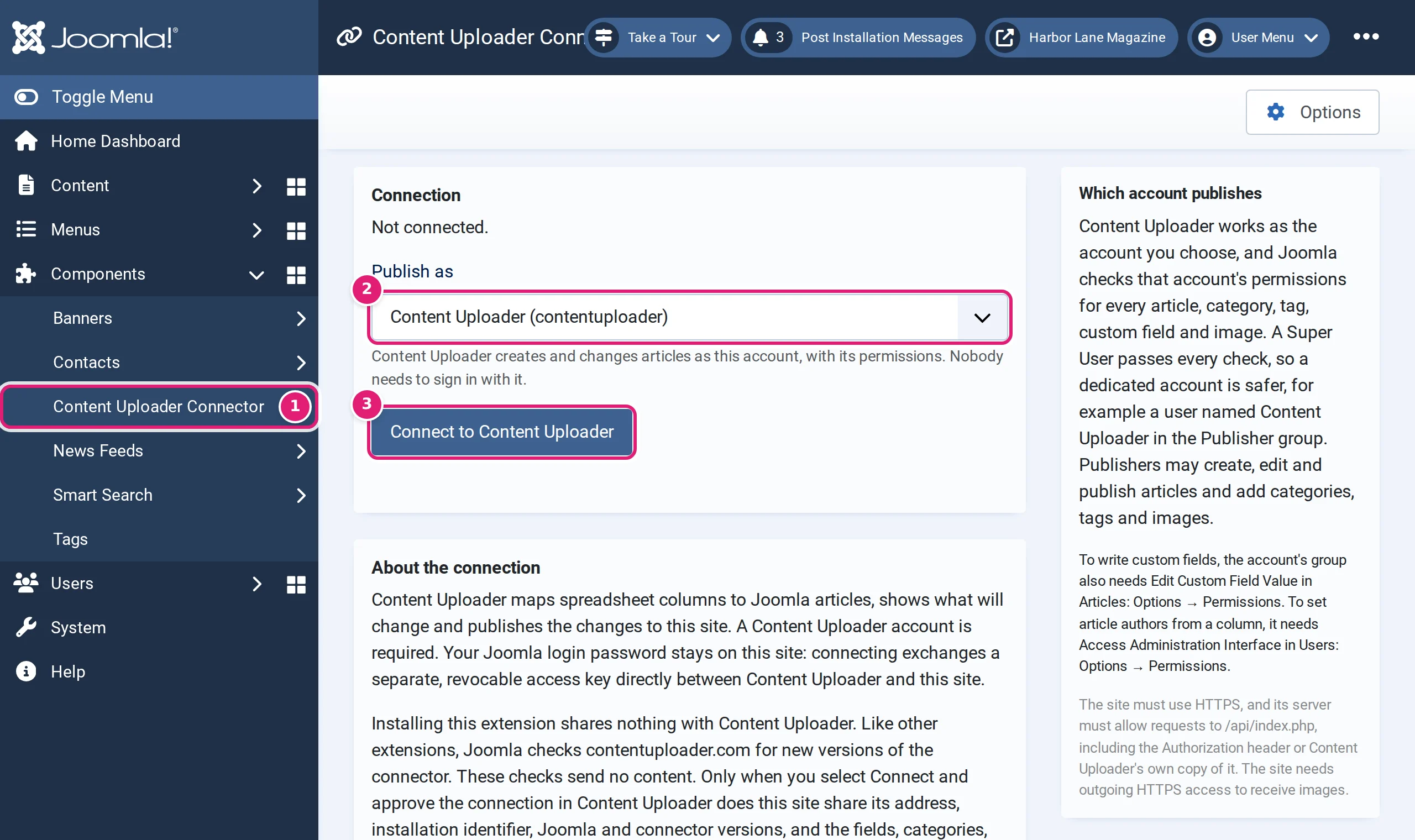
Components, then Content Uploader Connector. - The menu entry.
- Publish as: the account Content Uploader works as. Choose a dedicated account such as Content Uploader in the Publisher group. The publishing account explains why and what it needs.
- Connect to Content Uploader.
-
Select Connect to Content Uploader. Joomla shows a short page titled Approve the connection. It says which account Content Uploader will publish as, and that the invitation expires in ten minutes. Select Continue to Content Uploader.
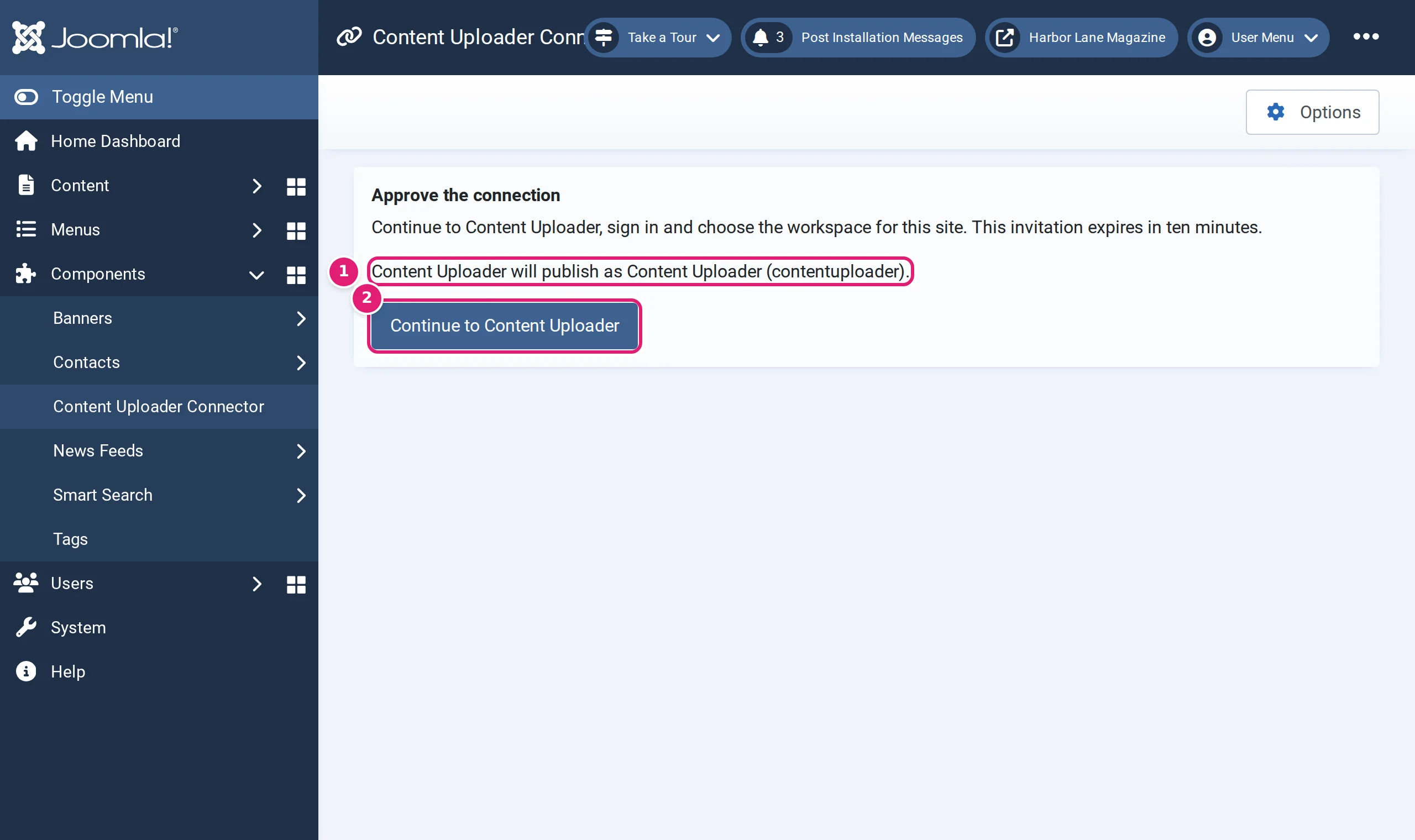
The invitation lasts ten minutes. -
Content Uploader opens. Sign in if you are asked to. You see Connect your Joomla site, the address of the site and a Workspace list.
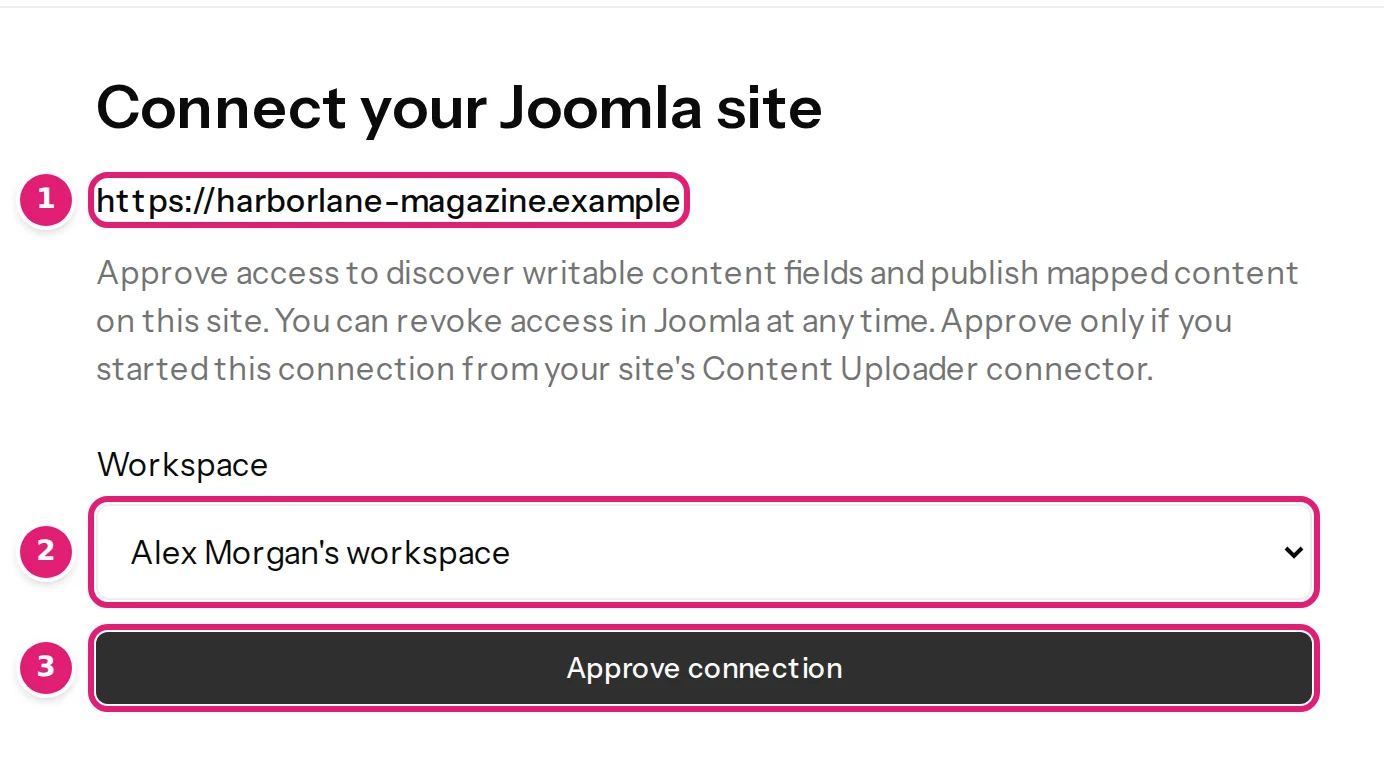
Check the address, choose the workspace and approve. - Check the site address. Approve only a connection that you started from your own site.
- Choose the Workspace. If you own only one, it is already chosen.
- Select Approve connection.
-
The Sites page opens and shows the site as connected.
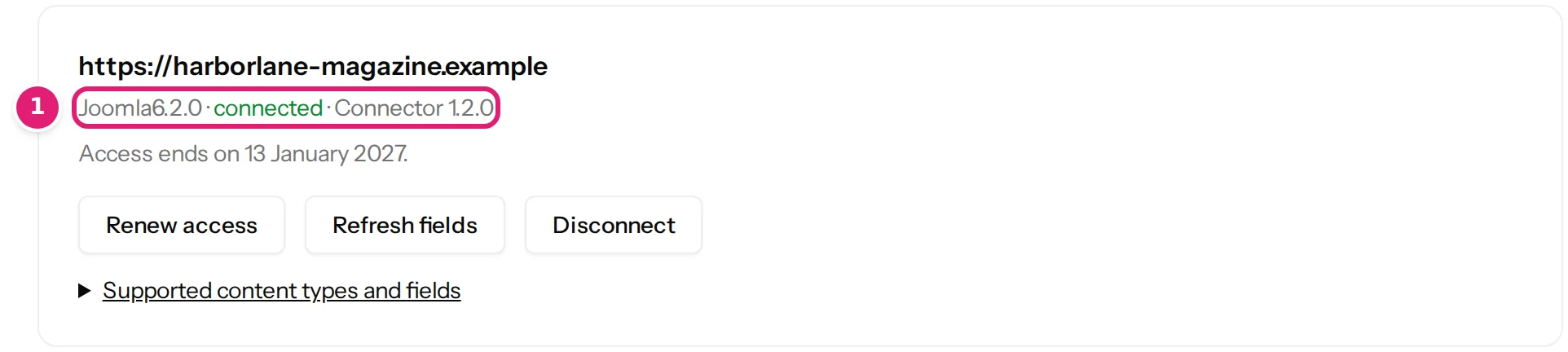
The site is connected. Access ends in 90 days unless it is renewed. The line under the address reads Joomla, the version, connected and the connector's version, for example Joomla 6.1.4 · connected · Connector 1.0.0. Access ends on shows when the connection expires: it lasts 90 days for security and can be renewed at any time. The buttons are explained in managing connected sites.
-
Back in Joomla, Components → Content Uploader Connector now says Connected to Content Uploader. and shows the account it publishes as, when it was connected, the last contact, when access expires and the versions (Connector 1.0.0, protocol 1).
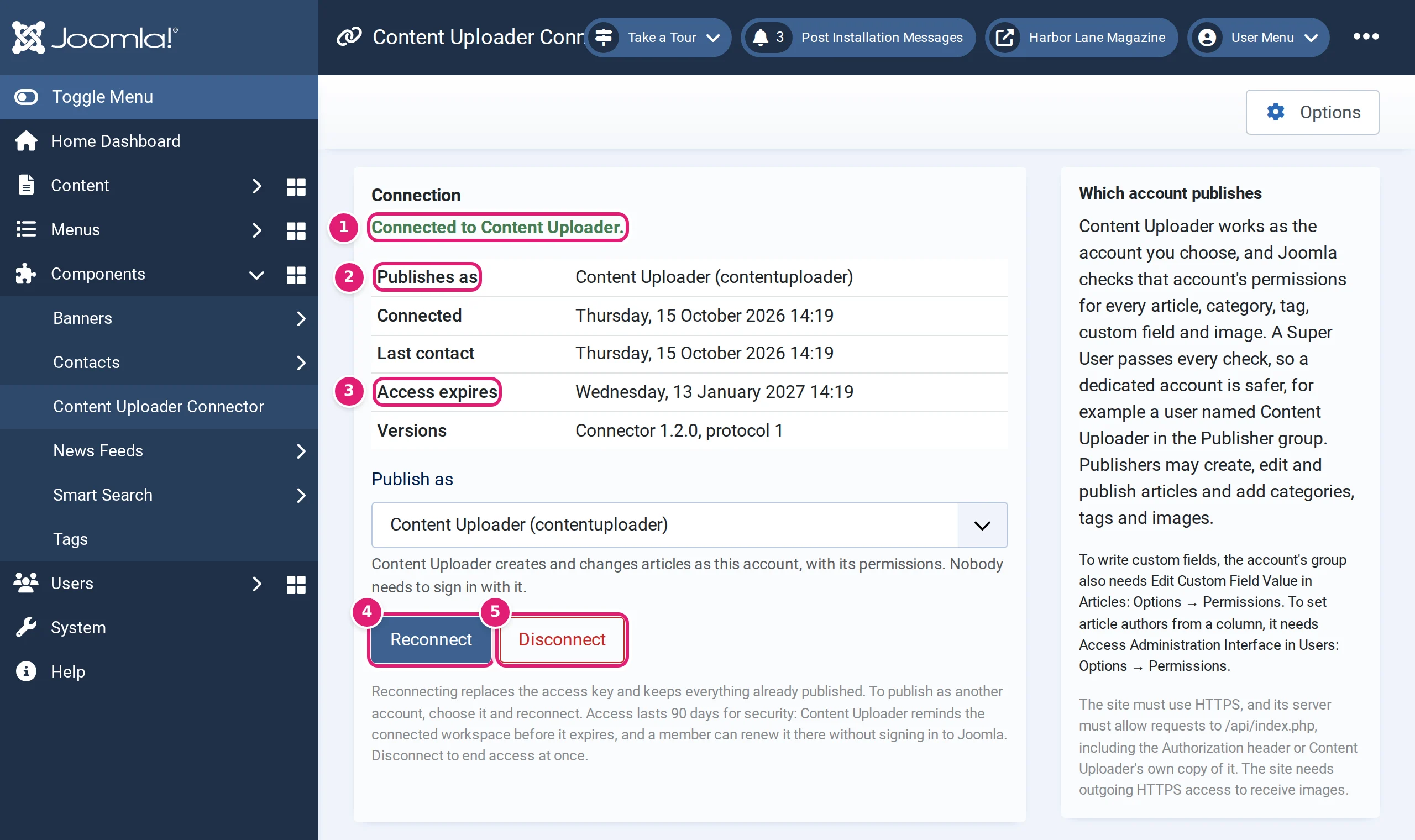
The same connection, as Joomla sees it.
What the connection can and cannot do#
- Content Uploader can read which fields, categories, tags, custom fields and users the publishing account may use, and the state of the articles it created, and it can create and update articles, categories, tags and images as that account. It cannot sign in to Joomla or use any other part of the site.
- It never deletes anything.
- It lasts 90 days, can be revoked at any time by selecting Disconnect in Joomla or by disabling the web services plugin, and renewing it is always free.
Permissions and the publishing account has the details.
Common mistakes#
-
Waiting more than ten minutes between steps 2 and 4. The invitation expires. Start again at step 2.
-
Approving into the wrong workspace. A site is connected to one workspace at a time. To move it, select Disconnect on its row on Sites in the workspace that has it, then connect it from Joomla in the other workspace. Until then, the approval is refused with This installation is still connected to another workspace. Disconnect it there first, then connect it here. Configurations and publishing history stay with the workspace the site was disconnected from.
-
Being signed in to Content Uploader as a team member. Only owners can connect sites. The page asks you to have an owner approve it.
-
The Free plan allows one site. If another site is already connected, the approval page says The Free plan connects 1 site. Upgrade … to connect another, or disconnect a site you no longer publish to. with a link to the plans. Reconnecting or renewing a site that is already in the workspace is never refused.
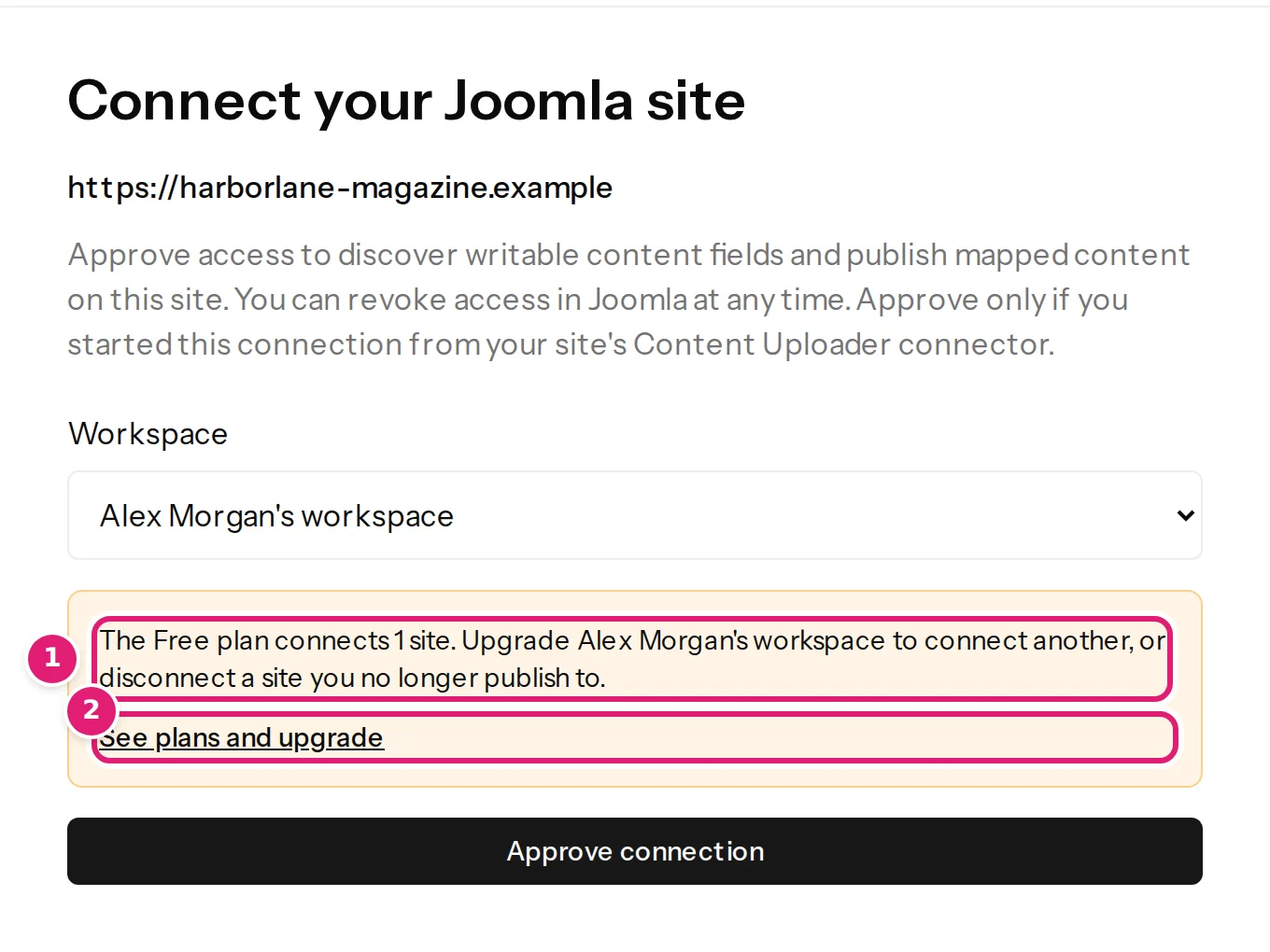
The workspace is full: upgrade, or disconnect a site first. -
No "Connect" button, only a notice. The connection screen says Only users who may manage extensions can connect this site or choose the account it publishes as. Sign in as a Super User.
-
A message about HTTPS or the API. This site must use HTTPS to connect to Content Uploader, or Content Uploader cannot reach
/api/index.php: see troubleshooting the Joomla connection.
When it works, go on to your first import.
Was this article helpful?
Related articles
- JoomlaThe Joomla publishing account and its permissionsContent Uploader publishes to Joomla as one account you choose: which to pick, the permissions it needs for articles, terms, custom fields, authors and images.
- JoomlaTroubleshooting the Joomla connectionFixes for a Joomla site that cannot connect: expired invitation, revoked access, a disabled web services plugin, a blocked /api/index.php or a broken publishing account.
- Account and workspaceManaging your connected sitesThe Sites page explained: status, when access ends, renewing, refreshing fields, disconnecting, sites paused by your plan, and publishing results with their attempt history.
- JoomlaTesting the Joomla connection and refreshing what your site offersUse Refresh fields to test the connection to your Joomla site and to make new categories, custom fields, access levels and authors available to your configurations.