How mapping works
Mapping connects your spreadsheet's columns to the destination's fields, once: the editor's sections, four ways to fill a field, automatic matches and the preview.
- 4 min read
- Updated October 15, 2026
Mapping is the part of a configuration that says where each value comes from: this column becomes the title, that one the body, this one the category. You do it once, with a sample file, and every later file is read the same way.
The destination decides which fields exist: the editor lists what your WordPress or Joomla site can accept, WordPress's or Joomla's, and you decide what feeds each of them.
The editor's sections#
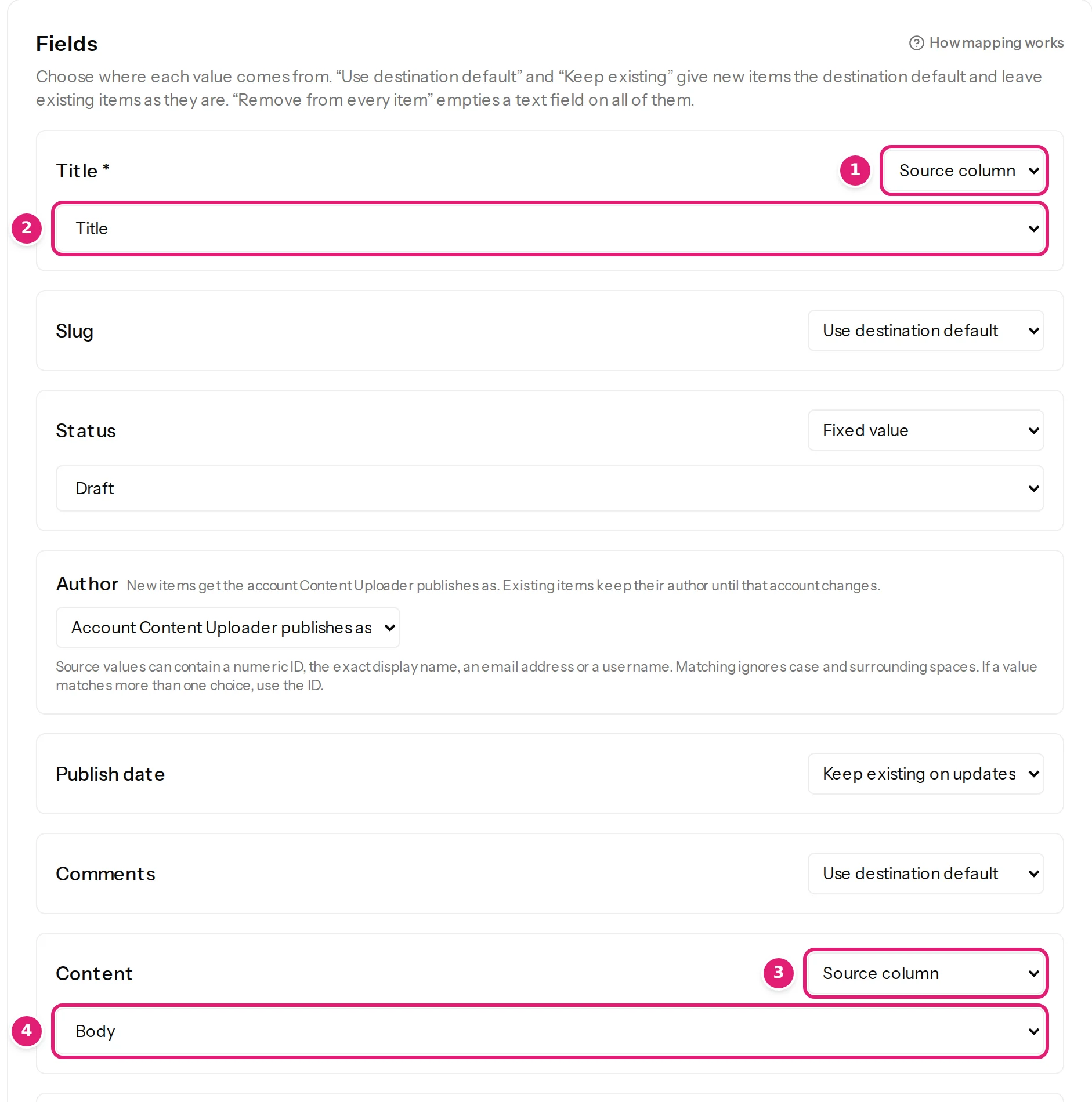
Below Sample file and Destination the editor has four mapping sections. Each field is a box with a label, a list that says how it gets its value, and, depending on that, a column list, a fixed value or a template:
| Section | What it covers |
|---|---|
| Fields | The item's own fields: title, slug, status, author, dates, content, excerpt (WordPress) or alias, intro and full text, access, language, metadata, article options, links (Joomla). A required field is marked with an asterisk. A destination with many fields, such as a Joomla article or a WooCommerce product, groups them in sections that open by themselves when something in them is set. |
| Tags and categories | The destination's taxonomies: for each, whether to replace, keep or remove an item's terms, and the columns or fixed terms that supply them. |
| Images | The destination's image slots (WordPress: featured image; Joomla: intro and full article image), with alt text, title and caption. |
| Custom fields | Extra values the site stores, listed by the site or added by their name. |
Four ways a field gets its value#
For most fields the list at the right of the label offers:
| Choice | The field gets… |
|---|---|
| Source column | the value in the chosen column, row by row |
| Fixed value | the same value for every row (for a field with choices, such as Status, you pick it from the site's own list) |
| Template | fixed text with {{ Column }} placeholders, combined per row |
| Use destination default / Keep existing on updates / Remove from every item | no value from your file: see value modes |
Value modes explains each in full, including what each does on a new item and on an update. Templates and placeholders covers the third.
Automatic matches#
When you create a configuration, columns whose names look like a field are chosen for it for you, ignoring case, spaces and punctuation (Title for the title, Body for the content, Slug for the slug, Status, Author, and so on). Check what the editor chose; it is only a starting point (column headers).
A field you do not map#
Optional fields you leave on Use destination default or Keep existing on updates are not touched: a new item gets the site's own default, and an existing item keeps what it has. You never have to map every field.
See the result before it is saved#
The Preview panel resolves any of the first 50 sample records with the current mapping, without sending anything: the title, the rendered body, categories, tags, image, custom fields and every other value. It refreshes as you change the mapping, so you can try a template or a category column and watch the result. Preview has the details.
What happens when you save#
Saving checks the mapping against the sample's columns and the site's current fields and tells you what is wrong, field by field. A valid save creates a new version (edit and versions). From then on, every file is turned into content with that version: each row becomes a set of values, which is validated, compared with what was published before, and shown to you in the review.
Mapping by platform#
The same editor is used for WordPress and Joomla; the fields differ. Two Joomla particulars to know early: its Category is required and one per item, and its Status choices are Published, Unpublished and Archived (Joomla specifics). WordPress posts may have several categories and any number of tags (categories, tags).
Where to go next#
Was this article helpful?
Related articles
- Mapping columnsValue modes: column, fixed value, template, default, keep, removeThe six ways a field gets its value, and what each does when an item is created and when it is updated: column, fixed value, template, default, keep existing, remove.
- Mapping columnsTemplates and {{ placeholders }}Combine fixed text with column values in titles, slugs, texts and bodies: the {{ placeholder }} syntax, the rich HTML template editor, escaping and what a placeholder inserts.
- Mapping columnsPreview a record before anything is saved or sentSee any of the first 50 rows of your sample as it would be published: every field, the rendered body, terms, images and custom fields. A preview never sends anything.
- Importing dataCreate a configurationA configuration remembers a destination, a record ID column and how each column maps to fields: how to create one, what the editor's parts do and how versions work.