Joomla article fields you can map
Every field Content Uploader can write on a Joomla article: text, status, dates, access, language, metadata, article options, links, category, tags, images, custom fields.
- Joomla
- 9 min read
- Updated October 15, 2026
When you choose a Joomla site and Articles as the destination, the configuration editor lists these fields in sections: General, Publishing, Metadata, Article options and Images and links. What you see depends on the account the connector publishes as and on how the site is set up; the sections below say when a field is missing and why.
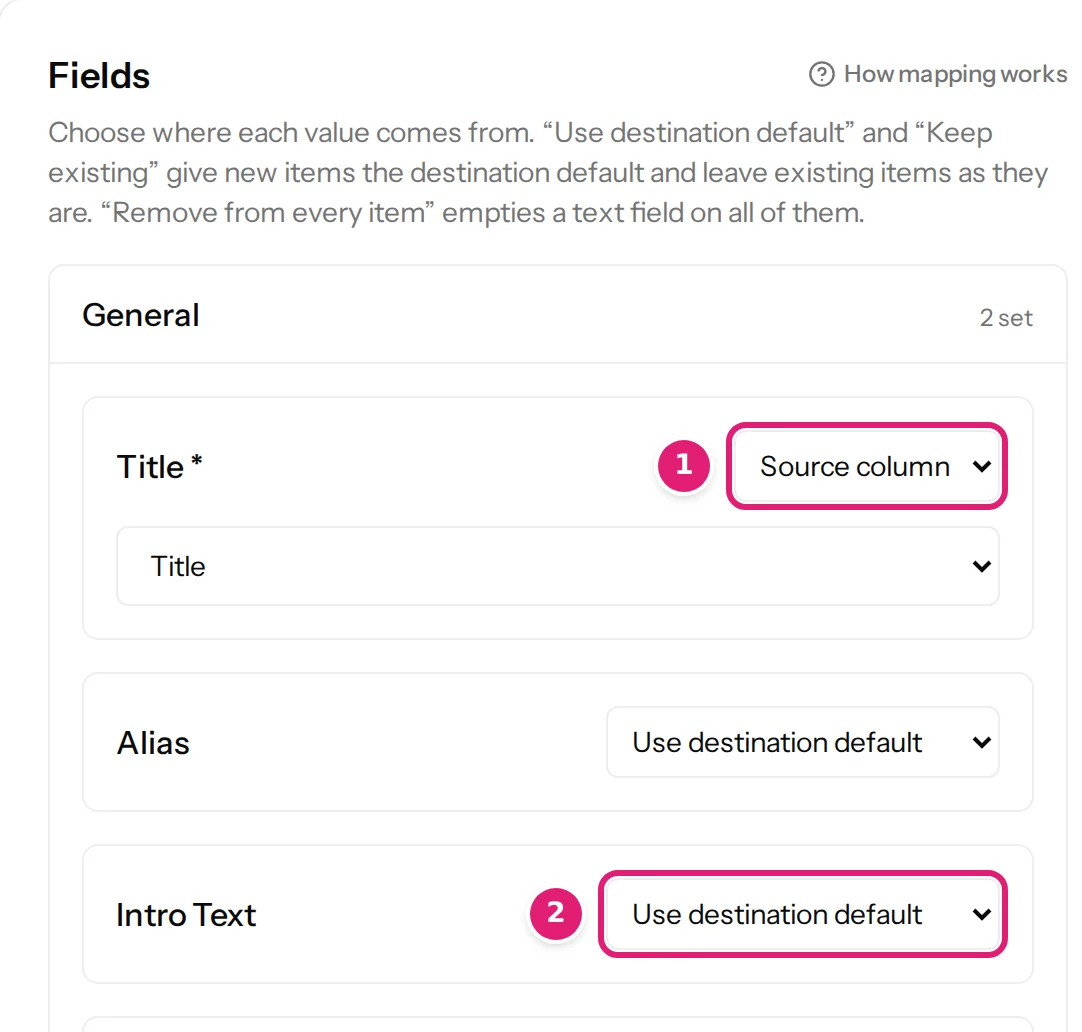
A section opens by itself when something in it is set, and its header says how many of its fields are set. General is always open; open the others when you want a field in them.
The article fields#
| Field | What it is | Notes |
|---|---|---|
| Title | The article's title. Required, up to 255 characters. | Also names the item in the review. |
| Alias | The URL-safe name. | When empty, it is made from the title, as Joomla's article form does. It must be unique within the category. See Joomla specifics. |
| Intro Text | The article's text, or the part before Read more. HTML. | The body of your spreadsheet usually goes here. |
| Full Text | The part after Read more. HTML. | Leave it unmapped to publish a single text. |
| Featured | Shows the article in the featured list. | Yes or no. Needs Edit State. Not offered when workflows are on. |
| Status | Published, Unpublished or Archived. | The default for new articles is Unpublished. Needs Edit State for the other two. Not offered when workflows are on. |
| Author's Alias | The author name shown on the article. | Up to 255 characters. |
| Created Date | When the article was created. | A date and time. |
| Start Publishing | The date from which a published article is shown. | Needs Edit State. |
| Finish Publishing | The date after which it is hidden. | Empty means no end. Needs Edit State. |
| Access | The viewing access level (Public, Registered, Special, …). | A cell may use the level's title or its ID. |
| Language | All or one of the site's content languages. | |
| Meta Description | The page's meta description. | |
| Keywords | The meta keywords. | |
| Note | An internal note, up to 255 characters. | Shown only in the administration. |
| Ordering | The article's place in lists that are sorted by ordering. | A whole number. |
| Start Featured and Finish Featured | The dates between which a featured article is shown as featured. | Dates and times. They apply to featured articles only: Joomla stores them with the Featured flag, so a date for an article that is not featured is not saved. Setting Featured without these fields keeps the dates the article has. Needs Edit State. Not offered when workflows are on. |
| Created by | The article's author as a user. | Offered only when the publishing account may manage users. Otherwise the publishing account is the author. |
Metadata#
Beside Meta Description and Keywords (the Publishing tab of Joomla's article form), three more fields are in the Metadata section:
| Field | What it is | Notes |
|---|---|---|
| Meta Author | The author named in the page's metadata. | Text. |
| Robots | What search engines may do with the page. | Use Global, index, follow, noindex, follow, index, nofollow or noindex, nofollow. |
| Content Rights | The page's rights statement. | Text. |
Article options#
The Article options section holds what Joomla's Options tab holds, so a single article can show or hide what the site's settings would otherwise decide. Joomla calls the first of them just Title; here each says what it does, so it is not mistaken for the article's title.
| Field | Choices |
|---|---|
| Show Title, Show Tags, Show Intro Text, Show Info Block Title, Show Category, Show Parent Category, Show Author, Show Create Date, Show Modify Date, Show Publish Date, Show Navigation, Show Voting, Show Hits | Use Global, Show, Hide |
| Link Titles, Link Category, Link Parent Category, Link Author, Show Unauthorised Links | Use Global, Yes, No |
| Info Block Position | Use Global, Above, Below, Split |
| Position of Links | Use Global, Above, Below, Hide |
| Read More Text | Text for the Read more button. Empty uses the site's text. |
| Browser Page Title | The title in the browser's title bar. Empty uses the article's title. |
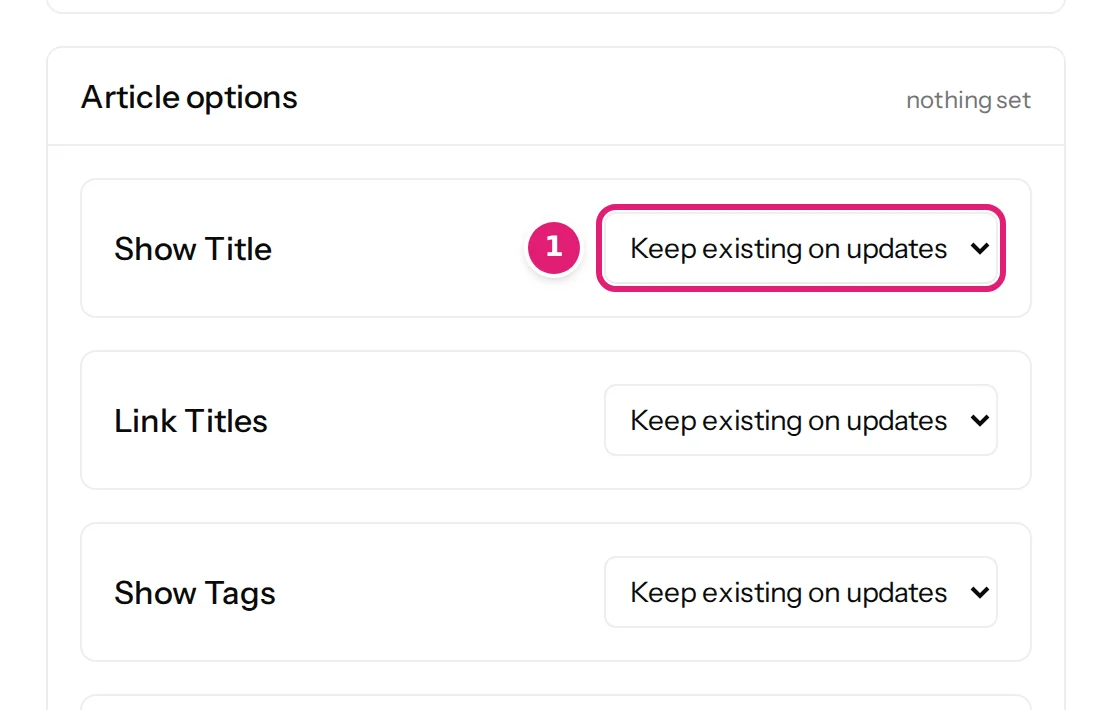
Use Global means the article follows the site's own setting for that option, as in Joomla's form. A cell may hold the choice's name (Hide, Use Global) or its key (hide, global). An empty cell puts the option back to Use Global, and Remove from every item does the same for every article; an option you do not map stays on Keep existing on updates, the way the editor starts: a new article gets Use Global and an article that exists keeps what it has. An option that the Joomla version of the site does not have, such as Show Voting where voting is not part of the form, is not offered.
Links and image classes#
The Images and links section holds Joomla's three links and the classes of the two images:
| Field | What it is |
|---|---|
| Link A, Link B, Link C | A web address, or an anchor such as #section. |
| Link A Text, Link B Text, Link C Text | The words the link shows. |
| Link A Target Window, Link B Target Window, Link C Target Window | Use Global, Open in parent window, Open in new window, Open in popup or Modal. |
| Intro Image Class, Full Article Image Class | CSS classes for the image, such as float-start, float-end or float-none. |
An empty cell empties a text. An image class is kept when the image changes: it belongs to the article, not to the picture.
Intro Text and Full Text. Joomla keeps an article's text in two parts and the editor joins them with a Read more marker. Content Uploader does the same: if you map only Intro Text, the article has a single text; if you map both, it adds the marker between them. A Read more marker inside either value is refused (Intro and full text cannot contain a Read More marker). HTML goes through Joomla's text filters for the publishing account's groups, exactly as in the editor, so a filter may remove tags the account is not allowed to use.
Dates. A date without a time zone is read in the publishing account's time zone (or the site's, if the account has none) and stored by Joomla as UTC, as the article form does. Use a clear format such as 2026-09-27 13:45:00; dates and times explains what is accepted.
Status. Choose Published, Unpublished or Archived as a fixed value, or from a column. A cell may use the label (Published) or the key; other text is a row error. When your file has no Status column, the editor starts Status as a fixed value, Unpublished (Joomla's own default). A fixed value is sent with every update, so a file that is published later will set articles back to Unpublished if someone published them on the site. To leave the status of existing articles alone, choose Keep existing on updates for Status: new articles then start as Unpublished and updates never change the state.

Category and tags#
Category is required: an article has exactly one. Map a column of category names (or a path such as Destinations > Malta), or choose a fixed category. A configuration without a category cannot be saved. Tags are optional and can be several per article, including nested tags.
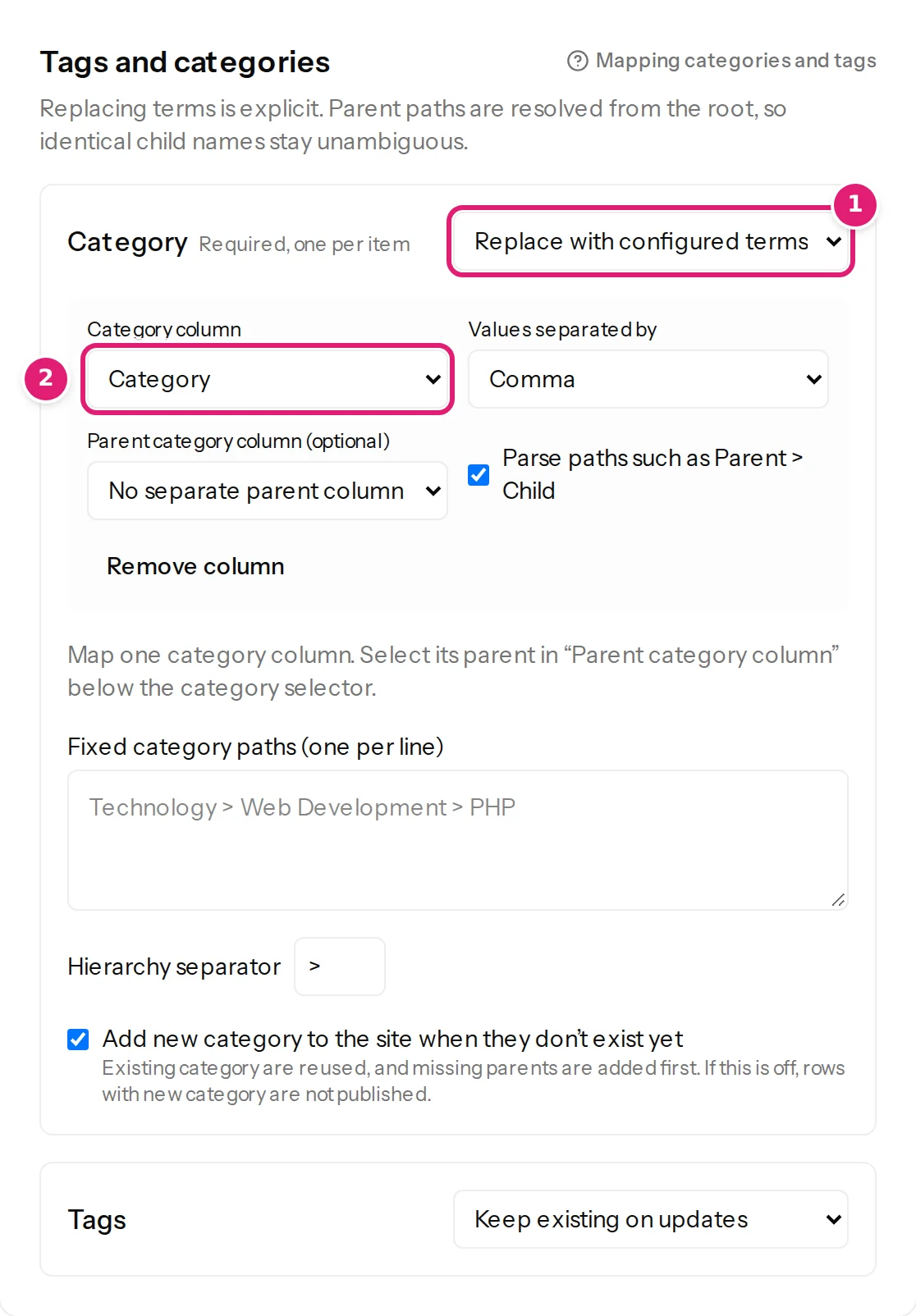
Categories and tags explain paths, parent columns and creating new ones. Joomla-specific rules (siblings with the same name, trashed categories, permissions) are in Joomla specifics.
Images#
Two image slots are offered, Intro Image and Full Article Image, each with optional alt text and caption, and one for each image custom field (a Media field), with alt text: see Joomla custom fields. Accepted types are JPEG, PNG, GIF, WebP and AVIF, limited further to what the site's Media options allow, and never SVG. The slots are offered only when the publishing account may create files in Media. Images can come from a ZIP uploaded with the spreadsheet, from a web address, from images the configuration sent before, or from files already in the site's images folder: see where images come from.
Custom fields#
Joomla custom fields appear in the editor when they are enabled for articles and the System - Fields plugin is on. Every type Joomla brings can be filled, and the types of Advanced Custom Fields (the free version): lists and checkboxes with several values, subforms (also repeatable ones) and image fields included. A field is listed when it is published, in a published group or none, for all languages, visible to and editable by the publishing account; the others are listed with the reason they can't be filled. A field assigned to certain categories applies to those categories and their subcategories; for a row in another category it is shown as not used in this category and is not required there. Fields cannot be added by name, because Joomla fields must exist before a value can be stored. Joomla custom fields lists every type and what a cell holds for it; custom fields explains how to map them.
What is not offered#
Workflow transitions, the article's Alternative Layout, the Configure Edit Screen options and multilingual associations are not available. Content other than articles (for example contacts, web links or menu items) is not available either.
Was this article helpful?
Related articles
- JoomlaPublishing to Joomla: categories, aliases, status and checked-out articlesThe rules particular to Joomla: one required category, how categories and tags are matched, unique aliases, status and workflows, articles being edited, and image storage.
- Mapping columnsHow mapping worksMapping connects your spreadsheet's columns to the destination's fields, once: the editor's sections, four ways to fill a field, automatic matches and the preview.
- JoomlaThe Joomla publishing account and its permissionsContent Uploader publishes to Joomla as one account you choose: which to pick, the permissions it needs for articles, terms, custom fields, authors and images.
- Images and mediaWhere images come fromA cell can hold a web address or a file name. How Content Uploader finds the image: your ZIP, earlier uploads, the site's media library or the web.