Update your shop's prices and stock from a weekly spreadsheet
Take over the products a WooCommerce shop already has from a price list, catch a price that lost a digit, and handle stock that sells between two files.
- WordPress
- Difficulty: Intermediate
- About 30 minutes
- Updated October 14, 2026
What you will achieve. A shop sells outdoor gear. Its products were made by hand, and every week the supplier sends a price list with the SKU, the price, the sale price and the stock of each product. You will connect the shop, update the products it already has from the first list, see what a second list does when a colleague has changed the shop in between, catch a price that lost a digit, and make a stock count survive a week of orders.
You need. A WooCommerce shop that is connected, and its products with the SKUs of the example files: use a test shop, not your live one. Three example files:
- 14-shop-prices-and-stock.csv, the first week's list,
- 15-shop-prices-and-stock-week-2.csv, the second week's,
- 18-shop-starting-products.csv, the products the shop starts with. If your test shop is empty, load it with WooCommerce's own importer: Products → Import, choose the file, continue, run the importer. It makes thirteen products: eleven simple, virtual and external ones, a variable product (the Camp Shirt, with three variations) and a grouped product.
Difficulty: intermediate. Time: about 30 minutes.
What is in the files#
The first list has five columns: SKU, Name, Price, Sale price and Stock, for eleven products. Compared with the shop it has:
| SKU | What the list says |
|---|---|
| TS-100, JK-100 | A higher price than the shop. |
| TS-200 | A new sale price. |
| RS-100, JK-200, BT-100 | A different stock: the Wind Shell is back, the Water Bottle sold out. |
| BP-100, SK-100, GC-100 | The same as the shop (the socks write their price as 18,00, with a decimal comma). |
| NEW-100 | A product the shop does not have. |
| KIT-100 | The Starter Kit, a grouped product. |
Step 1: make the configuration#
- On the Dashboard, select New configuration, name it Weekly prices and stock, add
14-shop-prices-and-stock.csvas the sample file and continue. - Choose the shop as the Destination site and Products as the Content type.
The editor chose what it could by itself: the SKU column is the Record ID, and the columns Name, Price, Sale price and Stock are mapped to Product name, Regular price, Sale price and Stock quantity. The fields are in sections:
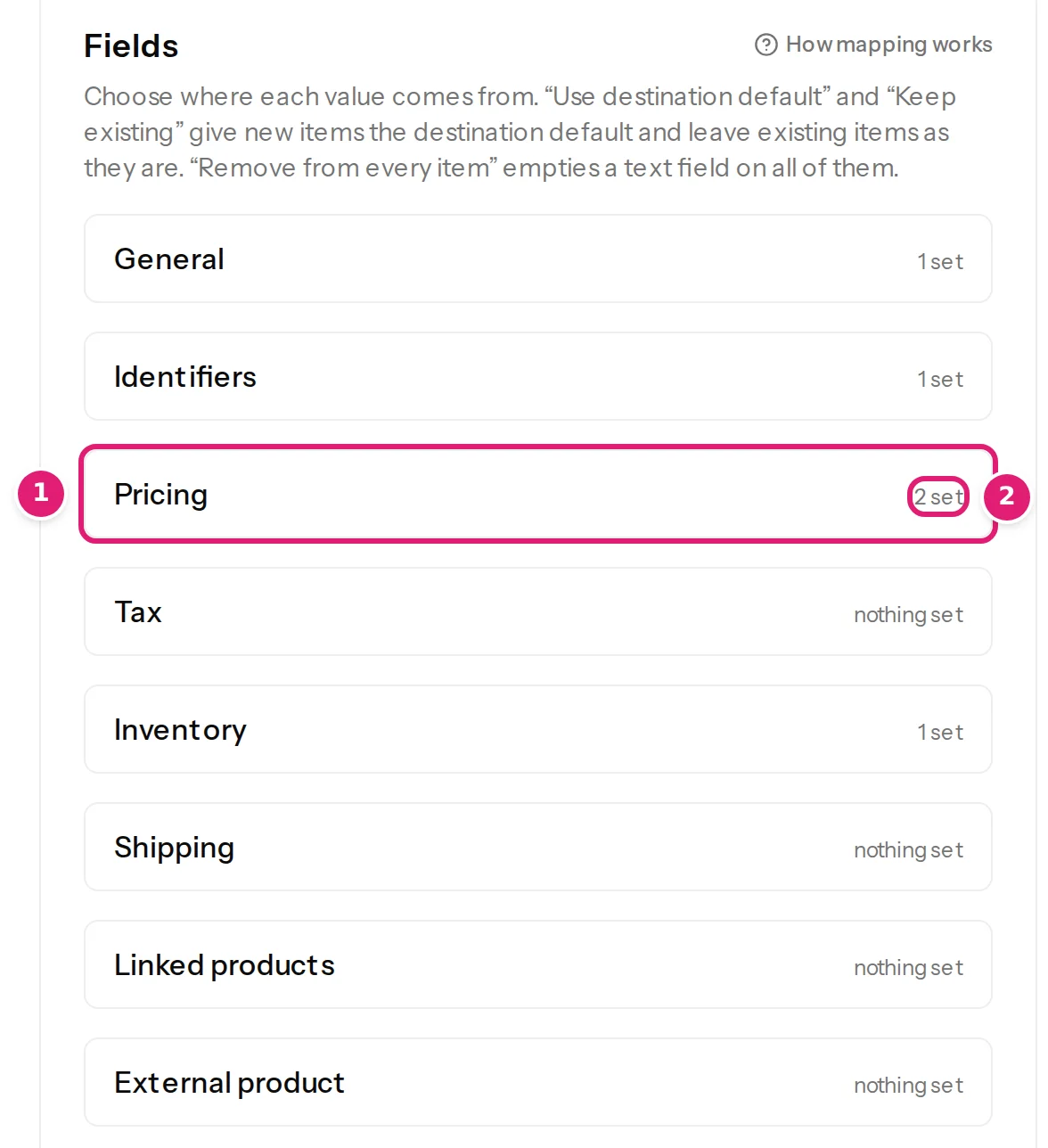
Open Pricing. Under the regular price, two choices decide how the file is read and compared:
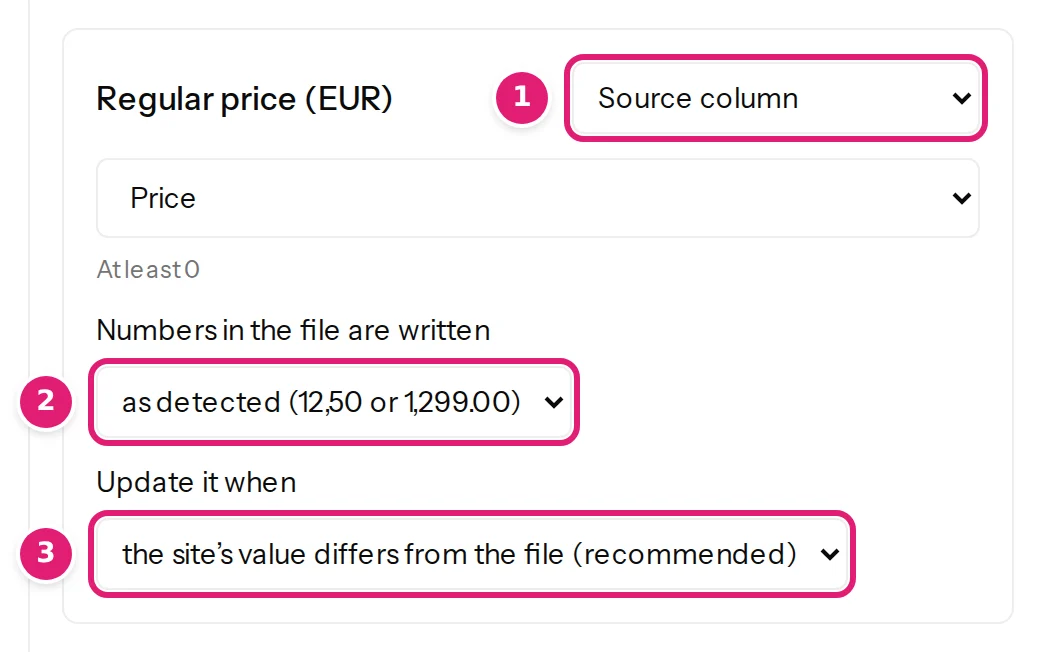
Leave both as they are: the numbers are as detected (so 18,00 is 18) and the price is updated when the site's value differs from the file. Prices, stock and sales explains them.
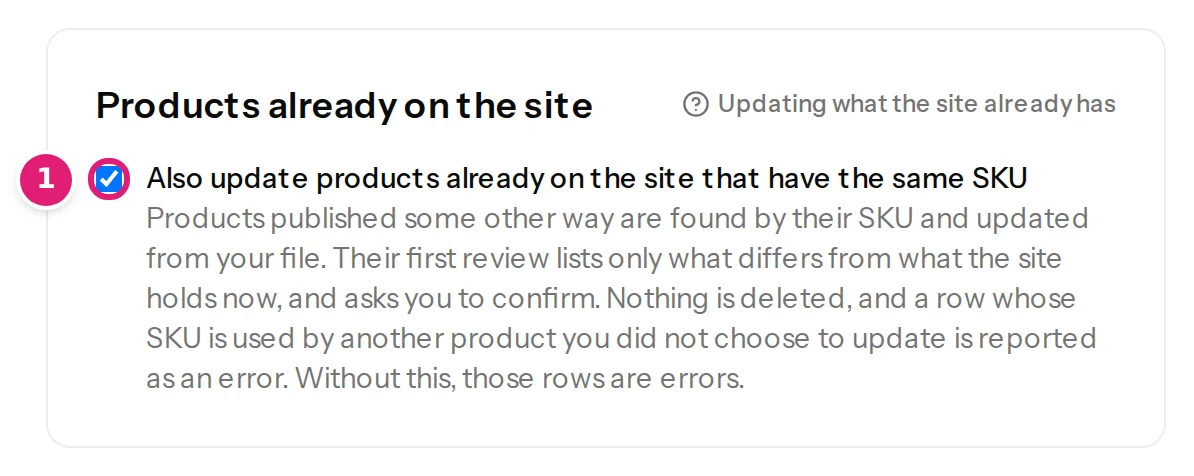
The section Products already on the site is ticked, because the file has a SKU column:
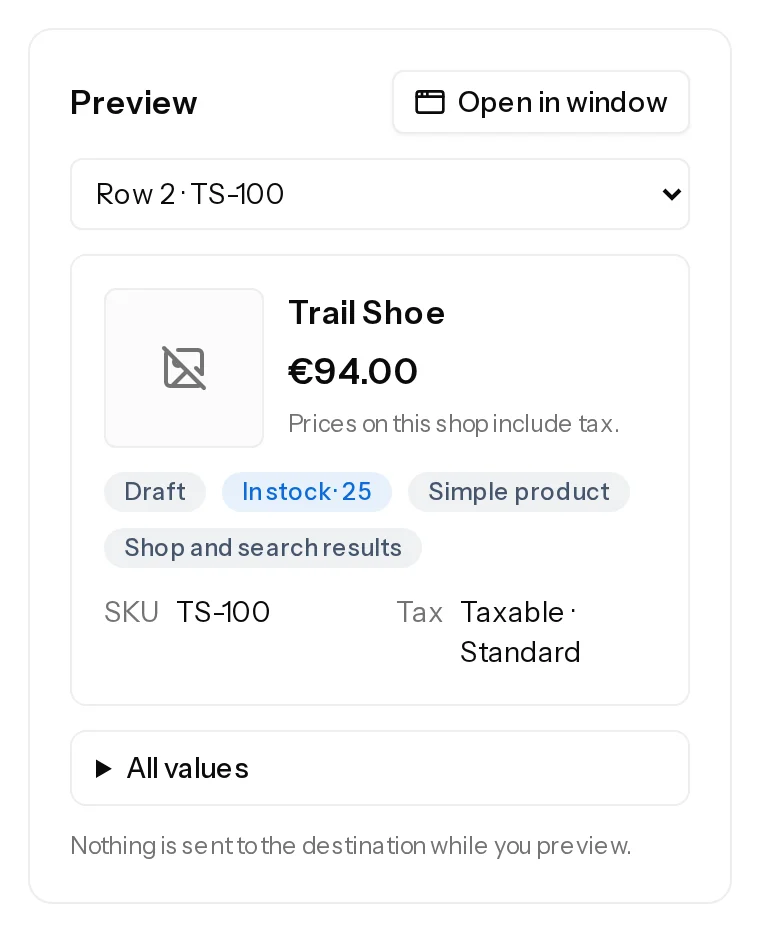
On the right, the preview shows the first row as the shop would hold it, and nothing is sent while you look at it:
Under When a new file is uploaded, notice Large price changes: a price that moves by more than 30% waits for you. Select Save configuration.
Step 2: upload the first list#
Drop 14-shop-prices-and-stock.csv on the card of the configuration. The page checks the file against the shop and shows the review. At the top:
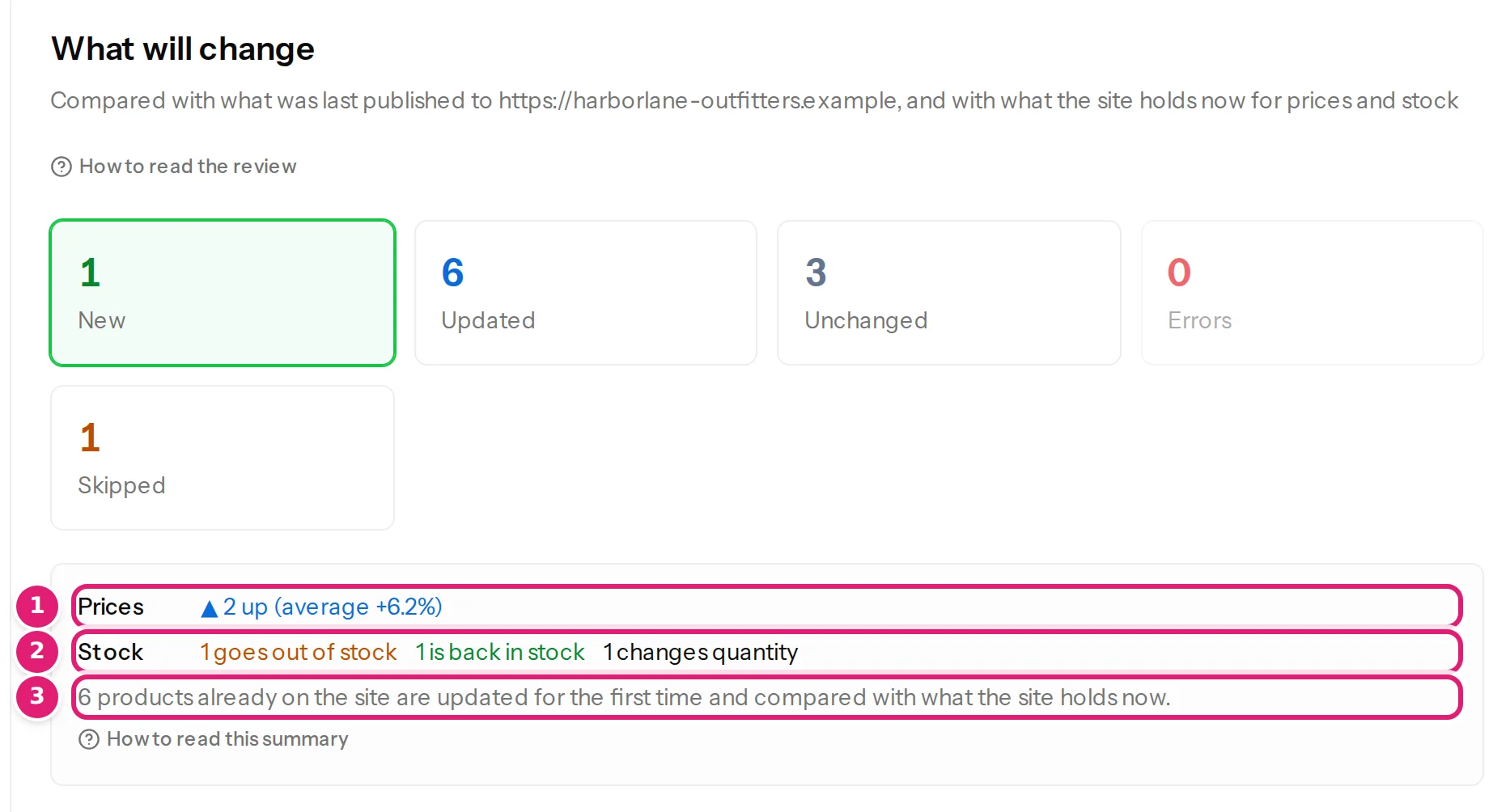
- New 1: Summit Gloves.
- Updated 6: the six products that differ from the shop.
- Unchanged 3: the Day Pack, the socks and the gift card already match: nothing is sent for them.
- Skipped 1: the Starter Kit.
Select Updated and open the first three products:
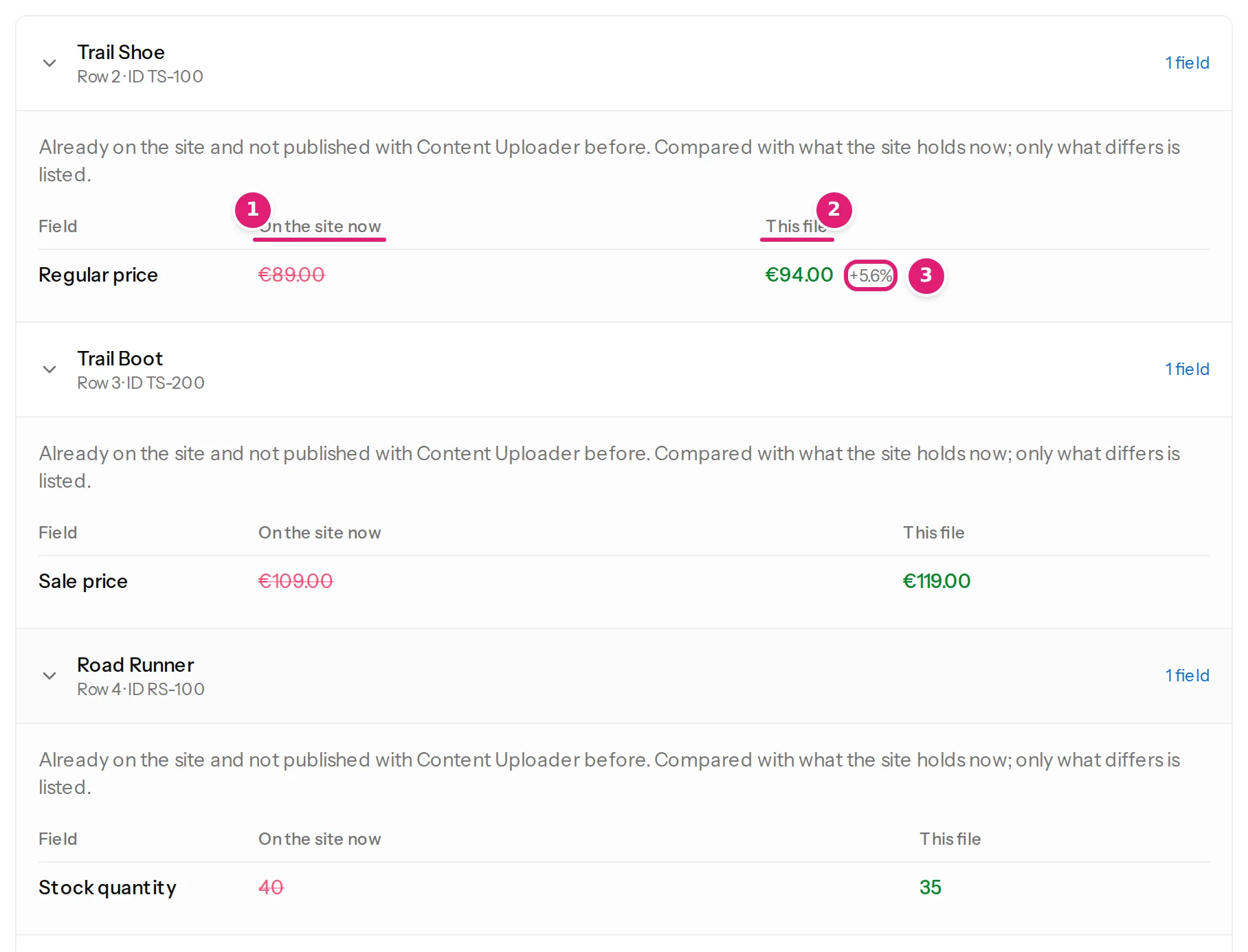
These are the shop's own values, read just now, not what Content Uploader remembers. Select Skipped and open the Starter Kit:

The box above the button asks for a second look, because the shop has products that Content Uploader has not touched before:
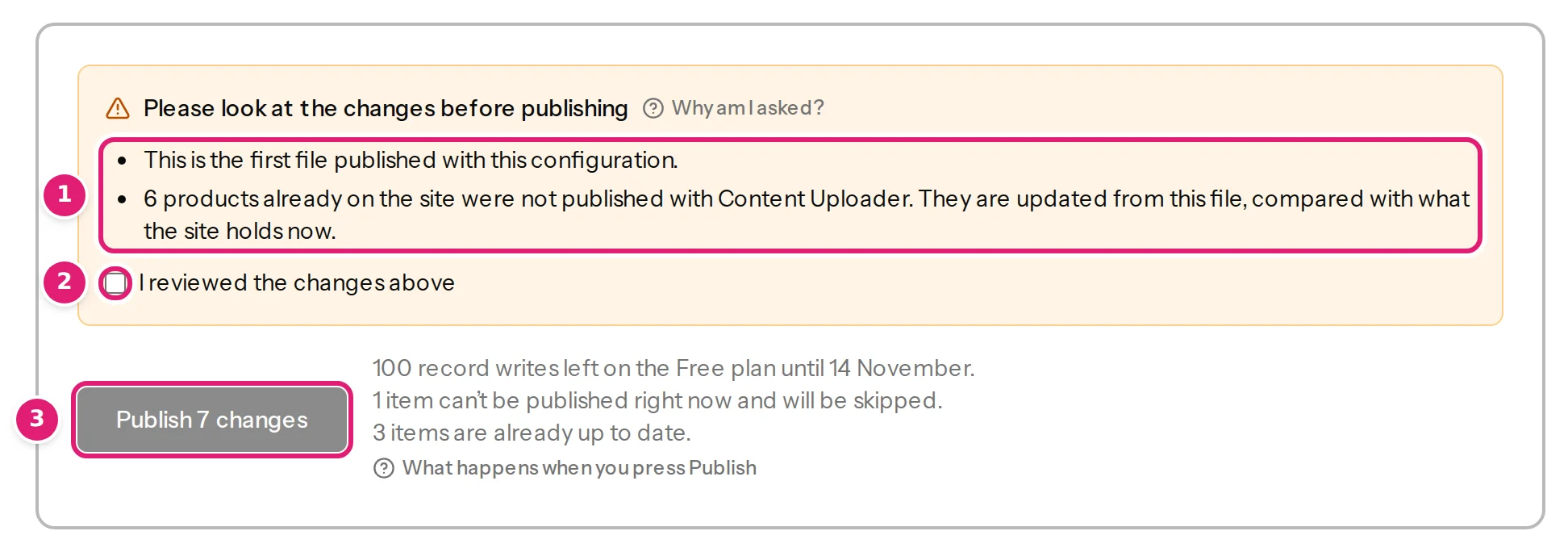
Tick I reviewed the changes above and select Publish 7 changes.
Step 3: check the shop#
In WooCommerce, Products now shows:
- The Trail Shoe at €94, the Rain Jacket at €159, the Road Runner with 35 in stock, the Wind Shell back in stock with 24 and the Water Bottle out of stock.
- The Trail Boot on sale at €119, its regular price still €129.
- Summit Gloves, a new product, as a draft with 50 in stock.
- The Day Pack, the Merino Socks and the Gift Card as they were, and the Starter Kit untouched.
- Every other product on the shop untouched too: Content Uploader updates only the rows of the file.
Step 4: the second week#
The shop is not the same as last week's list expected: a colleague changed the Trail Shoe's price by hand to €99, and the shop sold three Rain Jackets, leaving 5. The second list has the Trail Shoe at €94 as before, the Rain Jacket at €169 and 8 in stock, a sale that is over (the Trail Boot's Sale price is empty), and the Water Bottle at 1.45, with the digit missing.
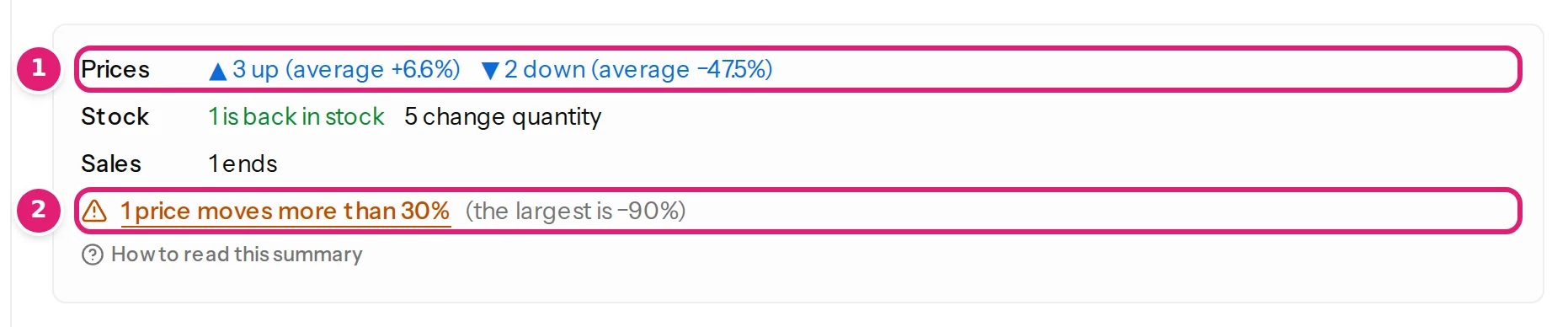
Drop 15-shop-prices-and-stock-week-2.csv on the same card. This time the first file's confirmation is not asked for, but another is:
Open the Water Bottle:
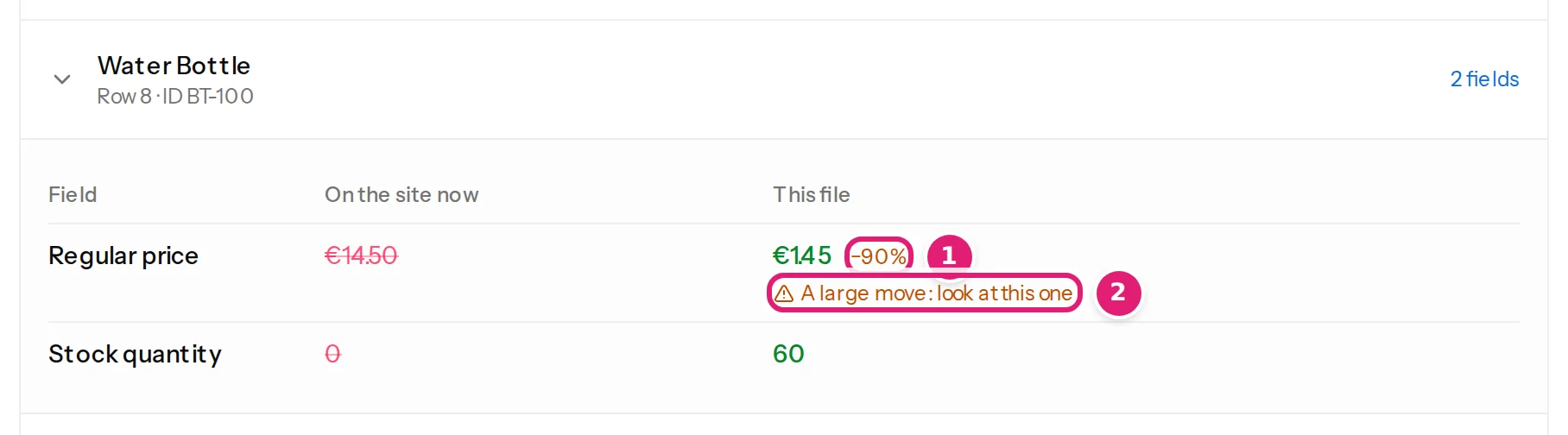
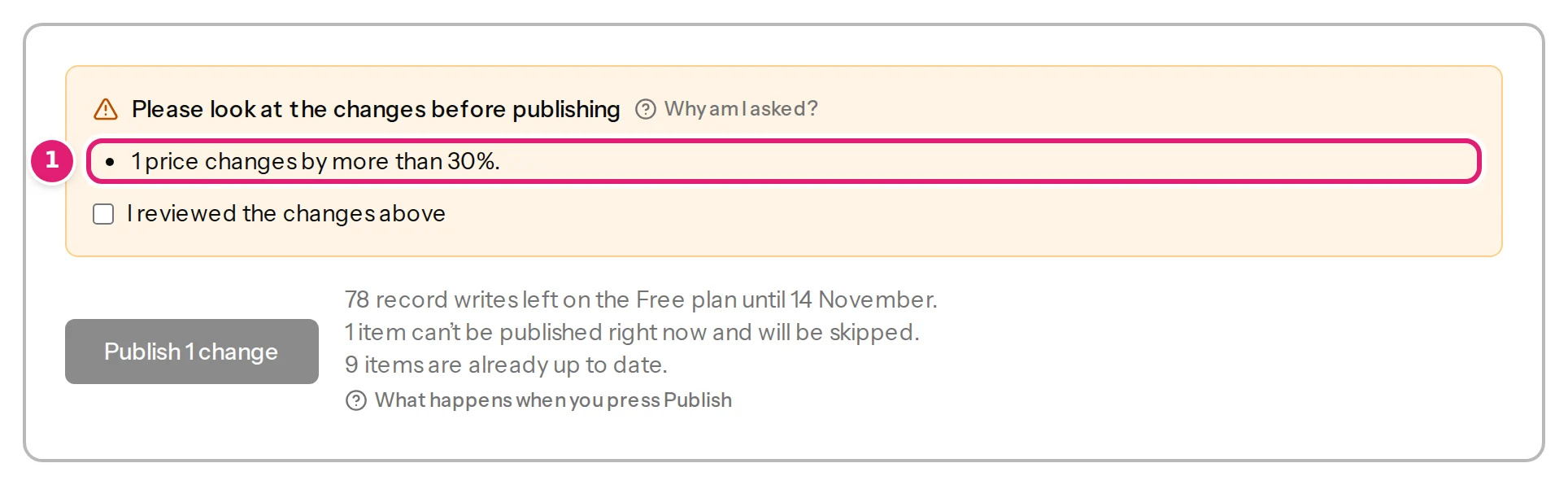
A price that falls by 90% is a mistake, not a decision, and the review will not let it through unnoticed: the box above the button says 1 price changes by more than 30%. Now open the Trail Shoe:
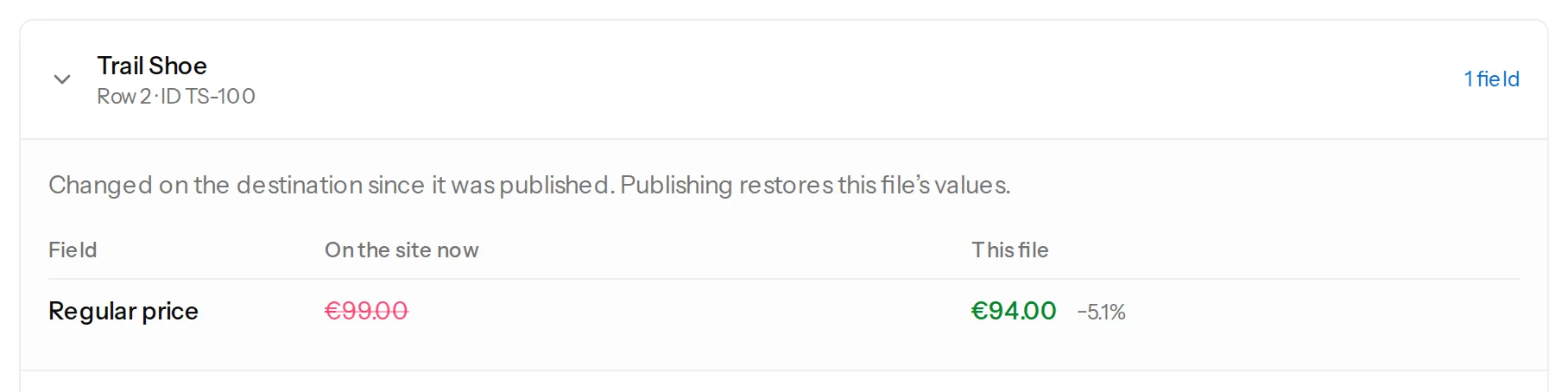
The file says what it said last week, but the shop's price is different, so the review lists it: Changed on the destination since it was published. Publishing restores this file's values. By default the file wins. What the shop's value is compared with shows how to change that for a field.
Step 5: fix the file and upload it again#
Do not publish this file. Open it in your spreadsheet program, change 1.45 to 14.50, save it and drop it on the card again. The review has the same changes but the Water Bottle's price is now unchanged: the large move is gone, the box no longer asks for a second look, and Publish 7 changes is ready. Select it.
In WooCommerce: the Trail Shoe is back at €94, the Trail Boot has no sale price, the Rain Jacket is €169 and 8 in stock, and the Water Bottle is €14.50 with 60 in stock.
When your shop sells between files#
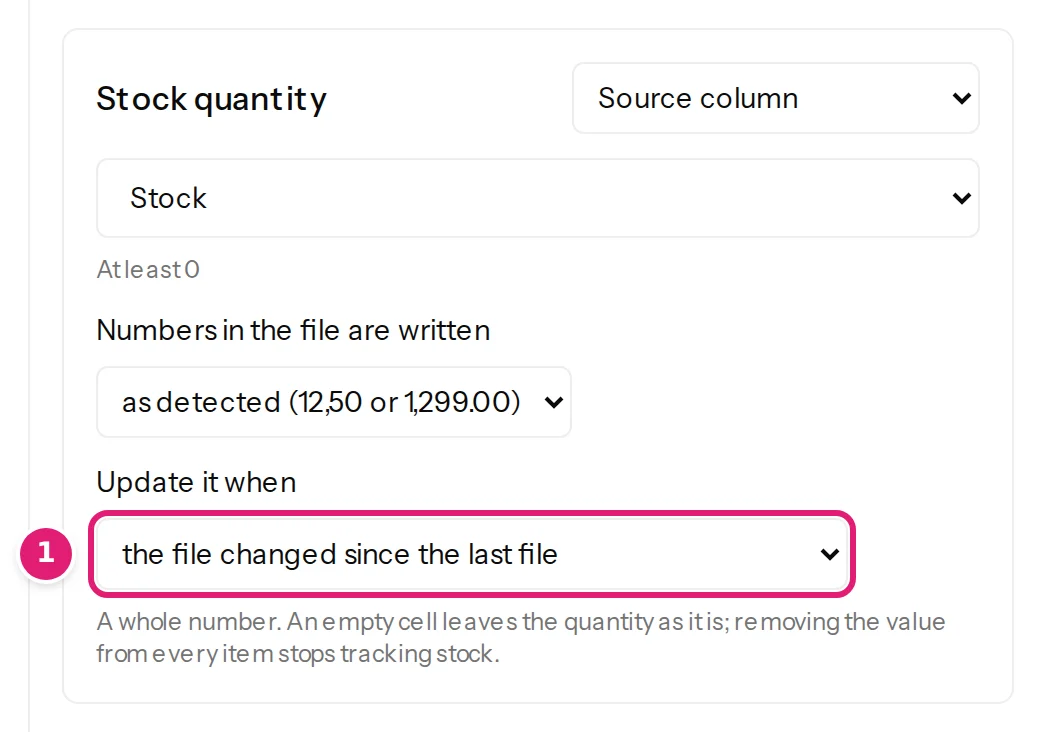
The Rain Jacket had 5 left on the shop and the file said 8: publishing put three jackets back on the shelf, because the file's number is older than the shop's. If your shop sells between two files, open Stock quantity in the editor and choose, under Update it when, the option the file changed since the last file:
To see the difference, imagine the shop sells three Road Runners and three Wind Shells, and you upload the same file once more. With the default choice, the review lists both:
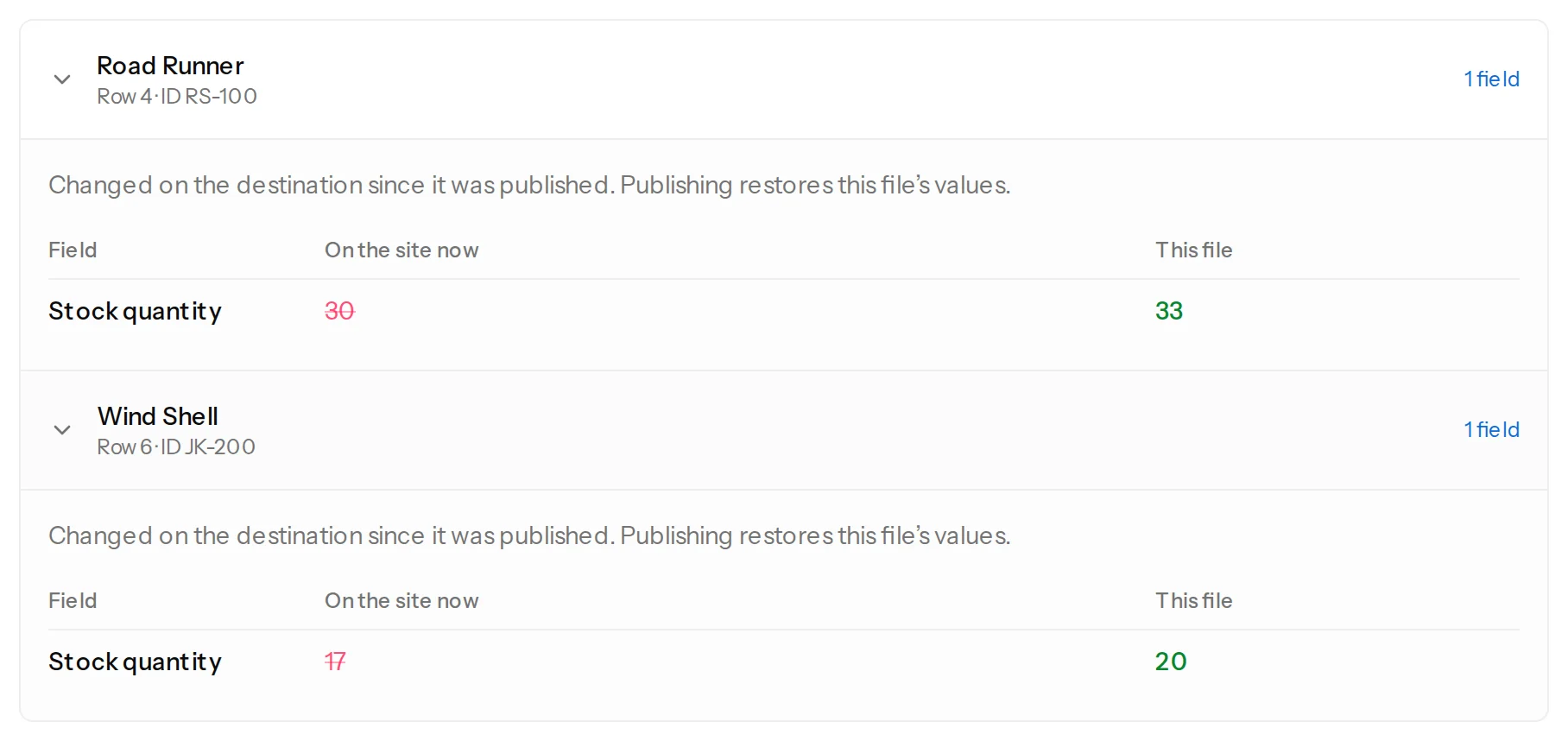
Edit the configuration, change the choice for Stock quantity, save, and upload the file again: nothing needs publishing. Everything is up to date: all 10 items already match the destination. The Camp Shirt, which this version cannot update, is named and left as it is. Prices are still compared with the shop; only the stock follows the file.
Let it run by itself#
When you trust a configuration, publish its files automatically: in the editor, under Publishing, choose Publish automatically when nothing needs my attention (automatic publishing). The first file with a new version of the configuration still waits for you. After that:
- A file with small moves is published without anyone pressing a button.
- A file with a price that moves by more than the limit waits, whatever the configuration says, and you are emailed:
- A product that this version cannot update, such as the Starter Kit, does not make a file wait.
Where to go next#
- How the review shows products, and what each line of the summary counts.
- Create new products from a file: the example file 16-shop-new-products.csv has a sale with dates, an external product, a virtual product and a draft.
- Troubleshooting products: the messages a product file can produce, with 17-shop-products-with-problems.csv.
Was this article helpful?
Related articles
- WooCommerceWooCommerce: what you can do from a spreadsheetCreate products and update prices, sales, stock and more on a WooCommerce shop from a spreadsheet, and see every change before it happens.
- WooCommerceUpdate products that are already on your shopFind the products your shop already has by their SKU, update them from a spreadsheet, and see on the first review only what differs from the shop.
- WooCommerceReview product changes: the summary, the card and what the shop holdsHow the review shows a shop's products: the price and stock summary, what the shop holds now, the product card, the price check and products that cannot be updated.
- WooCommercePrices, stock and sales: how numbers and dates are readHow Content Uploader reads prices, quantities and sale dates from your file, what an empty cell does, and what the shop's value is compared with.