WooCommerce product fields you can map
Every field Content Uploader offers for a WooCommerce product, in the sections of the editor: what it is, what a cell may hold and what an empty cell does.
- WordPress
- 7 min read
- Updated October 14, 2026
For a WooCommerce shop the editor groups a product's fields in sections. A section opens by itself when something in it is set, and its header says how many fields are set. Each field is mapped like any other field: from a Source column, a Fixed value or a Template, or left to Use destination default or Keep existing on updates (value modes). A field with a list of choices, such as Status or Allow backorders, can translate the values of its column, so that a file that says 1 and 0 where WooCommerce says Published and Private can be read (translate the values).
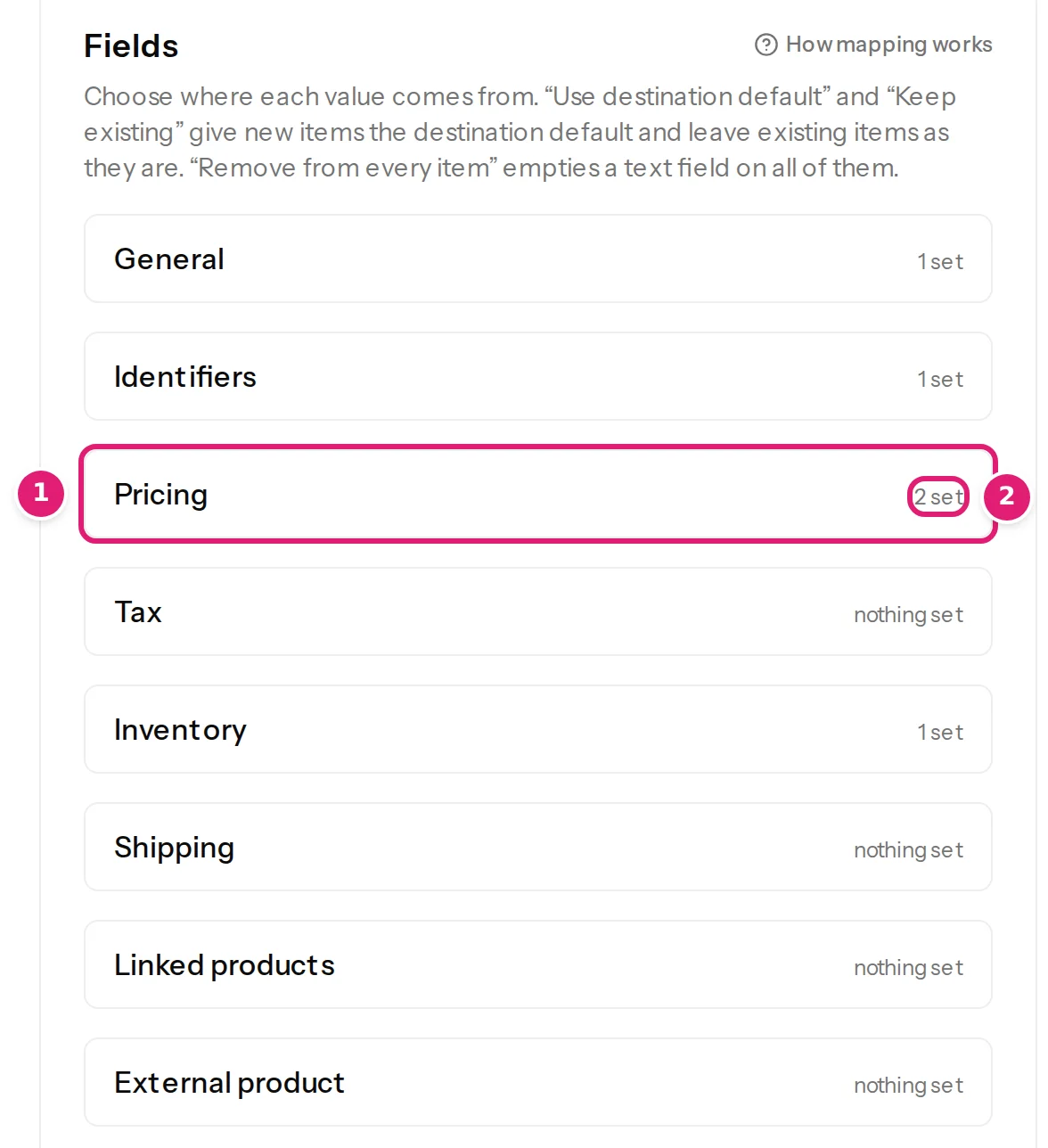
A new configuration starts with the columns of your file whose names match a field (Name is the product name, Price the regular price, Stock the stock quantity) and with the SKU column as the record ID. Names that WooCommerce itself uses in its product export, such as Regular price, Short description or Is featured?, are matched too. A unit in brackets after a column's name does not matter: Weight (kg) is matched as Weight.
General#
| Field | What a cell may hold | Notes |
|---|---|---|
| Product name | Text, up to 1,020 characters. | Needed to create a product: a new product without a name is a row error. A product that exists keeps its name when the field is left on Keep existing on updates or the cell is empty, so a price list or a stock count needs no names. Saved as plain text. |
| Slug | The web address name, up to 200 characters. | WordPress makes it safe and unique. When empty, it is made from the name. |
| Status | Draft, Pending review, Published or Private. | The editor starts Status as Use destination default for products: new products get the shop's default (a draft) and products that are on the shop keep their status. Status, dates and authors. |
| Author | A name, an email address, a username or an ID. | The default is the account that approved the connection. Products the shop already had keep their author. |
| Publish date | A date and time. | |
| Customer reviews | Open or Closed. | |
| Description | HTML. | The long description. HTML in cells. |
| Short description | HTML. | The text next to the price. |
| Product type | Simple product, Variable product or External or affiliate product. | A row can change a simple product into an external one and back. A variable product has no price or stock of its own, and its variations have their own content type (variable products). A product with variations cannot become another type from a file. Grouped products are not offered. |
| Featured product | Yes or no. | TRUE, FALSE, yes, no, 1 or 0. |
| Catalogue visibility | Shop and search results, Shop only, Search results only or Hidden. | |
| Position | A whole number. | The product's position when the shop sorts by menu order. |
| Purchase note | Text, up to 5,000 characters. | Shown to the customer after the purchase. |
| Virtual product | Yes or no. | A virtual product is not shipped. Simple products only. |
Identifiers#
| Field | What a cell may hold | Notes |
|---|---|---|
| SKU | Text, up to 100 characters, without spaces at either end. | Must be unique on the shop: two products cannot share one, whatever the capital letters. It is also how products the shop already has are found (update products already on your shop). |
| GTIN, UPC, EAN or ISBN | Digits and hyphens; an ISBN may end in X. | Unique on the shop. Offered only where WooCommerce has the field (WooCommerce 9.1 and later). |
Pricing#
| Field | What a cell may hold | Notes |
|---|---|---|
| Regular price | A number of at least 0, in the shop's currency. | Needed for a product that is published or private: a product without a price cannot be bought. An empty cell leaves the price as it is. |
| Sale price | A number below the regular price. | An empty cell ends the sale. |
| Sale starts, Sale ends | A date, such as 2026-11-30, or a date and time such as 2026-11-30 18:00. |
A date alone means the start of that day (for Sale starts) or the end of that day (for Sale ends) in the shop's time zone. An empty cell removes the date. The sale cannot end before it starts. |
The currency is in the field's label, for example Regular price (EUR). Prices, stock and sales explains how numbers are read, what the choices under a price mean and how the sale fields work together.
Tax#
Offered when taxes are turned on in WooCommerce.
| Field | What a cell may hold | Notes |
|---|---|---|
| Tax status | Taxable, Shipping only or None. | |
| Tax class | Standard, or one of the shop's tax classes by name. |
Inventory#
| Field | What a cell may hold | Notes |
|---|---|---|
| Stock quantity | A whole number of at least 0. | Giving a number turns stock management on for the product. An empty cell leaves the quantity as it is; Remove from every item turns stock management off. Offered when stock management is on in WooCommerce. |
| Stock status | In stock, Out of stock or On backorder. | Used when the stock quantity is empty. With a quantity, WooCommerce works the status out itself. |
| Allow backorders | Do not allow, Allow, but notify the customer or Allow. | Only for products that track stock. |
| Low stock threshold | A whole number. | Only for products that track stock. |
| Sold individually | Yes or no. | One of the product per order. |
Shipping#
Offered when shipping is turned on in WooCommerce. The unit is the shop's and is in the label: Weight (kg), Length (cm).
| Field | What a cell may hold | Notes |
|---|---|---|
| Weight, Length, Width, Height | A number of at least 0. | Simple products. An empty cell leaves the value as it is. |
Linked products#
| Field | What a cell may hold | Notes |
|---|---|---|
| Upsells | SKUs of other products, separated by the separator you choose (a comma to start with). | Products the product page offers as a better or dearer choice. |
| Cross-sells | SKUs of other products, separated in the same way. | Products the cart offers together with this one. |
The values replace the product's list, and an empty cell takes every one away. Before anything is sent, the review checks that each SKU is the SKU of a product on the shop: Upsells: “NOPE-9” is not the SKU of a product on the site. Make the product first, then check the file again. A variation's SKU is not a product's, and a product cannot be linked to itself. Products that the same file makes are not on the shop yet: publish them first.
External product#
For products that are bought on another website.
| Field | What a cell may hold | Notes |
|---|---|---|
| Product URL | A web address starting with http:// or https://. |
Where the customer buys it. External products only. |
| Button text | Text, up to 255 characters. | The text of the buy button. |
Categories, tags and the rest#
The shop's taxonomies are listed under Tags and categories in the editor, with the same choices as for posts: Product categories (with parents, as paths), Product tags, and Product brands and Product shipping classes where your shop has them. Categories and tags explain them. A product's attributes, such as its colours and sizes, have their own section, Attributes (attributes). A product's Product image is its featured image and its Gallery images are the pictures below it, several in one cell (where images come from, the gallery). Other values that plugins keep as product meta can be filled as custom fields.
What a row can and cannot change#
- A field that is Keep existing on updates is never sent: the shop's value stays.
- A product that is not a simple, variable or external product (a grouped product) is skipped, and the review says why (review product changes). So is the SKU of a variation: a variation is made and updated with the content type Product variations.
- Values the shop would refuse (a SKU another product has, a sale price that is not below the price) are found before anything is sent and shown as row errors (troubleshooting).
Was this article helpful?
Related articles
- WooCommerceSet a product's attributes: colours, sizes, materialsFill a product's attributes from a spreadsheet: the shop's own attributes and ones made on the product, with several values each, shown or hidden on the product page.
- WooCommerceFill a product's gallery from a spreadsheetPut several pictures in one cell to give a product its gallery. They take their places in order and replace the old gallery, and the review shows the list before and after.
- Mapping columnsTranslate the values of a columnWhen a file says 1 where the site says Published, say what each value means. A field with a list of choices reads the values of its column through your table.
- WooCommercePrices, stock and sales: how numbers and dates are readHow Content Uploader reads prices, quantities and sale dates from your file, what an empty cell does, and what the shop's value is compared with.