Prices, stock and sales: how numbers and dates are read
How Content Uploader reads prices, quantities and sale dates from your file, what an empty cell does, and what the shop's value is compared with.
- WordPress
- 6 min read
- Updated October 13, 2026
A price list is read by people who know whether 1,299 means one thousand two hundred and ninety-nine or one point two nine nine. Content Uploader reads what is written, tells you when it cannot be sure, and does not guess at money.
How a number is read#
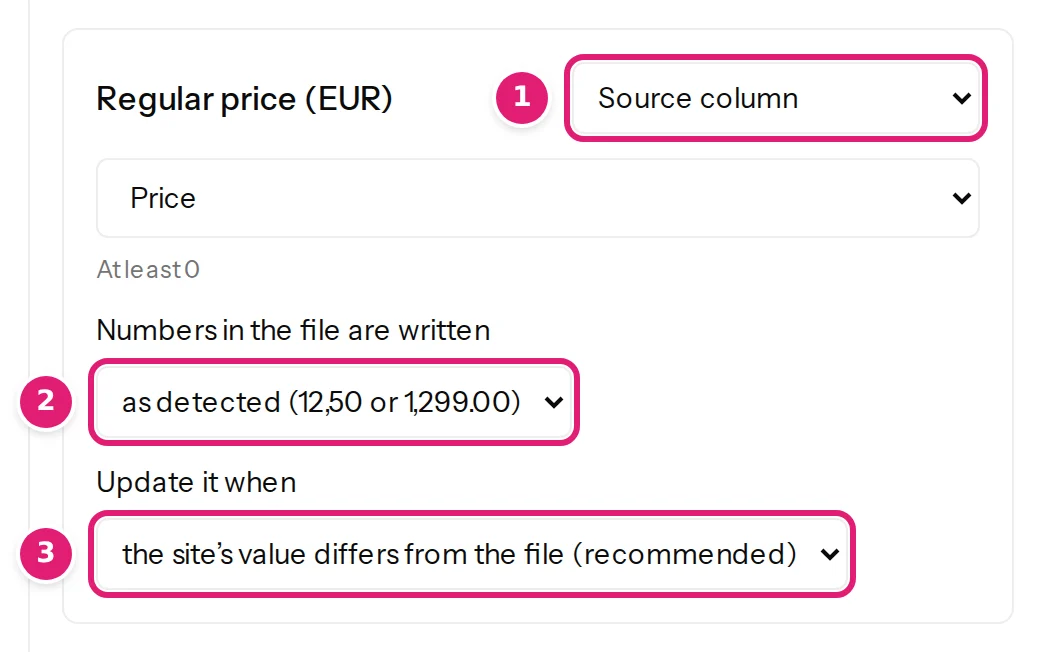
Under each number field the editor asks Numbers in the file are written:
| Choice | Means |
|---|---|
| as detected (12,50 or 1,299.00) | The default. The decimal separator is worked out from the cell, as in the table below. |
| 1,234.56 (dot for decimals) | The file uses a dot for decimals and commas (or spaces) between thousands. |
| 1.234,56 (comma for decimals) | The file uses a comma for decimals and dots (or spaces) between thousands. |
With the default, these are read as written:
| In the cell | Read as |
|---|---|
12.5, 12,50 |
12.5 |
1,299.00, 1.299,00, 1 299,00 |
1299 |
€ 12,50, 12,50€, EUR 12,50 |
12.5: a currency symbol or the shop's currency code is ignored |
1,234,567, 1.234.567 |
1234567: repeated separators can only group thousands |
0.125 |
0.125 |
1.5E+3 |
1500, as a spreadsheet writes a very large or very small number |
Currency#
A price is a number in the shop's currency, and Content Uploader never converts one. The currency is in the label of the field (Regular price (EUR)), and the review and the product card show prices in it.
- A currency symbol in a cell is dropped, whichever it is:
$12.50is read as 12.5, and a shop that sells in euros then asks €12.50 for it. Convert a price list that is in another currency before you publish it. - A currency code is dropped only when it is the shop's own (
EUR 12,50on a shop that sells in euros). Another one (USD 12,50) is refused: The resolved value must be a number, such as 12 or 12.5. - A shop that sells in several currencies through a plugin gets its prices in its base currency only. The editor and the review name such a plugin (other plugins on the shop).
Numbers that cannot be read with certainty#
Some cells cannot be read with certainty, and then the row is refused with the reason, before anything is sent:
| In the cell | What the review says |
|---|---|
1,299 or 1.299 |
“1,299” could mean 1299 or 1.299. Choose the number format for this field. One comma or dot followed by exactly three digits could be a decimal or a thousands separator. Choose the number format under the field. |
twelve, 1,2,5 |
The resolved value must be a number, such as 12 or 12.5. |
1.234,56 when the field says dot for decimals |
…is not a number in the format chosen for this field. |
-5 |
The resolved value must be at least 0. |
A stock quantity is a whole number: 7,5 is refused, and 1,200 asks you to choose how the file writes numbers rather than guess. A column that mixes real numbers (an Excel cell holding 12.5) with text that uses a decimal comma (12,50) is read correctly with the default, as detected; name a format only when a cell asks for it.
How a date is read#
Sale starts and Sale ends read an ISO date, 2026-11-30, a date and time such as 2026-11-30 18:00, a date with its offset such as 2026-11-30T18:00:00+02:00, and a date written in words such as 30 Nov 2026. A date that does not exist (2026-02-30) or is not a date (soon, tomorrow) is refused. Dates and numbers in spreadsheets lists the accepted forms for every platform.
A date without a time means the start of that day for Sale starts and the end of that day for Sale ends, in the shop's time zone, the way WooCommerce's own product screen does it. A sale from 2026-11-20 to 2026-11-30 runs from midnight at the start of the 20th to the last second of the 30th.
What an empty cell does#
| Field | An empty cell | Remove from every item |
|---|---|---|
| Regular price | Leaves the price as it is | Not offered: a product without a price cannot be bought |
| Sale price | Ends the sale: the price is removed | Ends the sale on every product in the file |
| Sale starts, Sale ends | Removes the date | Removes the date from every product |
| Stock quantity | Leaves the quantity as it is | Stops tracking stock on every product |
| Weight, Length, Width, Height, Low stock threshold | Leave the value as it is | Remove the value from every product |
| Text such as Short description | Empties the field | Empties the field on every product |
A sale price that is empty in the file ends the sale because a price list that no longer has a sale price means the sale is over. Empty cells and clearing a field explains the two choices for every kind of field.
What the shop's value is compared with#
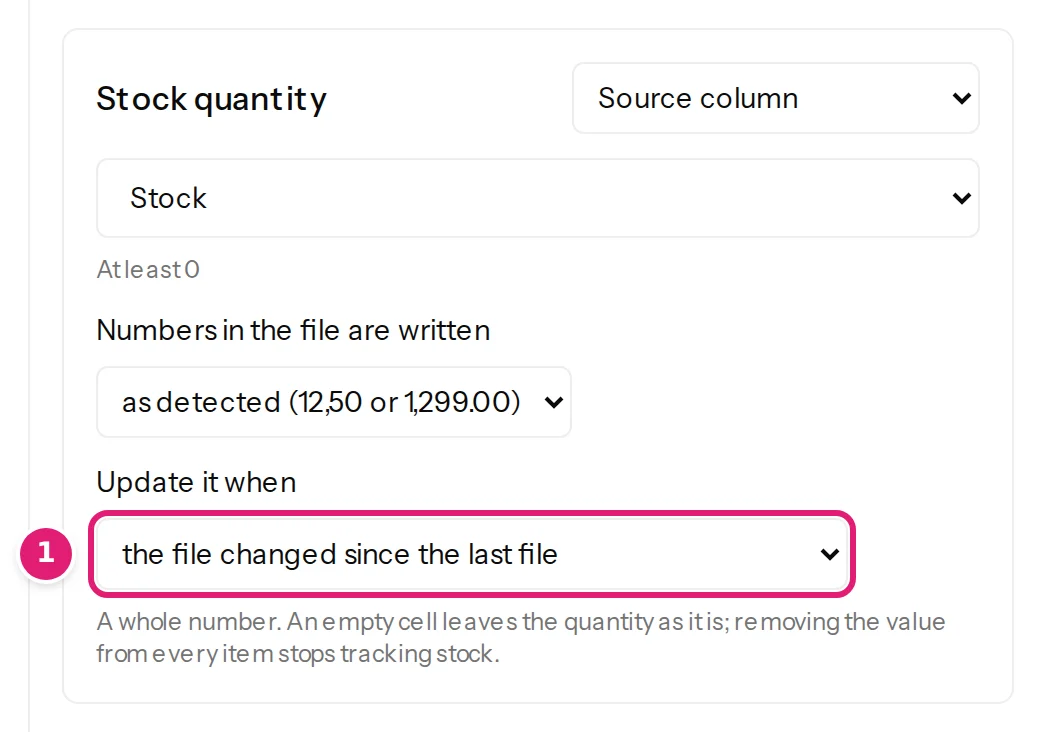
A file is compared with what you published last time, and a price or a quantity can change on the shop without a file: a colleague edits it, an order sells the last unit. Under every field that changes by itself the editor asks Update it when:
| Choice | What the review does |
|---|---|
| the site's value differs from the file (recommended) | Reads the price, sale, dates or stock from the shop and lists every product where the shop disagrees with the file, even if the file did not change. Publishing puts the file's value on the shop. |
| the file changed since the last file | Compares the file only with the last file. A value that someone changed on the shop stays as it is until the file's number changes. |
Use the first choice for prices and for any shop that is updated only from files: the shop then always ends up as the file says, and a price someone changed by hand is shown to you and put back. Use the second choice for Stock quantity when the shop sells products between two files and the file's numbers are older than the shop's: otherwise every file would put back the units that were sold since. The tutorial Update your shop's prices and stock from a weekly spreadsheet shows both in the review.
Other fields (names, descriptions, categories) are compared with what the last file said, except the first time a product that the shop already had is updated, when everything the file sets is compared with what the shop holds (update products already on your shop).
Sales and stock together#
- A sale price must be below the regular price, in the file or on the shop: a sale price in a file that has no regular price column is checked against the price the product has now.
- A scheduled sale shows its price only between its dates; the regular price applies before and after. A product with a sale price and no dates is on sale until the sale price is removed.
- Giving a Stock quantity turns stock management on for the product and WooCommerce works out whether it is in stock. Stock status is used for products that do not track stock.
- A quantity is set to the number in the file, never added to or subtracted from a number read earlier.
Was this article helpful?
Related articles
- WooCommerceWooCommerce product fields you can mapEvery field Content Uploader offers for a WooCommerce product, in the sections of the editor: what it is, what a cell may hold and what an empty cell does.
- Preparing your spreadsheetText, numbers, yes/no and dates in a spreadsheetHow cell values are read: workbook numbers and dates, which date formats work, why 01/02/2026 may not mean what you expect, time zones, decimals, formulas and leading zeros.
- Mapping columnsEmpty cells and clearing a fieldWhat an empty cell does to an item, field by field: which values it removes, which the site decides, which it leaves as they are, and how to clear a field on purpose.
- WooCommerceReview product changes: the summary, the card and what the shop holdsHow the review shows a shop's products: the price and stock summary, what the shop holds now, the product card, the price check and products that cannot be updated.