Fill a product's gallery from a spreadsheet
Put several pictures in one cell to give a product its gallery. They take their places in order and replace the old gallery, and the review shows the list before and after.
- WordPress
- 4 min read
- Updated October 14, 2026
A WooCommerce product has its own image, the picture of the product, and below it a gallery of more pictures. Content Uploader fills both from a spreadsheet. The gallery is one cell with several pictures, a list of file names or web addresses separated by commas:
| SKU | Name | Image | Gallery |
|---|---|---|---|
| GAL-100 | Harbor Tote | p01.png | p03.png, p04.png, p05.png |
Set it up#
Open the configuration and find the section Images. It lists Product image, and Gallery images under it.
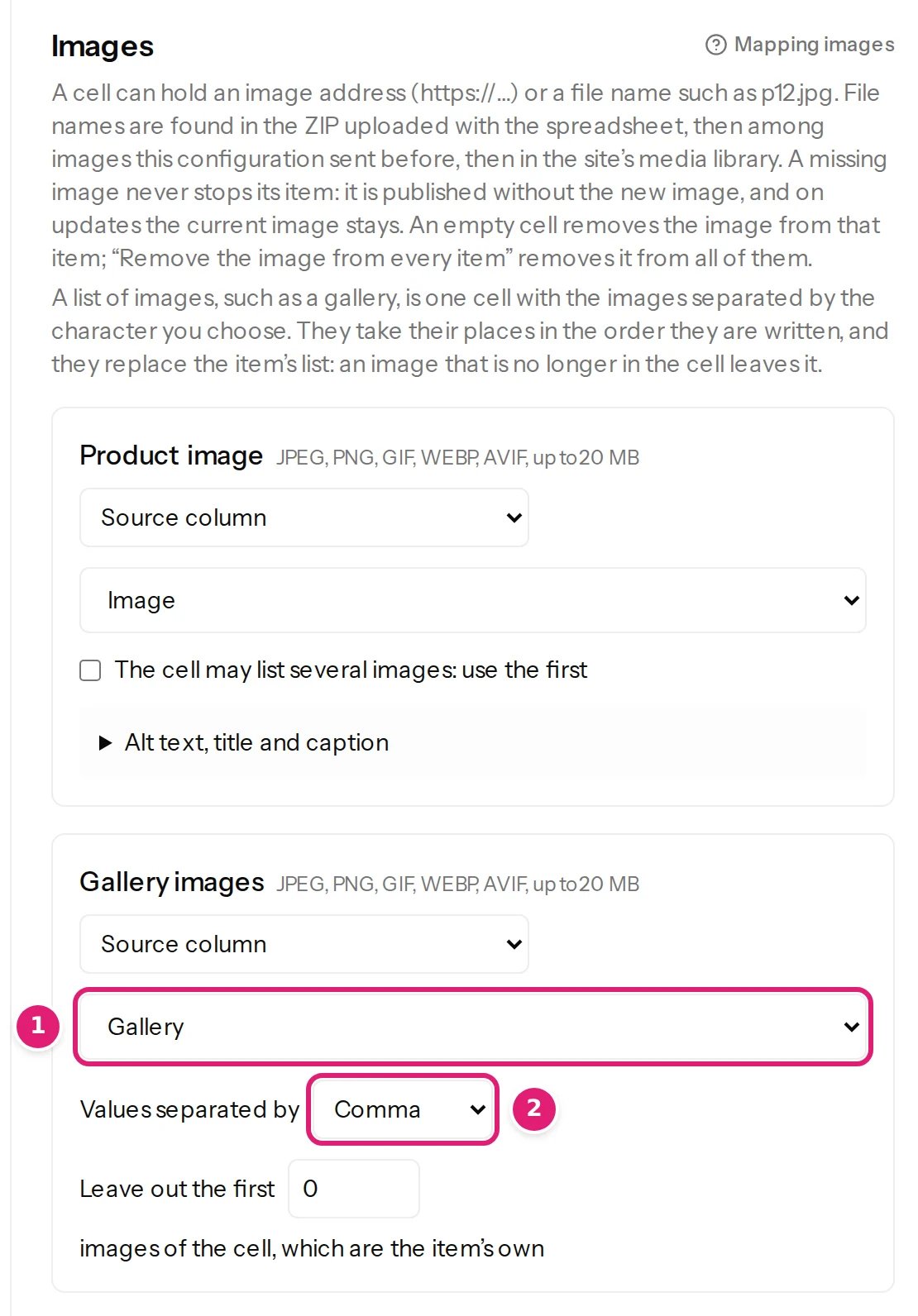
- Under Gallery images choose Source column and the column with the pictures. A column called Gallery is chosen for you.
- Choose how the pictures are separated: by commas, semicolons, pipes or line breaks. A picture whose name has a comma in it is written in quotes.
- To give every product the same gallery, choose Fixed value and write the pictures in the box, separated the same way.
The product image has its own setting. A gallery does not hold the product's own picture unless its cell lists it too.
One column for all the pictures#
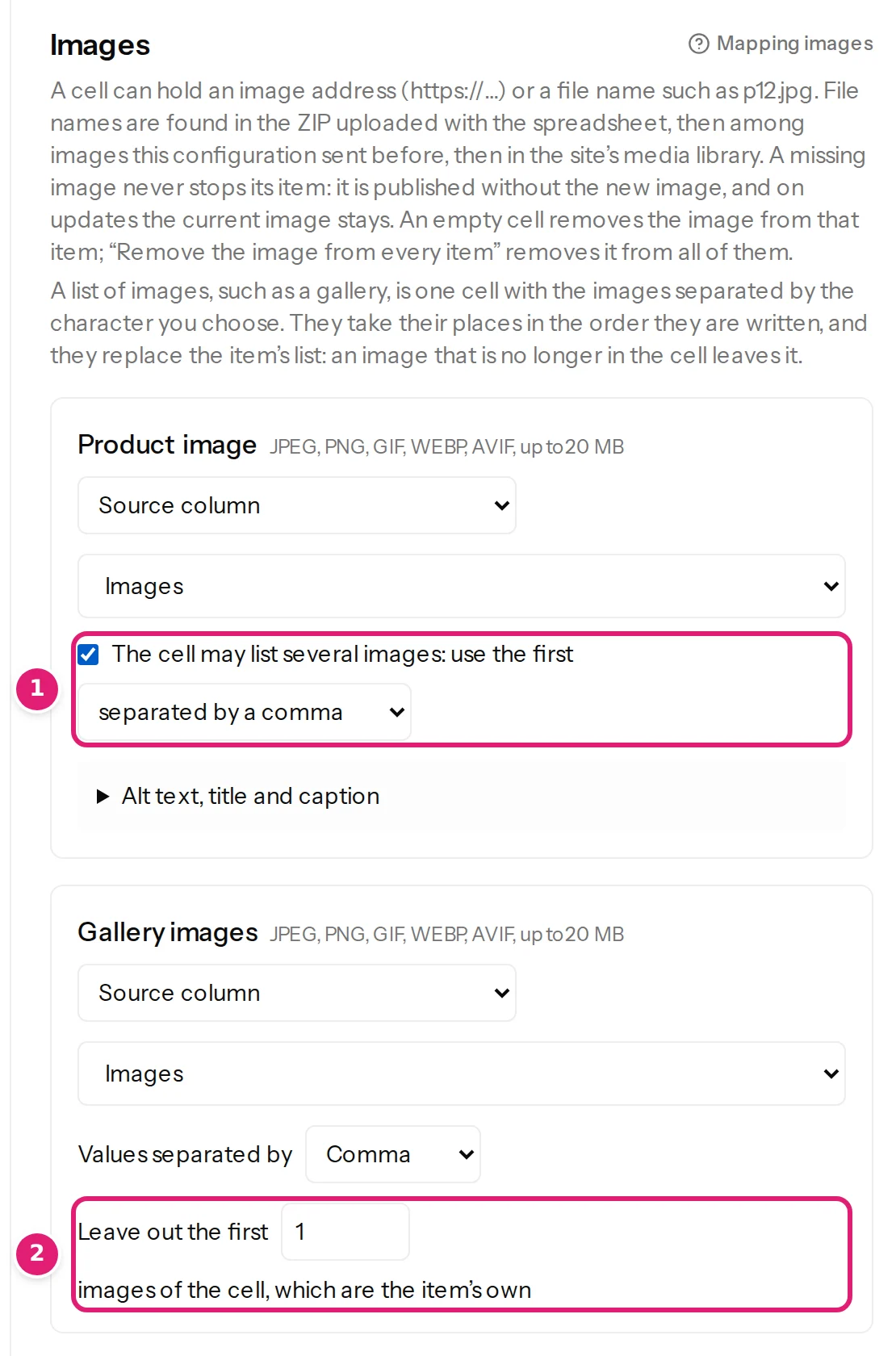
WooCommerce's own export has one column, Images, with the product's picture first and its gallery after it. Use that column for both:
- Under Product image choose the column, and tick The cell may list several images: use the first. Choose the separator the cell uses.
- Under Gallery images choose the same column, and write 1 in Leave out the first 1 images of the cell, which are the item's own.
Pictures are found the way any image is: in the ZIP you drop with the file, among the pictures this configuration sent before, in the shop's media library or at a web address (where images come from). The gallery has no settings for alt text, title or caption: the pictures keep the text they have in the media library.
What a row does#
- The pictures take their places in the order written. The first is the first of the gallery. The same picture written twice counts once.
- A gallery holds up to 10 pictures. A row with more is an error, This field takes at most 10 images; this row has 11., and the other rows can still be published.
- The pictures replace the product's gallery as a whole. A picture that is no longer in the cell leaves the gallery. It stays in the media library: only its place in the product goes.
- An empty cell empties the gallery. Remove from every item empties the gallery of every product in the file, and Keep existing on updates never touches it (empty cells).
- A picture that cannot be found never stops its product. The product is published without it and keeps what it had at that place. The review lists it as a missing image, Gallery image 3, with the reason (missing images).
- A variation has one picture and no gallery (update the variations of a variable product).
Pictures are written with the product, in its one save, so the product page shows the gallery at once.
In the review#
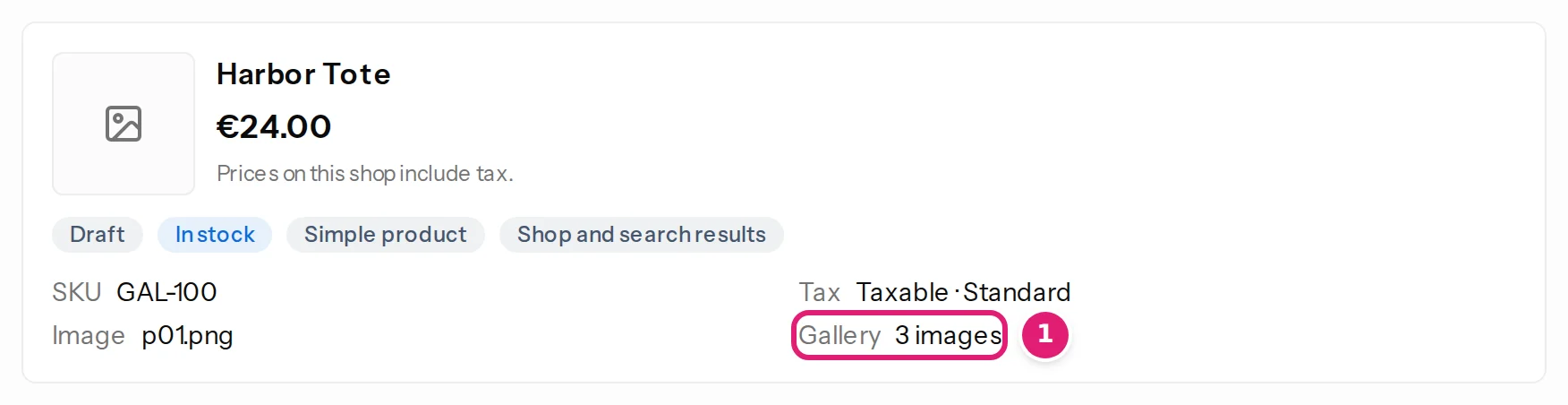
A new product's card says how many pictures its gallery has, and how many of them were not found:
For a product the shop has, the review shows the gallery as it was last published and as it will be, in one line, in the order the shop shows them:
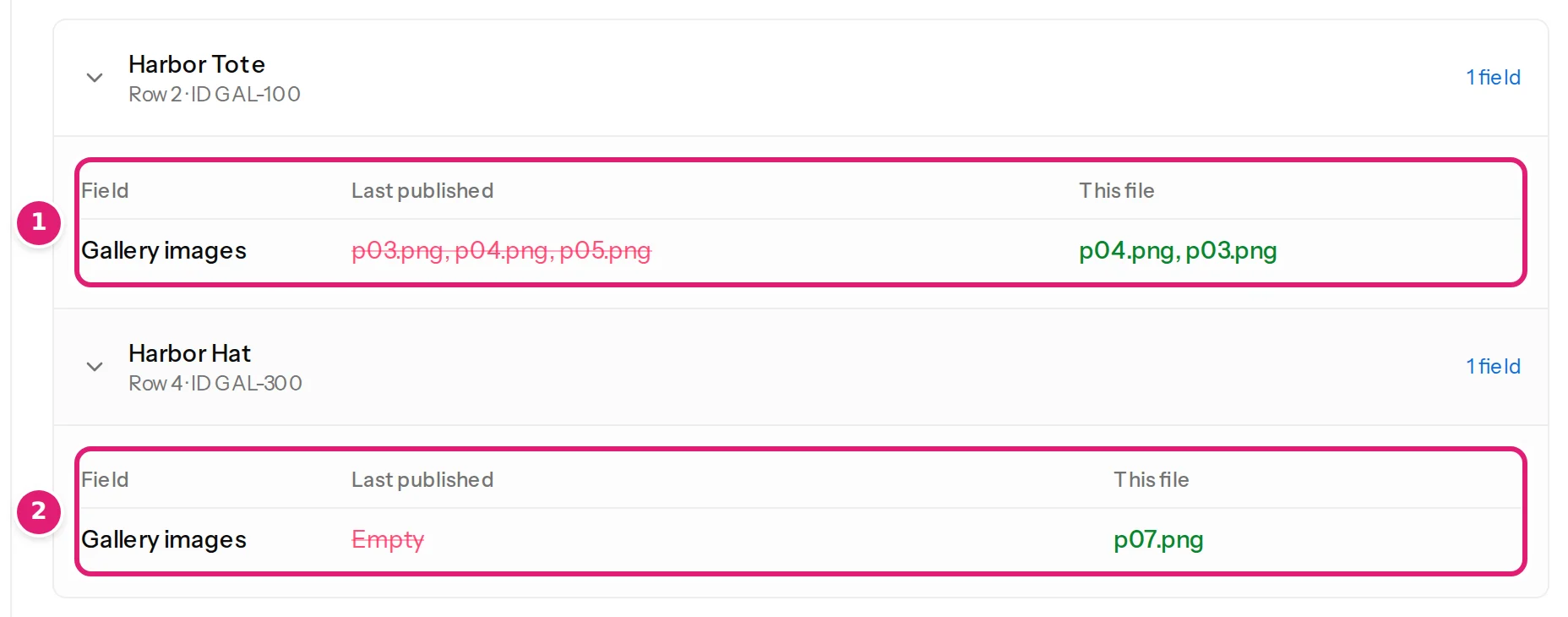
The first time a file sets a gallery for a product that was published before, even an empty one, the review lists it once as a change, from Not sent to what the file says. After that the same file changes nothing (update products already on your shop).
When something is wrong#
| What you see | What it means and what to do |
|---|---|
| This field takes at most 10 images; this row has 11. | Split the pictures, or keep the most important 10. |
| Gallery image 3 “gone.png” was left out | The picture is not in the ZIP, the media library or at the address. Add it to the ZIP, or correct the name. The product keeps what it had at that place. |
| A picture is in the wrong place | The pictures take their places in the order of the cell. Reorder the cell. |
Was this article helpful?
Related articles
- WooCommerceWooCommerce product fields you can mapEvery field Content Uploader offers for a WooCommerce product, in the sections of the editor: what it is, what a cell may hold and what an empty cell does.
- WooCommerceReview product changes: the summary, the card and what the shop holdsHow the review shows a shop's products: the price and stock summary, what the shop holds now, the product card, the price check and products that cannot be updated.
- Images and mediaWhere images come fromA cell can hold a web address or a file name. How Content Uploader finds the image: your ZIP, earlier uploads, the site's media library or the web.
- Images and mediaMissing images: what happens and how to fix themA missing image never blocks its item: it is published without the new image, the review lists each one with its reason, and you can add it later.