Set a product's attributes: colours, sizes, materials
Fill a product's attributes from a spreadsheet: the shop's own attributes and ones made on the product, with several values each, shown or hidden on the product page.
- WordPress
- 5 min read
- Updated October 14, 2026
An attribute is a choice a product has, such as its colours, its sizes or its material. A shop shows them on the product page (in the Additional information tab) and lets customers filter by them. Content Uploader fills them from a spreadsheet, with several values in one cell if a product has several.
A WooCommerce shop has two kinds, and the editor offers both under Attributes:
- The shop's own attributes, made in WooCommerce under Products → Attributes, such as Colour. Every product shares them, and their values (Black, Grey) are the shop's own list, so a filter can offer them. They are listed in the editor by the name the shop gave them.
- Attributes made on the product, such as Material, which only that product has. You add them to the configuration by their name.
Set the attributes#
Open the configuration and find the section Attributes:
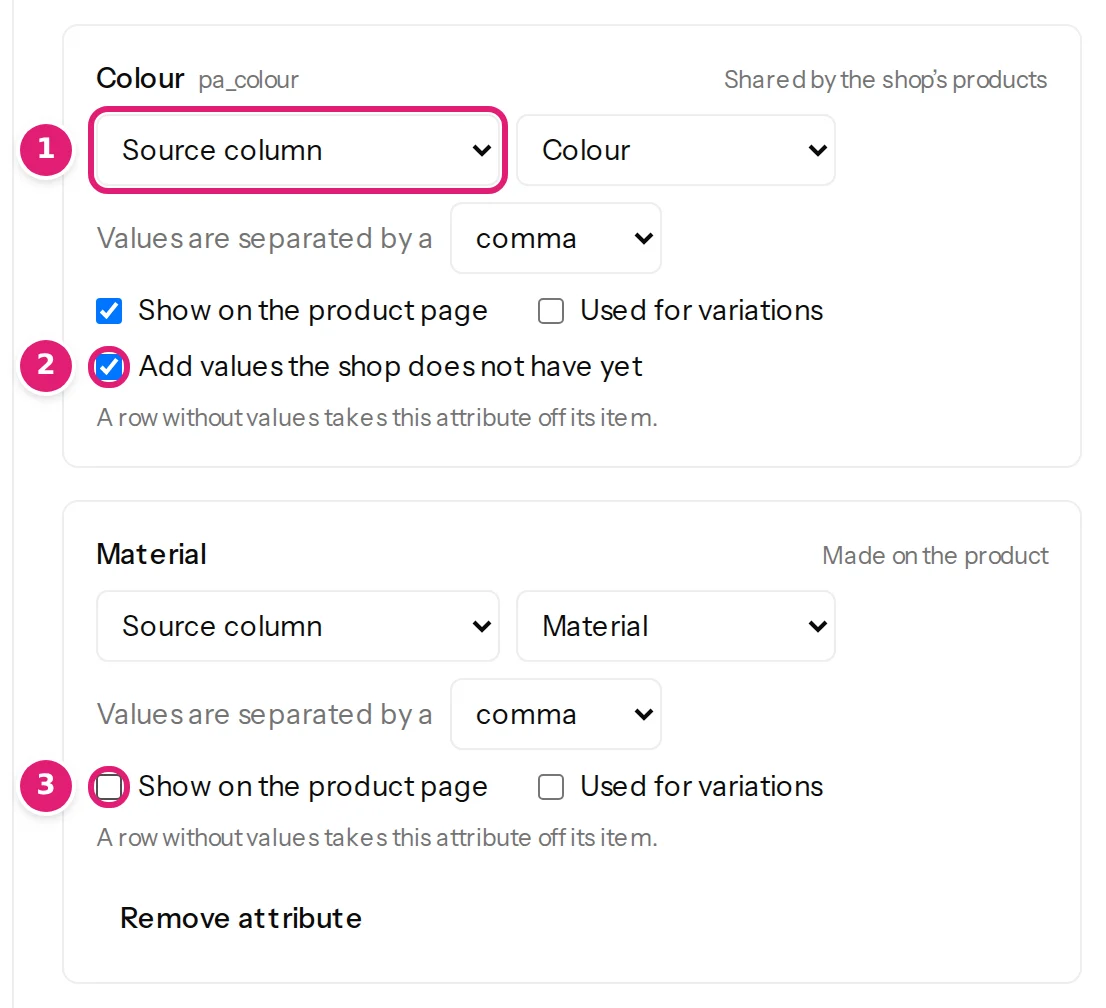
- For each attribute you want to set, choose how it gets its values: Source column, Fixed values, Leave unchanged or Remove from every item.
- A column that has the attribute's name (a column called Colour for Colour) is chosen for you. Choose the separator the cell uses between values: a comma, a semicolon, a pipe or a line break.
- To set an attribute the shop does not list, write its name under Add an attribute by its name, then choose Add attribute. A column with that name is chosen for you.
- Under each attribute, choose what the shop does with it:
- Show on the product page (on to start with): whether the attribute appears on the product page.
- Used for variations: for a variable product, whether its variations choose among the values of this attribute (variable products).
- Add values the shop does not have yet, for the shop's own attributes: with it on, a value the shop's attribute lacks is added to it. With it off, such a row is refused. It is offered only when the account Content Uploader publishes as may add values.
What a row does#
- The cell is split at the separator and each value is trimmed. Repeated values count once. A product can have up to 100 values for an attribute, of up to 200 characters each.
- The values replace the product's values for that attribute. Another attribute of the product that the file does not set is left as it is, in the place it had.
- An empty cell takes the attribute off the product. A product that does not have it is left as it is. Leave unchanged never touches the attribute, and Remove from every item takes it off every product in the file (empty cells).
- A new attribute goes after the product's other attributes. For the shop's own attributes, the order the shop shows the values in is the shop's own, set in WooCommerce.
- Attributes are written through WooCommerce's own functions with the rest of the product, in the same save.
In the review#
The review lists the attributes a file changes with the other fields, with their values and what the shop does with them:
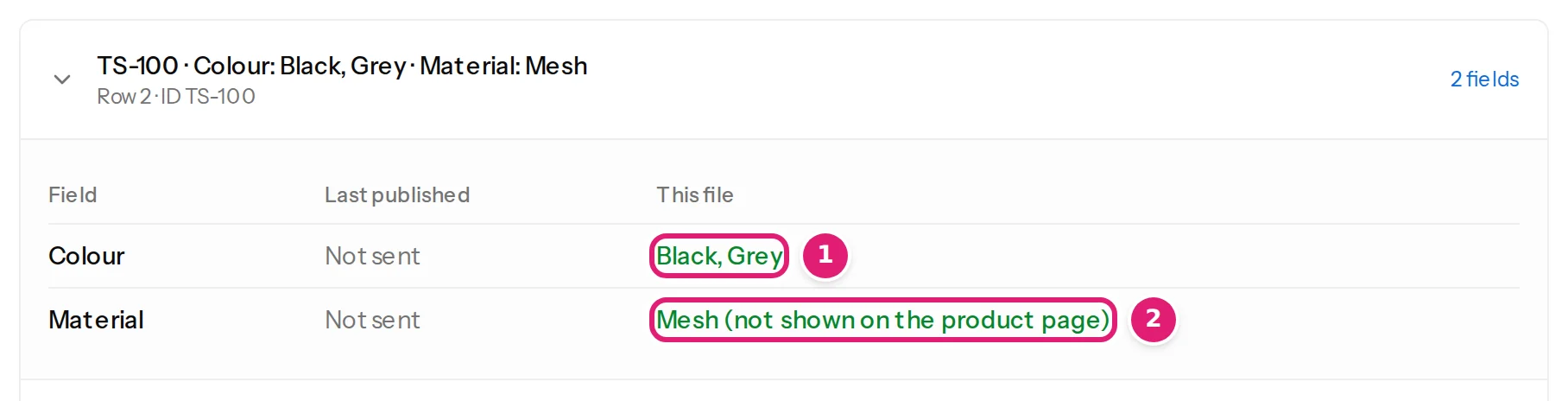
- A product the shop already has and that Content Uploader never published is compared with the attributes it holds now, so only what differs is listed (update products already on your shop).
- A product Content Uploader published before is compared with what was last published. The first time a file sets an attribute for it, the column Last published says Not sent, because no earlier file sent that attribute, as in the picture; a cell that is empty for a product without that attribute shows Not sent and Empty, and takes nothing away.
- A new product's card lists its attributes, and the preview in the editor lists them for each sample row.
- A later file is compared with what you last published. Two configurations that set different things for the same products do not report each other's attributes.
Not offered#
Term descriptions and the order of a shop attribute's values are not offered. The attributes a variable product's variations choose among are set here too, with Used for variations ticked (variable products).
When something is wrong#
| What you see | What it means and what to do |
|---|---|
| The site doesn’t offer this attribute… | The shop no longer has the attribute. Remove it from the configuration, or refresh the site's fields on the Sites page. |
| An attribute can have at most 100 values; this row has 101. | Split the product's values across attributes, or shorten the list. |
| The attribute “pa_colour” has no value “Mauve”, and values may not be added. | Add the value in WooCommerce under Products → Attributes → Configure terms, or turn on Add values the shop does not have yet. |
| Names starting with “pa_” belong to the site’s own attributes. | Choose the shop's attribute from the list instead, or give the attribute made on the product another name. |
Was this article helpful?
Related articles
- WooCommerceWooCommerce product fields you can mapEvery field Content Uploader offers for a WooCommerce product, in the sections of the editor: what it is, what a cell may hold and what an empty cell does.
- WooCommerceUpdate products that are already on your shopFind the products your shop already has by their SKU, update them from a spreadsheet, and see on the first review only what differs from the shop.
- WooCommerceReview product changes: the summary, the card and what the shop holdsHow the review shows a shop's products: the price and stock summary, what the shop holds now, the product card, the price check and products that cannot be updated.
- Mapping columnsCategories: columns, paths and parent categoriesMap categories from a column, a path such as Destinations > Malta > Gozo or a parent column; how missing categories are created, and Joomla's one-category rule.