Billing, VAT, invoices and withdrawing from a subscription
Add billing details, subscribe or change plan, how VAT and the reverse charge work, where invoices are, failed payments, and a consumer's 14-day withdrawal.
- 6 min read
- Updated October 13, 2026
Billing belongs to the owner of the workspace. Team members can see the plan and the usage but cannot buy, change or cancel anything. Payments are handled by Stripe: your card or bank details are entered on Stripe's own pages and never reach Content Uploader. Stripe also issues your invoices.
Billing details#
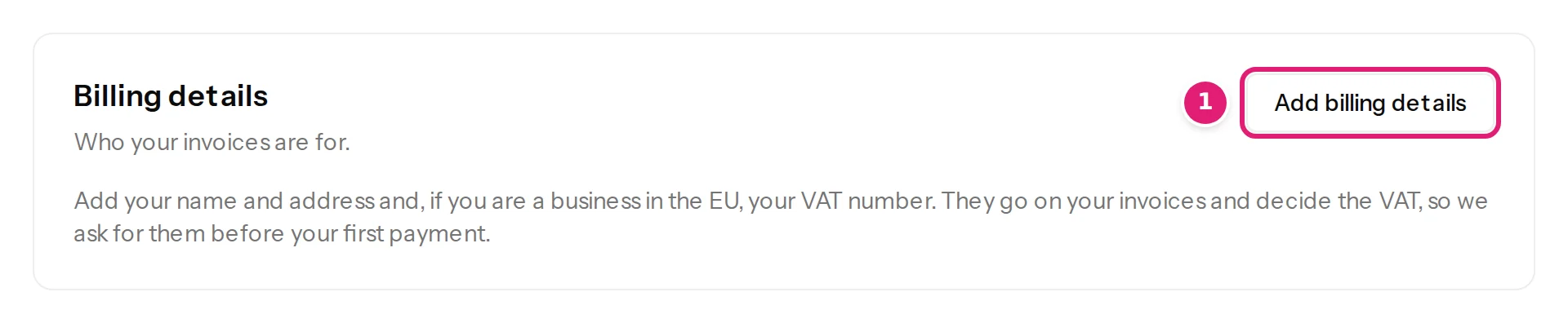
Before your first payment, Content Uploader asks who your invoices are for. Open Billing → Billing details (or Add billing details on the Billing page; the first purchase asks for them first). The details go on your invoices and decide the VAT, so they are checked here and not in Stripe's customer portal. You can change them at any time, and the next invoice uses the new ones.
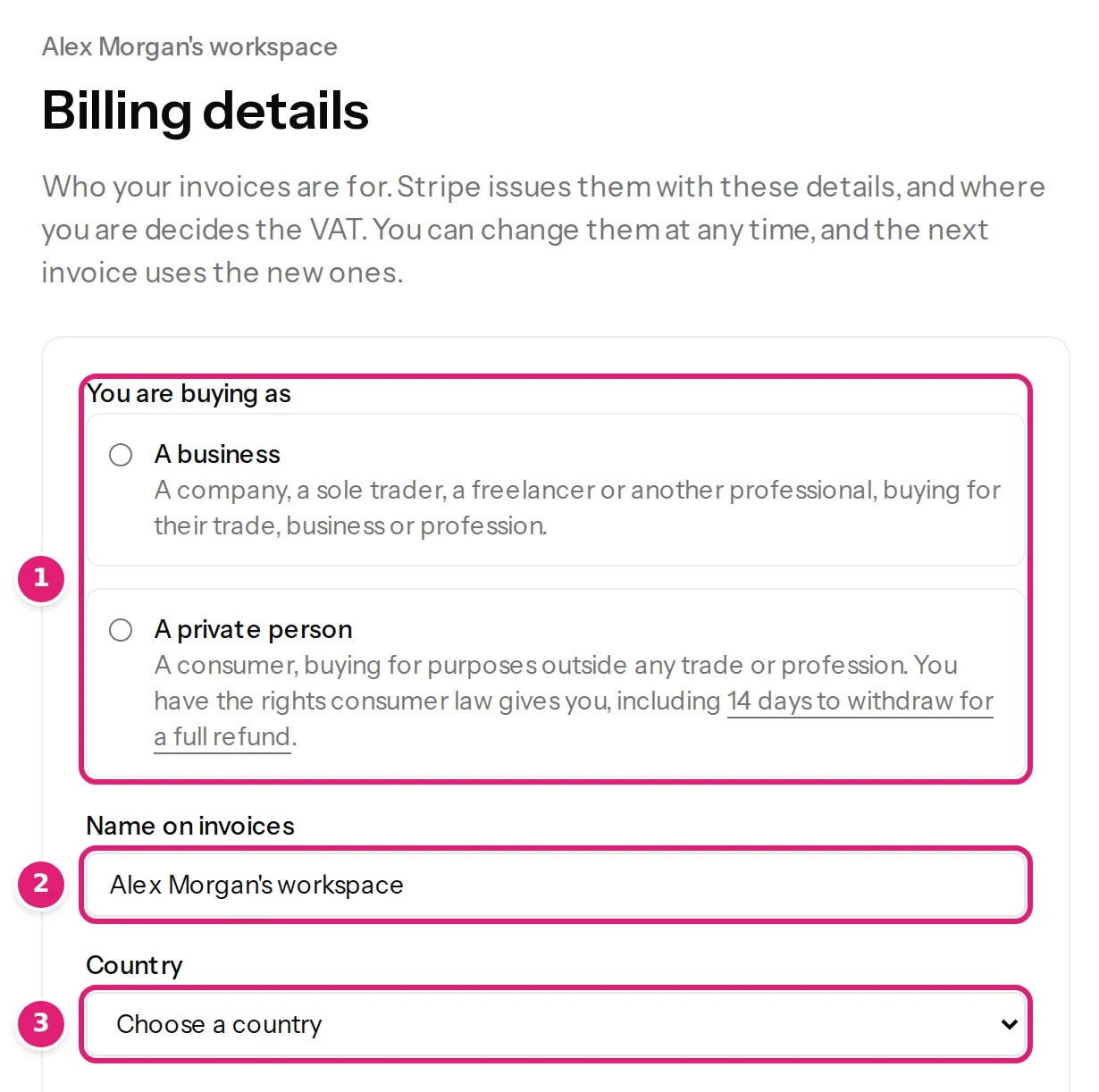
- You are buying as (1): A business (a company, sole trader, freelancer or other professional buying for their trade, business or profession) or A private person (a consumer buying for purposes outside any trade or profession). Choose honestly; the choice decides VAT and your rights.
- Name on invoices (2): a company or trade name, or your own name.
- Country (3), Address, Postal code, City and, optionally, State or province.
- VAT number, for a business in the EU only (a private person has no VAT number field). The number must start with the prefix of the country of the billing address (Greece's is EL). Content Uploader asks the European Commission's VIES service whether it exists, and keeps only a number VIES confirms. A number VIES does not know is refused; you may leave it out and pay VAT instead. If VIES cannot answer when you save, you are asked to try again and nothing is saved.
VAT#
The seller is registered in Malta and uses the EU's One Stop Shop. What is added to an invoice depends on who you are and where you are:
| Customer | Invoice |
|---|---|
| In Malta, with or without a VAT number | Maltese VAT (18%). A confirmed VAT number is printed on the invoice. |
| In another EU country, VAT number confirmed by VIES | No VAT. The invoice says reverse charge: you declare the VAT yourself. |
| In another EU country, no VAT number (including every private person) | VAT at your country's rate. |
| Outside the EU | No EU VAT. A VAT number is not asked for. |
Prices are shown without VAT for businesses. A private person sees the total with VAT on Stripe's payment page before paying. The words reverse charge on an invoice are a notice required by tax law: they do not mean anything is wrong with your payment.
Subscribing or changing plan#
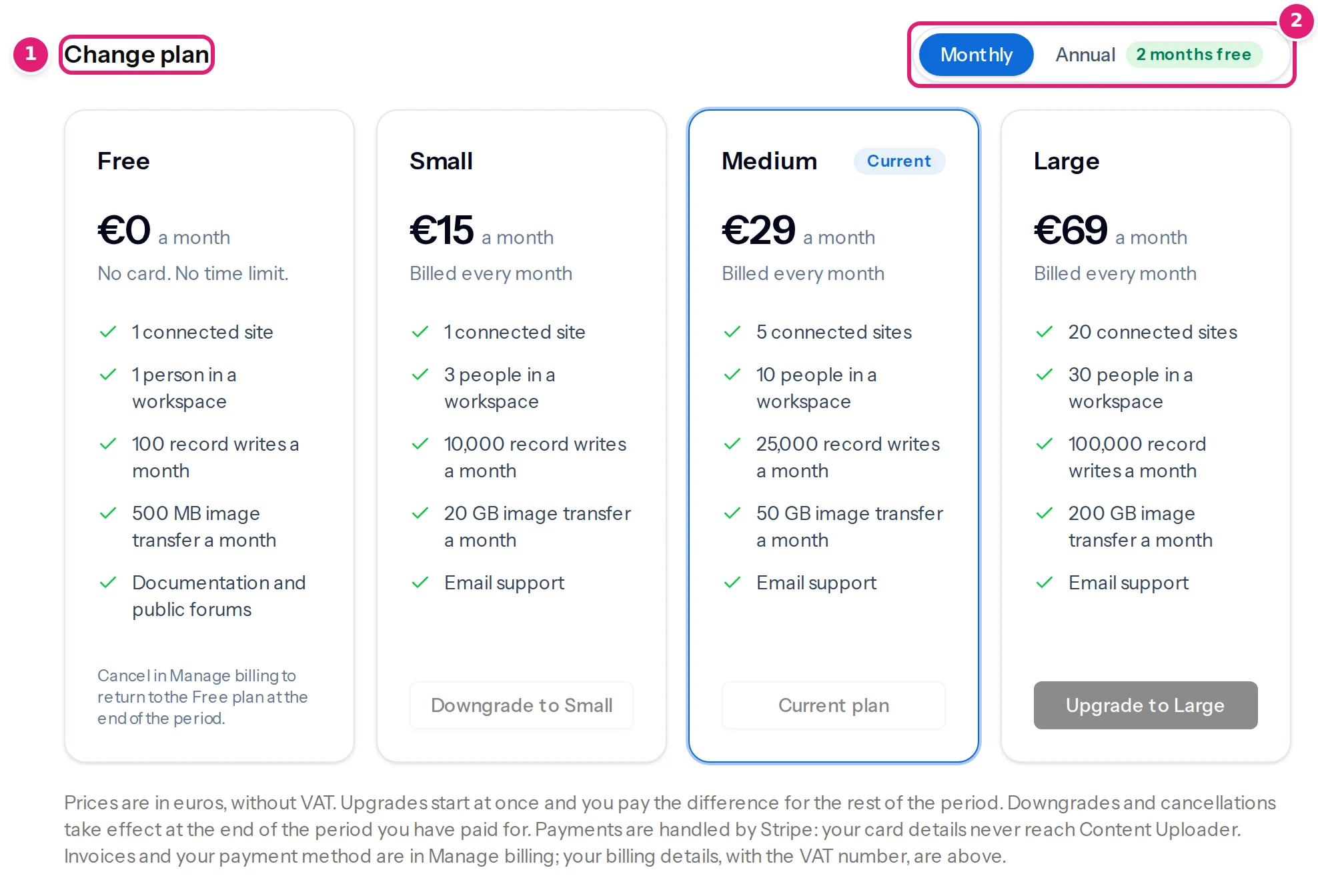
- Open Billing. In Choose a plan (or Change plan) pick Monthly or Annual (the annual price covers ten months) and select the button of the plan you want.
- If you have not given billing details yet, the page asks for them first (You chose the … plan, billed monthly.) and then goes on with the plan you chose.
- Stripe's payment page opens. Check the total, pay, and you return to Content Uploader. The workspace is on the new plan at once, and an email confirms it: Your Content Uploader … plan is active, with what it includes and the date of the next payment.
If Payments aren't set up on this server yet appears on the Billing page, the service cannot take payments at the moment and plans cannot be bought.
- Upgrading starts at once; you pay the difference for the rest of the period, and what you have used this cycle counts against the new allowance (plans and allowances).
- Downgrading or cancelling takes effect at the end of the period you have paid for. Until then the plan stays as it is. The Billing page says This plan ends on … After that the workspace returns to the Free plan. Your content stays on your sites, and your configurations stay here. Changed your mind? Open Manage billing to keep the plan.
- Renewals are automatic until you cancel. The Billing page says Renews on ….
Manage billing: payment method and invoices#
Manage billing (next to your plan, once you have subscribed) opens Stripe's billing portal. There you update your payment method, download invoices, change or cancel the plan, and change the email address invoices go to. Your name, address and VAT number are changed in Content Uploader's own Billing details, so that the VAT stays correct.
If a payment fails#
The Billing page says Your last payment failed. Update your payment method in Manage billing by …, or this workspace returns to the Free plan. Stripe tries the payment again for a while. If it still fails, or the subscription ends, the workspace returns to the Free plan: nothing is deleted. Configurations, uploads, history and sites stay, published content stays on your websites, and sites beyond the Free plan's limit are paused.
Private persons: withdrawing within 14 days#
If you bought as a private person, you can withdraw from the subscription within 14 days of subscribing, without giving a reason, even if you have used it. Everything you paid for it is refunded, VAT included, with no deduction. (A business is not offered this; its terms are in the Terms of Service.)
- On the Billing page, an owner who bought as a private person sees Withdraw from contract with the last day it is possible. Select Withdraw from contract here.
- The next page says what you are withdrawing from and what happens. Enter your name and the email address for our acknowledgement, and select Confirm withdrawal here.
What happens when you confirm:
- The workspace is suspended at once. You can still sign in, read your history and look after your site connections, but nothing is uploaded, checked or published.
- You receive an acknowledgement by email with a reference, and Content Uploader is told to refund you. The refund goes to the payment method you used, within 14 days at the latest. The Billing page shows We received your withdrawal with the reference and the date the refund is due; when it is done you receive an email and the workspace is on the Free plan.
- Content already published stays on your sites, and you can ask for an export of your data.
The refund is made by hand, so it is not instant. If you do not hear back by the date on the Billing page, write to support and quote your reference.
Related#
- Plans, allowances and what happens at a limit
- Data and retention: what is kept after a subscription ends
Was this article helpful?
Related articles
- Account and workspacePlans, allowances and what happens at a limitWhat each plan includes, what counts as a record write and as image transfer, when allowances renew, and what the review offers when a file needs more than what is left.
- Account and workspaceWhat Content Uploader keeps, for how long, and how to export or delete itHow long your uploaded files, run history, account data, invitations and billing records are kept, what stays on your websites, and how to ask for an export of your data.
- Account and workspaceGetting help: support requests and the feedback formHow to ask support a question from the app or by email, what to include so it can be answered, what support covers, and how the bug-report and idea form differs from support.
- FAQCan I get a refund?Fees are non-refundable, with two main exceptions: a private person may withdraw within 14 days for a full refund, and some term changes allow prepaid fees back.