Row errors: read them, fix them, upload again
Rows with a problem are listed under Errors, grouped by message with their row numbers, and skipped while the rest is published. How to read the list and fix the file.
- 3 min read
- Updated October 13, 2026
A row with an error cannot be published as it is. Content Uploader does not stop the whole file for it: the bad rows are listed, skipped, and everything else goes ahead. You fix the rows in your spreadsheet and upload again; rows that were already published show as unchanged.
The Errors list#
Select the Errors tile. If there are many, the list is grouped by message, so one mistake repeated in 300 rows is one line with the number of rows (4 rows with errors, grouped into 4 problems. Open a problem to see its rows.). Select a group to see its rows:
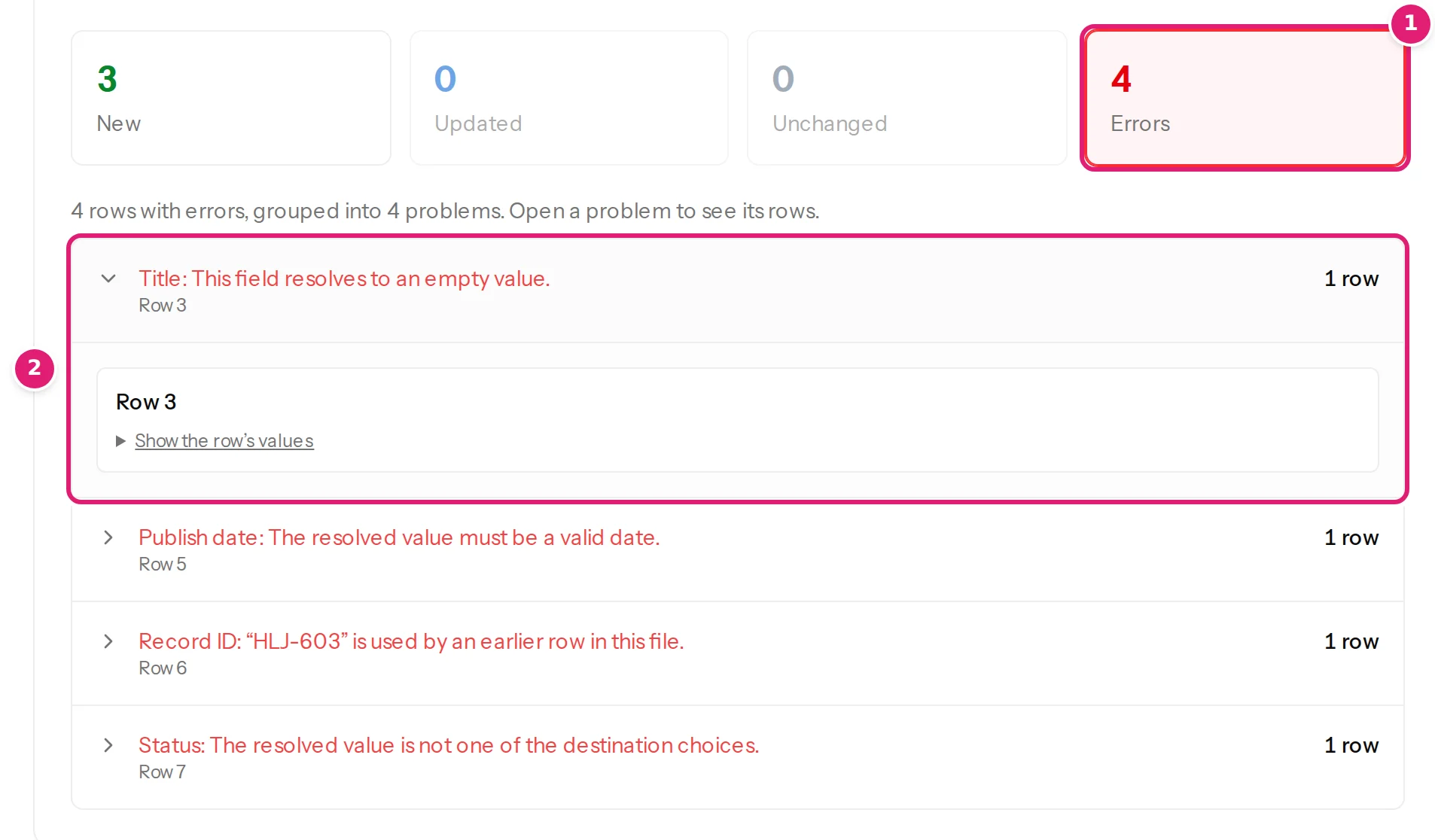
Each row shows:
- Row N: the row in your spreadsheet (row 1 is the header, so the first item is row 2; in a file read without a header row, the first item is row 1), so you can go straight to it.
- Also: any other problems the same row has.
- Show the row's values: every cell of that row, so you can see what was read.
A row's errors are named by the field: Title: …, Publish date: …, Status: …, Category: …, Record ID: ….
The four examples#
The example file 09-articles-with-problems.csv has one row for each common mistake:
| Message | The row | The fix |
|---|---|---|
| Title: This field resolves to an empty value. | HLJ-602, no title | Fill the title. |
| Record ID: “HLJ-603” is used by an earlier row in this file. | The second HLJ-603 | Give each item its own ID. The first row with an ID counts. |
| Publish date: The resolved value must be a valid date. | HLJ-604, next Tuesday-ish | Write a date: 2026-09-23 09:00 (dates). |
| Status: The resolved value is not one of the destination choices. | HLJ-606, Live | Use a status the site offers: Published, Draft, Pending review, Private (status). |
The other rows (here three: the good article, the first HLJ-603 and the one without a category) are new and publish normally, which is why the page says 4 rows with errors will be skipped. under the Publish button.
Fix and upload again#
- Correct the rows in the spreadsheet (the numbers tell you where).
- Upload the file again: you can upload the whole file again, or just the corrected rows with their IDs (partial updates).
- The rows already published are shown as unchanged, the corrected ones as new or updated.
You do not have to publish the good rows first: if you prefer, fix the errors and publish everything at once. If every row has an error, the Publish button says Nothing to publish and the page offers Upload the corrected file.
Errors that name the whole file#
Some problems are not about rows: a missing column stops the file before any row is read (This file doesn't match the configuration, see when a file's columns change), and a file that cannot be read says why on its page (the file cannot be read).
The messages#
The complete list of what a row can be told, with the reason for each, is in mapping errors and common mapping mistakes.
Was this article helpful?
Related articles
- Mapping columnsMapping errors and common mapping mistakesEvery message the editor shows when you save a mapping and every message a row can get for a field, with the fix, plus the mistakes behind most surprises.
- Preparing your spreadsheetDuplicate IDs, titles and rowsWhat happens when two rows share an ID or a title in one file, the error each gets, why the first row wins, and why the same item next week is an update, not a duplicate.
- Reviewing and publishingHow the review worksAfter a file is checked, the review shows what will be created, updated, left alone or skipped before anything is sent to your site. How to read each part of the page.
- TroubleshootingRows with errors: find, fix and upload againWhat to do when the review lists rows with errors and skips them: reading the groups, the most common messages and their fixes, and uploading just the corrected rows.