Understanding the dashboard
A tour of the dashboard, the sidebar and the badges: where your configurations, uploads and sites are, and what each marker means.
- 4 min read
- Updated October 14, 2026
The dashboard is the page you work from every week. It shows one card for each configuration, so that dropping this week's file is one action.
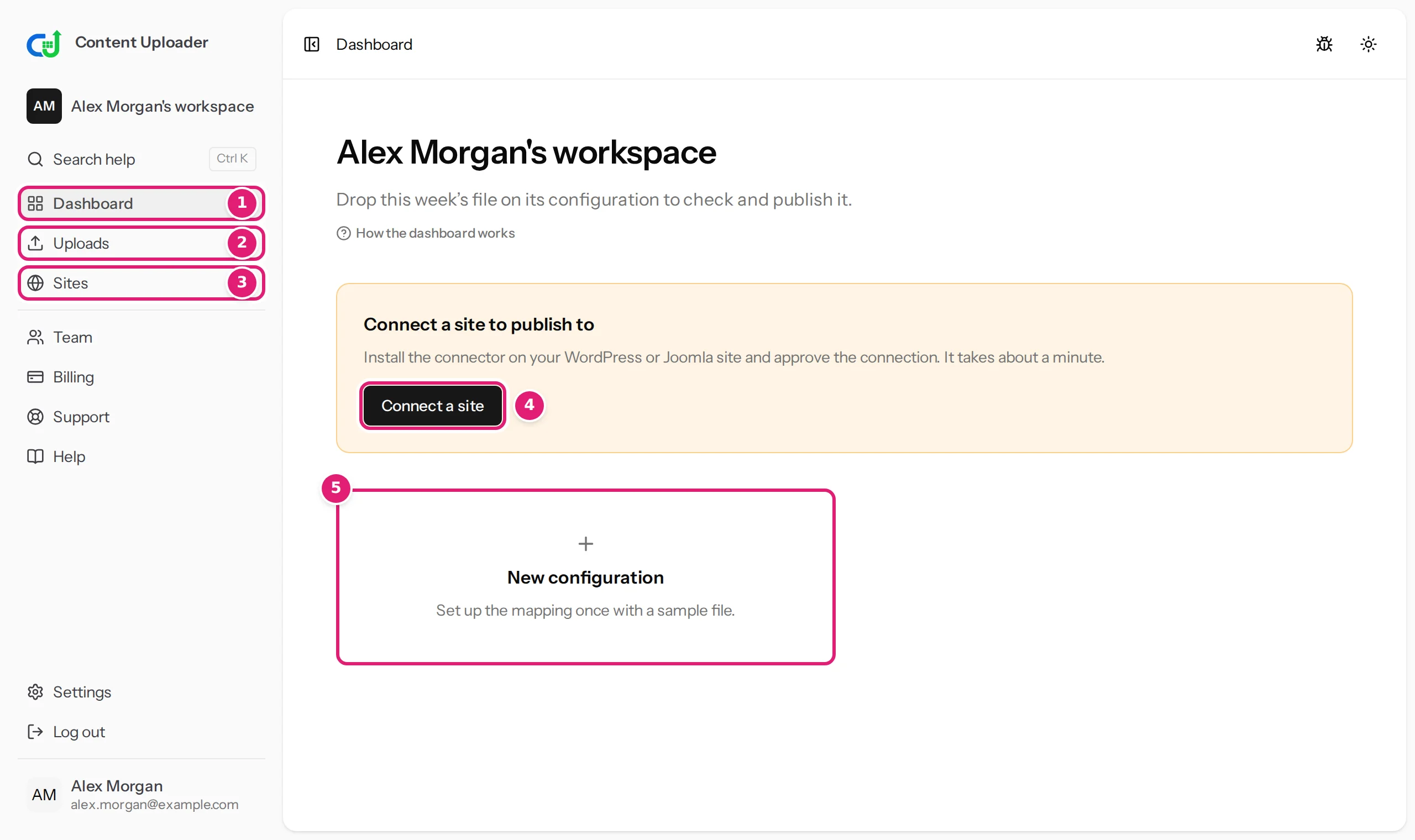
The sidebar#
- Dashboard: your configuration cards, the page above.
- Uploads: the history of every file you have uploaded, with its status and what it changed. You can filter it by configuration.
- Sites: your connected sites, their connection status, the publishing results and the buttons that connect, renew, refresh and disconnect a site.
Below them, a second group holds Team (people and which sites they may use), Billing (your plan, usage and invoices), Support and Help, which opens this documentation. Settings (profile, security, appearance, cookies) and Log out are always at the bottom, with your name and email under them.
At the top of the sidebar, the workspace switcher shows which workspace you are in. If you belong to several (for example because a client invited you to theirs), you choose between them here. The logo takes you to the public home page. The button in the top bar, or the keyboard shortcut Ctrl+B (⌘B on a Mac), folds the sidebar into icons. On a phone the whole sidebar sits behind that button (using Content Uploader on a phone).
Search help, under the workspace switcher (shortcut Ctrl+K, or ⌘K on a Mac, on any page), searches the documentation: guides, tutorials, error messages and answers. Type a few words, such as the text of a message, and press Enter to see every result, or choose one with the arrow keys and press Enter to open it. A result opens in a new tab, so that what you are doing, such as a mapping you have not saved yet, stays as it is. The small Learn more links beside a part of a screen open the article about that part in a new tab as well. The documentation is public: anyone can read it without signing in.
The bug icon in the top bar (Report a bug or share an idea) opens a small form for telling us about a problem or an idea, and the sun icon switches between light, dark and system appearance. The form is a letter box, not a support channel: support explains the difference.
Badges: what is waiting for you#
A small number or dot beside Uploads and Sites means something needs a person:
- Uploads counts the configurations whose latest upload is Ready for review (blue), Needs mapping (amber) or Needs attention (red), for uploads from the last 30 days.
- Sites counts failed publishing results and sites whose access has ended or ends within 14 days.
The numbers cover only the sites you have access to. They refresh when an upload you are watching finishes and when you return to the tab.
Configuration cards#
Each configuration has a card:
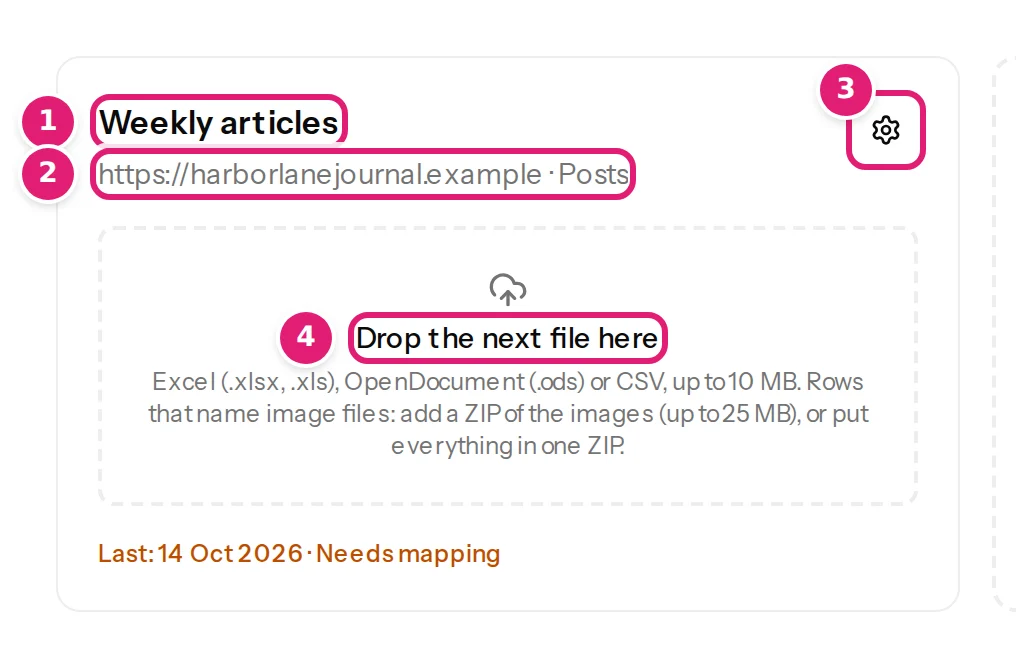
- The configuration's name.
- Where it publishes: the site and the content type, for example Posts.
- The settings icon opens the configuration to change its mapping or delete it.
- Drop the next file here is the drop zone. Dropping a file (or choosing one) uploads it at once and opens its page. See uploading the next file.
Under the drop zone, the last line shows what happened to the latest upload ("8 changes waiting for review", "8 published", "already up to date", "Needs mapping"), as a link to that upload. A small Publishes automatically note means the configuration is set to publish clean files without waiting for you.
Other cards you may see:
- Finish setting up this configuration → appears on a configuration that has been created but never saved with a mapping.
- A yellow box with Renew access or How to keep access appears when a site's connection is about to expire (it lasts 90 days). See renewing access.
- New configuration is always the last card.
Banners at the top#
- Connect a site to publish to shows while no site is connected (owners only).
- You have not been given a site yet shows to a team member who has not been given access to any site yet, and says whom to ask.
- A notice about the workspace itself (for example a suspended or locked workspace) appears above everything else when it applies.
Was this article helpful?
Related articles
- Getting startedImportant concepts and terminologyThe words this documentation and the app use, in the order you meet them: workspace, site, connector, configuration, record ID, run and more.
- Account and workspaceWorkspaces, owners and the workspace switcherWhat a workspace is, what belongs to it, how to move between several workspaces, and what the notices about a paused, suspended, locked or deleted workspace mean.
- Importing dataUpload the next fileDrop this week's spreadsheet on its configuration's card, follow the check and publish: how uploads work, adding a ZIP of images, who is emailed and what uploading twice does.
- Account and workspaceManaging your connected sitesThe Sites page explained: status, when access ends, renewing, refreshing fields, disconnecting, sites paused by your plan, and publishing results with their attempt history.