The Uploads page and what each status means
The list of every file you uploaded, filtered by configuration, with its status (Reading file to Needs attention), its counts and its date, and what each status means.
- 3 min read
- Updated October 14, 2026
Uploads in the sidebar lists every file that was uploaded to the workspace, newest first, with what it did. It is the history of your imports and the place to find a file that still needs you.
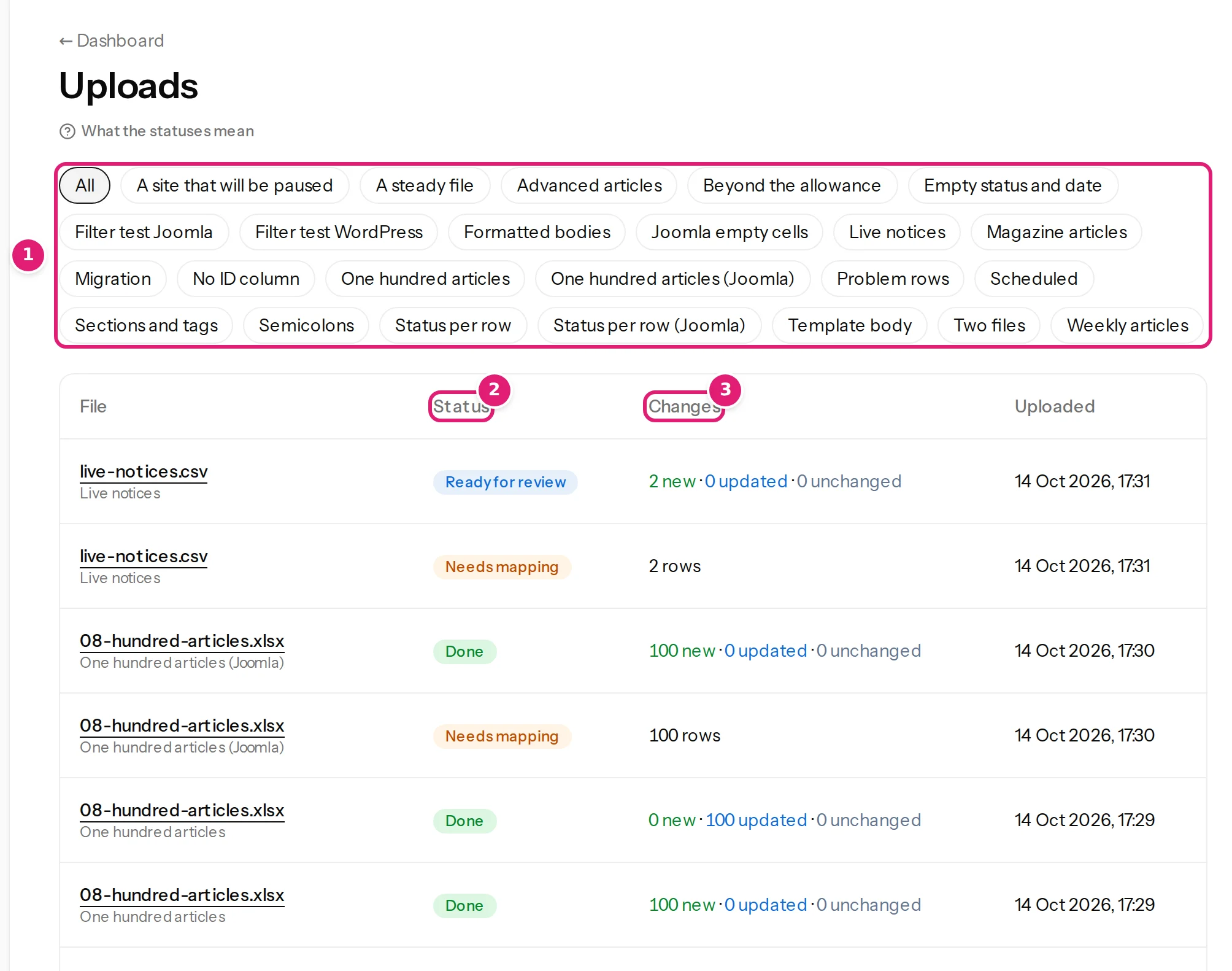
The list#
- Filter by configuration (the buttons above the table): All, or one configuration. Choosing one also shows its Drop the next file here box.
- File: the file's name (a link to its page) and, in All, the configuration it went to.
- Status: one of the labels below. Published automatically appears under it when the file was published without review.
- Changes: for a checked file, new · updated · unchanged; for a file not checked yet, its number of rows; and the number of rows with errors.
- Uploaded: the date and time, in your time zone.
A number on Uploads in the sidebar counts the files that need you: the latest upload of each configuration, when it is ready for review, needs mapping or needs attention. An upload that was replaced by a newer one, that has not changed for 30 days, or that belongs to a deleted configuration is not counted. The badge on Sites counts failed publications and sites whose access has ended or ends within 14 days. Hover over the badge (or over the icon when the sidebar is folded) to see what it counts. The numbers do not change while you read a page: they update when you move to another one.
The statuses#
| Status | Meaning | What to do |
|---|---|---|
| Reading file | The file is being read: its columns and rows. | Nothing. It takes seconds for most files. |
| Needs mapping | The file cannot be checked yet: it is a sample that was never checked with a saved configuration, or columns the configuration uses are missing (This file doesn't match the configuration). | Open it: update the mapping or upload a corrected file. |
| Checking | Rows are being turned into content and compared with what was published and with your site. The page shows how many of how many. | Nothing; you may leave the page. |
| Ready for review | The check is done and waits for you. | Read the review and publish. |
| Publishing | Approved; the items are being sent to your site in the background. | Nothing; you are emailed when it is done. |
| Done | Finished: published, or nothing needed publishing (Everything is up to date). | If some items failed, the page links to the Sites page to retry them safely. |
| Needs attention | The file could not be processed: it could not be read, or the check was interrupted. The page says why. | The file cannot be read: Retry or upload a corrected file. |
A run that is stalled (a stage that shows no progress for some minutes) is picked up again automatically; if it stays stuck, Retry on its page asks again.
Opening a file#
The file's page shows its configuration, destination, version, status and the four steps (Read file, Check, Review, Publish). At the bottom: Checked with configuration version N, Edit configuration, the CSV Separator and the First row (with Read again), Download file (for 30 days) and Uploads. Upload the next file explains each stage.
How long the history is kept#
Uploads stay in this list. The original file is removed after 30 days and the rows read from it after 12 months; the row of the list, its counts and its results stay (data and retention).
Team members#
A team member sees the uploads of the configurations of the sites they were given, and the number in the sidebar counts only those.
Was this article helpful?
Related articles
- Importing dataUpload the next fileDrop this week's spreadsheet on its configuration's card, follow the check and publish: how uploads work, adding a ZIP of images, who is emailed and what uploading twice does.
- Reviewing and publishingHow the review worksAfter a file is checked, the review shows what will be created, updated, left alone or skipped before anything is sent to your site. How to read each part of the page.
- TroubleshootingThe file cannot be read or is refusedWhat to do when a file is refused on upload or the page says This file could not be processed: every message, its cause and the fix, for spreadsheets, CSV files and ZIPs.
- Getting startedUnderstanding the dashboardA tour of the dashboard, the sidebar and the badges: where your configurations, uploads and sites are, and what each marker means.