Creating an account
How to sign up for Content Uploader with an email address or an identity provider, verify your email and land in your new workspace.
- 3 min read
- Updated October 12, 2026
An account takes about two minutes to create. It gives you a workspace to hold your sites, configurations and uploads. The Free plan needs no payment card.
Sign up with an email address#
-
Go to the sign-up page (the Get started button in the top right of every public page).
-
Fill in the form.
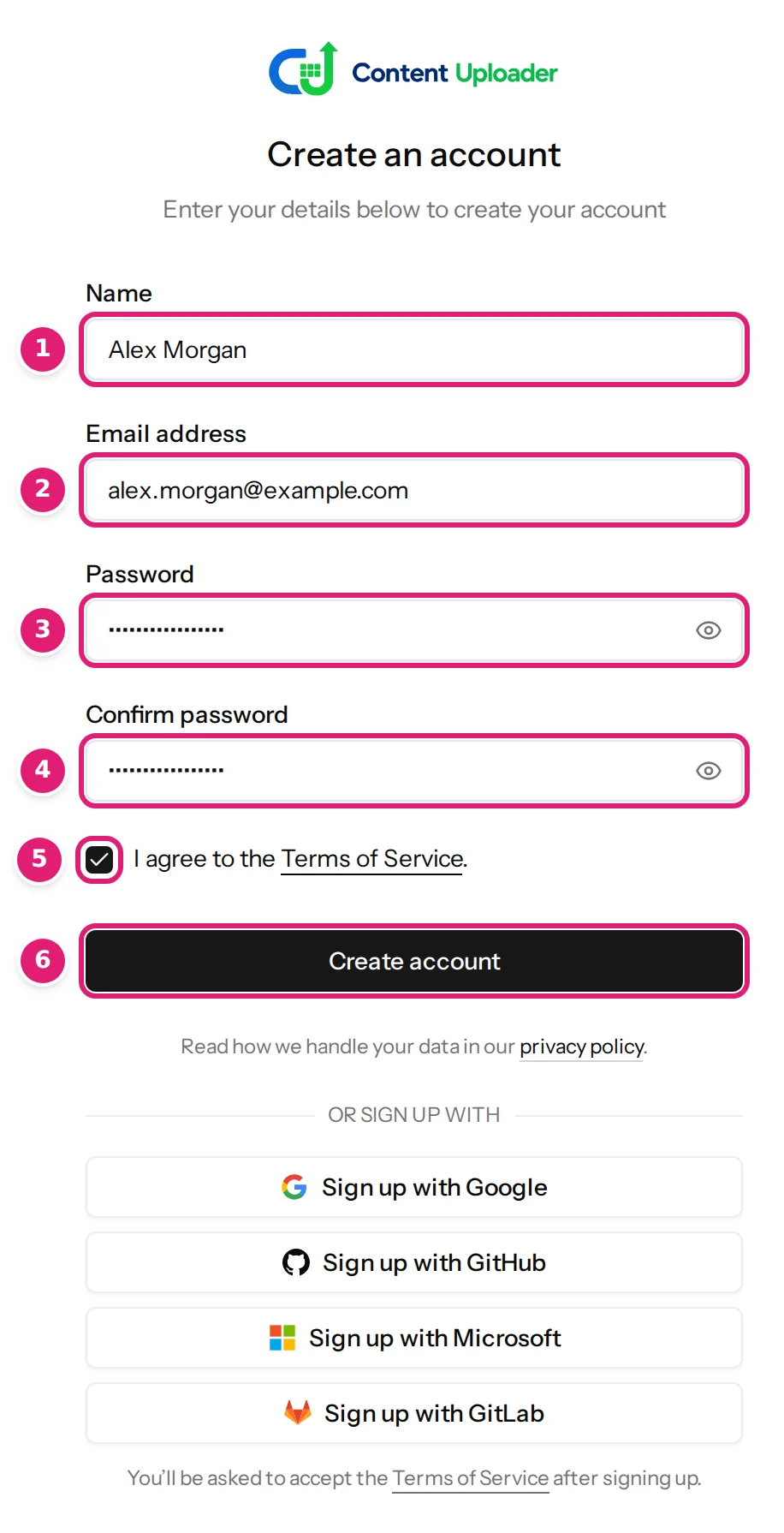
The sign-up form. The numbers match the steps below. - Name: how you will appear to your team.
- Email address: used to sign in and for notifications. It has to be an address you can read, because you must verify it.
- Password and 4. Confirm password: choose a long password that you do not use elsewhere.
- I agree to the Terms of Service: you must accept the terms to create an account. You can read them first; the link opens the Terms. The privacy policy explains how your data is handled.
- Create account.
-
Open the email we send you and follow the link in it.
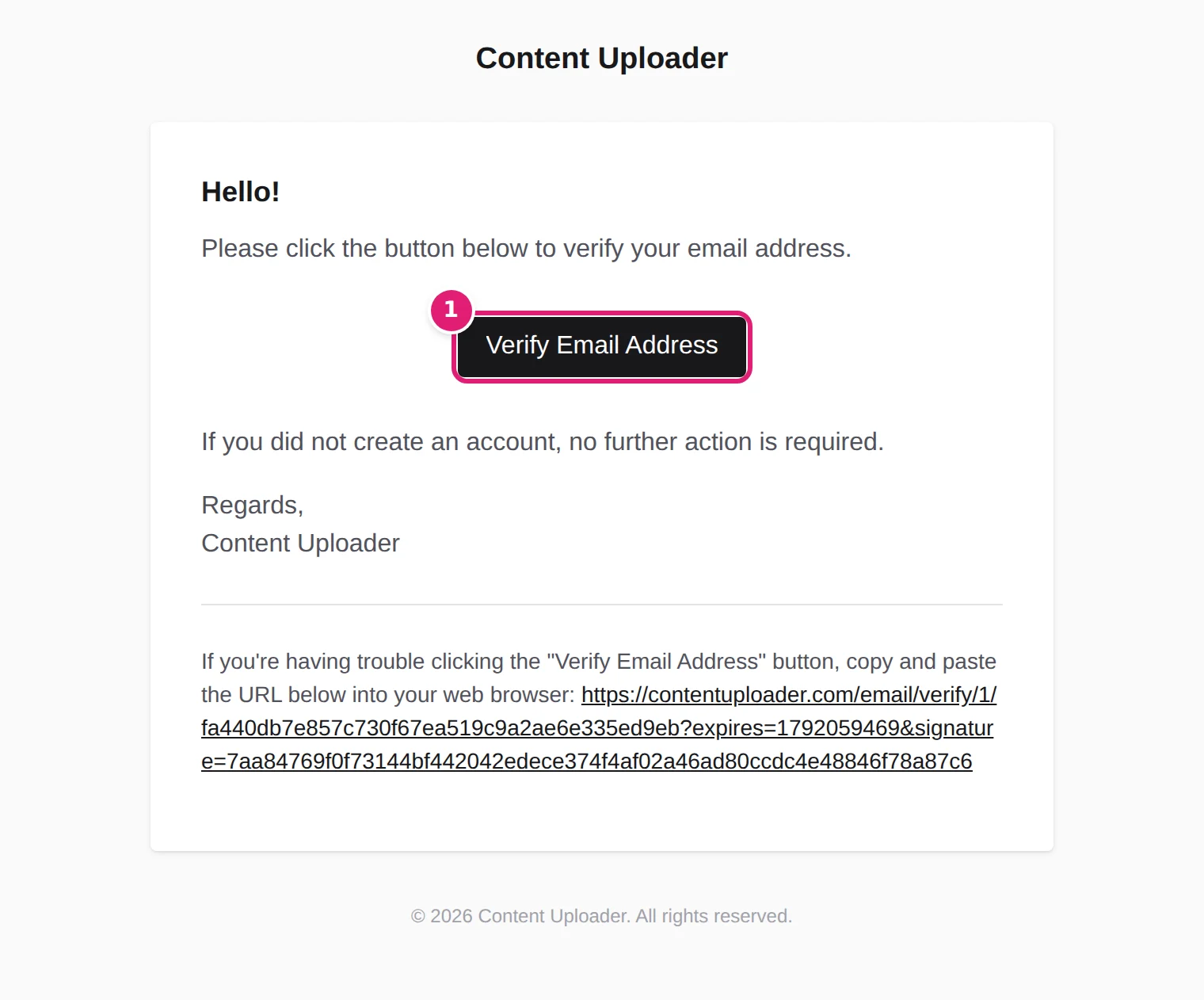
The verification email. The link works for a limited time. Until you do, the app shows an Email verification page. If the email does not arrive, press Resend verification email on that page and check your spam folder.
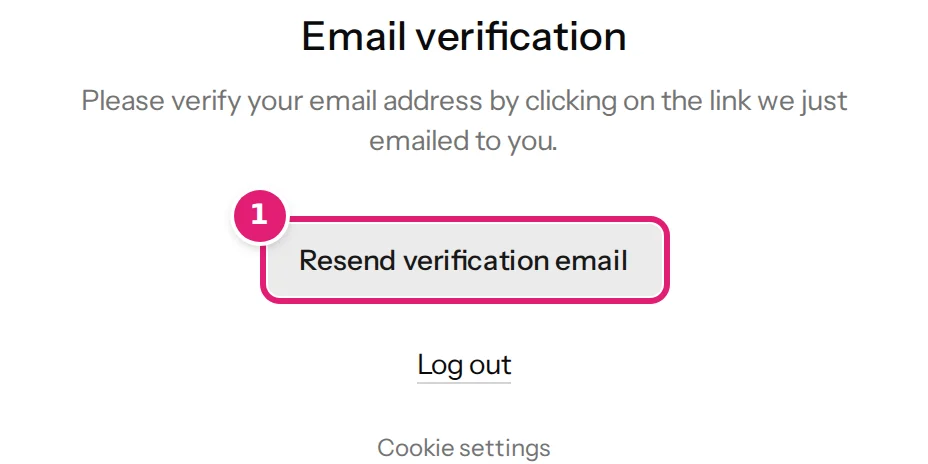
The page you see until your email is verified. -
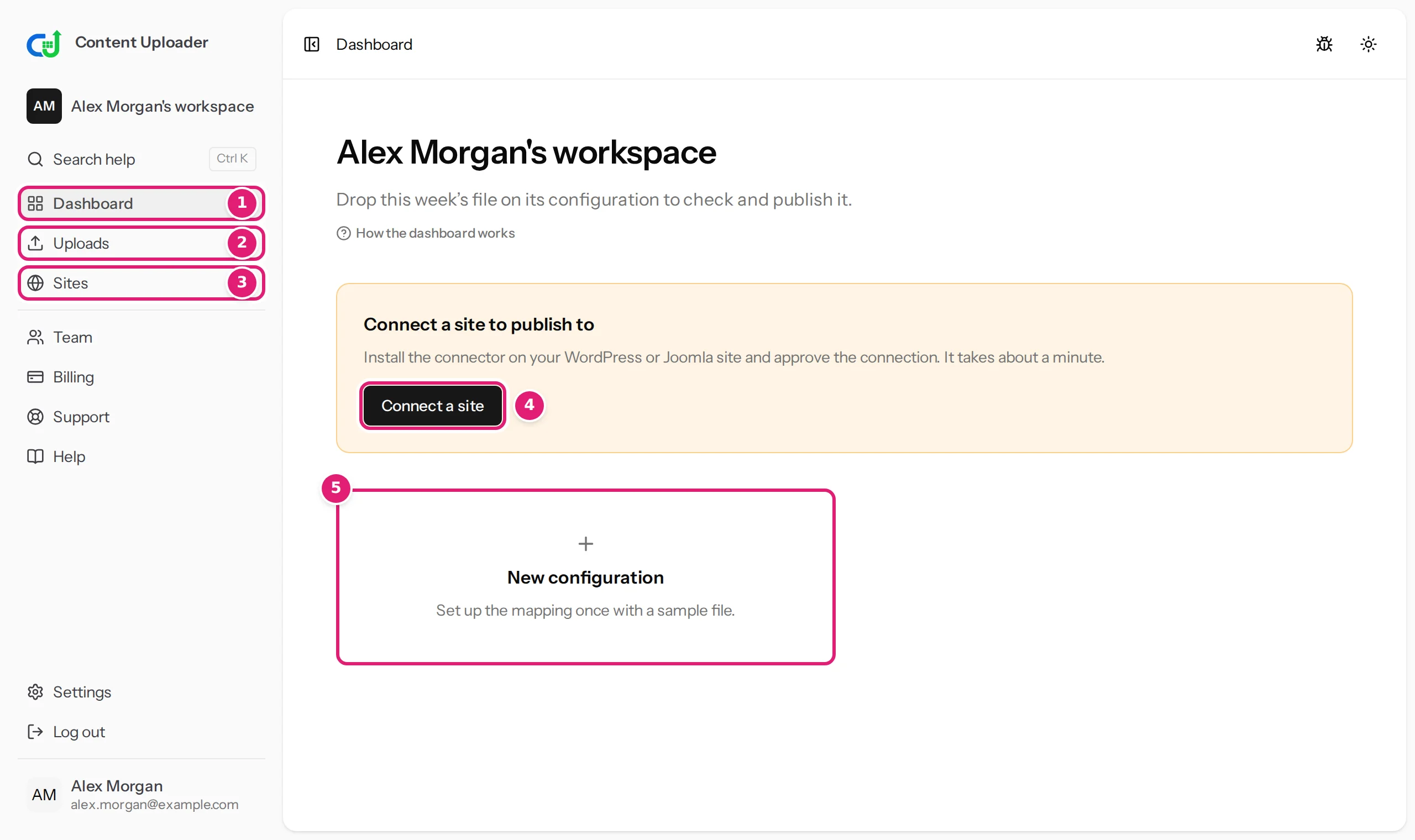
After the link is followed you are signed in and the dashboard opens.
When you register, Content Uploader creates a workspace named after you ("Alex Morgan's workspace" in the screenshots). You are its owner.
Sign up with Google, GitHub, Microsoft or GitLab#
Under the form, Sign up with Google, Sign up with GitHub, Sign up with Microsoft and Sign up with GitLab create an account from your identity at that provider, with no password to remember. You are asked to accept the Terms of Service after signing up. If you already have an account with the same verified email address, signing in with the provider connects the two. Passwords and signing in explains the details, and how to add or remove a provider later.
What to do next#
- Take a tour of the dashboard.
- Connect your first site.
- Or follow the quick start, which does both and publishes your first items.
If something goes wrong#
- The form says the email address is already in use: an account with that address exists. Sign in, or reset the password.
- The verification email never arrives: check your spam folder, then press Resend verification email. If you made a typing mistake in the address, press Log out and sign up again with the correct one.
- The link does not work: verification links are valid for a limited time. Sign in and press Resend verification email to get a fresh one.
Was this article helpful?
Related articles
- Account and workspacePassword, two-factor authentication and passkeysSign in, reset a forgotten password, change it, turn on two-factor authentication, add a passkey, use Google, GitHub, Microsoft or GitLab, and read your sign-in history.
- Account and workspaceWorkspaces, owners and the workspace switcherWhat a workspace is, what belongs to it, how to move between several workspaces, and what the notices about a paused, suspended, locked or deleted workspace mean.
- Getting startedUnderstanding the dashboardA tour of the dashboard, the sidebar and the badges: where your configurations, uploads and sites are, and what each marker means.
- TroubleshootingI cannot sign inWhat to do when sign-in fails: wrong credentials, too many attempts, a locked account, a refused two-factor or recovery code, or a passkey or provider sign-in problem.