Create one hundred WordPress posts from one spreadsheet
Turn a workbook of 100 articles into 100 WordPress posts with slugs, categories, tags, dates and HTML bodies, reading the review before anything is created.
- WordPress
- Difficulty: Beginner
- About 15 minutes
- Updated October 13, 2026
What you will achieve. A workbook with one hundred articles becomes one hundred WordPress posts: each with its own web address, a category under Guides or Destinations, tags, a date and an HTML body. You read the review before anything is written, so you know how many categories and tags will be created.
You need. A WordPress site that is connected, and the file 08-hundred-articles.xlsx. Difficulty: beginner. Time: about 15 minutes.
The example data#
The workbook has one sheet, 100 articles, with seven columns:
| Column | Holds | Example |
|---|---|---|
ID |
The record ID | HLJ-501 |
Title |
The post's title | Anchoring in Mellieha Bay: a practical guide |
Alias |
The web address name | anchoring-in-mellieha-bay-a-practical-guide |
Category |
A category path | Guides > Malta |
Tags |
Tags separated by commas | anchoring, malta, mellieha |
Body |
The text, as HTML | <p>Mellieha Bay is a long sandy bay…</p> |
Publish date |
The date | 2026-09-01 09:00 (a real date cell) |
There are twenty places and five kinds of article, so the same categories and tags come back many times: a good test of whether they are created once.
Step 1: create the configuration#
- On the Dashboard, select New configuration, name it One hundred articles and choose the workbook as the sample (create a configuration).
- Choose your WordPress site and Posts. The editor suggests
IDas the record ID and has already chosenTitlefor the title,Bodyfor the content andPublish datefor the date, because their names match the fields. - Set Slug to Source column and choose
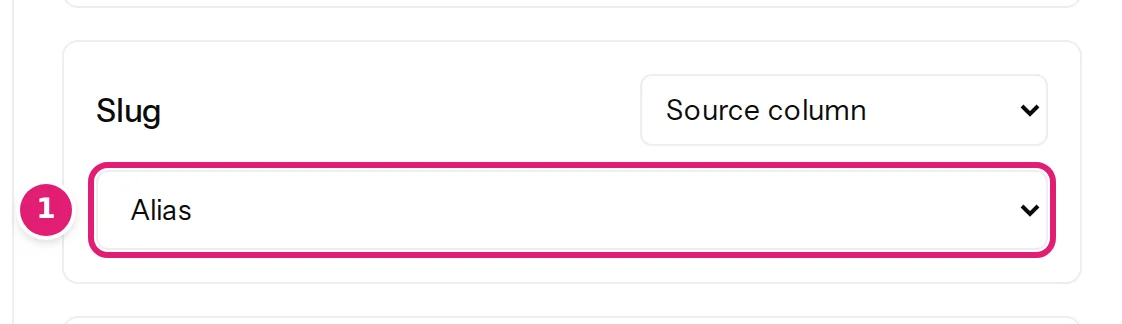
Alias. The column is called Alias, not Slug, so the editor did not know it. - In Tags and categories, set Categories to Replace with configured terms, choose
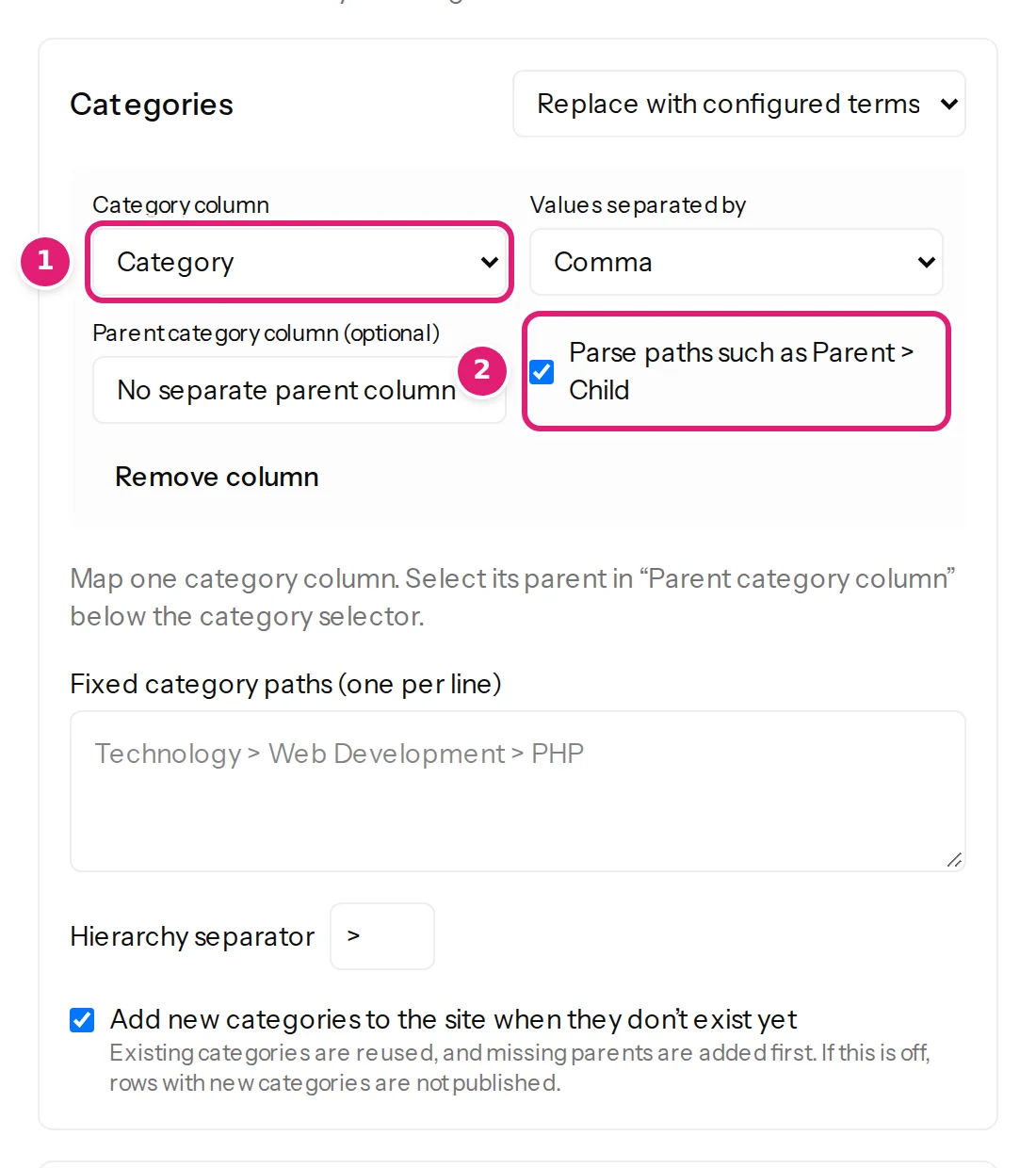
Categoryas the category column and tick Parse paths such as Parent > Child. Set Tags to Replace with configured terms with the columnTags.
Leave Status as the editor set it: a fixed Draft, because the file has no Status column. The posts will be created as drafts, with their dates, for you to read before they go live.
- Save the configuration.
Step 2: drop the file and read the review#
Drop the workbook on the new card. A hundred rows are read and checked in well under a minute (21 seconds on our slow demonstration server). The review says 100 new, 0 errors:
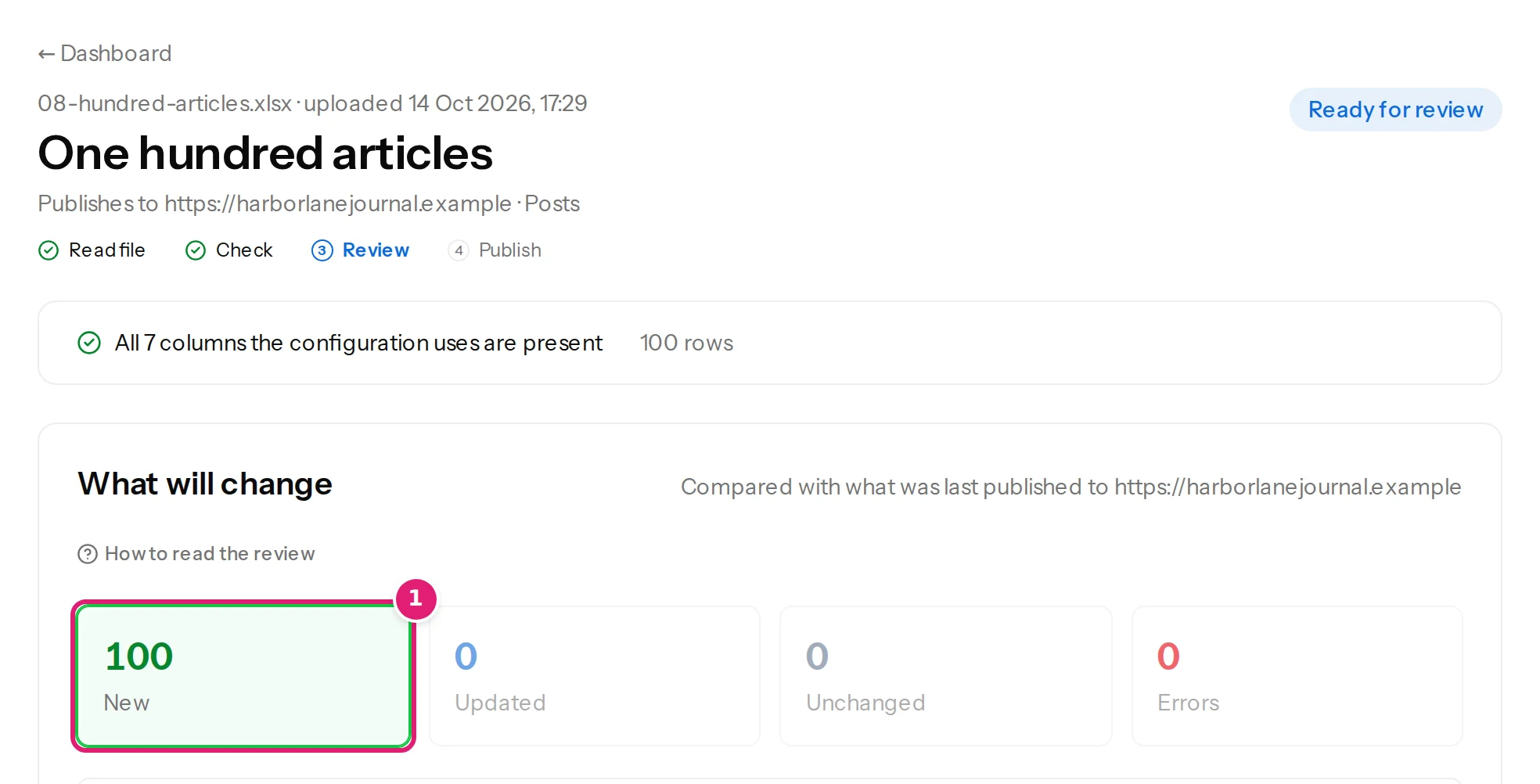
Below the tiles, the box New on the site after publishing lists what will be created besides the posts: only the categories and tags that your site does not have yet. In the picture, five categories (Croatia, Greece, Italy, Malta and Spain under Guides) and twenty tags are new, because the demonstration site already had the categories under Destinations. On a new site you would also see Guides, Destinations and the five under Destinations. This is the moment to check the spelling of the categories (new categories and tags).
Because this is the first file with this configuration, the page also asks you to tick I reviewed the changes above.
Step 3: publish and wait#
Tick the box and select Publish 100 changes. The page shows the progress and says you can leave it: publishing runs in the background, one post at a time, and you are emailed when it has finished.
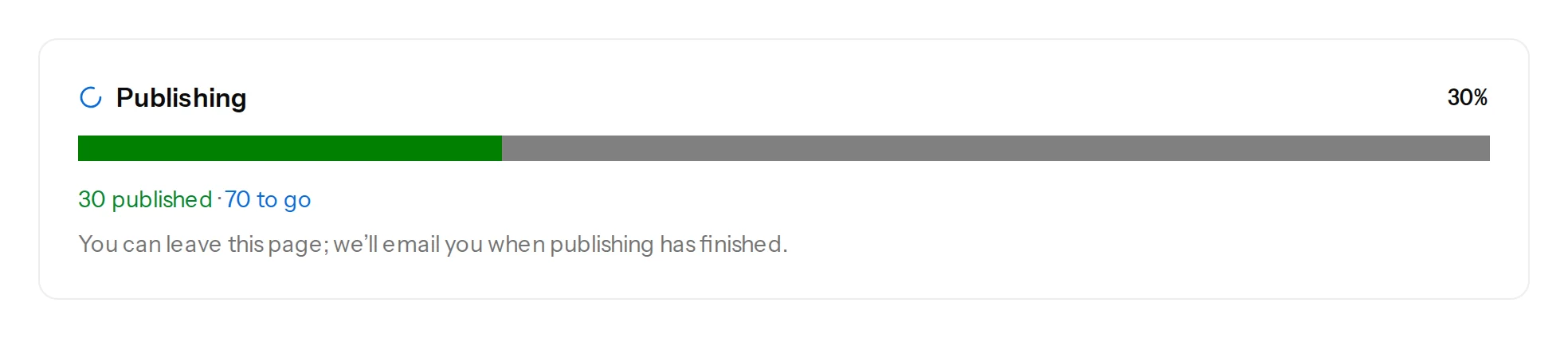
How long it takes depends on your site and its server: each post is one save through WordPress, with all its plugins, and posts are sent one at a time. A hundred posts take clearly longer than reading a hundred rows, so you do not need to wait on the page.

Step 4: check WordPress#
- Posts → All Posts lists one hundred new posts, as drafts, each dated as in the file.
- Each post's slug is its
Alias. - Posts → Categories shows Guides with its children Malta, Spain, Croatia, Italy and Greece, and Destinations with its children.
- Each post has its tags, and the tags exist once each, not a hundred times.
Step 5: make them live#
The posts are drafts, because the file has no Status column and the editor chose a fixed Draft. When you have read them, make them live:
- Open the configuration (the gear on its card), set Status to Fixed value → Published, and save.
- Drop the same file again. The review now shows 100 updated: every article changes its status (Draft → Published) and nothing else.
- Publish. The posts are updated in place, with the same IDs and web addresses.
An article whose date is still to come is not published at once: WordPress schedules it for that date. In our test, run on 13 October 2026, the file's dates run from 1 September to 9 December 2026, so 42 articles went live and 58 were Scheduled:

If you want everything live today, use dates that are not in the future, or leave the Publish date out of the mapping.
What can go wrong#
- Categories with a
>in their name: Parse paths was not ticked (categories or tags are wrong). - Slugs that WordPress made from the titles: the Slug field was left on the default.
- Posts scheduled instead of published: their date is in the future (step 5).
- Rows listed as errors: see row errors.
- Publishing takes very long: see an upload is stuck or slow.
Was this article helpful?
Related articles
- Mapping columnsCategories: columns, paths and parent categoriesMap categories from a column, a path such as Destinations > Malta > Gozo or a parent column; how missing categories are created, and Joomla's one-category rule.
- Mapping columnsTags: several per item, from one or two columnsMap tags from a column of comma, semicolon or pipe separated values, merge two tag columns, add fixed tags and create missing ones. Joomla's nested tags too.
- Mapping columnsTitle, slug and aliasThe title is required; the slug (WordPress) or alias (Joomla) is the item's web address. How each is saved, the length limits, and why you may want to keep the slug.
- Preparing your spreadsheetLarge files: the limits and how to stay inside themThe size limits for spreadsheets, rows, columns, cells and ZIP files, the message each gives, and how to split or slim down a file that is too big, with what it costs.