Managing your connected sites
The Sites page explained: status, when access ends, renewing, refreshing fields, disconnecting, sites paused by your plan, and publishing results with their attempt history.
- WordPress
- Joomla
- 5 min read
- Updated October 14, 2026
Sites in the sidebar lists every website connected to the workspace, whichever platform it runs, and what has been published to them. This page is the same for WordPress and Joomla sites.
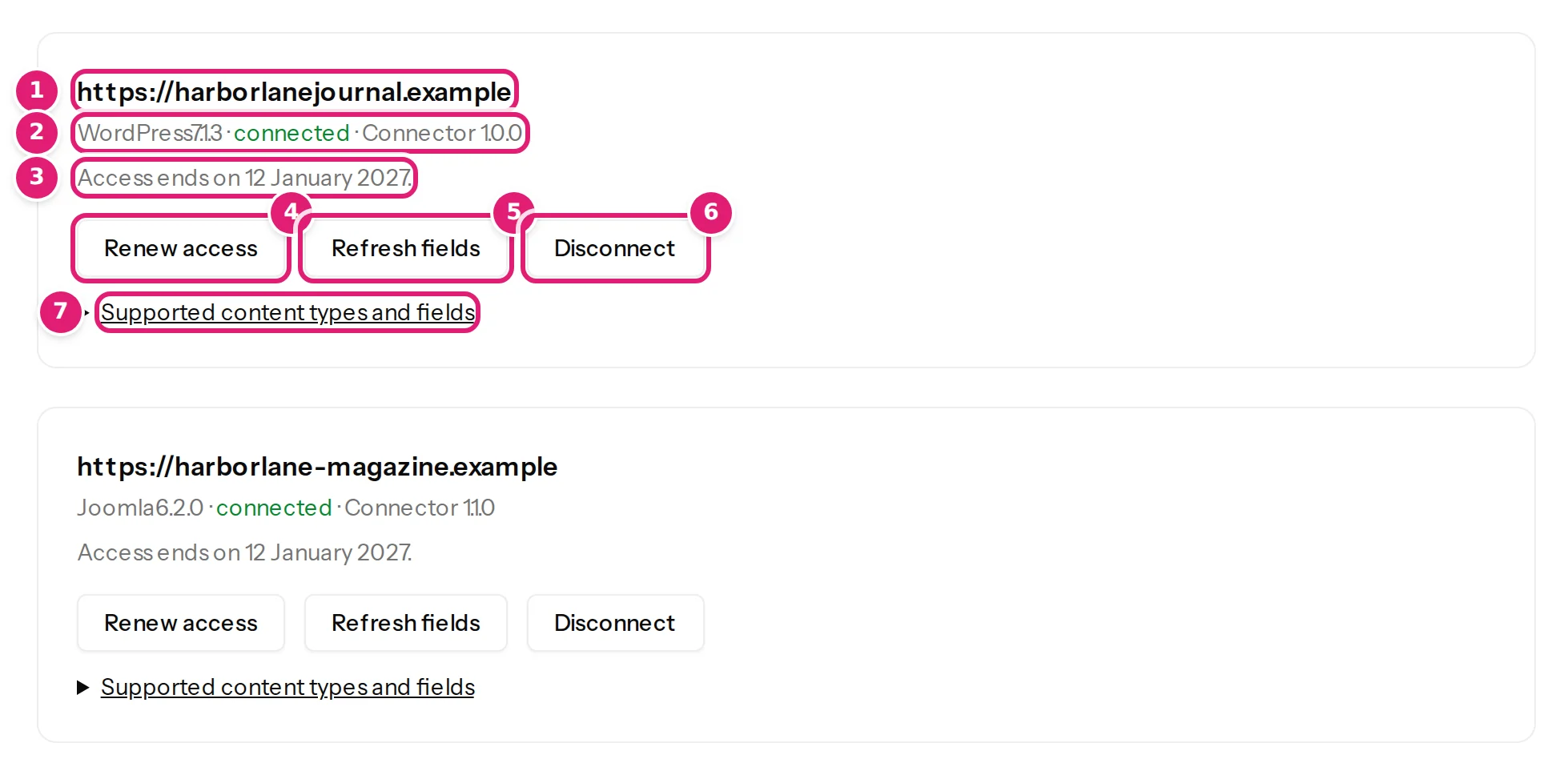
What each entry shows#
- The site address, as the site reported it when it was connected.
- The status line: the platform and its version, the state of the connection, and the version of Content Uploader's connector (the WordPress plugin or the Joomla component) installed on the site, for example WordPress 7.1.3 · connected · Connector 1.0.0. A site that your plan does not allow to publish says paused by your plan.
- When access ends. For security, the key a site gives Content Uploader expires after 90 days. The line reads Access ends on a date; it turns amber and bold in the last 14 days, and reads Access ended on a date when it has passed.
- Renew access asks the site for a new key over the existing connection. Nobody needs to sign in to the site. See renewing access.
- Refresh fields asks the site again what it offers, so new content types, custom fields, categories and authors become available in your configurations, and shows whether the site still answers. See testing the connection.
- Disconnect (owners only) ends the connection from Content Uploader's side. Everything already published stays on the site; configurations, uploads and history stay in the workspace. To use the site again, connect it again from the site.
- Supported content types and fields opens the list of what Content Uploader can write on this site.
If the site was disconnected, or its access ended, the buttons are replaced by a line that says how to reconnect: Open Settings → Content Uploader in WordPress to reconnect this site. or Open Components → Content Uploader Connector in Joomla to reconnect this site.
Who can do what#
Owners can use everything on this page. A team member sees only the sites they were given, and can renew access and refresh fields for them, but cannot connect or disconnect sites or choose the active sites. The connection boxes (Connect a WordPress site, Connect a Joomla site) are shown to owners only. A team member who has not been given a site sees You have not been given a site in this workspace yet. Ask an owner to give you one. See team members.
What a site offers#
Under Supported content types and fields, each content type is listed with whether Publishing supported or Discovery only, followed by the fields Content Uploader can write for it. Only the types marked Publishing supported can be chosen as the destination of a configuration.
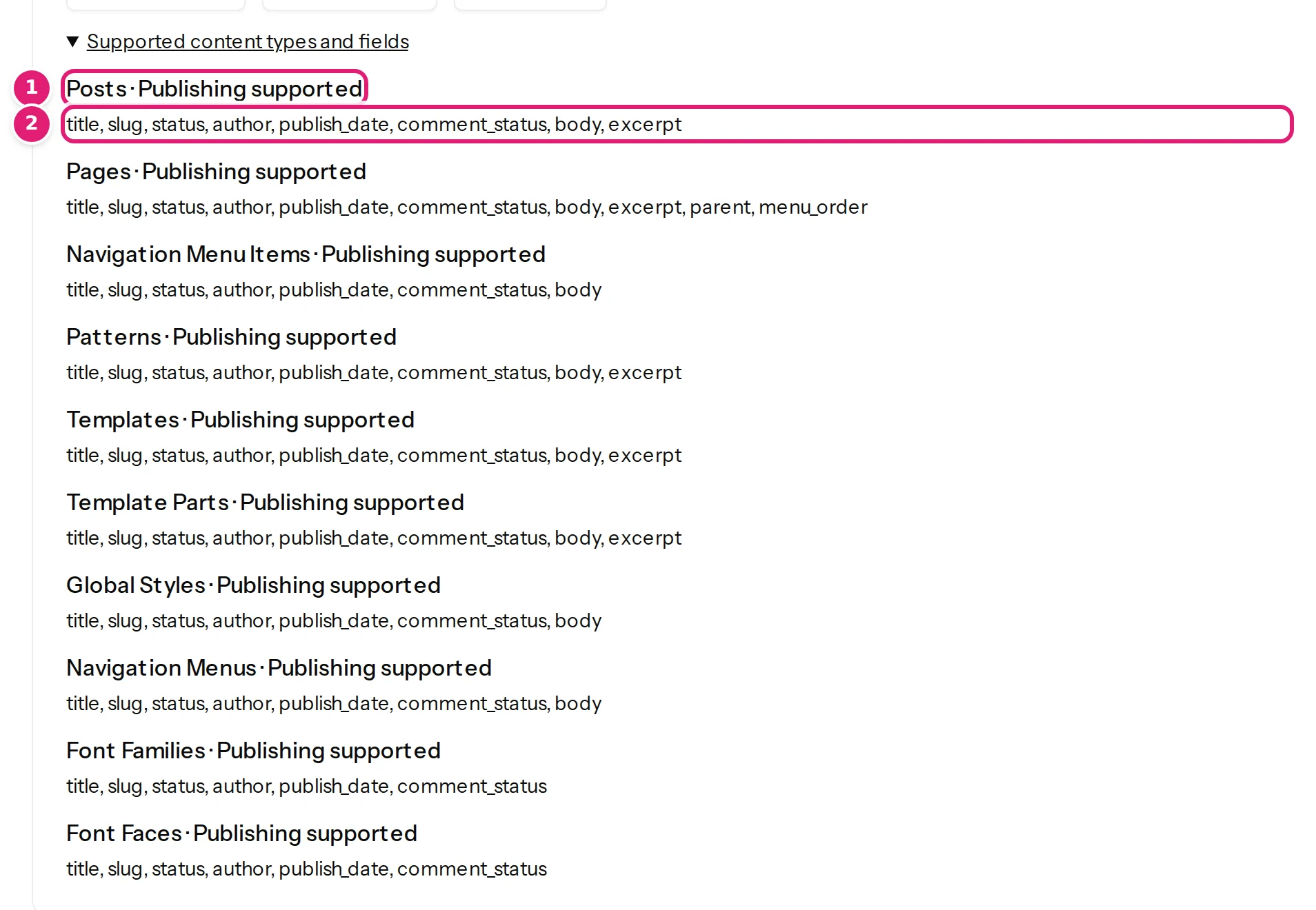
If a field you expect is missing, the account Content Uploader publishes as may not be allowed to set it, or the site's plugin that adds it was installed after the last refresh: use Refresh fields. WordPress content types and fields and Joomla article fields describe what each platform offers.
Sites beyond your plan's limit#
Each plan allows a number of active sites (1 on the Free plan, 1 on the Small plan, 5 on the Medium plan and 20 on the Large plan). If more sites are connected than the plan allows, for example after moving to a smaller plan, the extra sites are paused: they stay connected, their access can still be renewed, and you can still upload, check and review files for them, but nothing is published to them. The page then shows a box Your plan has N active sites with tick boxes to choose the sites that stay active, and Save active sites. Upgrading the plan lifts the pause. Connecting a new site beyond the limit is refused; reconnecting a site that is already in the workspace never is.
Publishing results#
Below the sites, Publishing results lists what was sent to the sites, newest first, one line per item: the record's identifier and its content type, the site, the ID the site gave it (WordPress ID or Joomla ID), and the number of attempts. A coloured label shows the state:
| Label | Meaning |
|---|---|
| queued | Waiting to be sent. |
| sending | Being sent now. |
| succeeded · created, · updated | The site has the item. The second word says what happened. |
| succeeded with a warning | The item was published, but without an image that could not be used. The line says which. |
| failed | It could not be sent. The line shows the reason. |
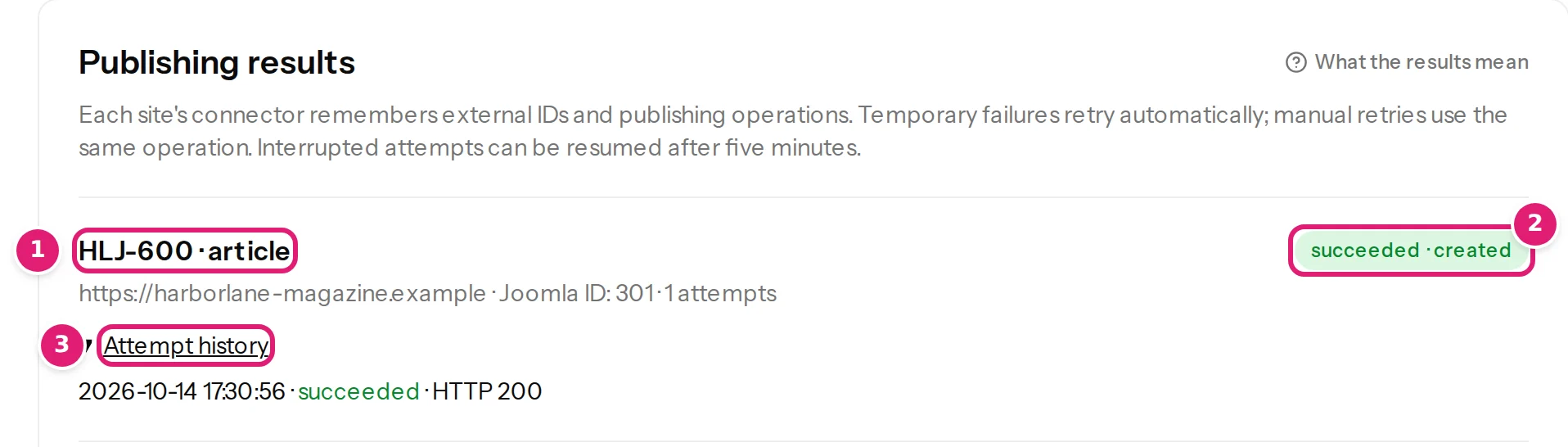
Attempt history shows each try with its time and outcome (and the HTTP status the site returned). A temporary problem, such as a site that is busy, is retried automatically a few times. If an item still fails, Retry safely sends the same operation again: the connector remembers the operation, so a retry can never create the item twice. An attempt that was interrupted can be resumed after five minutes. Publishing results explains the messages, and retrying failed items the safe way to retry.
The page keeps results in place while you read: a result that changes is updated where it is, and a notice tells you when other results changed, so the list never reorders while you read it.
Related#
Was this article helpful?
Related articles
- WordPressConnecting your WordPress siteStart the connection from WordPress, sign in to Content Uploader and approve the workspace. No WordPress password is ever entered in Content Uploader.
- JoomlaConnecting your Joomla siteStart the connection from Joomla, choose the account that publishes, sign in to Content Uploader and approve the workspace. No Joomla password or API token is entered there.
- WordPressRenewing access or reconnecting a WordPress siteAccess to your site lasts 90 days. Renew it in one click from Content Uploader, or reconnect from WordPress if it has already ended.
- Account and workspacePlans, allowances and what happens at a limitWhat each plan includes, what counts as a record write and as image transfer, when allowances renew, and what the review offers when a file needs more than what is left.