Images are missing, wrong or not replaced
What to do when the review says images could not be used, items are published without their picture, an image was removed or a changed image is not replaced.
- 4 min read
- Updated October 13, 2026
A missing image never stops a file: the item is published without it. That makes the problem easy to miss, so the review and the result both say it out loud.
Symptoms#
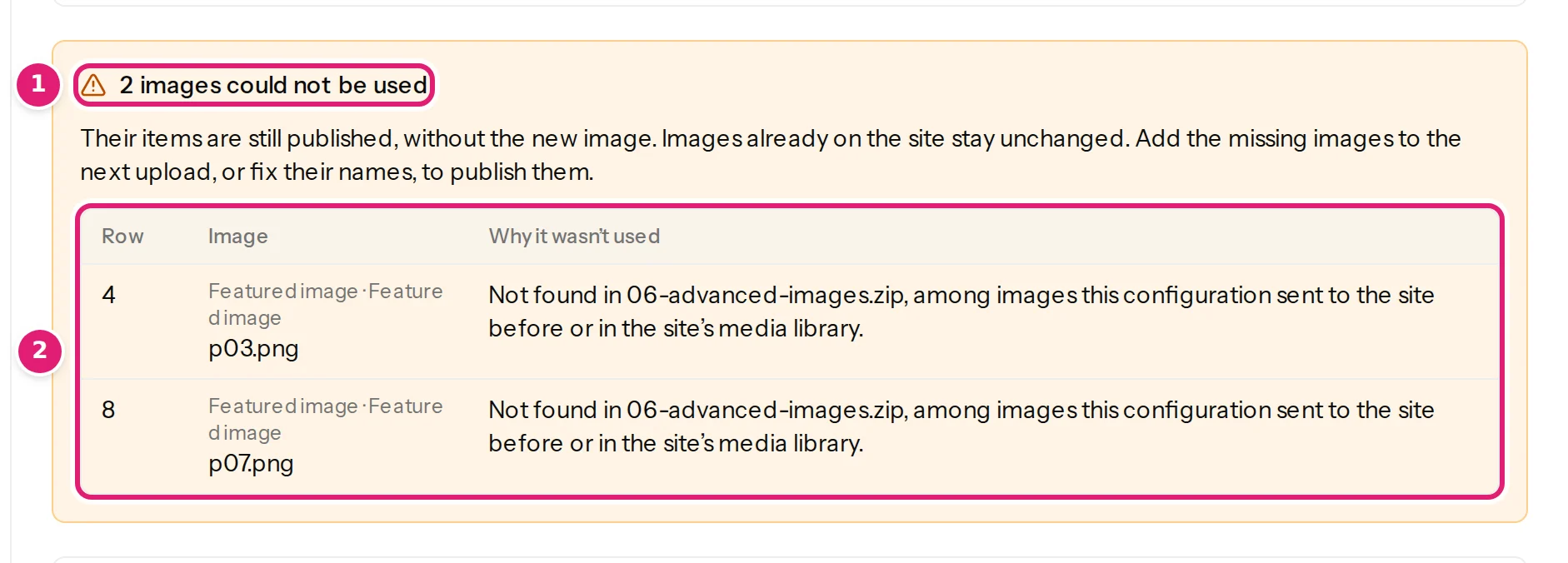
- The review has a box, N images could not be used, with a table of rows, images and reasons.
- The finished file says 12 published · 2 without a new image, and the results are succeeded with a warning.
- An item on your site has no featured image.
- An image you replaced is still the old one.
- An item lost its image after an upload.
Likely causes#
Confirmed (all reproduced in our tests):
- No ZIP was uploaded, or the ZIP does not contain the file named in the cell.
- The name is spelled differently in the sheet and in the ZIP (a missing or different extension, a typo).
- The ZIP has several files with the same name in different folders: the cell must name the path (
summer/p01.png). - The cell is empty. An empty image cell removes the item's image on update. This is the one case where an image disappears.
- The replacement is not a different image. An unchanged image is recognised by its content, so a ZIP that holds the same picture under the same name changes nothing.
From the program's own checks:
- The cell holds a web address that is not public, is a share link (Google Drive, Dropbox), leads to a page, or is too large or too slow (images from web addresses).
- The image is not an accepted type (an SVG, or a file that is not an image) or is over 20 MB.
- The site could not store the image while publishing (permissions or disk space; see items fail to publish).
Possible (a site setting, not Content Uploader): the item has its image, but your theme does not display featured images.
Step-by-step solution#
- Read the reason next to each image in the review: it says which of the three places was searched (the ZIP, images this configuration sent before, the site's media library).
- Fix the name or add the file. Correct the cell, or add the image to the ZIP. Keep names simple (letters, digits, hyphens) and identical in both.
- Upload the file again with a ZIP that has the missing images. The other images may be left out: images already on the site are found by name. The items that now get their image show as updated (Featured image: Not sent → p03.png); all others are unchanged.
- If an image disappeared, check the cell: an empty cell removed it. Put the file name back and upload again; the image is delivered again (it is the same attachment if it is still in the library).
- If a changed image did not replace the old one, give the new picture a new file name, or a new web address. A web address whose picture changes behind the same address is not noticed (reusing and replacing images).
- For share links, use the direct form the message gives, or put the images in a ZIP.
How to verify#
- The review no longer shows the images box, or lists fewer.
- Open an item in the review: it names the image and says where it comes from (From the uploaded ZIP).
- After publishing, the result is succeeded with no warning; the finished file shows no without a new image count.
- On your site, Media → Library (WordPress) or Content → Media (Joomla, folder
images/content-uploader) lists the image, and the item shows it.

If it persists#
- Open the item in the review and read the Featured image line exactly as it is.
- Check that the file in the ZIP is a real image and opens on your computer.
- Contact support with the row number, the cell's text and the reason shown.
Was this article helpful?
Related articles
- Images and mediaMissing images: what happens and how to fix themA missing image never blocks its item: it is published without the new image, the review lists each one with its reason, and you can add it later.
- Images and mediaWhere images come fromA cell can hold a web address or a file name. How Content Uploader finds the image: your ZIP, earlier uploads, the site's media library or the web.
- Images and mediaUpload images in a ZIPPut the images in a ZIP next to your spreadsheet, or the spreadsheet and the images in one ZIP: how names are matched, the limits and what each error means.
- Images and mediaImages from web addressesUse image addresses in your spreadsheet: what is accepted, why Google Drive, Dropbox and OneDrive share links fail, and what each failure message means.