Rows with errors: find, fix and upload again
What to do when the review lists rows with errors and skips them: reading the groups, the most common messages and their fixes, and uploading just the corrected rows.
- 4 min read
- Updated October 13, 2026
A row with an error is skipped; the other rows are still reviewed and published. The error list tells you exactly which rows and why.
Symptoms#
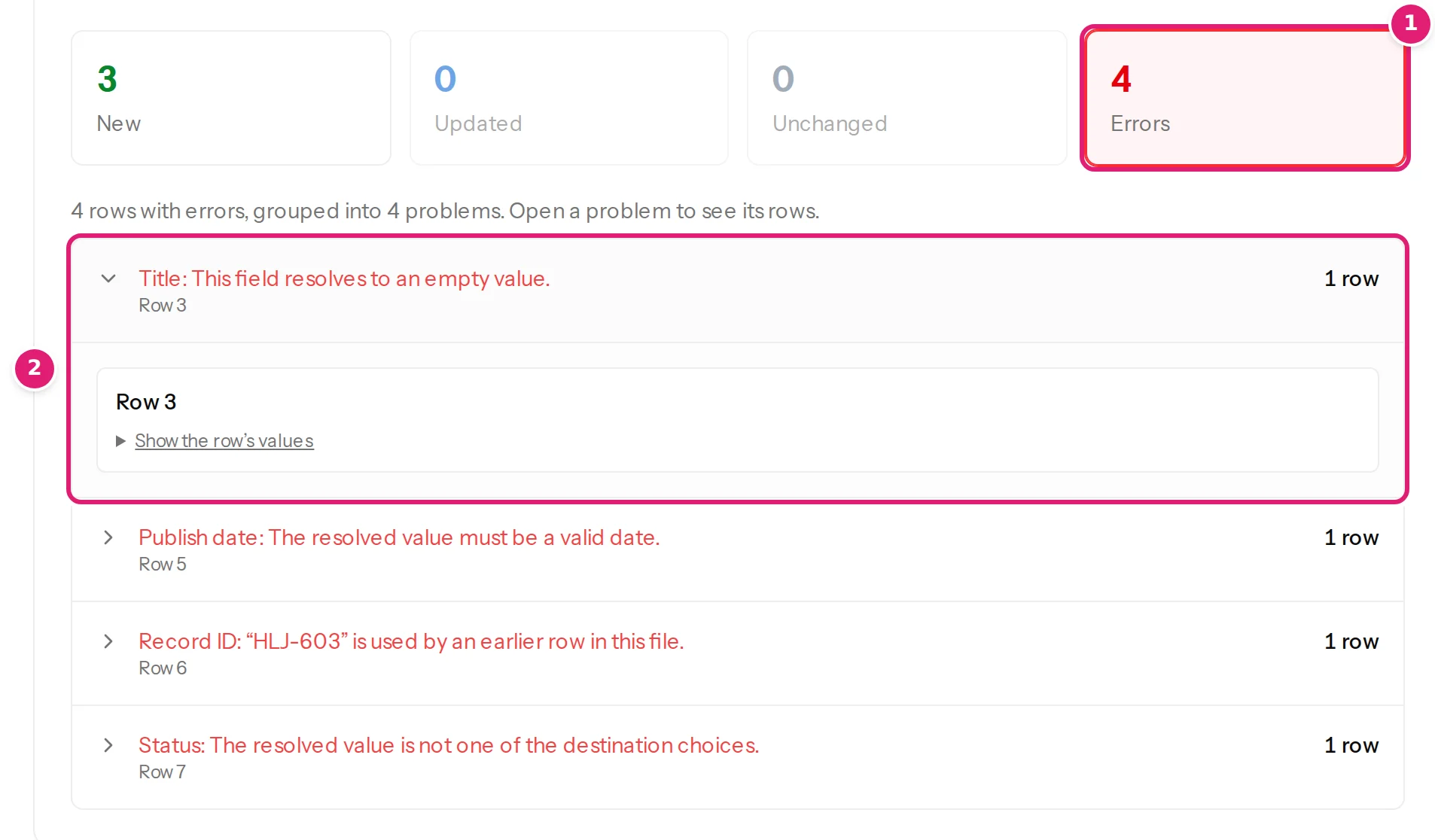
- The Errors tile shows a number above zero, and the line under the Publish button says 4 rows with errors will be skipped.
- The tile is followed by problems such as Title: This field resolves to an empty value., each with a count of rows.
- You get an email, … is ready for review, whose first line ends in … 4 with errors.
Likely causes#
Confirmed (the example file 09-articles-with-problems.csv contains one of each):
- An empty required cell, usually the title: Title: This field resolves to an empty value.
- A repeated record ID: Record ID: “HLJ-603” is used by an earlier row in this file.
- A date that is not a date: Publish date: The resolved value must be a valid date.
- A status the site does not offer: Status: The resolved value is not one of the destination choices.
Also common (from the checks that every row goes through):
- A stray comma in a CSV splits a cell and leaves a row longer than the header: This row has more cells than the header.
- A value of the wrong kind: The resolved value must be a whole number. / …a number, such as 12 or 12.5. / …yes or no, such as TRUE, FALSE, 1 or 0.
- Text longer than the field allows: The resolved value exceeds the 1020 character limit. (a title is limited to 1,020 characters, a slug to 200).
- A person the site does not know, in an Author column.
- A template that names a column that is not in the file.
- On Joomla, a row with no category or several categories.
Step-by-step solution#
-
Select the Errors tile. Messages that repeat are grouped, so 300 rows with the same mistake are one line. Select a group to see its rows (Row 12, Row 40 …) and Show the row's values.
-
In your spreadsheet, go to the row number shown (row 1 is the header, so the first item is row 2; in a file read without a header row, the first item is row 1) and fix the cell. The common fixes:
Message Fix … resolves to an empty value Fill the cell, or map the field to a fixed value or a template. Record ID … is used by an earlier row Give each item its own ID. The first row with that ID counts (duplicate rows). … must be a valid date Write 2026-09-27or2026-09-27 09:00(dates).… is not one of the destination choices Use a status the site offers: Published, Draft, Pending review, Private (status). This row has more cells than the header Put the cell that contains a comma in double quotes, or remove the extra value. … No destination choice matches this value… Use the author's exact display name, email address or user name, or the user's number. -
Upload the file again. You can upload the whole file, or only the corrected rows with their IDs (partial files).
-
You do not have to publish the good rows first; if you prefer, fix everything and publish once.
If every row has an error, the Publish button reads Nothing to publish, and the page offers Upload the corrected file.
How to verify#
- The new upload's review shows Errors 0.
- The rows that were fine and already published show as unchanged; the corrected rows show as new or updated.
- The line under the Publish button no longer mentions rows with errors.
If it persists#
- Open the row's values (Show the row's values) and compare each cell with your spreadsheet: look for spaces, quotes and invisible characters.
- A message that does not fit any of the above is explained in mapping errors and common mapping mistakes.
- A whole file that is refused, or a file that "does not match the configuration", is a different problem: see the file cannot be read and columns are missing.
- Contact support with the message and one example row.
Was this article helpful?
Related articles
- Reviewing and publishingRow errors: read them, fix them, upload againRows with a problem are listed under Errors, grouped by message with their row numbers, and skipped while the rest is published. How to read the list and fix the file.
- Mapping columnsMapping errors and common mapping mistakesEvery message the editor shows when you save a mapping and every message a row can get for a field, with the fix, plus the mistakes behind most surprises.
- Preparing your spreadsheetDuplicate IDs, titles and rowsWhat happens when two rows share an ID or a title in one file, the error each gets, why the first row wins, and why the same item next week is an update, not a duplicate.
- TroubleshootingDates are wrong, shifted or refusedWhat to do when a row says the date is not valid, day and month are swapped, a date is a few hours off, or every post shows today's date, with the cause and the fix for each.