Character encoding: accents, symbols and CSV files
Why a CSV with accents can be refused or garbled, which encodings are read (UTF-8, UTF-16 with a byte order mark) and how to save CSV UTF-8 from Excel or Sheets.
- 3 min read
- Updated October 13, 2026
A computer stores text as numbers, and encoding is the table that says which number is which letter. If the program that saved a CSV file and the program that reads it use different tables, an é turns into é or �. Content Uploader reads UTF-8, the encoding almost everything uses today, and it refuses a file it cannot read as UTF-8 rather than guess and publish garbage to your site.
Workbooks (.xlsx, .xls, .ods) do not have this problem: they carry their own encoding. It concerns CSV, TSV and text files only.
What is accepted#
| The file is… | Result |
|---|---|
| UTF-8 (Excel: CSV UTF-8) | Read. Accents, symbols, non-Latin scripts and emoji all work. |
| UTF-8 with a byte order mark (Excel's "CSV UTF-8" adds one) | Read; the mark is ignored. |
| UTF-16 with a byte order mark (Excel's Unicode Text) | Converted to UTF-8 and read. |
| Only English letters, digits and punctuation, in any encoding | Read: plain ASCII is the same in all of them. |
| Windows-1252, "ANSI", ISO-8859-1 or Latin-1 with an accent or symbol (Excel's older CSV (Comma delimited)) | Refused: Cells must contain valid UTF-8 text of at most 32 KB. |
| UTF-16 without a byte order mark | Refused with the same message. |
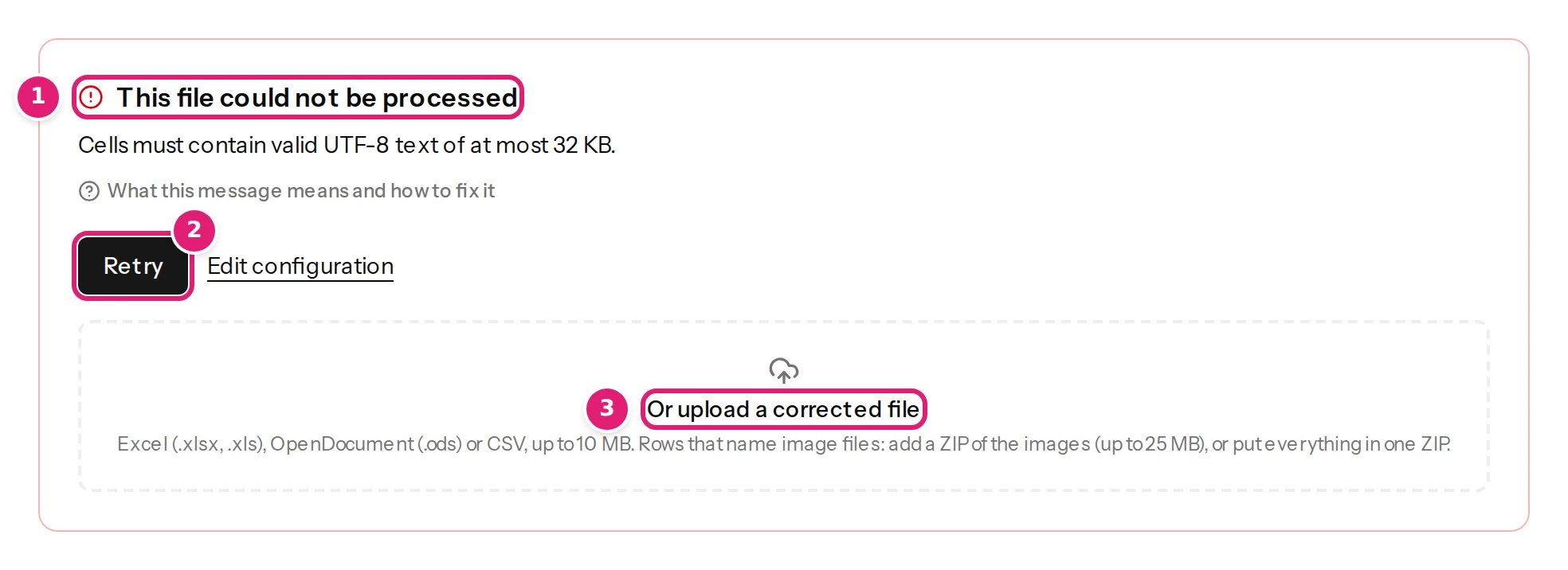
The refusal says "at most 32 KB" because one message covers both cases: a cell that is too long, and a cell that is not valid text. When your cells are short, it is the encoding.
How to save a CSV correctly#
| Program | How |
|---|---|
| Excel (Windows or Mac) | File → Save As, then choose CSV UTF-8 (Comma delimited) (*.csv). Not "CSV (Comma delimited)", which is ANSI on Windows. |
| Google Sheets | File → Download → Comma Separated Values (.csv). Always UTF-8. |
| LibreOffice Calc | File → Save As → Text CSV, tick Edit filter settings, and set Character set to Unicode (UTF-8). |
| Apple Numbers | File → Export To → CSV; the file is UTF-8. |
| A database or script | Write the file as UTF-8, and say so in the export options. |
Or skip CSV: save a workbook (.xlsx) and the question disappears (CSV or Excel).
If you already have a file that is refused#
- Open it in Excel or LibreOffice (in LibreOffice, choose the right character set in the import dialog; if the accents look right in the preview, it is correct).
- Save it again as CSV UTF-8, or as
.xlsx. - Drop the new file on the area under Or upload a corrected file on the failed file's page (or on the configuration's card). It is a new upload.
Do not use the page's Retry for this: it reads the same file again.
If the accents look wrong but the file is accepted#
A file can be valid UTF-8 and still look wrong when the text itself is already garbled, for example after being converted twice (é is é that was read as Latin-1 and saved as UTF-8). Content Uploader publishes what is in the file. Fix the source text before you upload, and look at the review, which shows the text as it will be published.
Other characters worth knowing#
- Line breaks inside a cell are kept. In a CSV the cell must be in double quotes.
- Smart quotes and dashes (
“ ” ’ —) are ordinary characters and are kept. - A cell with a null character or other control bytes is refused with the same message.
- Emoji are valid UTF-8 and are sent as they are. Whether your site stores them depends on its database settings.
Was this article helpful?
Related articles
- Preparing your spreadsheetCSV or Excel: which should you upload?Excel and OpenDocument keep dates and numbers as they are; CSV is plain text and needs the right encoding and separator. When to choose each, and how the separator is read.
- Preparing your spreadsheetSupported file formats and what is rejectedContent Uploader reads Excel, OpenDocument and CSV files and a ZIP of images. Which extensions work, which files are rejected, and the message each rejected file gets.
- TroubleshootingThe file cannot be read or is refusedWhat to do when a file is refused on upload or the page says This file could not be processed: every message, its cause and the fix, for spreadsheets, CSV files and ZIPs.
- TroubleshootingAccents and symbols look wrongWhat to do when letters such as é, ü or ß turn into é or question marks, in the review or on your site, and how to tell a problem in the file from one on your site.