Publishing results: what happened to each item
The Publishing results list on the Sites page: one result per item with its status, its ID on your site, the attempts, the error or warning, and what each status means.
- 4 min read
- Updated October 13, 2026
Publishing leaves one result for every item: the latest outcome of writing that item to that site. The results are listed at the bottom of the Sites page, under Publishing results, newest first, 25 to a page (Previous and Next below the list). A team member sees the results of the sites they were given (team members).
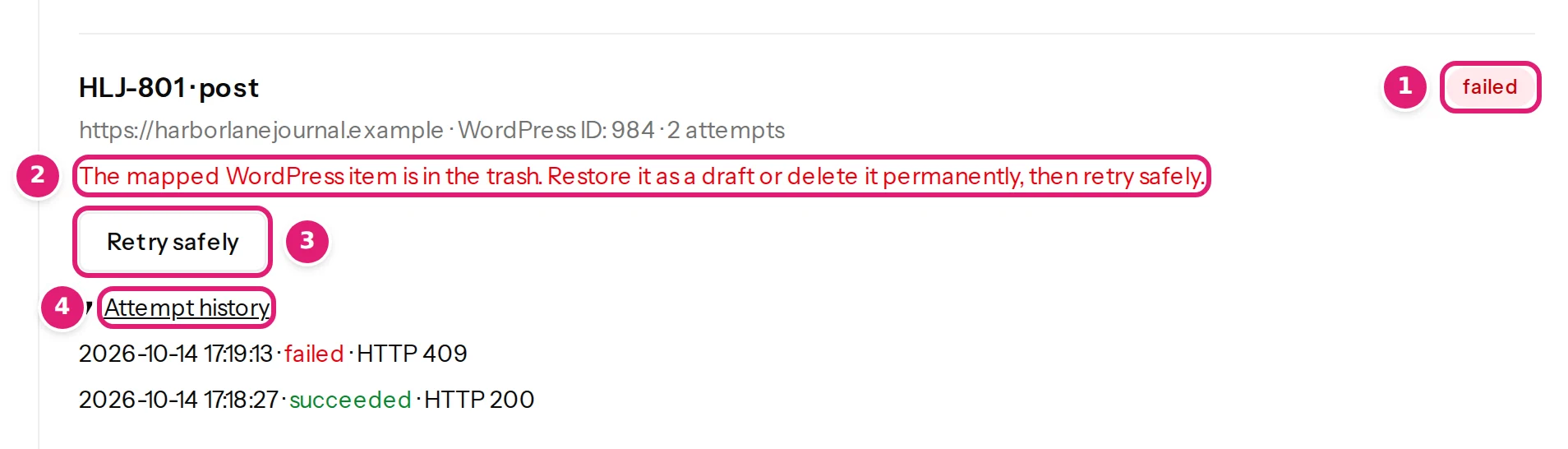
A failed result adds the reason and the Retry safely button:
One result#
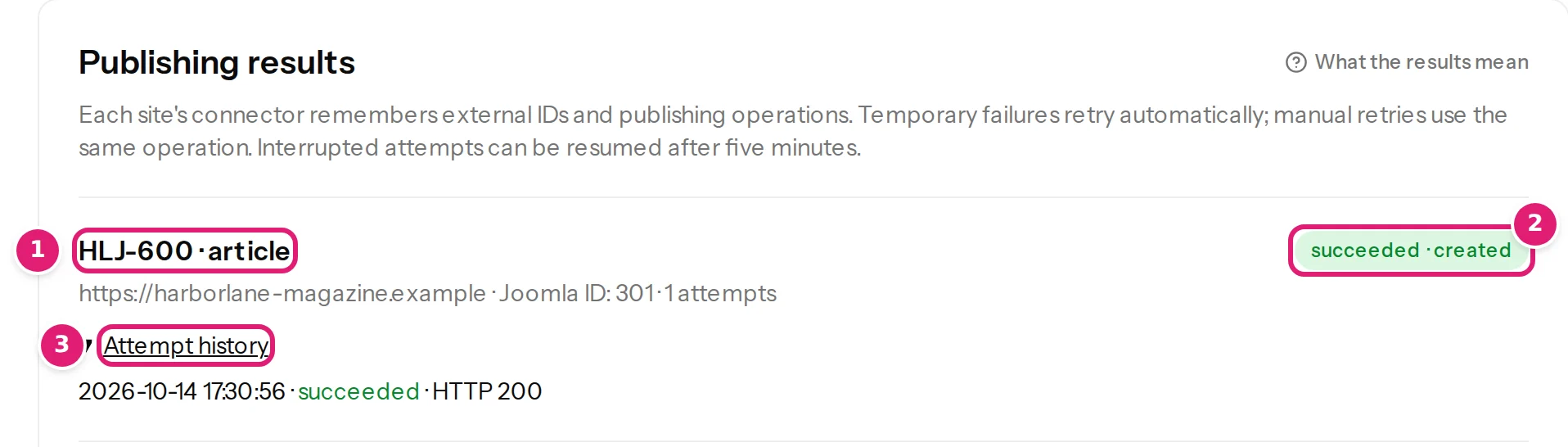
Each result shows, from top to bottom:
| Part | What it says |
|---|---|
Title line, such as HLJ-001 · post |
The item's record ID from your file (or the cu-… identifier Content Uploader made up, when the configuration has no ID column) and the content type on the site. |
| Status label on the right | What happened, in words and colour (below). After · it says what the site did: created, updated or recreated (the item had been deleted on the site and was created again). |
| Site line | The site's address, then WordPress ID: 41 or Joomla ID: 7, the item's own ID on your site (the post=41 in WordPress's editing address, the id=7 in Joomla's), then the number of attempts. Not confirmed appears instead of an ID when the site has not (yet) confirmed one. |
| Error (red) | Why the item could not be written, in words you can act on. |
| Warning (amber) | An item that was written, but without an image that could not be used (missing images). |
| Retry safely | Sends the item again, only while it is failed, waiting or stuck (below). |
| Attempt history | Every try, with its time, its outcome and the HTTP status the site answered with. |
The statuses#
| Label | Colour | Meaning |
|---|---|---|
| queued | grey | Waiting for its turn. Items of one site are sent one at a time. A queued item that never moves can be retried. |
| sending | blue | The request is on its way to your site. |
| succeeded · created / updated / recreated | green | The item is on your site. |
| succeeded with a warning | amber | The item is on your site, but an image was left out. The warning says which. |
| failed | red | Content Uploader gave up. The error says why; Retry safely tries again. |
The list refreshes by itself while anything is queued or sending (every few seconds), keeps its order, and when other results changed meanwhile it says 3 other results changed since you opened this page. with Show the latest results.
Attempts#
An attempt is one request to your site for the item. The number on the result counts every request ever sent for that item, including those for earlier files, so it only grows. A temporary problem adds attempts by itself: after about 15 seconds, one minute and three minutes. Each attempt in the history, newest first, shows:
- its time,
- succeeded or failed,
- HTTP and the number the site returned, when the site answered (
HTTP 200for success; no number when the site did not answer at all).
Attempts older than 12 months are deleted with the rest of the run history (what Content Uploader keeps).
What the result is not#
- It is not a log of files: a result is one item, updated each time the item is published again. To see what a particular file did, open its page under Uploads (uploads and statuses).
- It is not a copy of your content. Content Uploader keeps what it needs to compare the next file (what it sent last), not the live state of your site.
- A result says succeeded when your site accepted the item. If you or a plugin on your site changes the item afterwards, the result does not change.
Reading an error#
The error is written for you, not copied from the site. The ones you will meet most are explained in when publishing fails. A few examples:
- The connection expired or permission was revoked. Reconnect in WordPress. (renew or reconnect)
- The connected WordPress user can no longer edit the mapped item. Restore permission, then retry safely.
- A category or tag in this row does not exist on the site yet. In the configuration, turn on adding new categories and tags, or correct the category and parent columns, then upload the file again.
- example.com didn't answer.: the site was off, too slow or blocked; it is retried and then offered for a safe retry.
When a result failed, read the message, fix the cause on your site or in the configuration, and press Retry safely (retrying failed items).
Was this article helpful?
Related articles
- Reviewing and publishingRetry failed items safelyHow to find the items that failed to publish, fix the cause, and send them again with Retry safely without creating duplicates, and when to upload the file again instead.
- Reviewing and publishingPublish your changes: exactly when and how your site is changedWhat happens when you press Publish: the checks made at that moment, the background publishing, the progress and the result, and what can and cannot be undone.
- Account and workspaceManaging your connected sitesThe Sites page explained: status, when access ends, renewing, refreshing fields, disconnecting, sites paused by your plan, and publishing results with their attempt history.
- TroubleshootingItems fail to publish: every message and what to doWhat to do when some items fail while publishing: where to find the reason, every message a failed item can show, its cause, the fix and whether Retry safely helps.