How the review works
After a file is checked, the review shows what will be created, updated, left alone or skipped before anything is sent to your site. How to read each part of the page.
- 5 min read
- Updated October 13, 2026
The review is the page of a checked file. It is a read-only answer to "if I press Publish, what exactly happens?". Nothing is sent to your site until you press the button, and everything you see here was worked out by comparing the file with what Content Uploader published before and with your site's current state.
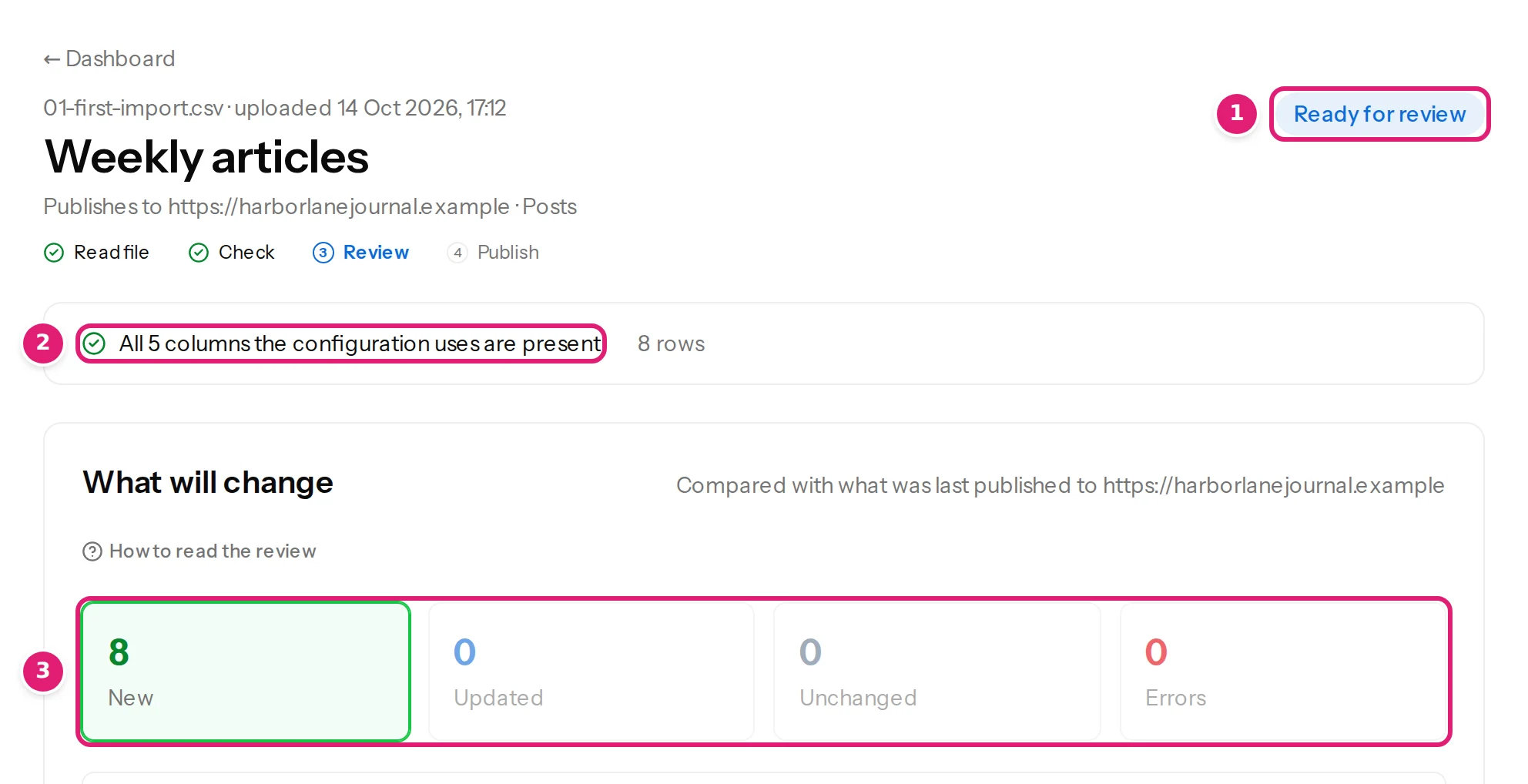
The header#
- The file's name and when it was uploaded, then the configuration's name, and Publishes to the site and content type.
- A status label at the right: Ready for review.
- The four steps, Read file → Check → Review → Publish, with a tick for each that is done.
- A bar that says All 5 columns the configuration uses are present, the number of rows, and, if any, Not used: the columns the configuration does not use.
What will change#
A line says what the numbers are compared with: Compared with what was last published to https://…. Then five tiles (the fifth only appears when it is not zero):
| Tile | Meaning |
|---|---|
| New | Rows that match nothing published before: they will be created. |
| Updated | Items published before whose content differs: they will be changed in place. |
| Unchanged | Items that already match your site: nothing is sent and they cost nothing. |
| Errors | Rows with a problem. They are skipped; the others are not held back. |
| Skipped | Items that cannot be published right now, with the reason. |
Select a tile to list its items (a tile with zero is greyed out). The review opens on New if there are new items, otherwise Updated, Errors or Skipped.
New: what will be created#
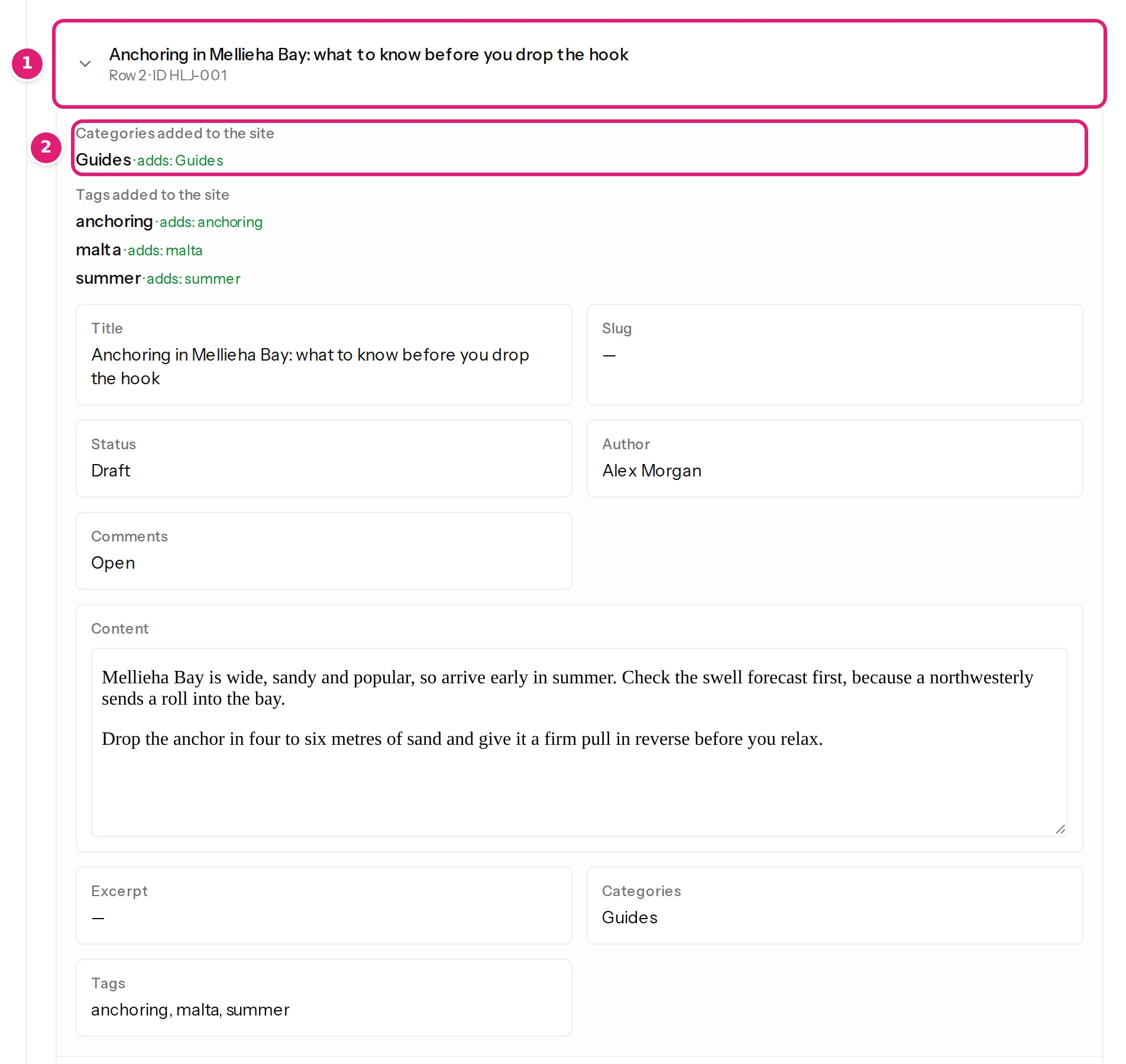
Each item is listed by its title with its row number and ID (Row 2 · ID HLJ-001). Select it to read every field as it will be published: title, slug, status, author, the rendered content, excerpt, categories, tags, images and custom fields. A new category or tag the item adds is listed above its fields (Categories added to the site).
Updated: what changes#
An updated item lists only the fields that change, with the last published value struck through and the value in this file next to it (updating existing content). The count at the right (1 field) says how many.
Unchanged#
A plain list of the items that need nothing. They are not expandable.
Errors and Skipped#
Errors are grouped by message, with the rows that have each: row errors. Skipped items show why they are skipped: skipped items.
Boxes that can appear above the list#
- New on the site after publishing: the categories and tags that will be created, with the levels each adds (new categories and tags).
- N items are skipped because they use categories that don't exist on the site yet: the missing ones, with what to do.
- N images could not be used: each missing image with its reason (missing images).
- A warning in amber, such as The destination could not be reached to confirm its current content. Changes are based on your publishing history and are verified again when publishing. The review then relies on what was published before, and the site's state is checked again at publishing.
- A note that a spreadsheet inside your ZIP was ignored in favour of the one you uploaded separately.
- The rows of this upload were deleted a year after it was uploaded. The counts and results stay; upload the file again to check or publish it. for an old file.
The Publish box#
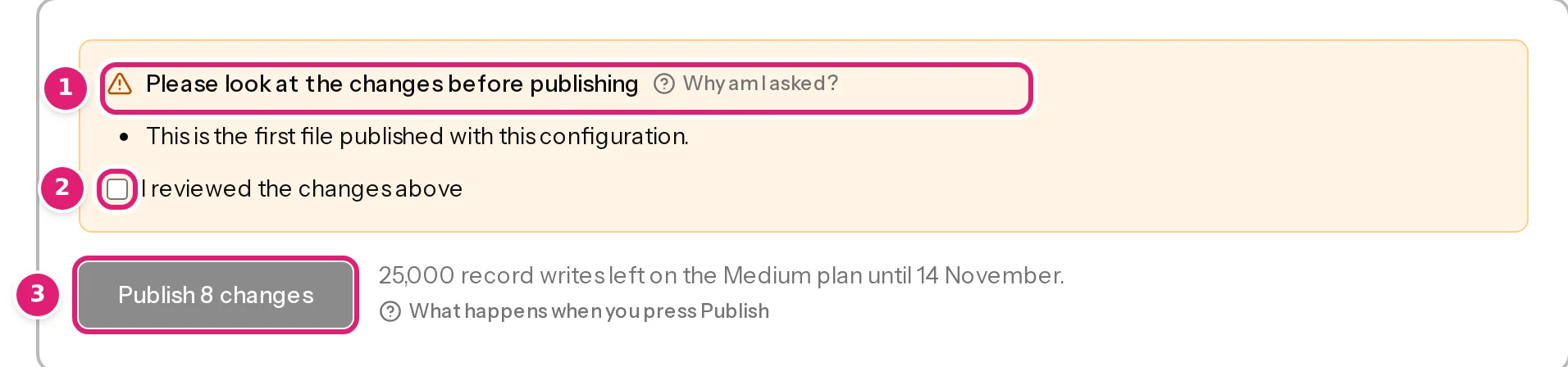
Below the lists, the Publish box has what you need to decide:
- the confirmation (Please look at the changes before publishing with the reasons, and I reviewed the changes above), when there is something to look at (what needs your attention);
- the Publish N changes button, with how much of your allowance it uses (25,000 record writes left on the Medium plan until 12 November.);
- short notes: N rows with errors will be skipped., N items can't be published right now and will be skipped., N items are already up to date.;
- if the file does not fit your allowance, Not enough of your allowance left with Publish the first N changes (plans and allowances).
If there is nothing to publish (all rows have errors), the button reads Nothing to publish and the page offers to upload the corrected file.
The page stays current#
While the file is worked on, the page updates in place without reloading. If the file is checked again while you read (by you in another tab, or by a colleague), a notice says so: This file was checked again since you opened these results. What you see is from the earlier check and can't be published. with Show the latest. Publishing always applies to the check you have on screen, and is refused if a newer one exists. The other notices at the top of a page (updates paused, session expired, a new version) are explained in a notice appears at the top of the page.
What the review does not do#
It does not change your site, does not use your allowance, does not need to be finished in one sitting (leave the page; come back from Uploads), and does not hide anything: every problem it knows about is on this page.
Was this article helpful?
Related articles
- Reviewing and publishingHow rows are matched to items on your siteHow Content Uploader decides that a row is new or the same item as before: by record ID, or by slug or title with the category as tiebreaker.
- Reviewing and publishingWhat needs your attention before you publishThe review asks you to tick "I reviewed the changes above" for a new version, changed fields or columns, a doubtful first row, products taken over or a large price change.
- Reviewing and publishingRow errors: read them, fix them, upload againRows with a problem are listed under Errors, grouped by message with their row numbers, and skipped while the rest is published. How to read the list and fix the file.
- Reviewing and publishingPublish your changes: exactly when and how your site is changedWhat happens when you press Publish: the checks made at that moment, the background publishing, the progress and the result, and what can and cannot be undone.