Update the prices and stock of a variable product's variations
Variations are found by SKU and updated one row each: price, sale, stock, status and more. A row that names no product makes nothing, and the product's price range follows.
- WordPress
- 7 min read
- Updated October 14, 2026
A variable product is one product in the shop with several variations, such as the sizes of a shirt. Each variation has its own SKU, price and stock, and that is what a price list or a stock count usually changes. Content Uploader updates them as their own content type, Product variations, which appears in the Content type list beside Products on a shop that has WooCommerce 9.0 or later (requirements). To make variations that do not exist yet, see make a variable product and its variations.
What it does and what it does not#
- A row is a variation, found by its SKU. The file needs a column with it. A variation has no name of its own, so the file needs no name column.
- A row whose SKU is not a variation's makes nothing unless it names its product. A price list has no column for the product, so a SKU with a typo is an error, Variable product SKU: needed for a new item. Give it a value., and no stray variation is made. A file that does name the product makes a new variation (variable products).
- The variable product itself is not changed. Its name, description and attributes stay as they are. Its price range, the from–to price a shop shows, and its stock status are worked out again after each variation is written, so they follow what you publish.
- A row whose SKU belongs to a product is skipped. That is the variable product itself or a simple product: the review names it (This identifier belongs to a product.) and leaves it as it is. Products are updated with the content type Products (update products already on your shop).
- Nothing is deleted. A variation that is not in the file is not touched.
The fields#
| Field | What a cell may hold | Notes |
|---|---|---|
| SKU | The variation's SKU, up to 100 characters. | Finds the variation. Required. |
| Variable product SKU | The SKU of the product the variation belongs to. | Needed only to make a new variation. A variation that exists cannot move to another product. |
| GTIN, UPC, EAN or ISBN | Digits and hyphens. | Unique on the shop. Offered only where WooCommerce has the field. |
| Status | Enabled or Disabled. | A disabled variation cannot be bought and is not offered on the product's page. A new configuration leaves it on Keep existing on updates. |
| Regular price | A number of at least 0, in the shop's currency. | An empty cell leaves the price as it is. |
| Sale price, Sale starts, Sale ends | As for products. | An empty sale price ends the sale. Prices, stock and sales. |
| Stock quantity, Stock status, Allow backorders, Low stock threshold | As for products. | See Stock below. |
| Weight, Length, Width, Height | A number of at least 0, in the shop's units. | An empty cell leaves the value as it is. |
| Variation image | An image file or a web address. | The picture a customer sees when they choose the variation (where images come from). |
| Attributes | The value the variation chooses of each attribute of its product. | A file can change what a variation chooses; see variable products. |
A file that has the rows of products and of their variations together is read by two configurations, the variations reading only the rows where Type is variation (read only some of the rows).
Prices and quantities are read the way your file writes them and compared with what the shop holds now, exactly as for products. Categories, tags, names and descriptions are not offered: a variation has none of its own.
Create the configuration#
-
Make a new configuration from the file, choose the shop, and Product variations as the Content type.
-
The editor offers the tick box Also update variations already on the site that have the same SKU, on when the file has a column with the SKU, as it does for products (update products already on your shop).
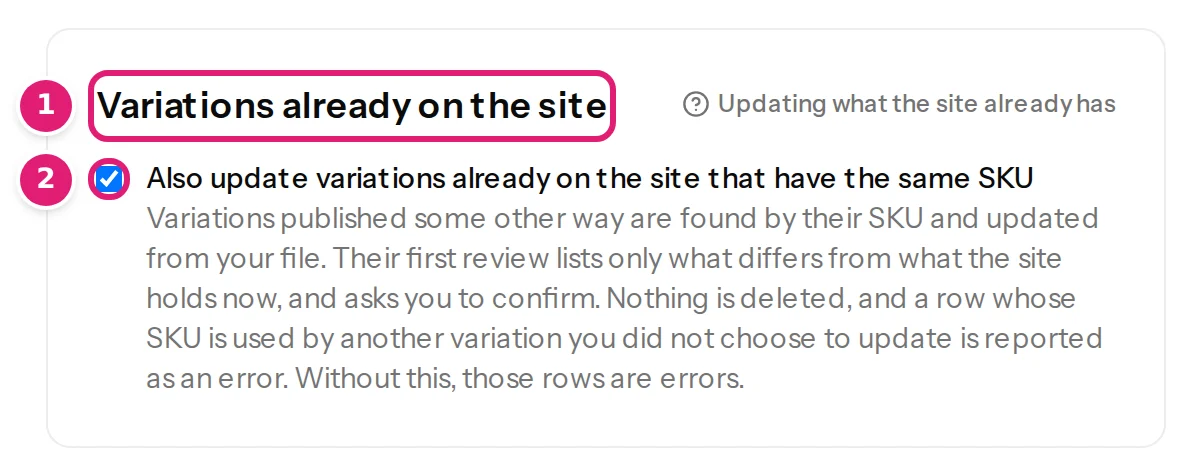
1: the heading. 2: with this ticked, a row whose SKU is a variation on the shop updates it. -
Choose the column with the SKU under SKU, and the columns for the other fields. Columns called Price, Sale price and Stock are chosen for you.
-
Choose the same column as the Record ID. A column called SKU is chosen for you.
-
Save, and drop the file on the configuration.
The review#
The review is the review of any shop (review product changes), with these differences:
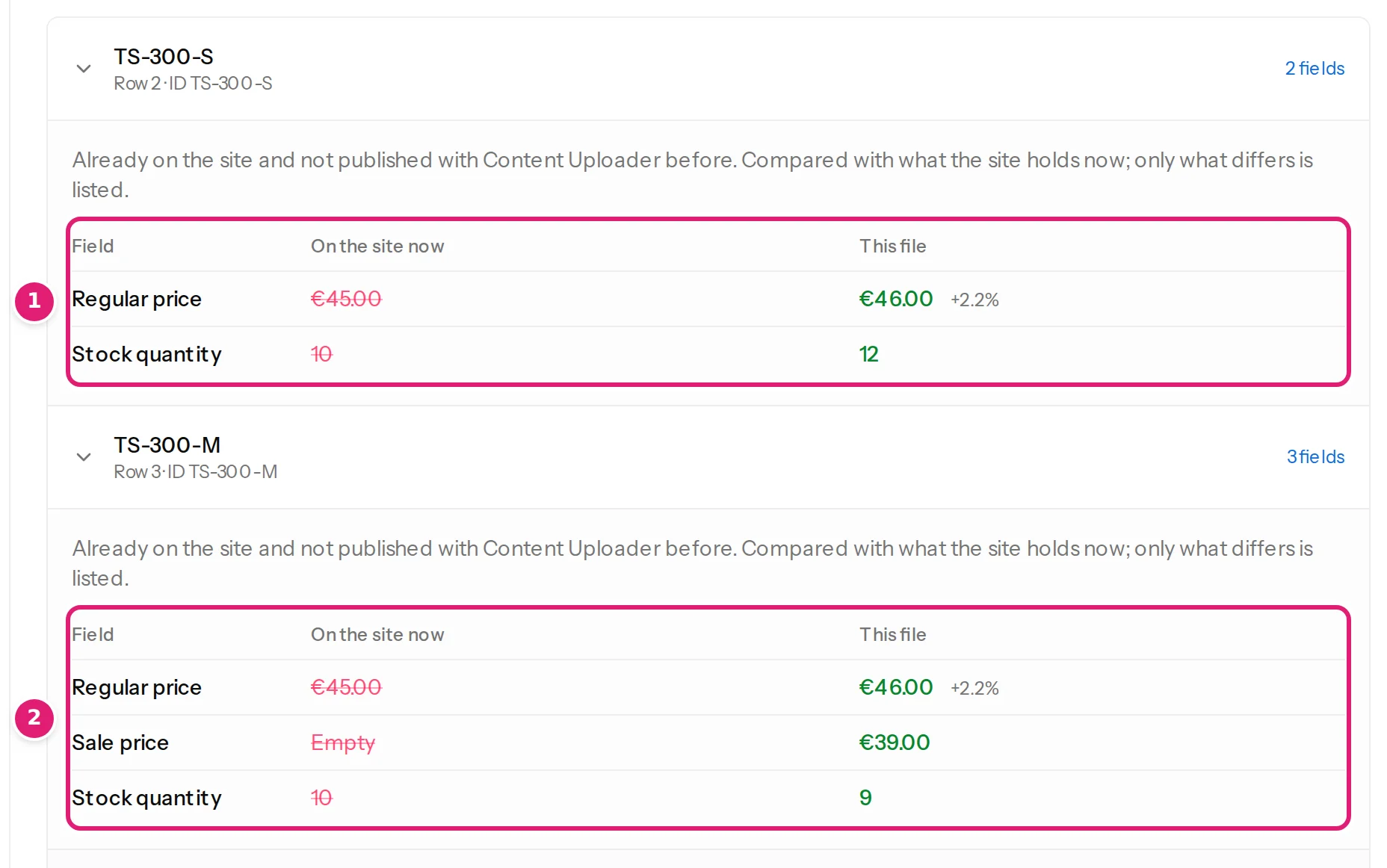
-
The first time, the review lists only what differs from what the shop holds now, and asks you to confirm: 3 variations already on the site were not published with Content Uploader. They are updated from this file, compared with what the site holds now. A configuration that publishes automatically waits for you at this point (update products already on your shop).
-
A row whose SKU is not a variation's, and that names no product, is an error and is listed under Errors: Variable product SKU: needed for a new item. Give it a value. The other rows can still be published.
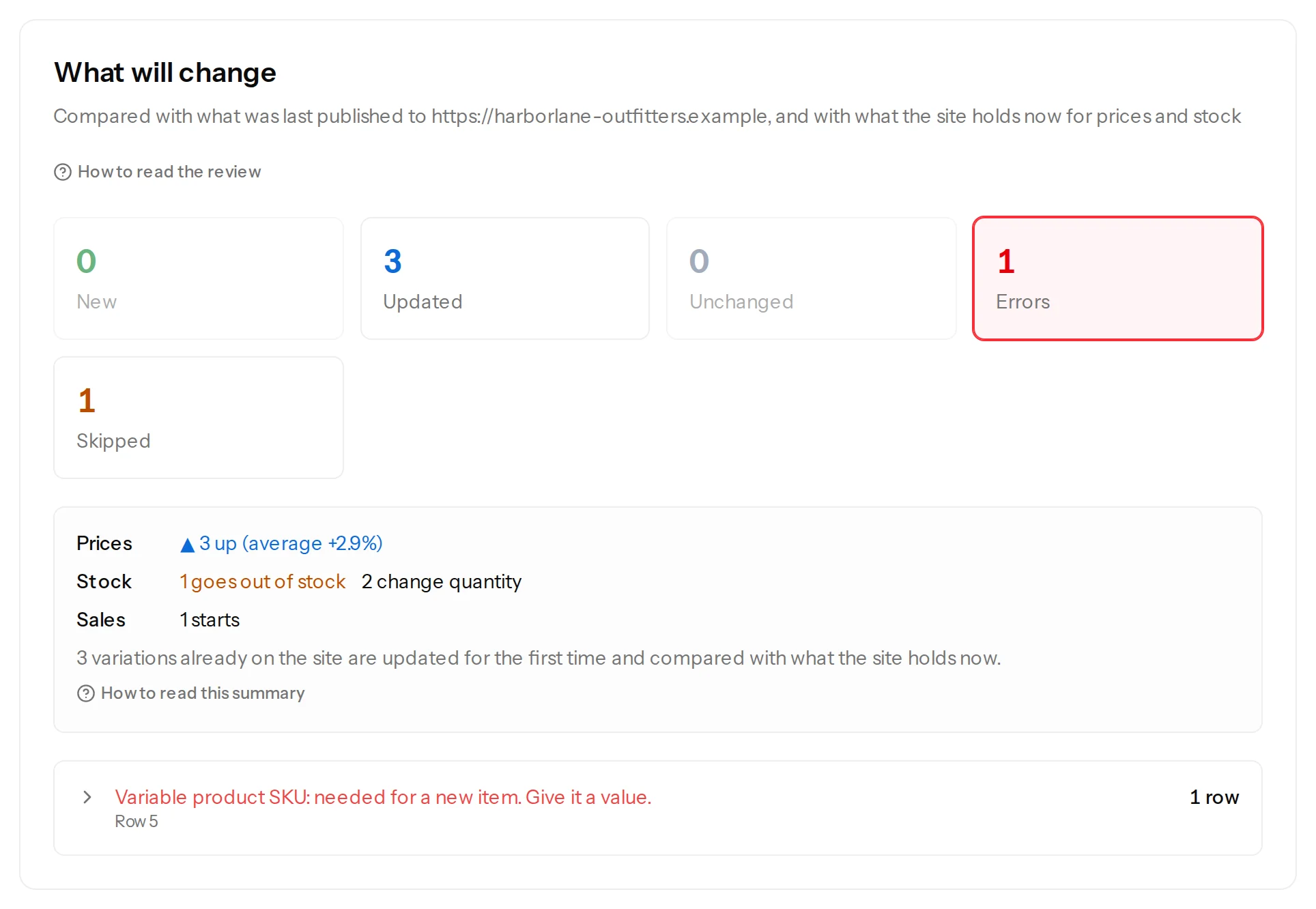
The size XL does not exist on the shop and its row names no product, so nothing is made for it. -
A row whose SKU belongs to a product is listed under Skipped: This identifier belongs to a product. It never holds a file back.

The Camp Shirt is named and left exactly as it is.
What changes on the variable product#
When a variation is written, WooCommerce works out the variable product's price range and stock status again. The product page then shows the new range, and a disabled variation is not part of it. A sale price counts while the sale runs. Nothing else on the variable product is written.
Stock#
A Stock quantity in the file turns stock management on for that variation, and sets the quantity. A variation that shared the variable product's stock then keeps a stock of its own, and the product's own quantity is not changed. An empty cell leaves the variation as it is; Remove from every item turns stock management off for it. The review shows what the shop holds now beside the number in the file, as for products.
When something is wrong#
| What you see | What it means and what to do |
|---|---|
| Variable product SKU: needed for a new item. Give it a value. | The SKU is not a variation's on the shop and the row names no product. Check the SKU in the file, or add a column with the product's SKU to make the variation (variable products). A variation that was deleted on the shop shows this too. |
| This identifier belongs to a product. | The SKU is the variable product's own or a simple product's. Use the variation's SKU, or remove the row. |
| A variation's price did not change | Its Regular price may be left on Keep existing on updates, or the cell may be empty: an empty price leaves the price as it is. |
Was this article helpful?
Related articles
- WooCommerceMake a variable product and its variations from a spreadsheetMake a variable product with the choices its variations are made from, then make the variations from a second file, each with its SKU, choices, price and stock.
- Mapping columnsRead only some of the rows of a fileA file can hold items of several kinds. Choose the rows a configuration reads, such as the rows where Type is variation, and see how many the review left out.
- WooCommerceWooCommerce: what you can do from a spreadsheetCreate products and update prices, sales, stock and more on a WooCommerce shop from a spreadsheet, and see every change before it happens.
- WooCommerceUpdate products that are already on your shopFind the products your shop already has by their SKU, update them from a spreadsheet, and see on the first review only what differs from the shop.