The file cannot be read or is refused
What to do when a file is refused on upload or the page says This file could not be processed: every message, its cause and the fix, for spreadsheets, CSV files and ZIPs.
- 6 min read
- Updated October 13, 2026
A file can be turned away in two places, and the message tells you which.
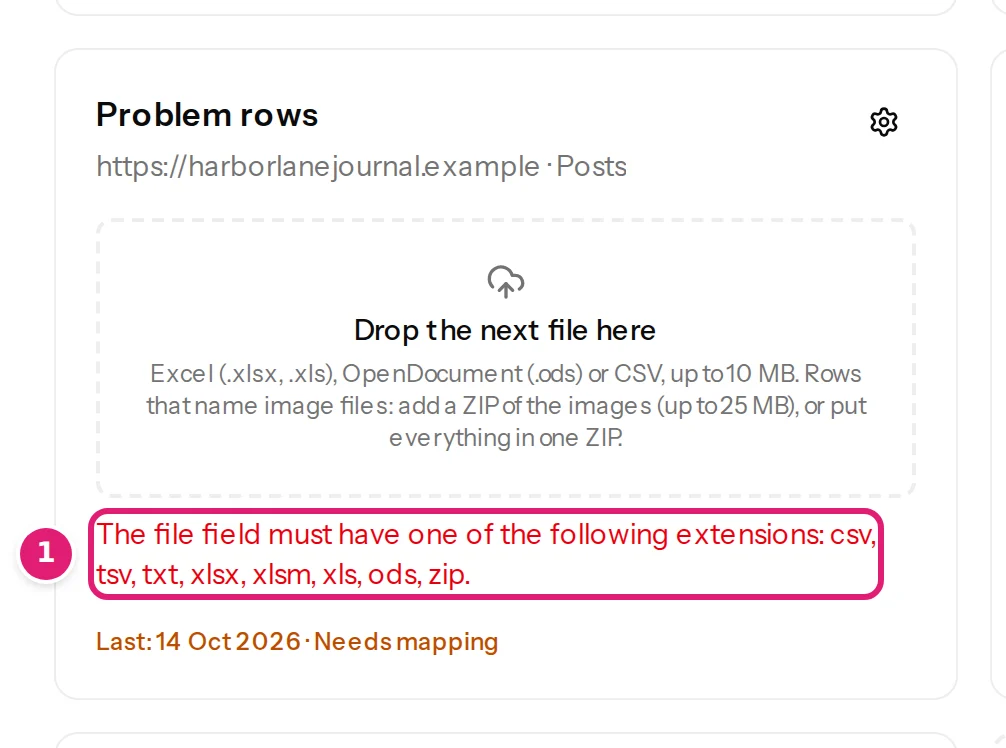
- When you drop it: the message appears in red under the drop area, and no upload is started. Nothing was stored.
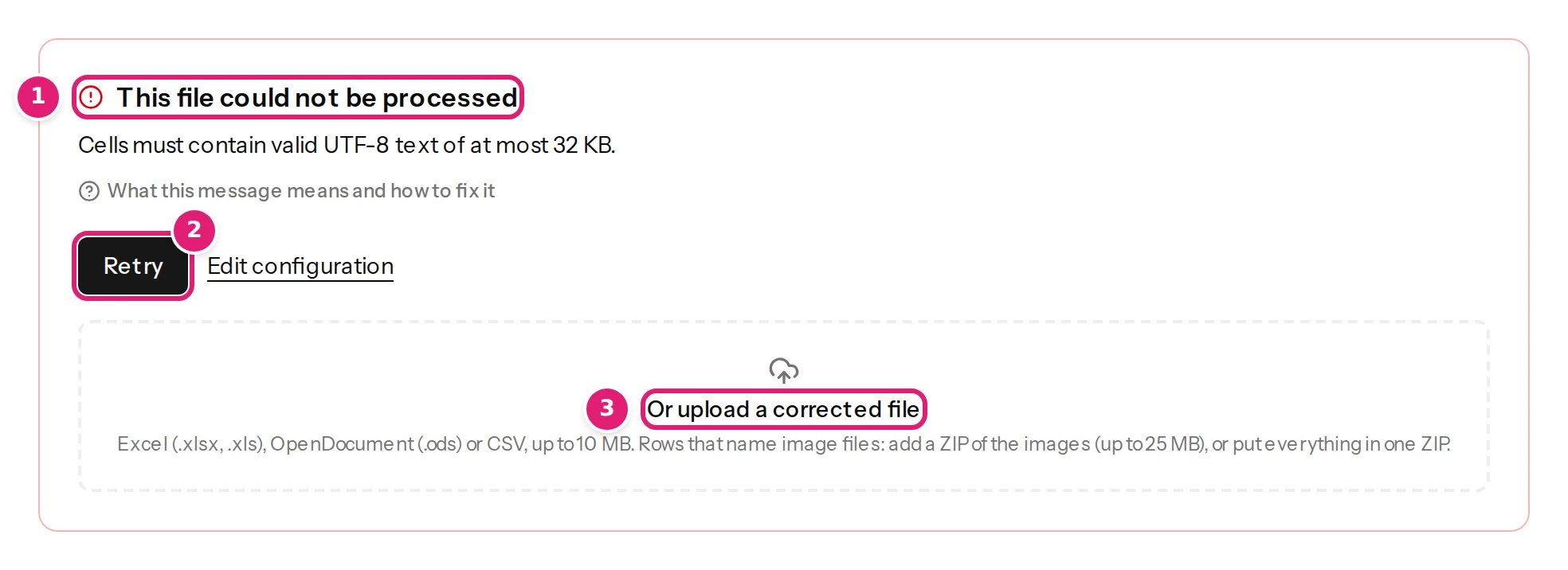
- While it is read: the upload's page shows This file could not be processed with the reason, Retry, Edit configuration and a drop area, Or upload a corrected file.
Neither costs anything: no record write is used, and nothing reaches your site.
Symptoms#
- Red text under the drop area when you choose a file, and no new upload appears.
- This file could not be processed, with a sentence under it.
- A message beginning This workbook…, This file…, The ZIP…, Cells must… or Use at most….
Likely causes#
Confirmed (each reproduced in our tests, or read from the program's own checks):
- The file is not a spreadsheet type at all (a PDF, a Word document, an image).
- The workbook is protected with a password, or it is saved as
.xlsbor by Apple Numbers. - A web page or XML file was saved with a spreadsheet name (some systems "export to Excel" like this).
- A CSV is not UTF-8 (saved as ANSI or Windows-1252) and holds an accent or symbol.
- The header row is empty, has a repeated name or a name longer than 200 bytes, or the file has a header and nothing else. (An empty cell in it is fine: that column is named by its position.) Often the file has no header row at all, and its first item is being read as the column names: the message then adds Row 1 looks like data, not column names.
- The file is over a limit: rows, columns, cell size, row size or total text.
- A ZIP has no spreadsheet, two spreadsheets, a password, or paths that leave the archive.
Possible (depends on the file; try the steps below if none of the above fits):
- A workbook that was damaged when it was copied, emailed or synchronised.
- An old
.xlsworkbook that is very large or full of objects.
Step-by-step solution#
- Read the message on the page. It names the problem. The table below says what to do for each.
- Open the file yourself in Excel, LibreOffice or Google Sheets. If it does not open there, it is damaged: go back to the original or an earlier copy.
- Save a clean copy: File → Save As → Excel Workbook (.xlsx) or CSV UTF-8. A fresh copy removes passwords, macros, odd structures and old formats.
- Upload the copy by dropping it on the configuration's card, or on the drop area of the failed file's page.
| Message | What to do |
|---|---|
| The file field must have one of the following extensions: csv, tsv, txt, xlsx, xlsm, xls, ods, zip. | Save the data as .xlsx or CSV. A PDF or Word table must be copied into a spreadsheet first. |
| This workbook is password-protected… / This spreadsheet is password-protected… | Remove the password (Excel: File → Info → Protect Workbook → Encrypt with Password, clear it) and save. |
| This .xls workbook cannot be read… / …took too long to read… / …damaged or too large to read… | Open it in Excel and save as .xlsx. |
| Excel binary workbooks (.xlsb) are not supported… | Save as .xlsx, .ods or CSV. |
| Apple Numbers files are not supported… | In Numbers: File → Export To → Excel or CSV. |
| This file is a web page or XML document, not a spreadsheet… | Open it in Excel, then Save As .xlsx or CSV. |
| This file is damaged or not a spreadsheet… / This file is not a readable ODS spreadsheet… / This workbook is unsupported… | Open the file, and if it opens, save it again under a new name as .xlsx. If it will not open, use an earlier copy. |
| Cells must contain valid UTF-8 text of at most 32 KB. | Almost always the encoding: save as CSV UTF-8 (character encoding). Otherwise a cell is longer than 32 KB (large files). |
| The first row must contain unique column names of at most 200 bytes. | Fix the header row: no two columns with the same name (column headers). |
| Row 1 is empty: delete the empty rows above the column names, or, if the file has none, read it without a header row. | Delete the blank rows above the column names. If the file has no column names at all, read it without a header row (files without a header row). |
| Add a header row and at least one non-empty data row. | Add the data under the header. |
| Either of the two, followed by Row 1 looks like data, not column names: if the file has no header row, read it again as a file without one. | If the file has no header row, select Read it without a header row and map its columns, Column A, Column B and so on (files without a header row). Otherwise fix the header row as above. |
| Add at least one row with values. | The file, read without a header row, is empty: upload the right file. |
| Use at most 10,000 data rows and 100 columns. | Split the file or remove unused columns (large files). |
| Use at most 128 KB of text per row and 25 MB of text per import. | Shorten the longest rows; split the file. |
| Spreadsheets must be at most 10 MB. / This file is larger than 40 MB. / ZIP files must be at most 25 MB. | Slim the file down or split it (large files). |
| The ZIP contains no spreadsheet… | Add the spreadsheet to the ZIP, or drop the spreadsheet next to the ZIP (ZIPs). |
| Choose a spreadsheet and one ZIP of images, or a single ZIP that contains both. | You dropped two spreadsheets, or two ZIPs. Drop one of each. |
| The ZIP could not be read… / The ZIP is damaged… / The ZIP is password-protected… / The ZIP contains files that point outside it… | Make the ZIP again from a folder, without a password. |
| The ZIP contains more than 2,000 files… / The ZIP expands to more than 200 MB… | Split the images over several uploads; images already sent are remembered (reusing images). |
How to verify#
- The new upload's page shows Reading your file, then What will change, with the number of rows you expect (the header does not count; without a header row, every row does).
- Open one new item in the review and compare its title and body with your spreadsheet: accents and symbols should look right.
If it persists#
- Retry is only for a problem that was temporary; it reads the same file again, so it cannot fix a bad file.
- Try the same data as CSV UTF-8 instead of a workbook, or as a workbook instead of a CSV: if one works, the other file had the problem.
- Check that the file opens from where you upload it: a file that is still being synchronised from a cloud folder can be incomplete.
- If a file that opens fine everywhere is still refused, contact support with the exact message and the file (without secrets).
Was this article helpful?
Related articles
- Preparing your spreadsheetSupported file formats and what is rejectedContent Uploader reads Excel, OpenDocument and CSV files and a ZIP of images. Which extensions work, which files are rejected, and the message each rejected file gets.
- Preparing your spreadsheetCharacter encoding: accents, symbols and CSV filesWhy a CSV with accents can be refused or garbled, which encodings are read (UTF-8, UTF-16 with a byte order mark) and how to save CSV UTF-8 from Excel or Sheets.
- Preparing your spreadsheetLarge files: the limits and how to stay inside themThe size limits for spreadsheets, rows, columns, cells and ZIP files, the message each gives, and how to split or slim down a file that is too big, with what it costs.
- Images and mediaUpload images in a ZIPPut the images in a ZIP next to your spreadsheet, or the spreadsheet and the images in one ZIP: how names are matched, the limits and what each error means.