Create a configuration
A configuration remembers a destination, a record ID column and how each column maps to fields: how to create one, what the editor's parts do and how versions work.
- 5 min read
- Updated October 14, 2026
A configuration is the thing you set up once so that you never map columns again. It remembers:
- the destination: one connected site and one content type on it;
- the record ID column that identifies each item;
- the mapping of columns to fields, categories, tags, images and custom fields;
- how a new file is handled (review first, or publish automatically), and who is emailed.
Every file you upload later is checked with it, and every checked file is a run of the configuration. Use one configuration for each kind of file: one for your weekly articles, another for your price list.
Create one#
-
On the Dashboard, select New configuration. (You need a connected site first; without one the page says to connect a site before mapping.)
-
Enter a Name (up to 120 characters) and choose a Sample file: a recent, typical spreadsheet with all the columns you will use. Select Continue to mapping.
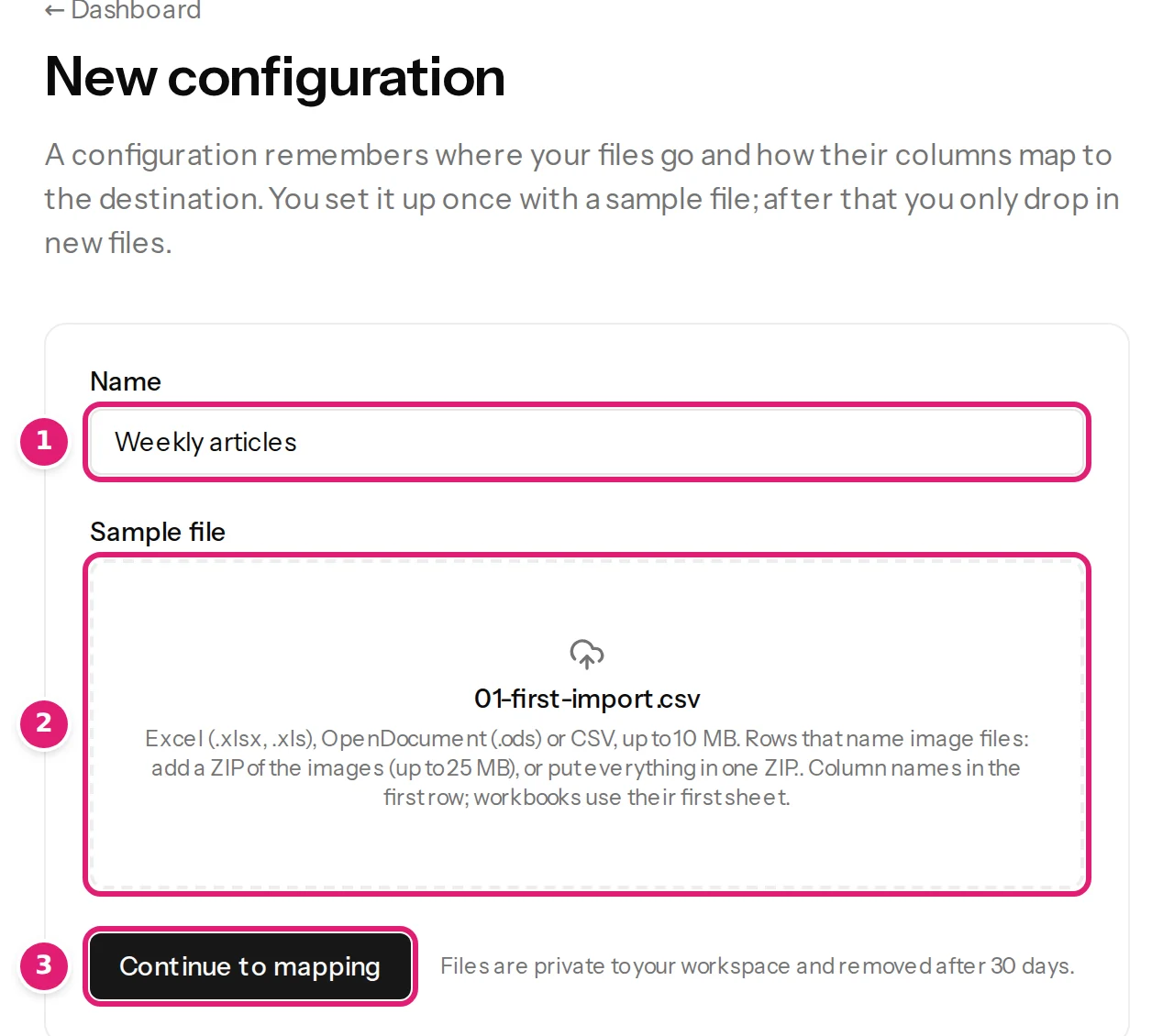
A name and a sample file. The sample is used only to learn the columns and to preview.
The editor opens at once and shows the sample file as it is read (Reading your file…). The sample counts as an upload to this configuration, and saving does not publish it. Until it is checked, it waits in the Uploads list as Needs mapping. When the button at the end of the editor reads Save and check file name (see Save), the sample is checked as soon as you save, and you can publish it like any first file.
The editor, section by section#
| Section | What you do there | More |
|---|---|---|
| Sample file | See the file name, the number of columns and rows, and how row 1 is read; replace the sample with Use a different file. A file without a header row: My file has no header row. | Files without a header row |
| Destination | Choose the Destination site (each site is listed with its platform, (WordPress) or (Joomla)) and the Content type. A site with one writable type chooses it for you. | WordPress types, Joomla articles |
| Record ID | Choose the column that identifies each item, or No ID column: match by slug or title. | Choosing the record ID |
| Fields | For each field of the destination, choose where its value comes from. | How mapping works |
| Tags and categories | Replace, keep or remove the item's terms; map columns, parent columns and fixed terms. | Categories, tags |
| Images | Map an image column and its alt text, title and caption. | Where images come from |
| Custom fields | Map the site's custom fields, or add one by name. | Custom fields |
| Preview | See any of the first 50 sample records exactly as it would be published. Nothing is sent. | Preview |
| When a new file is uploaded | Name, review-or-automatic, and email. | Publishing options |
| Delete this configuration | Remove it from the workspace. | Delete a configuration |
Columns are matched to fields automatically where the names are alike (column headers). You only fix what is wrong.
Save#
Select Save configuration at the end of the editor. Saving checks the mapping against the site's current fields and the sample's columns before it stores anything, and says what is wrong in place: a required field with no source, a column that does not exist in the file, a placeholder that names a column that is not there, a fixed value that the site does not accept, a category or tag the account may not create.
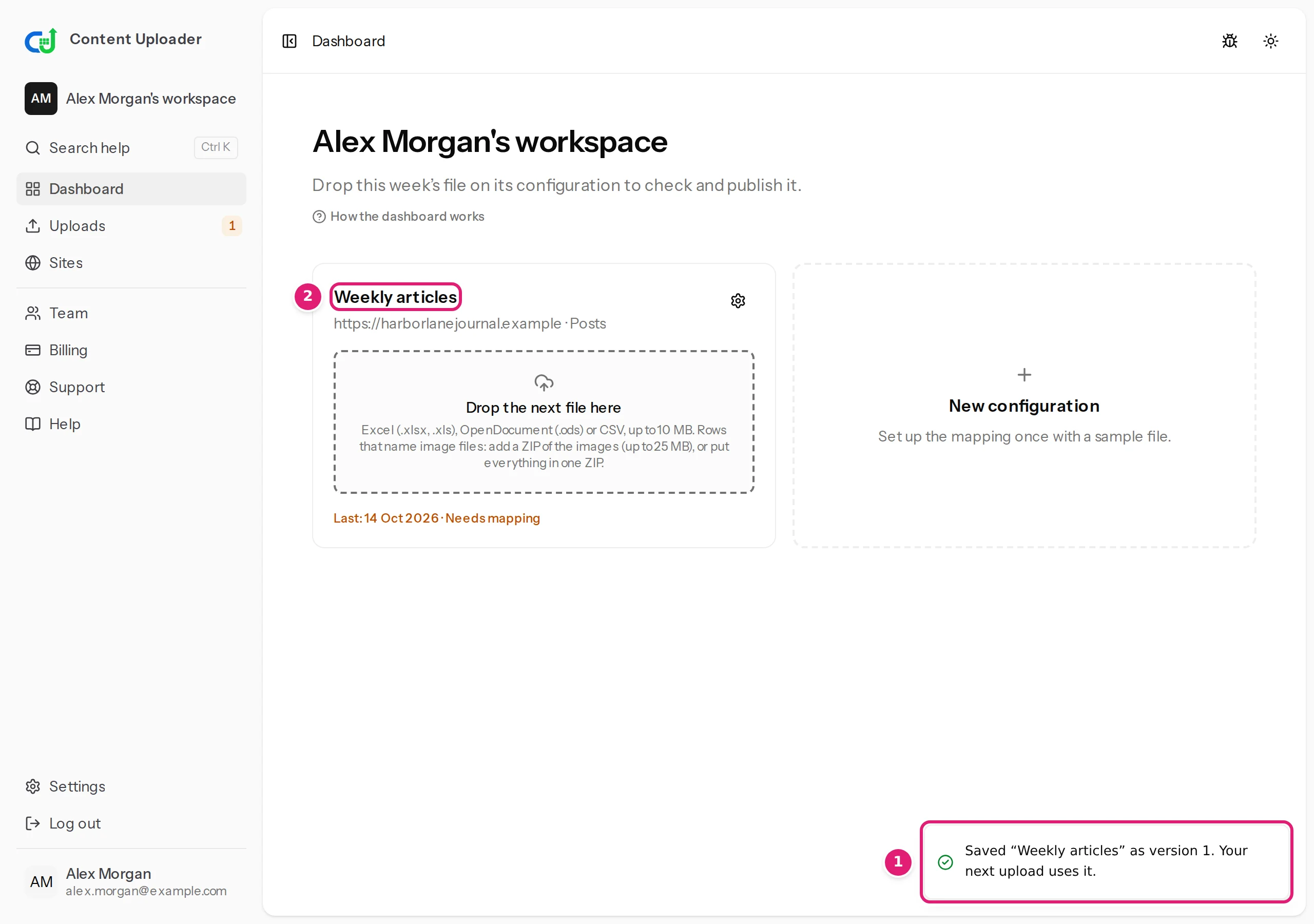
When it succeeds the dashboard shows Saved “Weekly articles” as version 1. Your next upload uses it. and a card for the configuration.
If your sample had already been read when the editor opened (this can happen with a small file, and it happens whenever you open the editor from a file's page with Edit configuration), the button at the end reads Save and check file name, with a tick box Check … with this configuration after saving. Saving then also checks the sample with the new mapping and takes you to its review instead of the dashboard. Untick the box, and the button goes back to Save configuration. The sample is an upload like any other: you can read the review and publish it, or leave it and drop your next file on the card.
Versions#
Each time you save a changed mapping, Content Uploader stores a new immutable version. Runs and their results keep the version they were checked with, so changing the mapping never rewrites history. Changing only the name, the publishing option or the emails does not create a version. Edit and versions explains how a new version is applied to a file that was already checked.
The editor protects your work#
- If you open the editor for a particular file (from a run's page, Edit configuration), saving checks that file again with the new mapping.
- If someone else saves the configuration while you are editing, a notice says so and your changes stay in the page until you decide: open the other version in a new tab, discard yours, or Save mine anyway.
- If the site's fields change while the editor is open (for example you installed a plugin), a notice says so; reload to map the new fields. Saving always checks against the site's current fields.
- If the sample file is read again with different columns, you are asked whether to use the new columns; your mapping is kept.
Next#
Drop your first file, or read how the record ID works first: it is the one choice that is hard to change later.
Was this article helpful?
Related articles
- Importing dataChoose the record IDThe record ID column lets next week's file update an item instead of creating it twice: what makes a good ID, how matching works without one, and what changing it does.
- Mapping columnsHow mapping worksMapping connects your spreadsheet's columns to the destination's fields, once: the editor's sections, four ways to fill a field, automatic matches and the preview.
- Importing dataEdit a configuration and how versions workChange a mapping safely: each save makes a version, files keep the version they were checked with, a new version can be applied to a waiting file, and conflicts are flagged.
- Importing dataReview first or publish automaticallyChoose whether a new file waits for your one-click review or is published at once when nothing needs attention, when automatic publishing still waits, and who gets the emails.