A notice appears at the top of the page: what each one means
Why a page updates by itself, and what to do when it says updates are paused, your session expired, a new version is out, a file was checked again or someone else saved.
- 7 min read
- Updated October 13, 2026
On this page
- Symptoms
- How the page updates
- What each notice means and what to do
- Updates are paused because the server can’t be reached
- Your session has expired
- Updates stopped: this is no longer available to you
- A new version of Content Uploader is available
- This file was checked again
- Other results changed (the Sites page)
- Someone else changed this configuration (the editor)
- Step-by-step solution
- How to verify
- If it persists
Symptoms#
A strip appears at the top of a review page, the Sites page or the configuration editor, with a message such as:
- Updates are paused because the server can’t be reached. Retrying automatically. with Try again now
- Your session has expired, so updates stopped. Everything on this page is kept. with Sign in again in a new tab and resume updates
- Updates stopped: this is no longer available to you. It may have been deleted, or your access to the workspace was removed.
- A new version of Content Uploader is available. Reload when you’re ready; unsaved changes on this page are lost when you reload. with Reload now and Later
- This file was checked again since you opened these results. What you see is from the earlier check and can’t be published. with Show the latest
- On the Sites page: 3 other results changed since you opened this page. with Show the latest results
- In the configuration editor: Someone else changed this configuration while you were editing. Your changes are still here and have not been saved. and the notices about the site's fields and the sample file below
How the page updates#
These pages update by themselves, without reloading: a file's progress while it is read and checked, the results while they are sent to your site, the columns of a sample file while it is read. While something is running the page asks for news every two seconds or so; while it waits for you, about every thirty seconds; and when nothing can change any more (a finished file) it stops asking. It also stops while the browser tab is in the background and asks at once when you come back.
The page never takes you somewhere else by itself, and nothing you typed is lost. When something stops the updates, or changes underneath you, it tells you in a notice at the top, and you choose what to do.
What each notice means and what to do#
Updates are paused because the server can’t be reached#

Cause. Your connection dropped, or Content Uploader did not answer for a moment. What to do: nothing; the page tries again by itself, waiting a little longer each time (5, 10, 20 and 40 seconds, then once a minute) and at once when your connection comes back. Select Try again now to ask immediately. The notice disappears when the page is back in step, and whatever happened meanwhile appears.
Your session has expired#

Cause. You were signed out: the session ended, or you signed out in another tab. What to do: select Sign in again in a new tab, sign in there, come back and select resume updates. The page stays as it was, so nothing you typed in the configuration editor is lost. If you reload instead, you are asked to sign in.
Updates stopped: this is no longer available to you#
Cause. The upload, the configuration or the site was deleted, or the workspace owner removed your access to it (team members). What to do: go to the Dashboard and look for it. If you should still have access, ask a workspace owner.
A new version of Content Uploader is available#

Cause. Content Uploader was updated while this page was open, and the page in your browser is from the old version. What to do: finish what you are doing and select Reload now. A reload loses unsaved changes on that page, so save a configuration first. Later hides the notice until you open the page again.
This file was checked again#

Cause. Someone (you in another tab, or a colleague) checked the file again, for example with Check again or Save and check, so the results on your page are from the earlier check. They can no longer be published. What to do: select Show the latest, read the new results and publish them if they are right (check again, read again, retry). The page does not replace what you are reading on its own: it waits until you choose.
Other results changed (the Sites page)#
Cause. Results of publishing changed while you looked at the list: an item finished, failed or was retried. What to do: select Show the latest results. The list does not rearrange itself while you read it.
Someone else changed this configuration (the editor)#
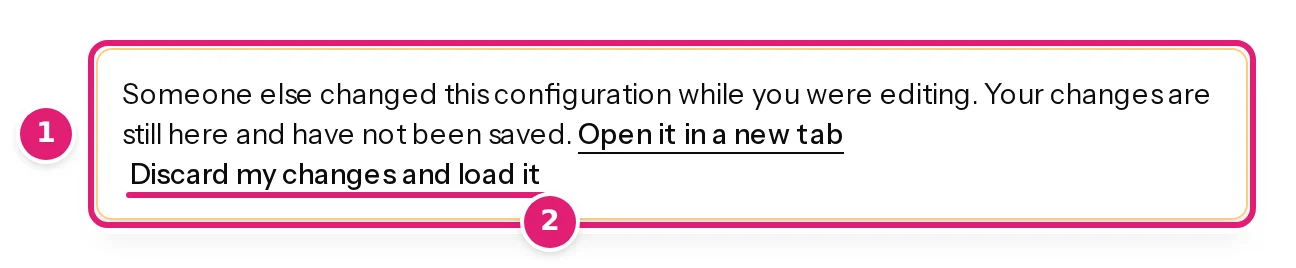
Cause. A colleague saved the configuration while you had its editor open. Your form still shows your own changes, unsaved. What to do: choose one of three ways.
- Open it in a new tab to read what was saved, then decide.
- Discard my changes and load it to drop your changes and take what the colleague saved.
- Keep editing and save: Content Uploader refuses, because you would replace the other person's changes without seeing them, and shows Save mine anyway (edit and versions). Use it only when your version is the one to keep.
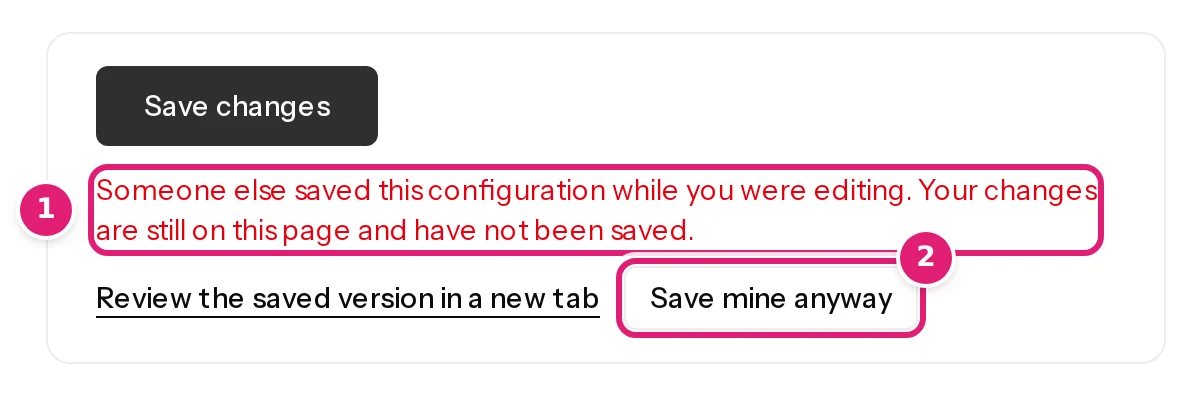
The editor has three more notices of the same kind:
- The fields of https://… changed since you opened this page. The site now offers other fields (a new custom field, a changed category list). Saving checks your mapping against the site's current fields. To map the new ones, select Discard my changes and reload, or Refresh fields first on the Sites page.
- https://… was disconnected. The site was disconnected while you edited.
- The sample file was read again and its columns changed. Your mapping is kept. with Use the new columns. Select it to add the new columns to the editor; the mapping you made stays.
Step-by-step solution#
- Read the notice to the end. Each one says what stopped and why, and what you can do.
- If nothing on the page is unsaved, select the button in the notice: Try again now, resume updates, Show the latest or Reload now.
- If you are editing a configuration, do not reload before you have saved or read what the notice offers. The editor also keeps a draft of your unsaved changes in your browser, but a saved configuration is safer (edit and versions).
- If the notice about the server comes back again and again, check your own connection, then look at the upload is stuck or slow.
How to verify#
- The notice goes away, and the page shows the newest state: the progress moves, or the new check is on screen.
- On a review page, the Publish button works on the results you see (the Publish button).
If it persists#
- A session notice that returns right after you signed in: sign in with the same account in the same browser (not a private window), and check that cookies are allowed for the site.
- A no longer available notice for something you can still open from the Dashboard: reload the page; if it comes back, write to support with the address of the page.
- A new version notice that returns after every reload: your browser may be showing an old copy. Reload with the cache bypassed (Ctrl+Shift+R, or Cmd+Shift+R on a Mac).
Was this article helpful?
Related articles
- Reviewing and publishingHow the review worksAfter a file is checked, the review shows what will be created, updated, left alone or skipped before anything is sent to your site. How to read each part of the page.
- Importing dataEdit a configuration and how versions workChange a mapping safely: each save makes a version, files keep the version they were checked with, a new version can be applied to a waiting file, and conflicts are flagged.
- Importing dataRetry, Check again, Read again: which button does whatWhat the buttons for doing something again do: Retry, Check this file again, Check again with version, Read again and Retry safely, and when each is available.
- TroubleshootingThe Publish button is greyed out or missingWhy the Publish button is grey or missing and what each cause needs from you: a tick box, a newer check, the allowance, a paused site or workspace, or a file not ready.