What needs your attention before you publish
The review asks you to tick "I reviewed the changes above" for a new version, changed fields or columns, a doubtful first row, products taken over or a large price change.
- 4 min read
- Updated October 14, 2026
On this page
Most of the time the review lets you publish with one click. In six situations it asks for a second look first: an amber box above the button says Please look at the changes before publishing, lists the reason or reasons, and keeps the button grey until you tick I reviewed the changes above.
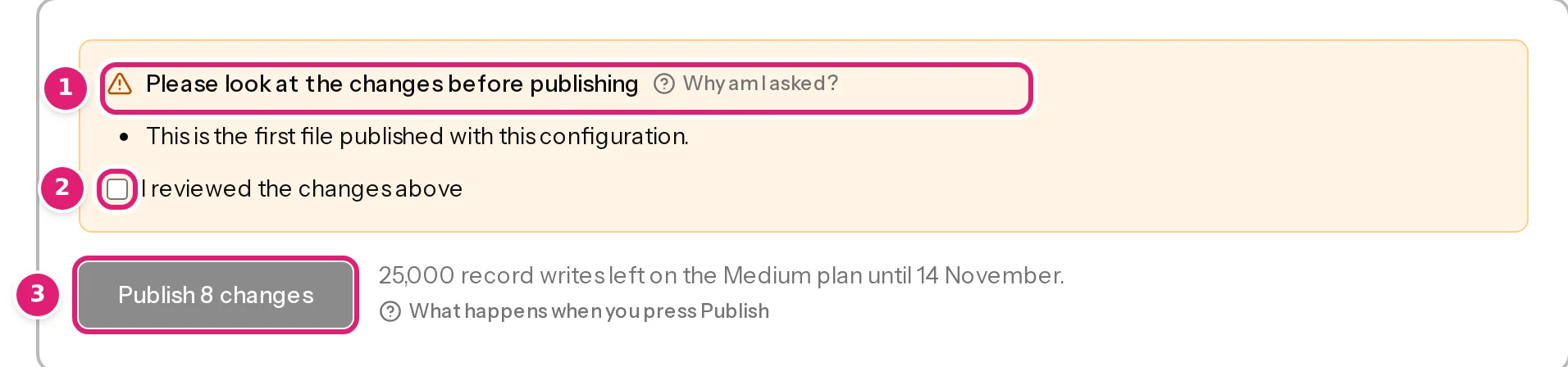
These are not errors. They are moments where a silent mistake would be expensive, so a person is asked to confirm. Ticking the box means: I have looked at the list of new, updated and skipped items and it is what I intended. Automatic publishing always waits in these cases (automatic publishing).
The six reasons#
1. A configuration version that has not been used to publish yet#
- This is the first file published with this configuration.
- Configuration version 3 has not been used to publish yet.
The mapping is brand new (or you changed it). Nobody has yet seen what it does on real data, so the first file is read carefully. The next files with the same version do not ask.
2. The destination's fields changed#
The destination's fields changed since the configuration was saved. Open the configuration to map new fields, or confirm the changes below.
Your site offers different fields than when you saved the mapping: a plugin was added or removed, a custom field was created, or the publishing account's rights changed. Either open the configuration, map what is new and save, or, if the change is irrelevant, confirm. (Use Refresh fields on the Sites page when you know the site changed.)
3. The columns changed#
The file's columns changed since the last published file: added Tags; removed Category.
The header row is different from the last file that was published with this configuration: a column was added or removed. This is the accident to catch: an export that silently dropped a column would otherwise blank that field on every item. Look at the list, and confirm if the change is intended (when a file's columns change).
4. Row 1 looks like column names#
Row 1 looks like column names, but this configuration reads files without a header row, so row 1 is published as an item. If the file has a header row, read it again with its first row as column names.
The configuration reads files without a header row, and this file's first row looks like one: every cell is filled, different and short, while the row below holds values such as numbers or dates. Published as it is, its column names would become an item on your site. If the file does have a header row, select Read row 1 as column names next to the reason; the file is read again, and its columns then need Update mapping for this file. If row 1 really is an item, confirm (files without a header row).

5. Products the shop already had are taken over#
6 products already on the site were not published with Content Uploader. They are updated from this file, compared with what the site holds now.
The configuration updates the products a WooCommerce shop already has, found by their SKU, and some of them are about to be written by Content Uploader for the first time. Look at what differs from the shop in the list, and confirm (update products already on your shop).
6. A price moves a lot#
1 price changes by more than 30%.
A price in the file moves further than the limit set under Large price changes in the configuration (the number in the message is that limit). Such a move is more often a typo than a decision: look at the marked products, and confirm if it is intended, or correct the file and upload it again (the price check).
What is not a reason to confirm#
These are shown, but do not ask for a tick:
- Rows with errors and skipped items: they are skipped, with the list on the page. (They still stop automatic publishing.)
- Missing images: the items are published without them (missing images).
- A warning that the destination could not be reached for the comparison: it appears as an amber note and stops automatic publishing, but you can publish.
- A plan allowance that is too small: you are offered Publish the first N changes instead (plans and allowances).
What happens after you tick#
You press Publish N changes as usual. The confirmation is remembered for this check only: if the file is checked again, the review asks again for whatever still applies.
Was this article helpful?
Related articles
- Reviewing and publishingHow the review worksAfter a file is checked, the review shows what will be created, updated, left alone or skipped before anything is sent to your site. How to read each part of the page.
- Reviewing and publishingAutomatic publishing: when a file is published without youWhat automatic publishing does, the exact conditions for a file to be published on its own, why the first file always waits, and how to turn it on or off.
- Importing dataWhen a file's columns changeWhat "This file doesn't match the configuration" means, which columns count as used, how to rename a column back or remap it, and what new or removed columns do to the review.
- Reviewing and publishingPublish your changes: exactly when and how your site is changedWhat happens when you press Publish: the checks made at that moment, the background publishing, the progress and the result, and what can and cannot be undone.