When a file's columns change
What "This file doesn't match the configuration" means, which columns count as used, how to rename a column back or remap it, and what new or removed columns do to the review.
- 3 min read
- Updated October 13, 2026
A configuration remembers the columns it needs by name. Before it looks at a single row, Content Uploader checks that every one of them is in the new file.
"This file doesn't match the configuration"#
If a column the configuration uses is missing, nothing is processed and the file's page says so, in an amber box:
This file doesn't match the configuration Nothing was processed. These columns are used by the configuration but are missing from the file: “Body” — used by Content
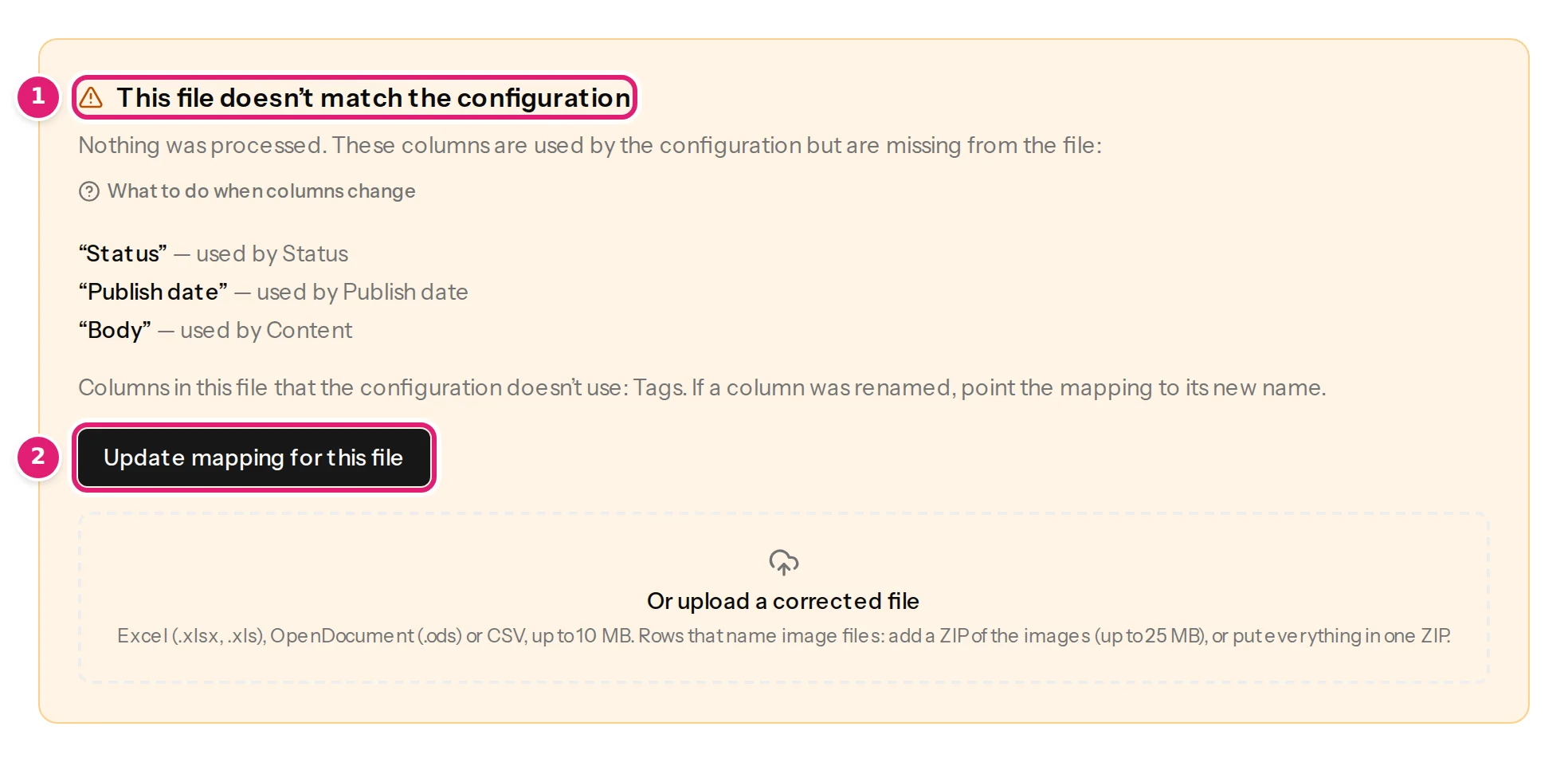
Each missing column is listed with the fields that use it. If the file also has columns the configuration does not use, they are listed too: Columns in this file that the configuration doesn't use: … If a column was renamed, point the mapping to its new name.
Columns that count as used: the record ID column; every column chosen for a field, a category or tag source (and its parent column), an image or its alt text, title and caption, or a custom field; and every column named in a {{ placeholder }} of a template.
How to fix it#
Choose one of these:
- Rename the column in your spreadsheet back to the name the configuration expects, and upload the file again. This is the right fix when the new name was a slip.
- Point the mapping at the new name. Select Update mapping for this file. The editor opens for this file with a notice: “…” is missing columns this configuration uses: “Body”, used by Content. Point these fields to the file's columns below and save. The file is checked again right away. Choose the right column for each field, save, and the file is checked again with the new version, with no new upload. From now on the configuration expects the new name, so next week's file must use it too.
- Upload a corrected file from the box at the bottom of the page.
If a newer version of the configuration exists than the one this file was checked with, the page also offers Check with version N.
Columns you added#
A new column that the configuration does not use is harmless: the page lists it as Not used and goes on. It becomes useful when you map it to a field in the editor.
Columns that changed since the last published file#
Even when everything required is present, Content Uploader notices that the columns are different from the file that was last published and asks you to look. In the box above the Publish button:
Please look at the changes before publishing — The file's columns changed since the last published file: added Tags; removed Category.
Tick I reviewed the changes above to publish. This guards against the classic accident: a column was dropped from the export, and every row would silently lose its category. Automatic publishing waits for you in this case, whatever the configuration says.
Prevent it#
- Keep the header row exactly the same from file to file (column headers).
- When the source system changes its export, update the configuration first, then upload.
- Name columns by what they hold, not by position or date (
Price, notPrice Oct). - A configuration that reads files without a header row finds columns by position. Add new columns at the end only: a column inserted in the middle moves every column after it, and their values go to the wrong fields without any warning (files without a header row).
Was this article helpful?
Related articles
- Preparing your spreadsheetColumn headers: names, rules and automatic matchingThe first row needs a different, non-empty name in every column. How column names are matched to fields, which names suggest the ID, and what happens when a name changes.
- Importing dataEdit a configuration and how versions workChange a mapping safely: each save makes a version, files keep the version they were checked with, a new version can be applied to a waiting file, and conflicts are flagged.
- TroubleshootingColumns are missing or not recognisedWhat to do when the page says the file doesn't match the configuration, a column you expect is not offered, or a field is not filled in from the column with the same name.
- Importing dataUpload the next fileDrop this week's spreadsheet on its configuration's card, follow the check and publish: how uploads work, adding a ZIP of images, who is emailed and what uploading twice does.