Missing images: what happens and how to fix them
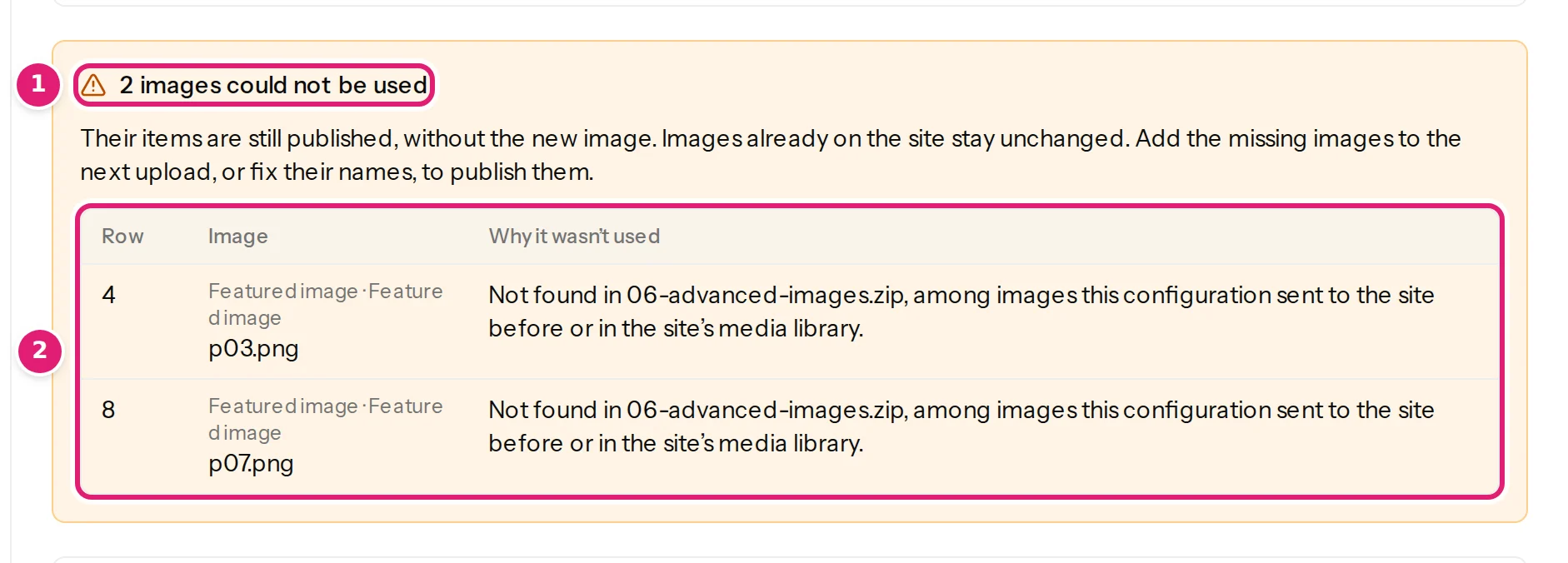
A missing image never blocks its item: it is published without the new image, the review lists each one with its reason, and you can add it later.
- 4 min read
- Updated October 13, 2026
On this page
A cell names an image that Content Uploader cannot use. This is a warning, not an error: the rest of the row is fine, so the item is still published, and nothing about an image ever stops a file.
What it does#
- On a new item: the item is published without that image.
- On an update: the image the item already has on the site stays. A missing image never removes one. (An empty cell does: that is a different thing, see empty cells.)
- The review lists every missing image with its row, its column and value, and the reason, before you publish. It does not need you to tick I reviewed the changes above, and it does not stop automatic publishing.
- After publishing, the item's result is succeeded with a warning ("published without a new image"), the file's page says 12 published · 2 without a new image, and the email counts them with a few examples. An image that fails only while publishing (for example, the site cannot store it) is reported the same way, marked Found while publishing.

The reasons#
| Reason | What to do |
|---|---|
| Not found in images.zip, among images this configuration sent to the site before or in the site's media library. | The name in the cell is in none of the three places. Check the spelling and the extension (.jpg is not .jpeg), add the file to the ZIP, or correct the cell. |
| Not found among images this configuration sent to the site before or in the site's media library. Upload the image in a ZIP with the spreadsheet. | You uploaded no ZIP with this file. Add one for the images that are new. |
| Several files in images.zip match (…). Use the file's path inside the ZIP. | Two files in different folders have the same name. Write the path in the cell (summer/p01.png). |
| Several images in the site's media library have this file name (…). Rename the image, or upload it in a ZIP with the spreadsheet. | The site's library has duplicates. Upload the right one in a ZIP, or rename one on the site. |
| … The site's media library could not be searched. | The site did not answer the lookup. Check the connection (test the connection) and check the file again. |
| A message about a web address | See images from web addresses: an address that is not public, a share link, a page, too large, too slow. |
| A message about the type | Image types and limits: SVG, a file that is not an image, a type the site does not accept. |
Add the images later#
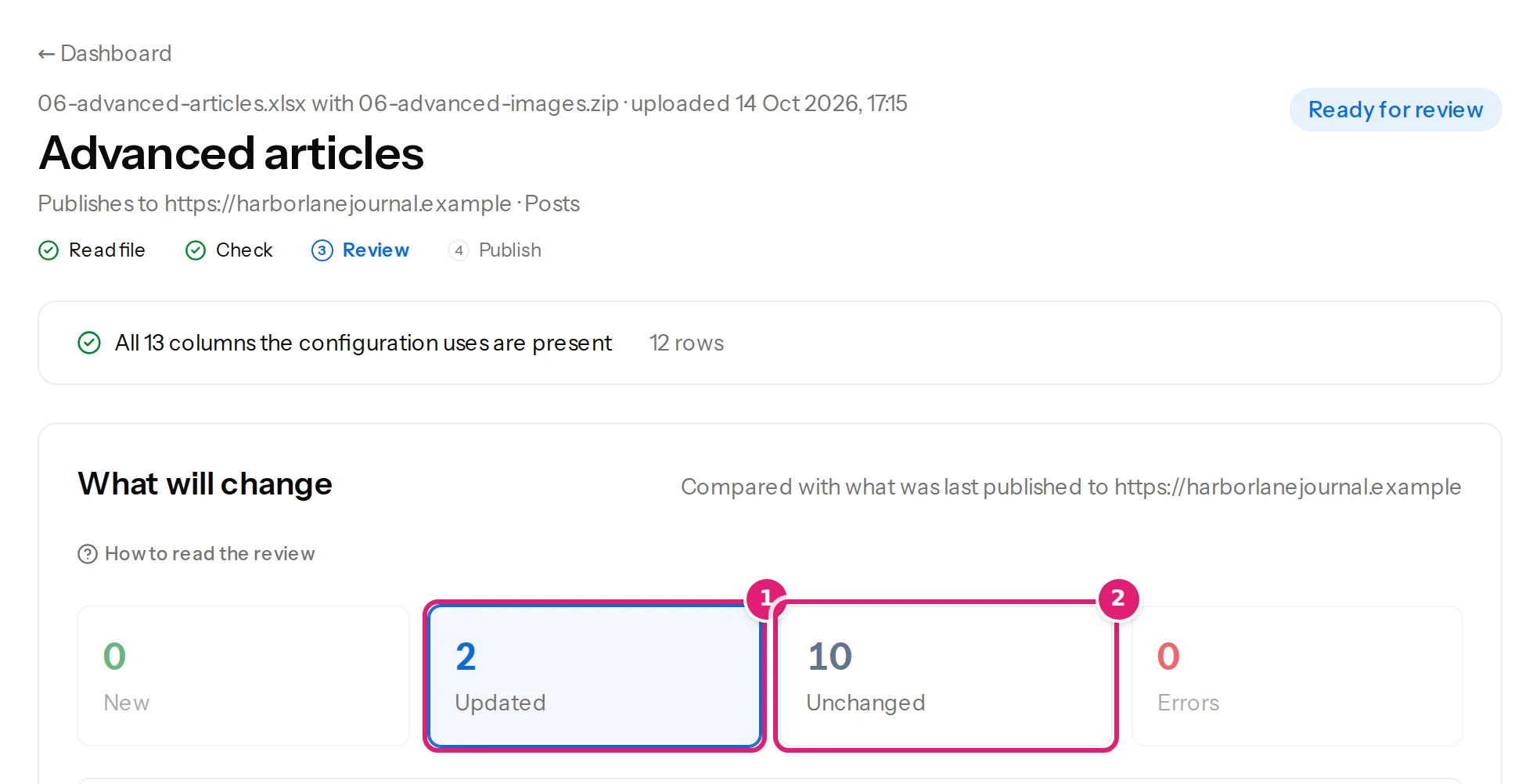
You do not have to redo anything else. Upload the file again, with a ZIP that has the missing images (the other images may be left out): the items that now have their images appear as updated (Featured image: Not sent → p03.png), and every other item is unchanged.

Tips#
- A forgotten ZIP is the most common reason: with all images missing, the review says N images could not be used and lists every row. You can leave the page and upload again; nothing was published yet.
- Check the first rows' images in the review: open an item and read where each image comes from.
- Keep file names simple (letters, digits, hyphens) and the same in the spreadsheet and the ZIP.
Was this article helpful?
Related articles
- Images and mediaWhere images come fromA cell can hold a web address or a file name. How Content Uploader finds the image: your ZIP, earlier uploads, the site's media library or the web.
- Images and mediaUpload images in a ZIPPut the images in a ZIP next to your spreadsheet, or the spreadsheet and the images in one ZIP: how names are matched, the limits and what each error means.
- Images and mediaImages from web addressesUse image addresses in your spreadsheet: what is accepted, why Google Drive, Dropbox and OneDrive share links fail, and what each failure message means.
- TroubleshootingImages are missing, wrong or not replacedWhat to do when the review says images could not be used, items are published without their picture, an image was removed or a changed image is not replaced.