Preview a record before anything is saved or sent
See any of the first 50 rows of your sample as it would be published: every field, the rendered body, terms, images and custom fields. A preview never sends anything.
- 3 min read
- Updated October 13, 2026
The Preview panel is on the right of the configuration editor. It answers the question "what would this row look like if I published it with the mapping I have right now?" without touching your site: Nothing is sent to the destination while you preview.
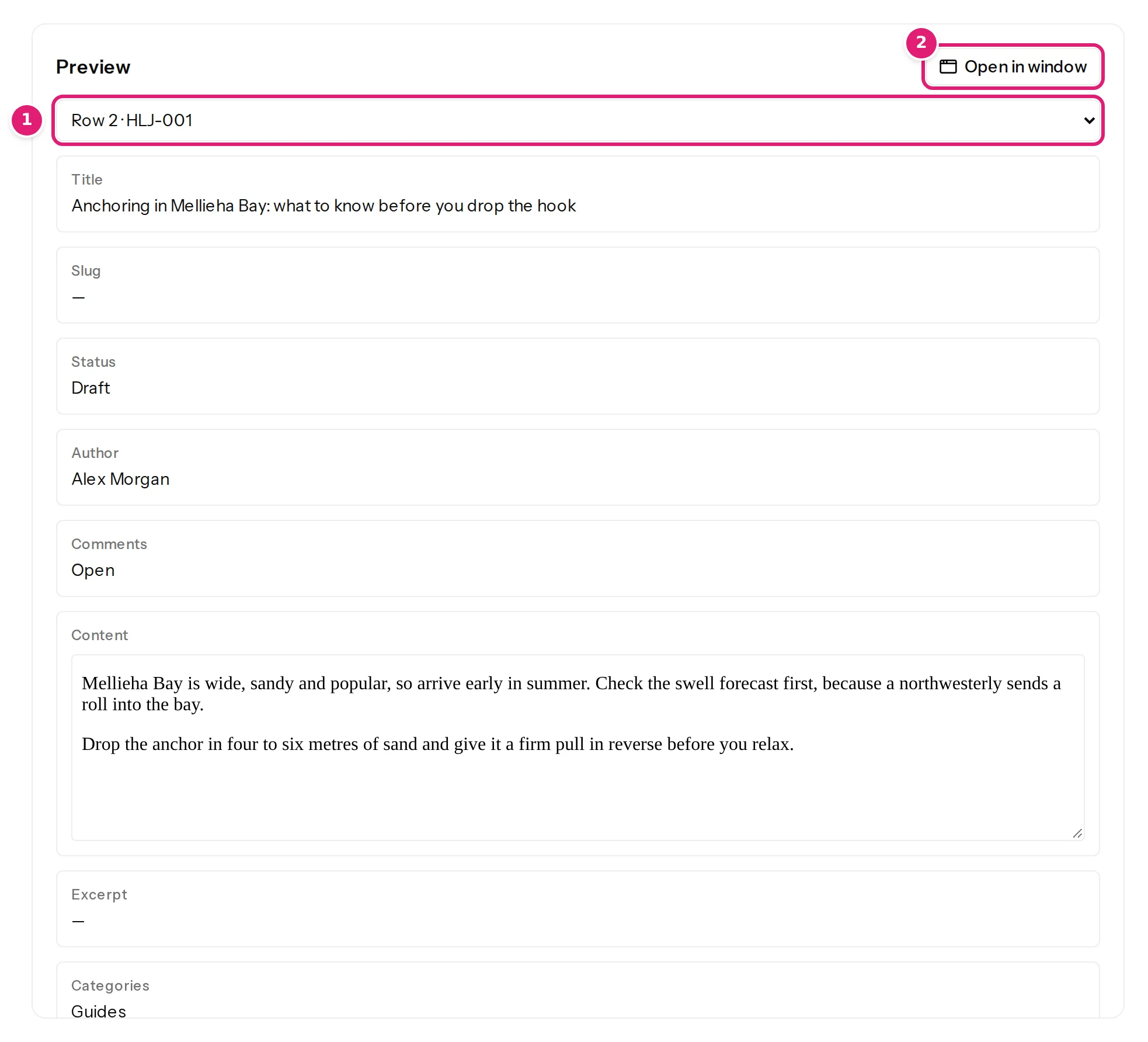
How to use it#
- Choose a Sample record from the list (1): the first 50 rows of your sample file, labelled with the row number and the ID (Row 2 · HLJ-001).
- Read the fields below. Each shows its label and the value that would be published: the title, the slug, the status, the author (by name), comments, the rendered content (HTML shown as it will look, in a frame of its own), the excerpt, categories (as paths, like
Destinations > Malta), tags, the image with where it will come from, the custom fields, and so on. A field you leave unmapped shows what it will get (the site's default, or —). - Change the mapping. The preview refreshes by itself after a moment. Try a template, a category column or a different status and watch the result.
- Open in window (2) puts the preview in a window of its own, so you can keep it beside the editor on a large screen or a second monitor; closing that window returns it to the page.
What the preview is#
The preview uses the same code that publishing uses. It reads the row, applies the mapping and the site's current rules (the fields and choices the site offers, whether new categories may be created, the author list) and shows the result. So what it shows is what a real run would send, with these exceptions:
- It does not look at the site's content: it cannot tell whether the item already exists, will be updated, or is unchanged. That is what the review of an uploaded file is for.
- Images show where they would be found (Looked up in the site's media library when the file is checked, or the web address); a ZIP is only uploaded with a real file, so the preview cannot say that an image is present in it. After you drop a file with its ZIP, the review shows each image's origin (From the uploaded ZIP) and lists those that are missing.
- It does not check the allowance or the publishing account's rights beyond what the site's field list already reflects.
Errors in the preview#
If the chosen row would be rejected (an empty title, a date that is not a date, a status the site does not have), the preview shows the problem for that row in place of the value, the same wording that the review's Errors list uses. Use it to try the rows you are unsure about before you save; choose a few different rows, including the last and the strangest.
Preview in the review#
Opening an item in a file's review shows the same field boxes for what will be created, and, for an update, the fields that change with the last published value beside the new one (how the review works).
Was this article helpful?
Related articles
- Mapping columnsHow mapping worksMapping connects your spreadsheet's columns to the destination's fields, once: the editor's sections, four ways to fill a field, automatic matches and the preview.
- Reviewing and publishingHow the review worksAfter a file is checked, the review shows what will be created, updated, left alone or skipped before anything is sent to your site. How to read each part of the page.
- Mapping columnsTemplates and {{ placeholders }}Combine fixed text with column values in titles, slugs, texts and bodies: the {{ placeholder }} syntax, the rich HTML template editor, escaping and what a placeholder inserts.
- Importing dataCreate a configurationA configuration remembers a destination, a record ID column and how each column maps to fields: how to create one, what the editor's parts do and how versions work.