Retry failed items safely
How to find the items that failed to publish, fix the cause, and send them again with Retry safely without creating duplicates, and when to upload the file again instead.
- 6 min read
- Updated October 14, 2026
When a file is published, an item can fail while the others succeed. A failed item does not stop the file and nothing is lost: the item is simply not on your site yet (or not updated). You fix the cause and send it again.
Find the failed items#
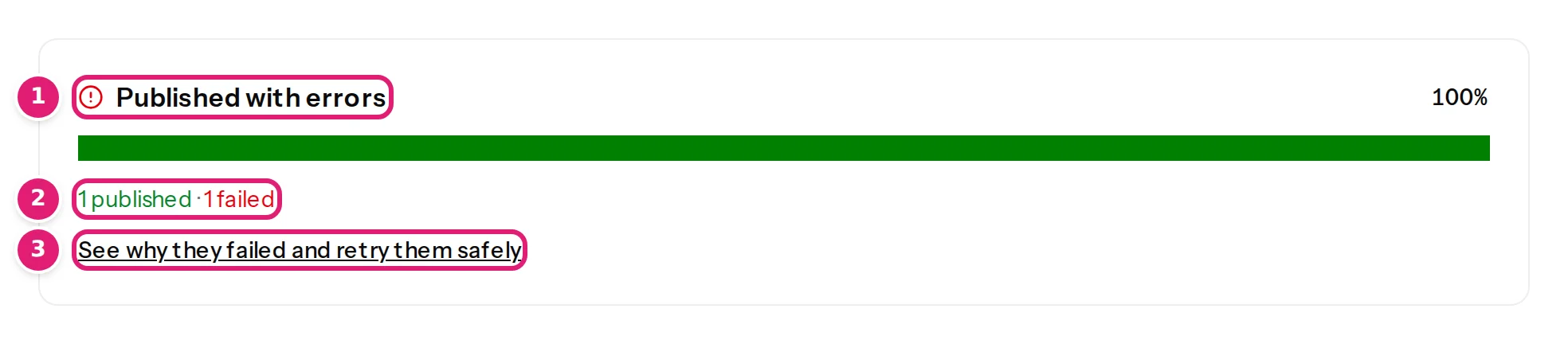
- The finished file says Published with errors and N failed, with the link See why they failed and retry them safely. The email says … finished with errors.
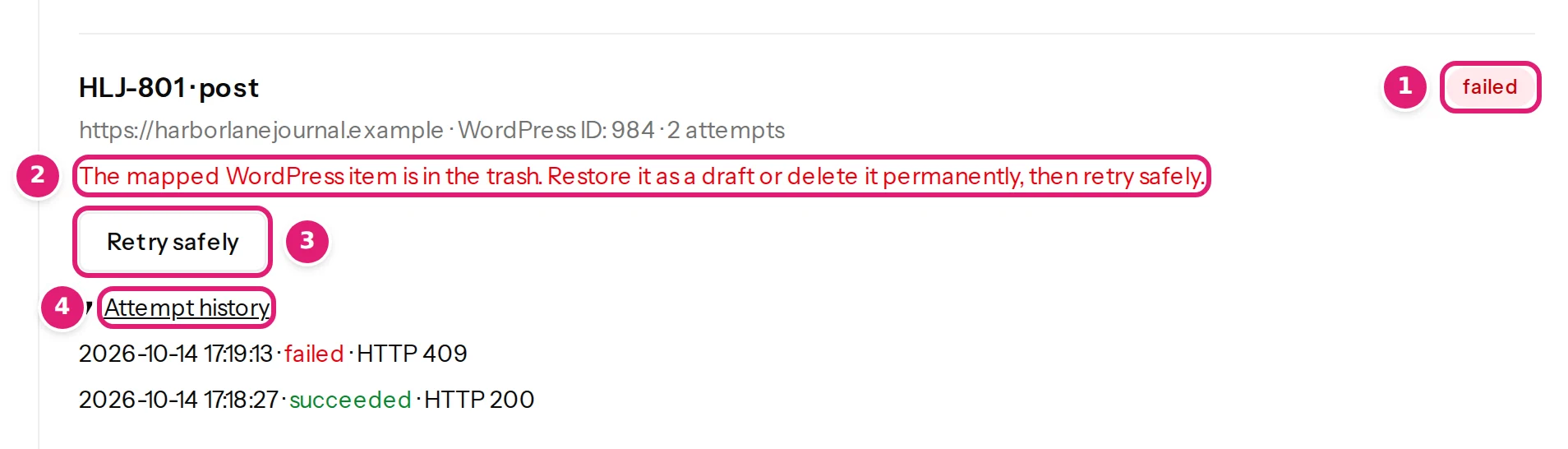
- The Sites page, under Publishing results, lists every item. A failed one has a red failed label, the reason in red under it and the button Retry safely.
Content Uploader already retried what could be retried#
Before an item is marked failed, temporary problems are retried automatically: the site did not answer, it was too busy, it returned a server error, an image was still being fetched. There are three more tries, after about 15 seconds, one minute and three minutes. Problems that waiting cannot fix, for example a permission that is missing, a category that does not exist or a value the site refuses (… (HTTP 400)), fail at once, because trying again would give the same answer.
The number of attempts on a result counts every request ever sent for that item, including those of earlier files, so it only grows; the Attempt history lists them with their time and outcome.
What "safely" means#
Every item is sent with an operation ID. Retry safely sends the same operation again. Your site's connector remembers the operations it has completed:
- If the first attempt did reach your site and only the answer was lost, the retry gets the stored result back and creates nothing: no second copy of the item.
- If the first attempt did not reach your site, the retry does the work.
- A retry sends exactly the content that was reviewed, never newer content. To publish newer content, upload the file again.
So you can press the button without worrying whether the earlier try "half worked". It is the one action that is always safe (preventing duplicates).
Fix the cause first#
A retry with the same cause fails the same way, so read the reason:
| The reason says… | Do this, then Retry safely |
|---|---|
| … didn't answer. / The site could not be reached. Retrying the same operation is safe. | Make sure the site is up and reachable over HTTPS. Nothing else. |
| The connection expired or permission was revoked. Reconnect in WordPress. (or Joomla) | Renew or reconnect the site (WordPress, Joomla). |
| The Content Uploader plugin on this site is outdated or not active. Update or enable it, then retry. | Update or activate the plugin or extension (WordPress, Joomla). |
| The connected WordPress user can no longer edit the mapped item. | Give the publishing account the permission back (WordPress, Joomla). |
| The site could not add the image to its media library. | Free disk space or fix the upload folder's permissions on your site. |
| A category or tag in this row does not exist on the site yet. | Retrying will not help: turn on adding new categories and tags in the configuration, or create them, and upload the file again (see below). |
| The mapped WordPress item is in the trash. Restore it as a draft or delete it permanently, then retry safely. | Someone moved the item to the trash after the review. Restore it on your site (Posts → Trash → Restore), or delete it permanently. |
| The connector rejected or could not complete this operation (HTTP 400). | The site refused a value that was sent, and Content Uploader has no sentence of its own for it. A retry sends the same content and fails the same way: find out what the site objects to, change the file and upload it again, or write to support with the record ID. |
When publishing fails lists every reason with its cause and fix.
Retry#
- Open Sites, scroll to Publishing results.
- Find the failed item. Read its reason and fix the cause.
- Select Retry safely. The result becomes queued, then sending, then succeeded (or failed again with the reason).
One item at a time: there is no "retry all" button, so when many items failed for the same reason, fix it and upload the file again instead: the review lists the failed items as new (when they were never created) or updated with The last attempt to publish this item failed. It is sent again., together with anything that changed in the file since, and one click publishes them all.
What a retry costs#
A failed item gave its record write back, so the retry uses it again: it needs an active site and at least one write left in your allowance. If not, the message says so (Your record writes for this period are used up. Upgrade your plan, or retry after the allowance resets. or This site is paused by your plan’s site limit.). Nothing is lost: retry after the allowance resets or after you upgrade (plans and allowances).
Items that stay queued or sending#
An item that is queued or sending for longer than expected usually means a worker was interrupted, or the item could not be handed to the queue (Queue delivery was not confirmed. Retry to resume.).
- A queued item can be retried at any time.
- A sending item can be retried after five minutes. Before that, the retry is refused, because the first attempt may still be running.
The retry resumes the same operation, so even if the first attempt was still running, there is no duplicate.
After the retry#
- The item's result changes to succeeded, and its Attempt history shows the new attempt.
- The page of the file under Uploads counts it as published and drops it from failed; its heading changes from Published with errors to Published when none are left.
- No second email is sent: the finished with errors email is the only one for that publishing.
When to upload the file again instead#
Upload the file again, rather than retrying, when the cause is in your file or configuration: a category that must be created, a wrong status, a column that was mapped wrongly. The next check re-reads everything, applies your fix and lists what is left to publish. Items already published show as unchanged and cost nothing (upload the next file).
Was this article helpful?
Related articles
- Reviewing and publishingPublishing results: what happened to each itemThe Publishing results list on the Sites page: one result per item with its status, its ID on your site, the attempts, the error or warning, and what each status means.
- Reviewing and publishingPublish your changes: exactly when and how your site is changedWhat happens when you press Publish: the checks made at that moment, the background publishing, the progress and the result, and what can and cannot be undone.
- TroubleshootingItems fail to publish: every message and what to doWhat to do when some items fail while publishing: where to find the reason, every message a failed item can show, its cause, the fix and whether Retry safely helps.
- Account and workspacePlans, allowances and what happens at a limitWhat each plan includes, what counts as a record write and as image transfer, when allowances renew, and what the review offers when a file needs more than what is left.