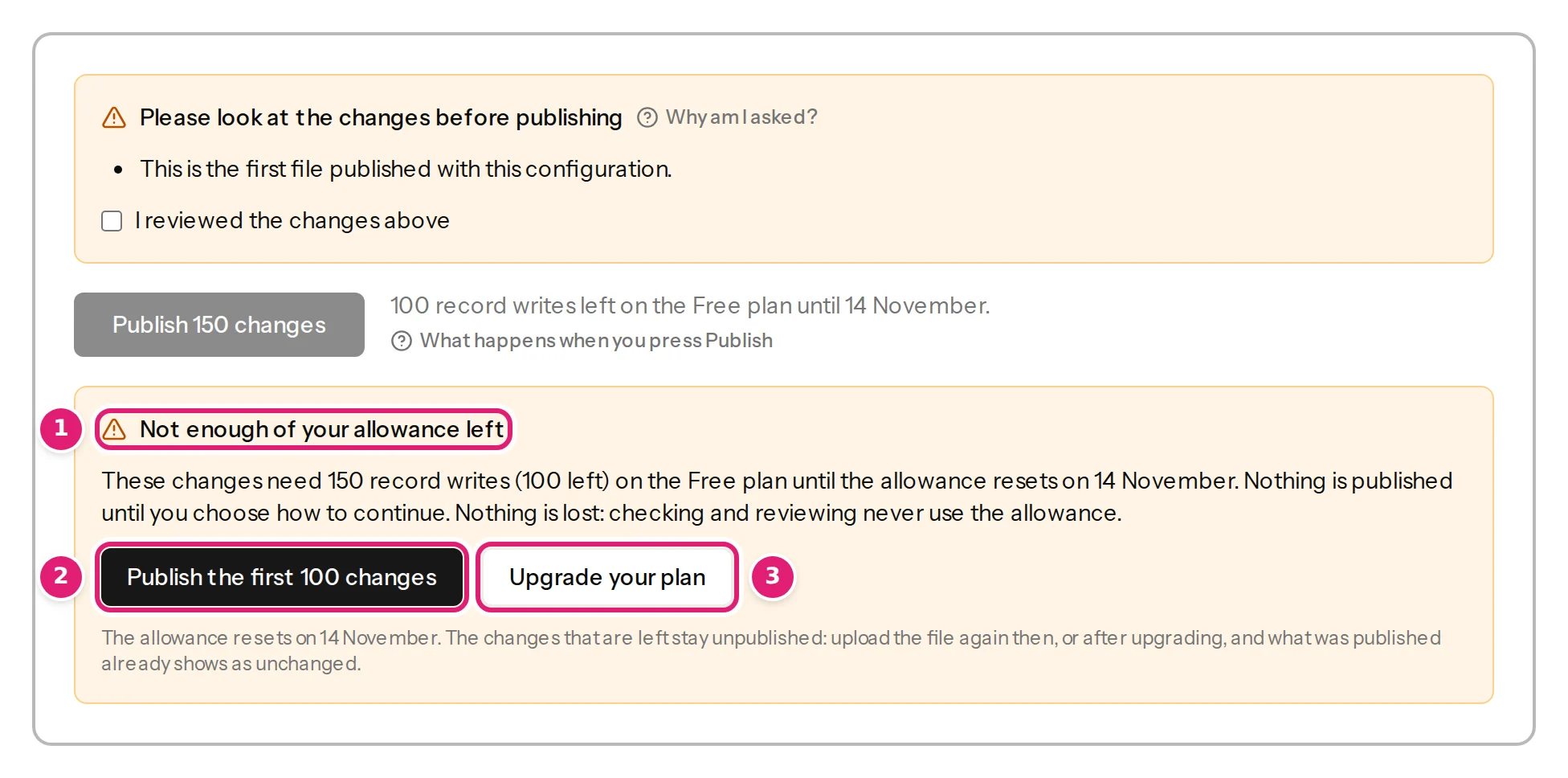
Not enough of your allowance left
What to do when the review says a file needs more record writes or image transfer than your plan has left: publish the first part, wait for the reset, or upgrade.
- 2 min read
- Updated October 13, 2026
Every plan has a monthly number of record writes (items created or updated on your sites) and an amount of image transfer. When a file needs more than is left, nothing is published yet, and you choose how to continue. Nothing is lost: checking and reviewing never use the allowance.
Symptoms#
- A box on the review says Not enough of your allowance left, with a sentence such as These changes need 20 record writes (12 left) on the Free plan until the allowance resets on 3 November.
- The Publish button is disabled, and a button Publish the first N changes is offered.
- An automatically published file waited for review with Automatic publishing stopped: ….
- Retry safely says Your record writes for this period are used up.
Likely causes#
Confirmed (the rules of the plan, shown on the page):
- The file writes more items than you have left this period. Only new and updated items count; unchanged rows, errors and skipped items are free.
- The images are too many or too big for the image transfer left (… 40 MB of images (18 MB left)). A distinct image counts once per site in a run.
- Other files used the allowance first: it is shared by all your sites and all your files.
- A failed item gave its record write back, and a retry needs it again, but none is left.
Step-by-step solution#
- Read the numbers in the box: what the file needs, what is left, and the reset date.
- Choose how to continue:
- Publish the first N changes: the longest run of changes, in file order, that fits. Later, after the reset or an upgrade, upload the same file again: what was published shows as unchanged, and the rest is new.
- Upgrade your plan (plans and allowances). Upgrading takes effect at once, and what you already used counts against the new allowance.
- Wait for the reset date and upload the file again.
- Make the file smaller: send only the rows that changed (partial files).
- For a failed item you cannot retry, wait for the reset or upgrade, then press Retry safely.
How to verify#
- The box under the Publish button shows N record writes left on the … plan until …, and the button reads Publish N changes without the warning box.
- After publishing, the Billing page's This period box shows the new usage.
If it persists#
- Check the Billing page: it shows usage so far and the reset date.
- If the numbers do not match your own count, contact support with the file's name and the Billing page's usage.
Was this article helpful?
Related articles
- Account and workspacePlans, allowances and what happens at a limitWhat each plan includes, what counts as a record write and as image transfer, when allowances renew, and what the review offers when a file needs more than what is left.
- Account and workspaceBilling, VAT, invoices and withdrawing from a subscriptionAdd billing details, subscribe or change plan, how VAT and the reverse charge work, where invoices are, failed payments, and a consumer's 14-day withdrawal.
- Reviewing and publishingWhen Publish is refused: every message and what to doThe messages shown when Publish does nothing: out-of-date review, changed destination, reconnect, paused site, too small an allowance, paused workspace.
- Reviewing and publishingRetry failed items safelyHow to find the items that failed to publish, fix the cause, and send them again with Retry safely without creating duplicates, and when to upload the file again instead.