A site is paused by my plan
Why a connected site says paused by your plan and cannot publish, how an owner chooses which sites stay active, and what still works while a site is paused.
- 2 min read
- Updated October 13, 2026
Each plan allows a number of active sites. A workspace that has more connected sites than its plan allows, for example after a downgrade, keeps them all connected, but the extra ones are paused until an owner chooses which stay active.
Symptoms#
- On the Sites page, a site's line ends with paused by your plan.
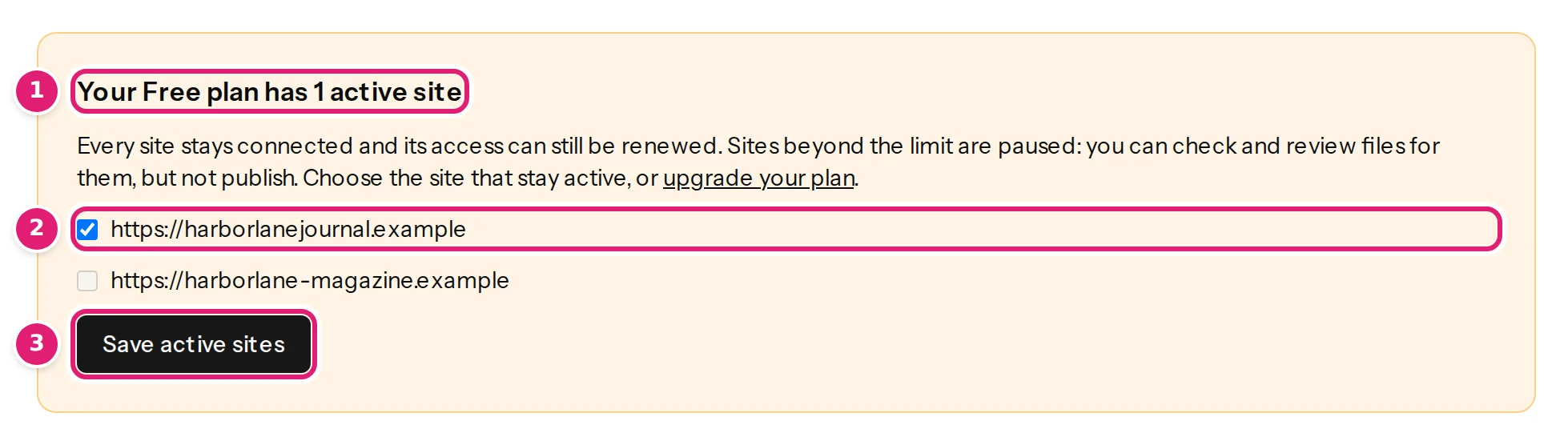
- A box on the Sites page says Your Free plan has 1 active site, with a check box for each connected site.
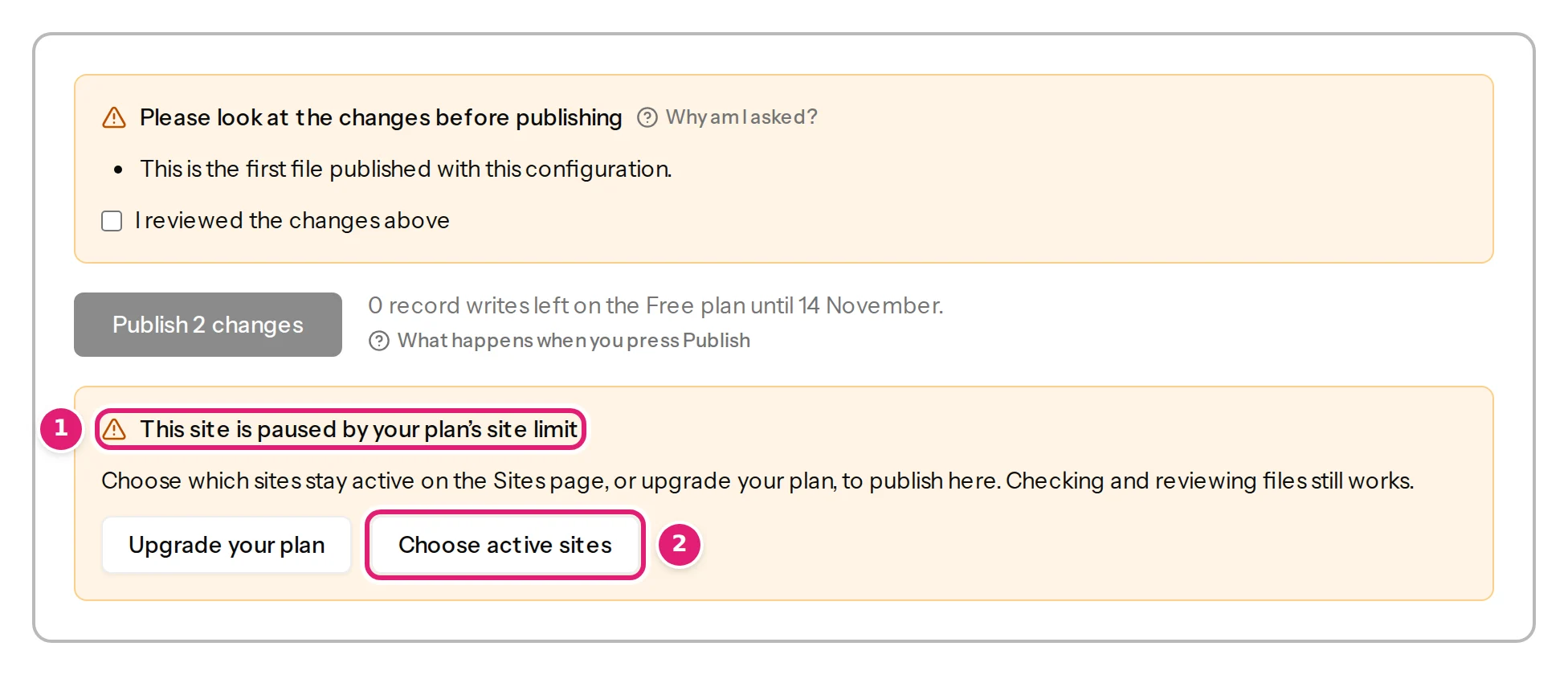
- A file for that site shows This site is paused by your plan's site limit and its Publish button is disabled.
- Publishing or retrying is refused with This site is paused because your plan allows 1 active site…
Likely causes#
Confirmed (the plan's rules, shown on the page):
- The plan has fewer active sites than the workspace has connected sites. The usual moment is a downgrade, or a subscription that ended, which puts the workspace back on the Free plan (one site).
- A staging copy counts as a site. A second address for the same website uses a place, and so do its writes.
What still works on a paused site#
- Checking, reviewing and previewing files for it.
- Renewing access, reconnecting, refreshing fields and disconnecting it.
- Everything already published stays on the site, untouched.
What does not work: publishing and retrying failed items.
Step-by-step solution#
- An owner opens Sites. Team members cannot do this: Only the workspace owner can choose which sites stay active.
- In the amber box, tick the sites that stay active, up to the number the plan allows. Boxes of other sites are disabled once the limit is reached.
- Select Save active sites.
- Or upgrade your plan from the same box, or from Billing (plans and allowances). The extra sites are active again.
- Go back to the file and publish.
How to verify#
- The paused text disappears from the site's line on Sites.
- A file for the site shows an enabled Publish button.
- Pressing it queues the items.
If it persists#
- Make sure the site is connected (not reconnect required or access ended): a site that is not connected cannot be an active site (the connection fails).
- Contact support with the workspace's name and your plan.
Was this article helpful?
Related articles
- Account and workspaceManaging your connected sitesThe Sites page explained: status, when access ends, renewing, refreshing fields, disconnecting, sites paused by your plan, and publishing results with their attempt history.
- Account and workspacePlans, allowances and what happens at a limitWhat each plan includes, what counts as a record write and as image transfer, when allowances renew, and what the review offers when a file needs more than what is left.
- Account and workspaceInviting team members and choosing their sitesInvite colleagues by email, give each person only the connected sites they should use, change or take that access away, and see what a team member can and cannot do.
- Reviewing and publishingWhen Publish is refused: every message and what to doThe messages shown when Publish does nothing: out-of-date review, changed destination, reconnect, paused site, too small an allowance, paused workspace.