Connect your first website
Choose WordPress or Joomla, install Content Uploader's connector on your site and approve the connection. It takes about five minutes and changes nothing on your site.
- WordPress
- Joomla
- 2 min read
- Updated October 14, 2026
Content Uploader publishes to your website through a small connector that you install on the site: a plugin for WordPress, an extension for Joomla. Installing it sends nothing anywhere. The connection starts only when you choose Connect on your site and approve it in Content Uploader, so you are always in control of what gets connected.
What you need#
- A Content Uploader account and workspace you own (create an account).
- A website that meets the requirements: WordPress 6.6 or later, or Joomla 5 or 6, served over HTTPS at a public address.
- An administrator account on that website: a WordPress administrator, or a Joomla Super User.
The Free plan allows one connected site; you can connect more on the paid plans (plans and allowances).
Choose your platform#
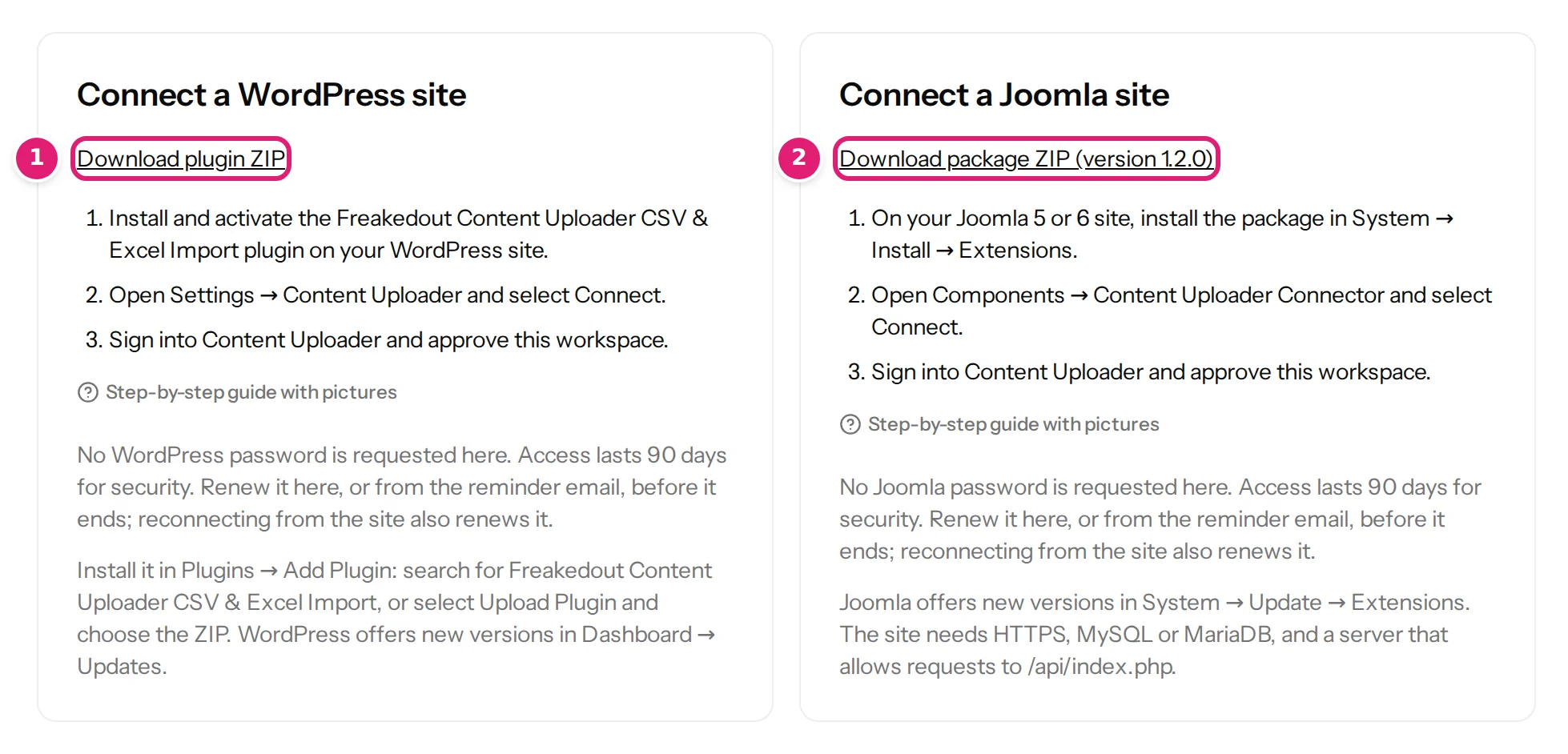
The Sites page in Content Uploader has one box for each platform, with the download and the three steps. The steps are always the same:
- Install the connector on your site and activate it.
- Start the connection on your site: Settings → Content Uploader in WordPress, or Components → Content Uploader Connector in Joomla.
- Sign in to Content Uploader and approve the workspace.
| WordPress | Joomla | |
|---|---|---|
| Connector | Plugin Freakedout Content Uploader CSV & Excel Import | Package Content Uploader Connector |
| Install from | Plugins → Add Plugin: search for it, or Upload Plugin | System → Install → Extensions |
| Start the connection | Settings → Content Uploader → Connect to Content Uploader | Components → Content Uploader Connector → Connect to Content Uploader |
| Step by step | Install the plugin, then connect your site | Install the connector, then connect your site |
How you know it worked#
The Sites page lists your site with connected, the platform's version and the connector's version, and a date about 90 days away under Access ends on. On the site itself, the connector's screen says Connected. If it does not, troubleshoot the connection.
What connecting does and does not do#
- Content Uploader can read which content types, fields, categories and authors your site offers, and it can create and update content as the account that approved the connection (on Joomla, the account you choose as Publish as).
- It cannot sign in to your site, read other parts of it or delete content.
- You can end it at any time by selecting Disconnect on the site or in Content Uploader, and access is renewed every 90 days (managing connected sites).
Was this article helpful?
Related articles
- WordPressConnecting your WordPress siteStart the connection from WordPress, sign in to Content Uploader and approve the workspace. No WordPress password is ever entered in Content Uploader.
- JoomlaConnecting your Joomla siteStart the connection from Joomla, choose the account that publishes, sign in to Content Uploader and approve the workspace. No Joomla password or API token is entered there.
- Getting startedQuick start in six stepsThe shortest path through Content Uploader: create an account, connect your WordPress or Joomla site, prepare a spreadsheet, configure, review and publish, in fifteen minutes.
- Getting startedSupported CMS platformsContent Uploader publishes to WordPress 6.6 and later and to Joomla 5 and 6. This page lists the requirements and what is not supported.