How the import and publishing workflow works
Uploading, mapping, reviewing and publishing are four separate steps. This page explains each one and exactly when your site is changed.
- 3 min read
- Updated October 14, 2026
Content Uploader is a controlled import and publishing platform. It works in four separate steps, and the most important thing to know is which of them changes your website: only the last one.
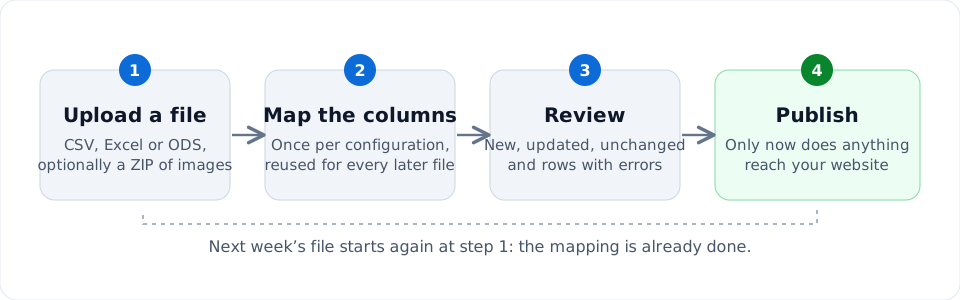
1. Upload: the file is read and checked#
You drop a CSV, Excel or OpenDocument file (and, if your rows name image files, a ZIP of images) on a configuration's card. Content Uploader stores the file privately, reads its columns and rows, and starts checking.
- Read file: the file is opened and its first row is taken as the column names (a file without a header row has its columns named Column A, Column B and so on instead, see files without a header row).
- Check: every row is turned into the content it would publish (using your mapping), validated field by field, and compared with what Content Uploader published before and with the current state of your site.
During this step your site is asked things (does this item still exist, do these categories exist) but nothing is written to it. You can leave the page: processing continues in the background and you are emailed if you have not switched emails off.
2. Map: the columns are connected to your content type#
Mapping means telling Content Uploader what each column is for: this column is the title, that one the body, this one the category. You do it once, in a configuration, using a sample file. Every later file with the same columns reuses it. Changing the mapping creates a new version of the configuration; files that were already checked keep the version they were checked with.
Mapping also covers the record ID: the column whose value stays the same for an item in every file. It is what lets next week's file update an item instead of creating it a second time. See choosing the record ID.
Mapping is the only step you need to think about. Mapping columns describes every option.
3. Review: you see exactly what will change#
When the check is done, the file's page shows What will change:
| Group | Meaning |
|---|---|
| New | Rows that match nothing published before. They will be created. |
| Updated | Items published before whose content differs. Each lists the fields that change, with the old and the new value side by side. |
| Unchanged | Items that already match your site. Nothing is sent for them, and they do not use any of your allowance. |
| Errors | Rows with a problem, each with its row number, the field and the reason. They are skipped; the rest of the file is not held back. |
| Skipped | Items that cannot be published right now, for example because someone is editing the article on the site. |
Warnings appear above the Publish button. Some of them (a configuration used for the first time, a changed set of columns) need you to tick I reviewed the changes above first.
4. Publish: the changes are sent to your site#
You press Publish N changes. Only now are items created and updated on your site, in the background and in batches. A progress bar shows how many are done, failed items can be retried, and the results are kept.
Repeating the cycle#
The next week you drop the new file on the same card and go straight to step 3. Rows that match what you published last time are shown as unchanged and cost nothing; only what is new or different is sent. Updating existing content walks through a complete second week.
Was this article helpful?
Related articles
- Getting startedImportant concepts and terminologyThe words this documentation and the app use, in the order you meet them: workspace, site, connector, configuration, record ID, run and more.
- Reviewing and publishingHow the review worksAfter a file is checked, the review shows what will be created, updated, left alone or skipped before anything is sent to your site. How to read each part of the page.
- Reviewing and publishingPublish your changes: exactly when and how your site is changedWhat happens when you press Publish: the checks made at that moment, the background publishing, the progress and the result, and what can and cannot be undone.
- Importing dataCreate a configurationA configuration remembers a destination, a record ID column and how each column maps to fields: how to create one, what the editor's parts do and how versions work.