Diagnose a failed import, step by step
Follow a file from the symptom to the fix with three real examples: rows with errors, a file that does not match the configuration, and items that fail only when publishing.
- WordPress
- Difficulty: Intermediate
- About 25 minutes
- Updated October 14, 2026
What you will achieve. You will learn to answer "where did my import stop, and why?" in a minute, by working through three files that fail in three different places: one with bad rows, one with the wrong columns, one that passes the review and fails only when it is published.
You need. A connected WordPress site, and the files 09-articles-with-problems.csv, 10-semicolon-separated.csv and 12-empty-status-and-date.csv. Difficulty: intermediate. Time: about 25 minutes.
Step 0: where can an import stop?#
A file goes through stages, and each shows its trouble in its own place:
| Stage | Where you see trouble | Example |
|---|---|---|
| Choosing the file | Red text under the drop area | The file field must have one of the following extensions… |
| Reading the file | This file could not be processed on its page | Cells must contain valid UTF-8 text of at most 32 KB. |
| Matching columns | An amber box, This file doesn't match the configuration | Missing columns are named |
| Checking rows | The Errors tile of the review | Title: This field resolves to an empty value. |
| Pressing Publish | A message under the button | Another file was published after this one was checked… |
| Publishing | Published with errors, and red results on Sites | The mapped WordPress item is in the trash… |
The status on the Uploads list tells you which stage a file is in (statuses).
Part 1: rows with errors#
- Create a configuration from
09-articles-with-problems.csvfor WordPress Posts: the editor chooses Title, Status and Publish date from the column names; set the category column toCategory(create a configuration). - Drop
09-articles-with-problems.csvon its card. - The review says 3 new and 4 errors. Select Errors:
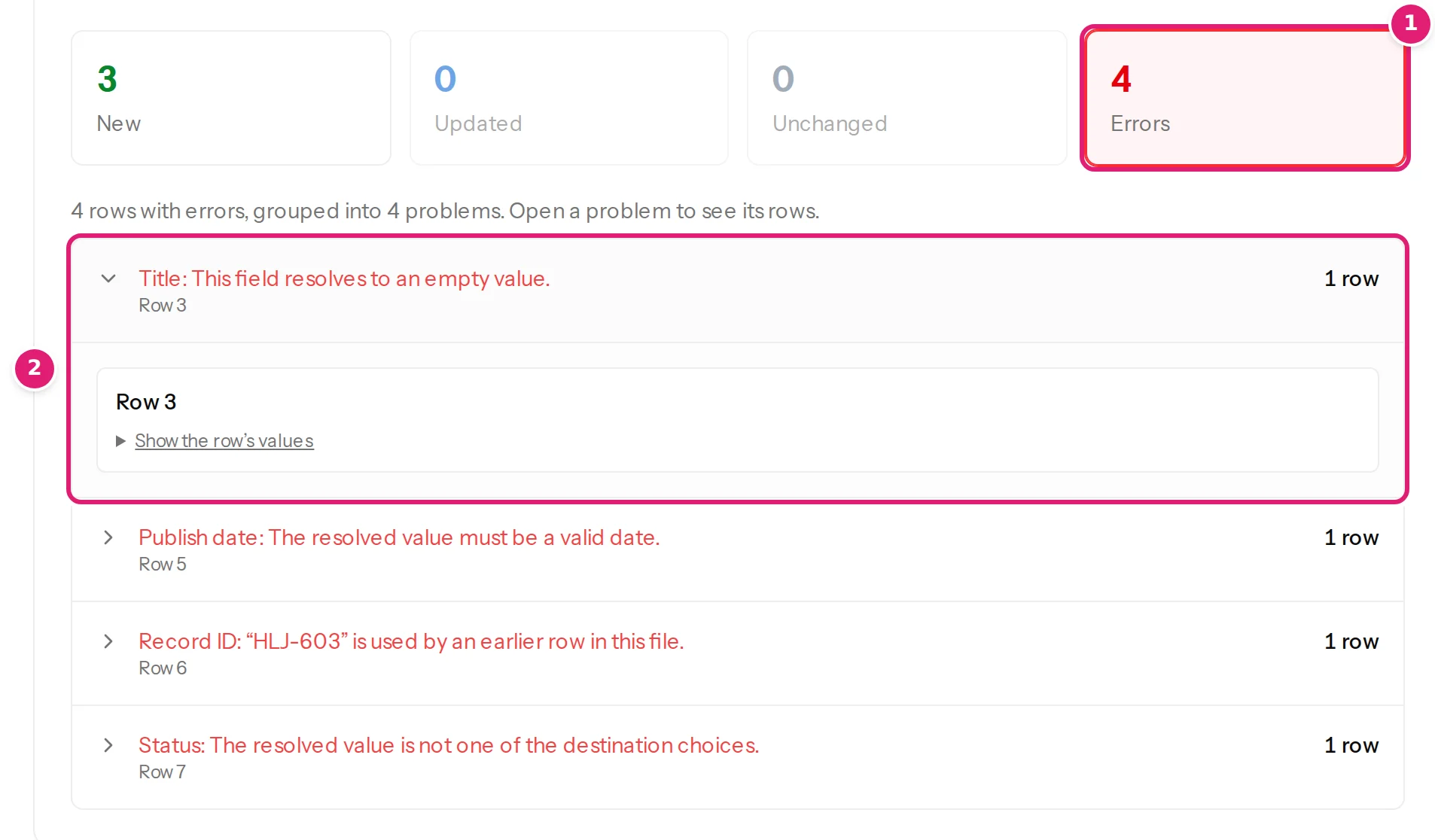
| Message | Row | The fix |
|---|---|---|
| Title: This field resolves to an empty value. | 3 | Fill the title. |
| Record ID: “HLJ-603” is used by an earlier row in this file. | 6 | Give the row its own ID. |
| Publish date: The resolved value must be a valid date. | 5 | Write 2026-09-23 09:00. |
| Status: The resolved value is not one of the destination choices. | 7 | Use Published, Draft, Pending review or Private. |
The line under the Publish button says 4 rows with errors will be skipped. Fix the cells in your copy of the file and upload it again: the rows that were fine show as unchanged, the corrected ones as new (row errors).
Part 2: a file that does not match#
Now drop 10-semicolon-separated.csv on the same configuration. It has an ID, a Title, a Category and Tags, but not the columns the configuration also uses.
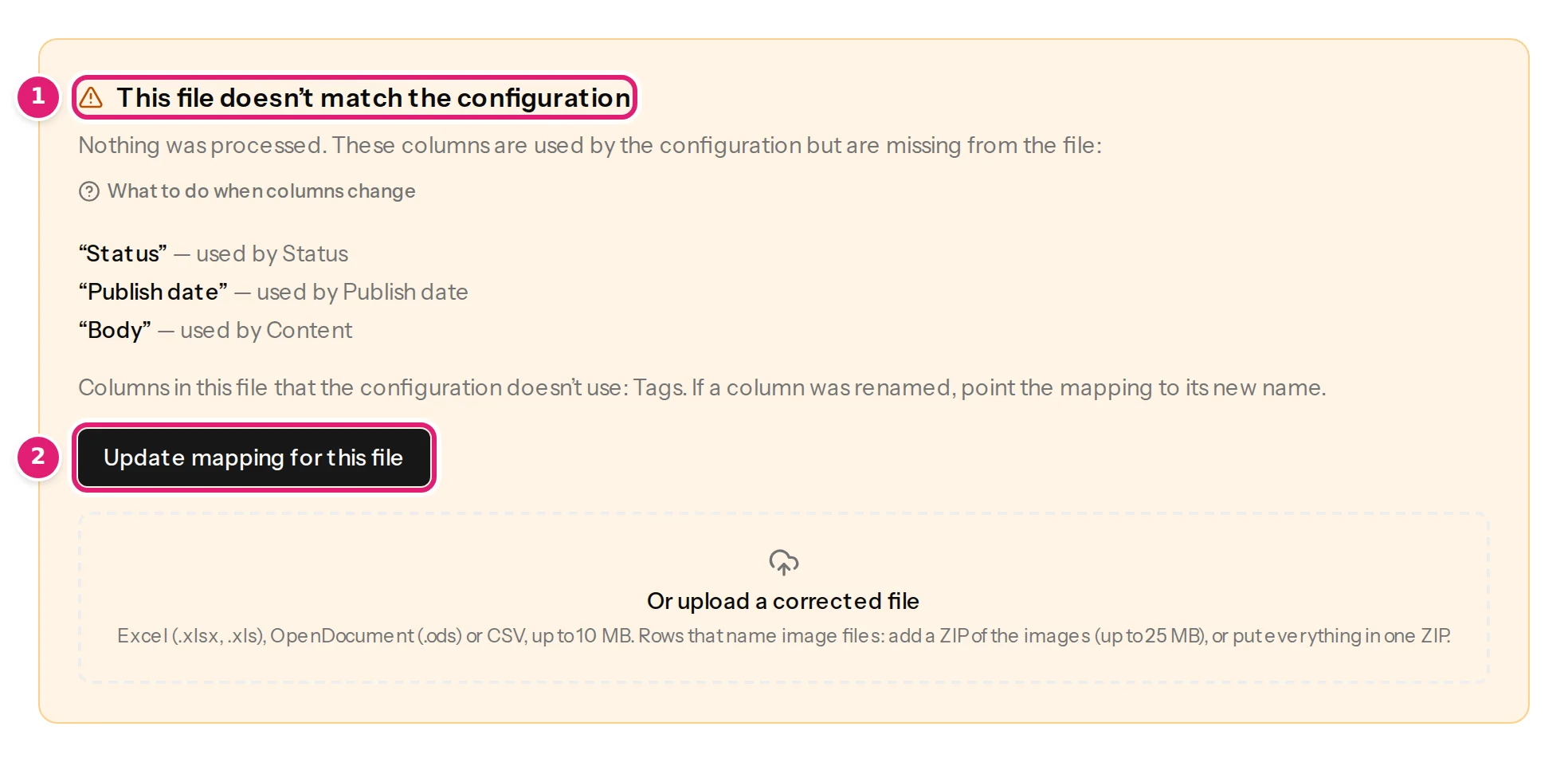
Nothing was processed. The box lists each missing column with the field that uses it, and the new column Tags that the configuration does not use. There is nothing to fix in the rows: either the file is wrong (add the columns), or the configuration is (columns are missing). Update mapping for this file points the fields at other columns and checks the file again.
Part 3: an item that fails only when it is published#
Create a second configuration the same way from 12-empty-status-and-date.csv (Title, Body, Category, Publish date and Status columns), and drop the file.
- The review says 4 new and 0 errors. Two cells are empty: HLJ-802 has no Status, and HLJ-803 has no Publish date. Neither is a problem.
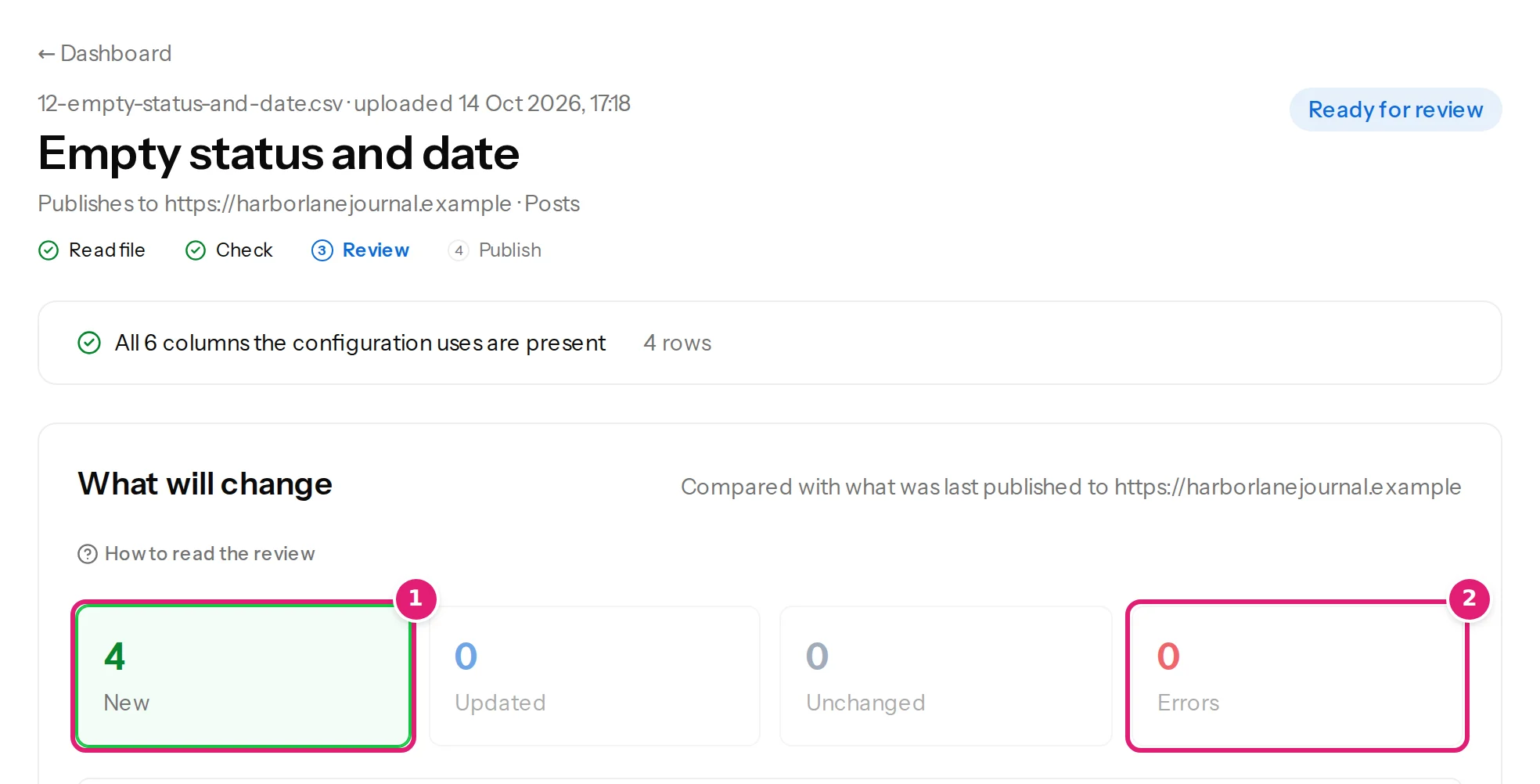
- Publish. All four articles are created. The site decides what the two empty cells could not say: the article without a Status is a draft, and the article without a Publish date is published at the moment you pressed Publish (empty cells).
Now make a problem that only the site can report.
- In your copy of the file, change the text in the Body of two rows (HLJ-801 and HLJ-804) and drop it on the configuration again. The review says 2 updated and 2 unchanged: the two rows with empty cells are not changes.
- Before you press Publish, open WordPress and move the article An article that publishes fine to the trash (Posts → Move to Trash). A colleague could just as well have done it while the file waited for review.
- Publish. The page ends with Published with errors: one published, one failed.
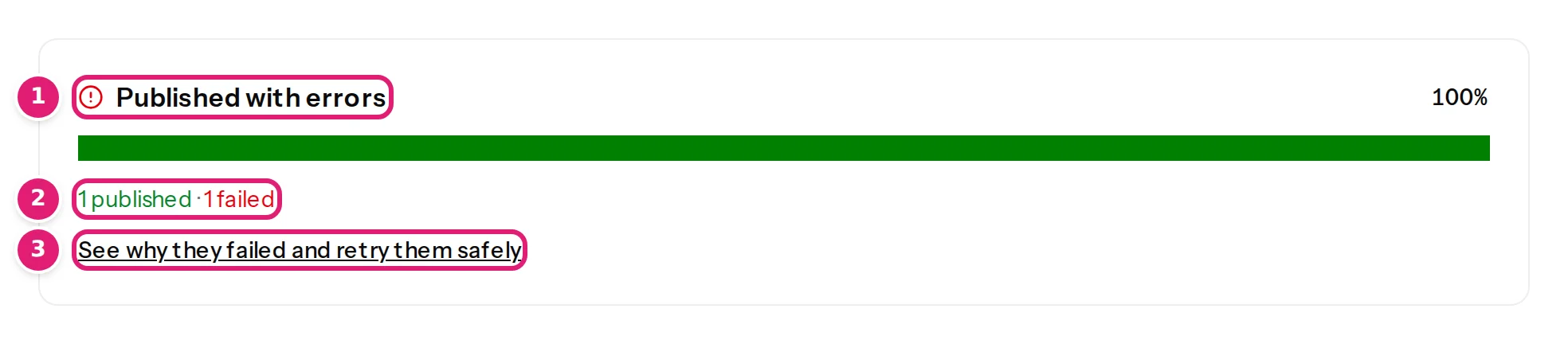
- Select See why they failed and retry them safely. On Sites, the result is red and says The mapped WordPress item is in the trash. Restore it as a draft or delete it permanently, then retry safely.
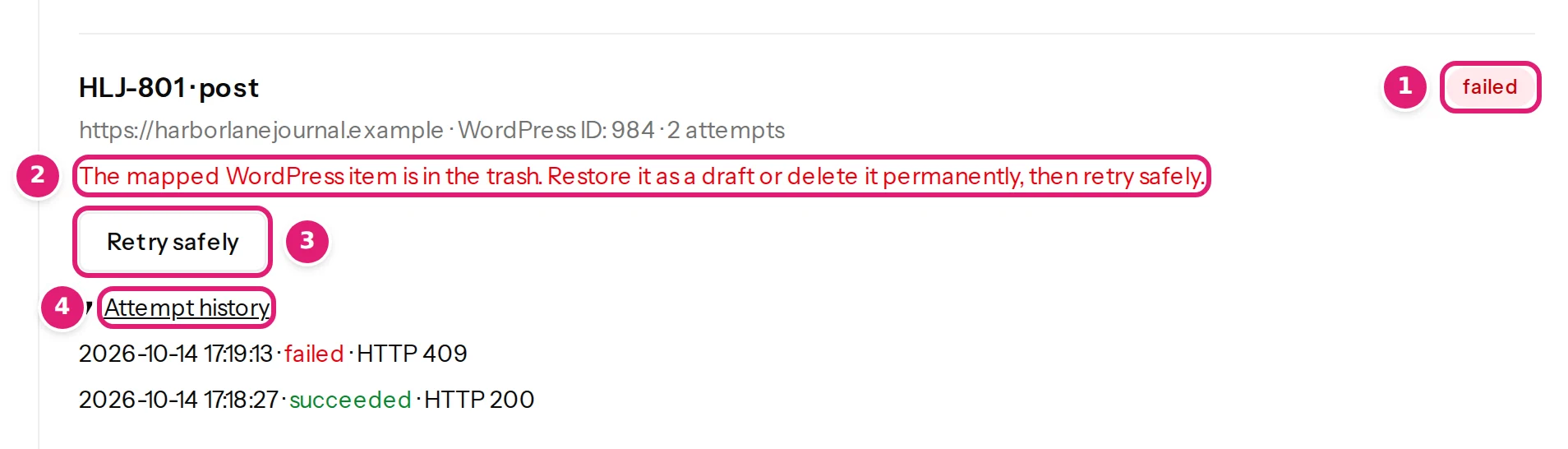
- Read the message and decide. The cause is on your site, not in your file, so Retry safely helps once the cause is gone. In WordPress, open Posts → Trash and restore the article, then select Retry safely on the result. It becomes queued, then sending, then succeeded, and the article holds the revised text. Nothing was published twice (retry failed items safely).
What to take away#
- Ask first where it stopped, then read the message in that place.
- A skipped row is not a failure. Fix the cell and upload again; good rows are never published twice.
- The review cannot see everything. The site can change between the review and Publish, and only the site can report it. The Sites page keeps the reason, and Retry safely sends the same content again once it is fixed.
- Every message is in the error list, each linked to its guide.
Was this article helpful?
Related articles
- TroubleshootingRows with errors: find, fix and upload againWhat to do when the review lists rows with errors and skips them: reading the groups, the most common messages and their fixes, and uploading just the corrected rows.
- TroubleshootingColumns are missing or not recognisedWhat to do when the page says the file doesn't match the configuration, a column you expect is not offered, or a field is not filled in from the column with the same name.
- TroubleshootingItems fail to publish: every message and what to doWhat to do when some items fail while publishing: where to find the reason, every message a failed item can show, its cause, the fix and whether Retry safely helps.
- Mapping columnsEmpty cells and clearing a fieldWhat an empty cell does to an item, field by field: which values it removes, which the site decides, which it leaves as they are, and how to clear a field on purpose.