Upload the next file
Drop this week's spreadsheet on its configuration's card, follow the check and publish: how uploads work, adding a ZIP of images, who is emailed and what uploading twice does.
- 4 min read
- Updated October 13, 2026
Once a configuration is saved, every later file is one action: drop it on the configuration's card. Everything else (reading, checking, comparing) happens by itself, and you only review and publish.
Where to drop a file#
- On the card, on the Dashboard: the box that says Drop the next file here. Or select it to choose a file.
- On the Uploads page, after choosing the configuration in the list above the table: the same box, titled Drop the next file here.
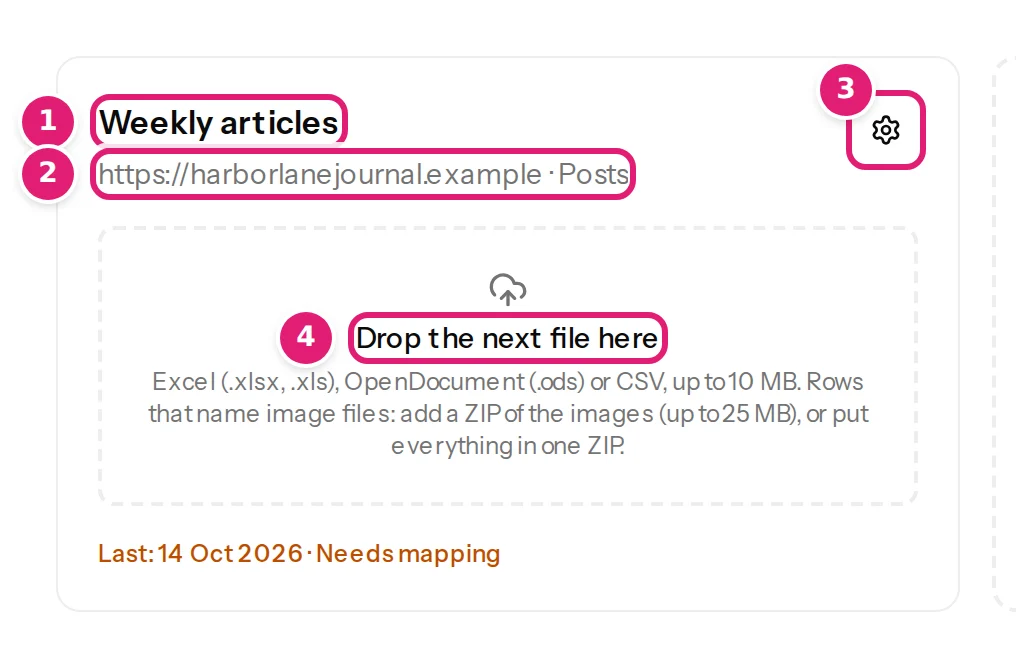
You can upload:
- a spreadsheet (Excel, OpenDocument or CSV, up to 10 MB), or
- a spreadsheet and a ZIP of images together (select both, or drop both): the ZIP may be up to 25 MB, or
- one ZIP that holds the spreadsheet and the images.
The file is checked at once: an unsupported type, a file over the size limit or a damaged ZIP is refused on the spot, with a message under the box, and nothing starts. Supported file formats lists the messages.
What happens next#
The page for the file opens straight away. It follows four steps, Read file → Check → Review → Publish, and updates in place:
- Reading your file. Content Uploader reads the columns and rows, the same way as the configuration's sample: with its first row as column names, or without a header row. If the separator of a CSV was guessed wrong, or the first row was read the wrong way, you can correct it at the bottom of the page (Separator or First row, then Read again).
- Checking. The page says whether all the columns the configuration uses are present (All 5 columns the configuration uses are present), then Preparing content (rows are turned into what would be published and validated) and Comparing with published content.
- Review. What will change lists what is new, updated, unchanged, wrong or skipped (how the review works).
- Publish, when you press the button.
You do not have to wait: you can leave the page, and the work goes on in the background. Content Uploader emails the person who uploaded the file when it needs them (ready for review, a problem) and when publishing has finished, unless emails are switched off in the configuration (publishing options).
Uploading the same file again#
If nothing in the file differs from what was published, the file completes by itself: Everything is up to date: all 10 items already match the destination. Nothing needed publishing. The run is marked Done, and nothing was written to your site. This is safe to do at any time.
Uploading while another file waits#
Several files can wait for review at once, but only one of them should be published: when another file has published some of the same items after yours was checked, publishing yours is refused with Another file was published after this one was checked. Check this file again to see its current changes. Use Check this file again. A file that is replaced by a newer check of the same file shows This file was checked again since you opened these results. What you see is from the earlier check and can't be published. with Show the latest. The simplest habit: finish one review before you start the next.
When the file is not what the configuration expects#
- Columns are missing or were renamed: This file doesn't match the configuration. Nothing is processed (when the columns change).
- Some rows are wrong: they are listed under Errors and skipped; the rest of the file is not held back (row errors).
- The file cannot be read at all: This file could not be processed with the reason, and Retry or Or upload a corrected file (the file cannot be read).
Where your files go#
Uploaded files are private to your workspace. The original is removed after 30 days, and the rows read from it after 12 months (data and retention). The page's footer keeps a Download file link for as long as the original exists.
Team members#
A team member can upload to the configurations of the sites they were given. Others are not shown on their dashboard (team members).
Was this article helpful?
Related articles
- Importing dataCreate a configurationA configuration remembers a destination, a record ID column and how each column maps to fields: how to create one, what the editor's parts do and how versions work.
- Reviewing and publishingHow the review worksAfter a file is checked, the review shows what will be created, updated, left alone or skipped before anything is sent to your site. How to read each part of the page.
- Importing dataThe Uploads page and what each status meansThe list of every file you uploaded, filtered by configuration, with its status (Reading file to Needs attention), its counts and its date, and what each status means.
- Importing dataWhen a file's columns changeWhat "This file doesn't match the configuration" means, which columns count as used, how to rename a column back or remap it, and what new or removed columns do to the review.