A product is refused, skipped or wrong: messages and fixes
What each message about a WooCommerce product means, why a product is skipped or fails to publish, and why a price or a quantity is not what your file says.
- WordPress
- 7 min read
- Updated October 14, 2026
A file with product rows can go wrong in four places: before the review (a row has an error), in the review (a product is skipped or the review lists what you did not expect), while publishing (the shop refuses a product), and afterwards (a price or a quantity is not what the file says). This article follows them in that order.
Products is not in the list of content types#
Likely causes
- Confirmed: WooCommerce is older than 9.0, or is not active. The plugin then offers no Products (requirements).
- Confirmed: WooCommerce was installed or updated after the shop was connected, and the fields were not refreshed.
- Possible: the Content Uploader plugin on the shop is older than the version that knows WooCommerce.
Solution. On the Sites page select Refresh fields for the shop and open Supported content types and fields: Products · Publishing supported is there when the shop qualifies. If it is not, update WooCommerce and the Content Uploader plugin on the shop (update the plugin), then refresh again.
A row has an error#
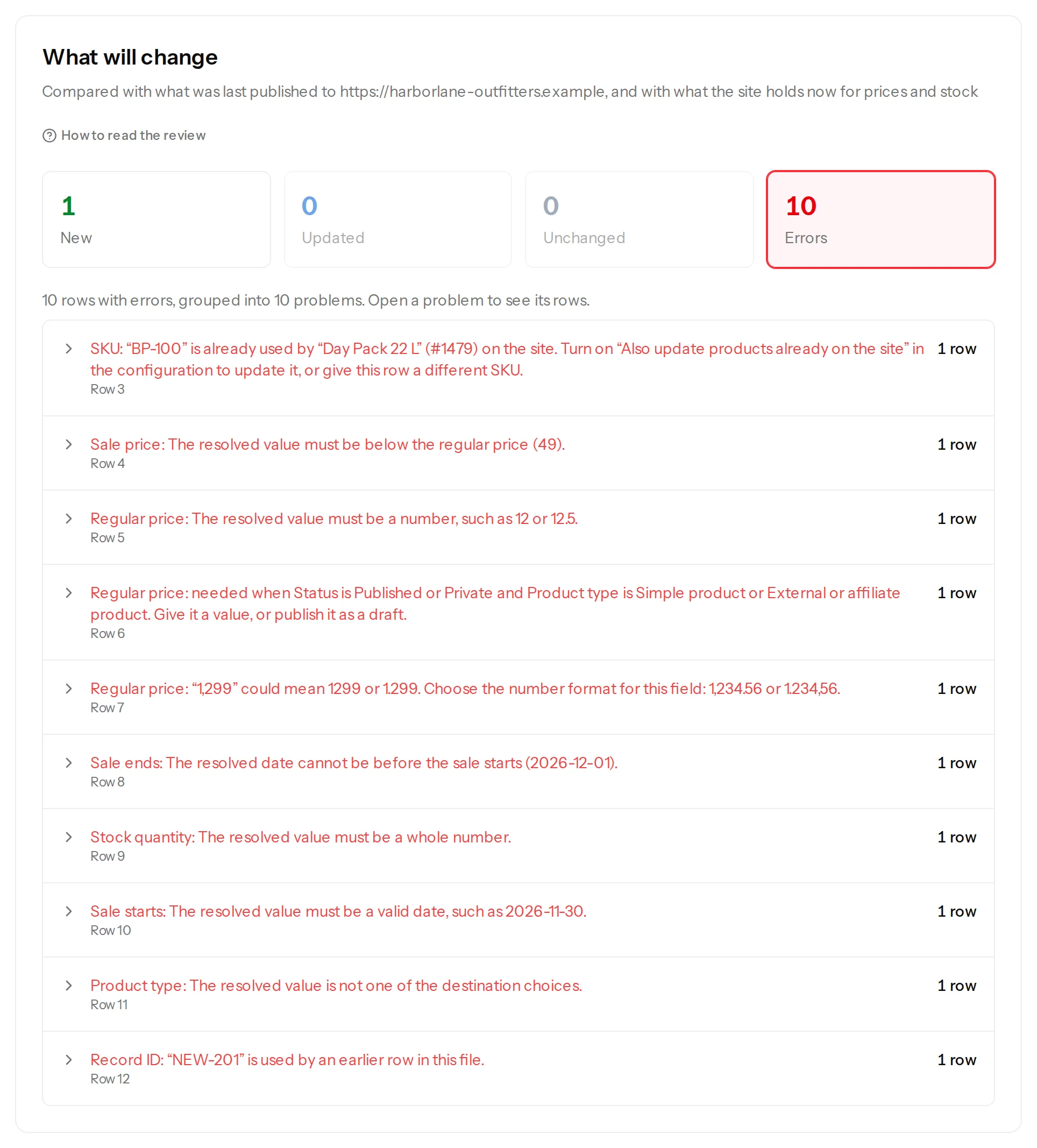
Rows with errors are listed under Errors, grouped by message, before anything is sent. The other rows can still be published (row errors). Each message names the field, the way it is named in the editor:
| What the review says | What it means and what to do |
|---|---|
| SKU: “BP-100” is already used by “Day Pack 22 L” (#214) on the site. Turn on “Also update products already on the site”… | The shop already has a product with this SKU, and the configuration does not update such products. Tick the option, or give the row another SKU (update products already on your shop). |
| GTIN, UPC, EAN or ISBN: “…” is already used by “Ridge Tent” (#257) on the site. Give this row a different GTIN, UPC, EAN or ISBN. | Another product has this GTIN, and a shop allows each GTIN once. Correct the file, or the other product. |
| Sale price: The resolved value must be below the regular price (49). | The sale price in this row is not below the regular price in the same row. |
| Sale price: must be below the item’s regular price on the site (339). | The file sets a sale price but not the regular price, and the sale price is not below the price the product has on the shop. |
| Regular price: needed when Status is Published or Private and Product type is Simple product or External or affiliate product. Give it a value, or publish it as a draft. | The row would create a published simple or external product without a price. Give it a price, or set its status to Draft. A variable product is never asked for a price: its variations have them. |
| Product name: needed for a new item. Give it a value. | The row would create a product and has no name. A product that exists keeps its name, so a price list can leave names out, but a new product needs one. |
| Regular price: The resolved value must be a number, such as 12 or 12.5. | The cell holds words or something that is not a number. |
| Regular price: “1,299” could mean 1299 or 1.299. Choose the number format for this field… | Choose how the file writes numbers under the field (prices, stock and sales). |
| Stock quantity: The resolved value must be a whole number. | A stock quantity has no fraction and no words. |
| Sale starts: The resolved value must be a valid date, such as 2026-11-30. | The cell is not a date Content Uploader can read (next week, 2026-02-30). |
| Sale ends: The resolved date cannot be before the sale starts (2026-12-01). | The two dates of one row are the wrong way round. |
| Product type: The resolved value is not one of the destination choices. | The cell says a type that is not written from a file: Simple product, Variable product or External or affiliate product only. A grouped product is not one of them. |
| Record ID: “NEW-201” is used by an earlier row in this file. | Two rows have the same record ID, which is the SKU in most configurations (duplicate rows). |
A product is skipped#
A skipped product is left exactly as it is, and the review says why when you open it:
- This is a grouped product, which this version cannot update. Grouped products are not written, and the SKU of a variation is skipped too (This identifier belongs to a product variation.): variations are made and updated with the content type Product variations (variable products, update the variations). Remove such rows from the file or leave them: they are named and never changed, and they do not make a file wait (review product changes).
- In the destination’s trash. Restore it or delete it permanently, then check the file again. The product with this SKU is in the shop's trash.
- Being edited on the destination, so it is left as it is. A later upload updates it once it is closed there. Someone has the product open in WooCommerce.
- The connected account cannot edit this destination item. The WordPress user that approved the connection may not edit this product.
The shop refuses a product while publishing#
An item that fails is listed under Publishing results on the Sites page, with the shop's own reason, and the rest of the file is published. A failure is retried safely, without a second copy (retry failed items).
- This SKU is already used by the product “Headlamp” (#262). and This GTIN, UPC, EAN or ISBN is already used by the product “Headlamp” (#262). Between the review and publishing, someone gave another product that SKU or GTIN. Change one of the two products, then select Retry safely.
- The product on the site no longer has the identifier it was matched by. Check the file again. The SKU of a product that was about to be updated was changed. Upload the file again.
- WooCommerce refused the product: followed by WooCommerce's own explanation. Read it, correct the value in the file and upload it again.
A price or a quantity is not what the file says#
- The review put back a quantity the shop had sold. By default a file is compared with what the shop holds now, so a quantity that the file says is put back even when the file did not change. Choose the file changed since the last file for Stock quantity (when your shop sells between files).
- A price is 1000 times too high or too low. The number format:
1.299and1,299can mean one thousand two hundred ninety-nine or one point two nine nine. Choose 1,234.56 (dot for decimals) or 1.234,56 (comma for decimals) under the price, and look at the preview of a few rows before you save. - A price was not changed although the file has a new one. The field may be left on Keep existing on updates, or the cell may be empty: an empty regular price leaves the price as it is. Check the Pricing section.
- A sale did not end. A sale ends when the file's Sale price cell is empty, or when Sale ends has passed.
The review lists products I did not change#
Products in the file whose price or quantity on the shop differs from the file are listed even when the file did not change since last week. The reason is on the product: Changed on the destination since it was published. Publishing restores this file’s values. If you want the file to follow the shop for a field, choose the file changed since the last file under Update it when.
How to verify#
Open the product in WooCommerce: the price, the sale and its dates, and the stock are the ones the file said. The next review of the same file says Everything is up to date.
If it persists#
Note the message, the row's SKU and the time, and write to support from the Support page of the app (getting help): the record of the run, with every attempt and the shop's reply, is kept for 12 months.
Was this article helpful?
Related articles
- WooCommerceWooCommerce product fields you can mapEvery field Content Uploader offers for a WooCommerce product, in the sections of the editor: what it is, what a cell may hold and what an empty cell does.
- WooCommercePrices, stock and sales: how numbers and dates are readHow Content Uploader reads prices, quantities and sale dates from your file, what an empty cell does, and what the shop's value is compared with.
- WooCommerceUpdate products that are already on your shopFind the products your shop already has by their SKU, update them from a spreadsheet, and see on the first review only what differs from the shop.
- WooCommerceReview product changes: the summary, the card and what the shop holdsHow the review shows a shop's products: the price and stock summary, what the shop holds now, the product card, the price check and products that cannot be updated.