Map an image column
Choose the column that names each item's image, add alt text, a title and a caption, or use one image for every item, and see what each choice does on update.
- 4 min read
- Updated October 14, 2026
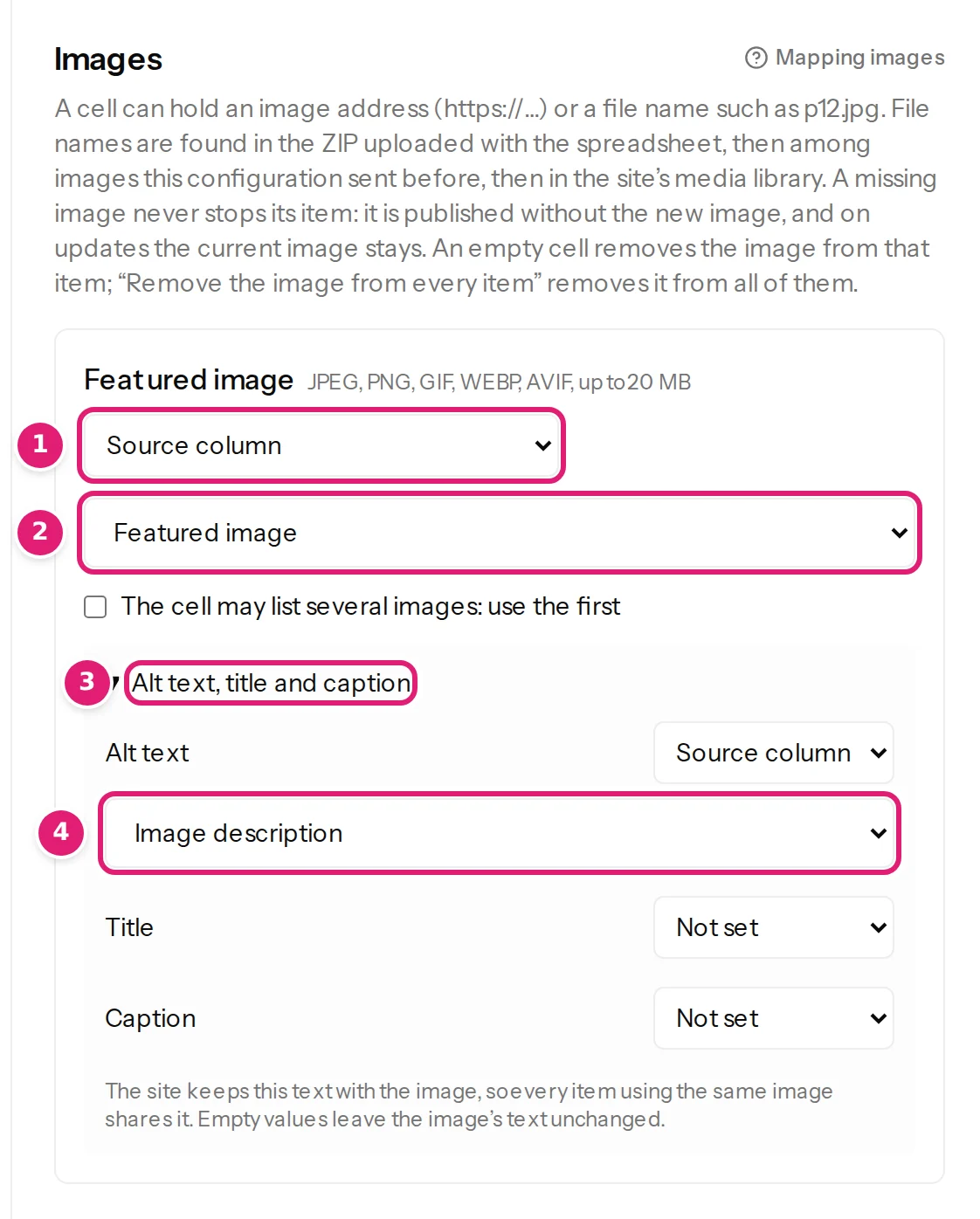
The Images section of the editor appears when the destination offers an image slot: WordPress's Featured image, or Joomla's Intro Image, Full Article Image and each image custom field (a Media field). It says what a cell may hold: A cell can hold an image address (https://…) or a file name such as p12.jpg. File names are found in the ZIP uploaded with the spreadsheet, then among images this configuration sent before, then in the site's media library.
The choices#
| Choice | The image slot gets… |
|---|---|
| Source column | The image named in the chosen column, row by row. |
| Same image for every item | One image (a web address or a file name) for all rows. |
| Template | An address or name built from columns, for example https://cdn.example.com/{{ SKU }}.jpg. |
| Keep existing on updates | Nothing from the file: new items have no image, and an update leaves the current image alone. |
| Remove the image from every item | Every item the file publishes loses its image. |
The cell's value decides where the image comes from (where images come from): you never choose between "upload" and "web address".
- An empty cell removes the image from that item (on update).
- A missing image never blocks the item and never removes the existing image (missing images).
- On Joomla, Intro Image and Full Article Image are separate slots and can use the same column or two different ones. Each image custom field is a slot of its own, under the field's name (Joomla custom fields).
- A slot marked with an asterisk is required by the site: it must take its image from a column, a fixed image or a template, and a row with an empty cell is refused (This row has no image, but the field requires one.). A slot that applies only to some categories is left out for rows in other categories.
A list of images#
A slot that holds several images, such as the Gallery images of a WooCommerce product, reads them from one cell, separated by the character you choose under Values separated by. The images take their places in the order they are written and replace the item's list as a whole: an image that is no longer in the cell leaves the list. A column that lists an item's own image first and its list after serves two slots: the slot of one image ticks The cell may list several images: use the first, and the list writes how many images of the cell it leaves out. The product gallery has its own article (the gallery).
Alt text, title and caption#
Under Alt text, title and caption (which opens by itself once one of them is set) each part has its own mode: Not set, Source column, Fixed value or Template. WordPress offers alt text, title and caption; Joomla offers alt text and caption (an image has no title there), and alt text for an image custom field.
Use a column when the text differs per item, or a template to build it from other columns ({{ Title }} in the harbour). Good alt text describes the picture for people who cannot see it.
Two things to know: the site keeps this text with the image, so every item using the same image shares it; and an empty value leaves the image's current text unchanged; it does not erase it.
Checking it#
- The Preview shows the image's value and its alt text for any sample row (Featured image p01.png · Alt text: …). It cannot tell whether a ZIP will contain the file; that appears in the review.
- Open an item in the review to see where each image comes from and whether any is missing.
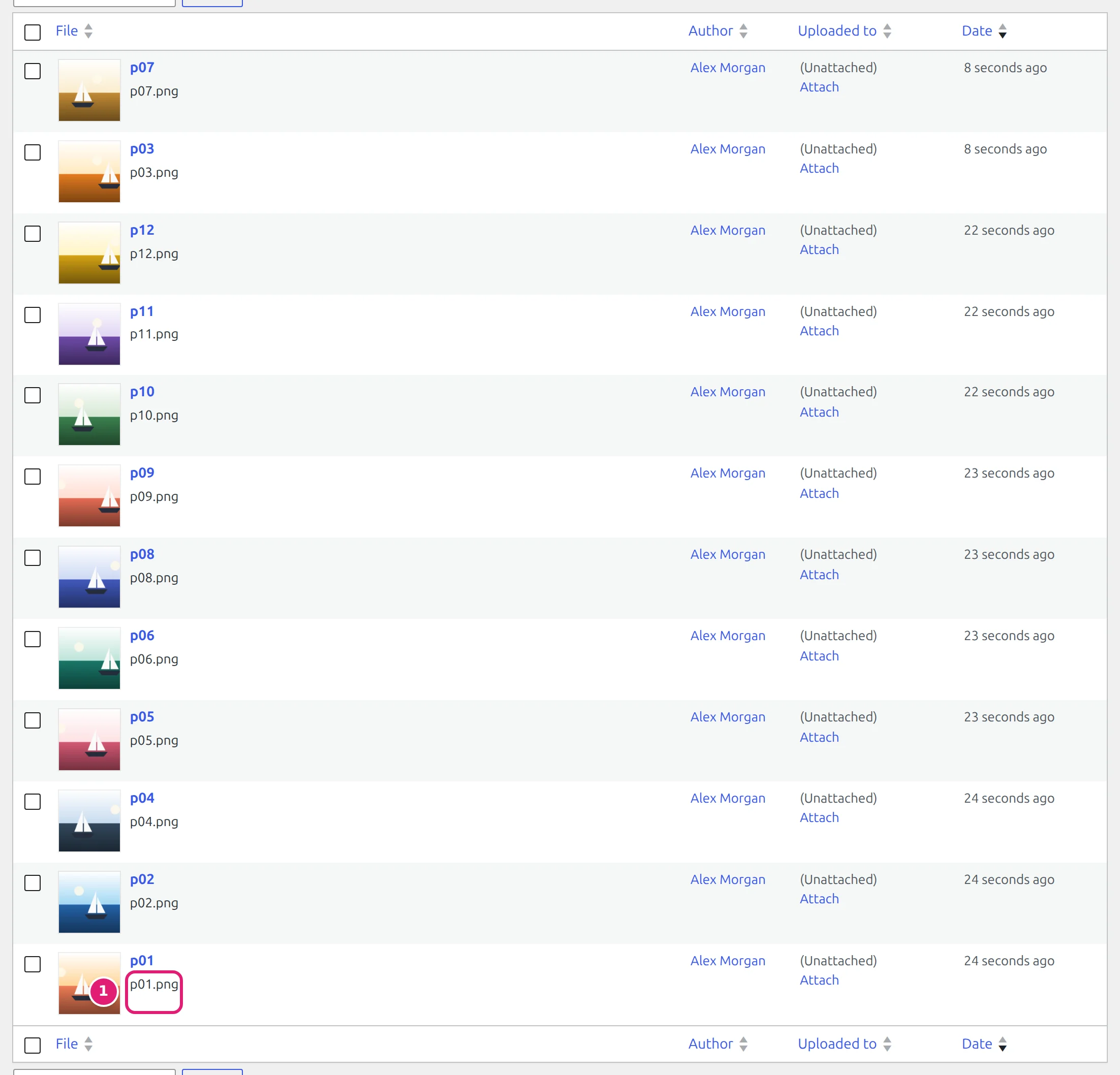
- After publishing, WordPress's Media → Library (or Joomla's Content → Media, folder
images/content-uploader) shows the delivered images (image types and limits).
An example#
The advanced example pair 06-advanced-articles.xlsx and 06-advanced-images.zip has a Featured image column (p01.png …) and an Image description column. Map the first as the image and the second as its alt text, drop both files together, and every item gets its picture and its description (example spreadsheets).
Was this article helpful?
Related articles
- Images and mediaWhere images come fromA cell can hold a web address or a file name. How Content Uploader finds the image: your ZIP, earlier uploads, the site's media library or the web.
- Images and mediaUpload images in a ZIPPut the images in a ZIP next to your spreadsheet, or the spreadsheet and the images in one ZIP: how names are matched, the limits and what each error means.
- Images and mediaMissing images: what happens and how to fix themA missing image never blocks its item: it is published without the new image, the review lists each one with its reason, and you can add it later.
- Images and mediaReuse and replace images from week to weekNext week's spreadsheet alone reuses the images your site has. How an unchanged image is recognised, and how to replace, remove or share one.