Items fail to publish: every message and what to do
What to do when some items fail while publishing: where to find the reason, every message a failed item can show, its cause, the fix and whether Retry safely helps.
- 8 min read
- Updated October 14, 2026
When a file is published, each item is sent to your site on its own. An item can fail while the others succeed. This page explains every message an item can fail with.
Symptoms#
- The file's page says Published with errors and 3 failed.
- You received the email … finished with errors.
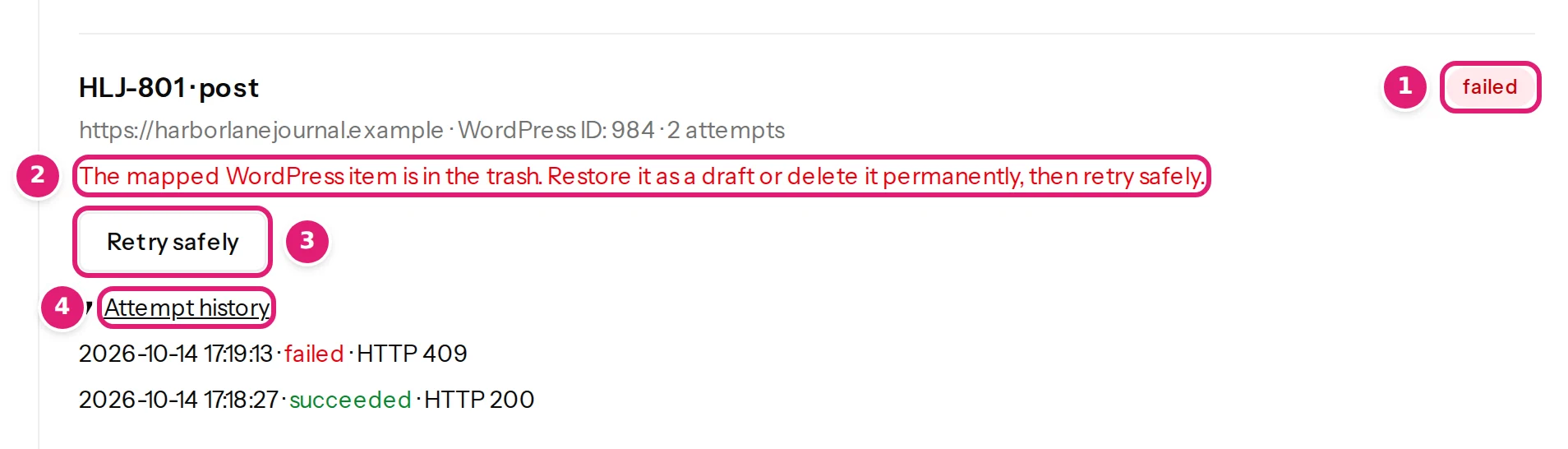
- On the Sites page, an item's result is failed, in red, with a reason under it.
First, find the reason#
- On the file's page, select See why they failed and retry them safely. It opens the Sites page.
- Under Publishing results, find the red failed results and read the sentence under each.
- Find that sentence below. The last column says whether Retry safely can help: it resends the same content, so it helps only when the cause is on your site or your connection, not when the cause is in your file.
Likely causes#
Confirmed (reproduced in our tests):
- An item that was moved to the trash after the review, shown as The mapped WordPress item is in the trash. Restore it as a draft or delete it permanently, then retry safely. Restore it on the site, and Retry safely sends the content that was reviewed (retry failed items).
- The site was not reachable for a short while: the item's first try failed with The site could not be reached. Retrying the same operation is safe., and Content Uploader's own retry succeeded about a minute later, when the site was back. A site that stays away through the three automatic tries leaves the item failed, to be retried by hand.
From the program's own checks (each message below is written for one cause):
- permissions of the publishing account, an item that is in the trash or being edited, images the site could not take, a connection that ended, a connector that is out of date.
The messages#
The connection and the site#
| Message | Cause and fix | Retry helps? |
|---|---|---|
| … didn't answer. / The site could not be reached. Retrying the same operation is safe. | The site was down, too slow, or blocked the request. Make sure it is up and reachable over HTTPS. | Yes, once the site answers. |
| The connection expired or permission was revoked. Reconnect in … | The site rejected Content Uploader's access. Renew or reconnect (WordPress, Joomla). | Yes, after reconnecting. |
| The Content Uploader plugin / extension on this site is outdated or not active. Update or enable it, then retry. | Update or enable it (WordPress, Joomla). | Yes. |
| The … response could not be confirmed. Retry will reuse the same operation. | The site answered, but not in the expected form. Content Uploader asks again safely. | Yes. |
| Queue delivery was not confirmed. Retry to resume. | The item was approved but not handed to the publishing queue. | Yes. |
| The connector rejected or could not complete this operation (HTTP 5xx). | The site had an error. Look at the site's own error log. | Often. |
Permissions and items#
| Message | Cause and fix | Retry helps? |
|---|---|---|
| The connected … user can no longer edit the mapped item. Restore permission, then retry safely. | The publishing account lost the right to edit that item (permissions). | Yes, after restoring it. |
| The connected … user cannot change one of the mapped custom fields… | Give the account permission to edit that field, or remove the field from the configuration. | Yes, after fixing it. |
| A custom field in this configuration is reserved on the site or expects a different kind of value… | Fix the configuration's custom fields, refresh the site's fields, upload again. | No. |
| The mapped … item is in the trash. Restore it… / The mapped Joomla article is trashed… | Restore it on the site or delete it permanently, then retry (or check the file again, which lists it as skipped). | Yes, after fixing it. |
| Someone is editing the mapped article in Joomla. Check in the article… | Check the article in (Joomla's Global Check-in). | Yes. |
| The external ID points to a different … item or content type. Review the mapping before retrying. | The connector's record for this ID belongs to something else. Review the record ID column and contact support if you did not change it. | No. |
| A newer operation already owns this … item. / This operation ID was already used with different content. | Another publish got there first. Check the file again and publish. | No: check the file again. |
| The Joomla account Content Uploader publishes as may not create or move articles in this category… / …no longer exists, is blocked… | Allow the account in Joomla, or choose another account (publishing account). | Yes, after fixing it. |
| This item is larger than the site's connector accepts (1 MB)… | Shorten the item's content or custom fields. | No. |
Joomla articles#
| Message | Cause and fix | Retry helps? |
|---|---|---|
| The mapped Joomla article is unavailable. Review it in Joomla, then retry safely. | Open the article in Joomla's administration and see why it cannot be edited (deleted, or no longer visible to the account). | Yes, after fixing it. |
| The Joomla account … can no longer edit the mapped article. Restore its permission, then retry safely. | The publishing account lost the right to edit that article (the publishing account). | Yes, after restoring it. |
| The Joomla account … may not change whether this article is published… | Allow the account to change the state, or choose a status the account may set. | Yes, after fixing it. |
| Another article in this category already uses this alias… | Two articles of one category cannot share an alias. Change it in the file (and upload again) or on the other article in Joomla (and retry). | After changing it in Joomla. |
| A mapped custom field does not apply to this article's category or expects a different kind of value… | Refresh the site's fields, fix the custom field in the configuration, check the file again. | No. |
| The Joomla account … may not edit one of the mapped custom fields… | Allow the account to edit the field, or remove it from the configuration. | Yes, after fixing it. |
| Joomla no longer accepts one of the mapped fields or its value… | Look for a field the site no longer offers, or a value outside the choices. Refresh the site's fields, correct the file, check it again. | No. |
Categories, tags and values#
| Message | Cause and fix | Retry helps? |
|---|---|---|
| A category or tag in this row does not exist on the site yet… | Turn on adding new categories and tags in the configuration, or create them; upload the file again. | No. |
| Several categories or tags on the site have this name under the same parent… | Rename one of them in Joomla, so that the name is unique under its parent. | Yes, after renaming. |
| The Joomla account … may not add this category or tag… | Allow the account to create categories and tags, or turn off adding new ones in the configuration and upload the file again. | Yes, after allowing it. |
| … (HTTP 400) | The site refused a value that was sent, and Content Uploader has no sentence of its own for it. Look at the item on the site and at the values in the file, change the file and upload it again; if you cannot see what the site objects to, write to support with the record ID. (An empty Status, Publish date or Author is not a cause: it has no value to send.) | No: change the file. |
Images#
| Message | Cause and fix | Retry helps? |
|---|---|---|
| The connected … user cannot upload files… / …cannot add files in Media… | Give the account permission to upload files. | Yes, after fixing it. |
| The site could not add the image to its media library. Check its upload folder permissions and free space. | Free disk space or fix the upload folder's permissions. | Yes. |
| The site could not download the image from Content Uploader. It needs outgoing HTTPS access to the storage host. | The site's firewall blocks outgoing HTTPS. Allow it. | Yes, after fixing it. |
| The site does not accept this type of image. | Use a type the site allows (image types). | No. |
| WordPress did not accept the image as the featured image… | Check the image in the media library. | Yes. |
| An image for this item was removed from the site's media library. It is uploaded again when this item is retried. | Someone deleted the image on the site. | Yes: it is delivered again. |
Step-by-step solution#
- Read the message and find it above.
- Fix the cause: on your site (permissions, trash, connection, disk space), in the configuration, or in the file.
- If Retry helps, select Retry safely next to the item. If not, fix the file and upload it again: the failed items are listed again as new or updated (retrying failed items).
- Failed items gave their record write back. A retry needs an active site and one write left in your allowance.
How to verify#
- The item's result becomes succeeded, with the item's ID on your site.
- The file's page heading changes from Published with errors to Published.
- Open the item on your site and check its content.
If it persists#
Contact support with the item's record ID, the exact message, the time of the last attempt (from Attempt history) and which CMS version your site runs.
Was this article helpful?
Related articles
- Reviewing and publishingRetry failed items safelyHow to find the items that failed to publish, fix the cause, and send them again with Retry safely without creating duplicates, and when to upload the file again instead.
- Reviewing and publishingPublishing results: what happened to each itemThe Publishing results list on the Sites page: one result per item with its status, its ID on your site, the attempts, the error or warning, and what each status means.
- WordPressWordPress permissions and authenticationHow Content Uploader proves who it is to your WordPress site, which account it acts as, and how to take its access away again.
- JoomlaThe Joomla publishing account and its permissionsContent Uploader publishes to Joomla as one account you choose: which to pick, the permissions it needs for articles, terms, custom fields, authors and images.