Publish formatted text: HTML bodies and body templates
Send headings, lists, tables and links from a spreadsheet: map a column that holds HTML, or build the body from columns with a template, and see what is escaped.
- WordPress
- Joomla
- Difficulty: Intermediate
- About 20 minutes
- Updated October 13, 2026
On this page
- The idea in one minute
- Part 1: a column that holds HTML
- The example data
- Step 1: create the configuration
- Step 2: drop the file and look at an item
- Step 3: publish
- Step 4: check WordPress
- What the site removes
- Joomla
- Part 2: a body built with a template
- The example data
- Step 1: build the template
- Step 2: drop the file, review and publish
- Step 3: check WordPress
- If it does not look right
- What you have learned
What you will achieve. Six articles whose text has headings, lists, a table, a quotation, a link and a line of code reach WordPress exactly as they are written in the spreadsheet. Then you build a body from two plain-text columns with a template, and see why a placeholder shows a <b> tag as text instead of making the words bold.
You need. A WordPress site that is connected, and the files 05-formatted-bodies.csv and 13-template-body.csv. Joomla is covered at the end of part 1. Difficulty: intermediate. Time: about 20 minutes.
The idea in one minute#
A body can reach your site in two ways, and they treat tags differently:
| You set the content field to… | The cell holds | What is sent |
|---|---|---|
| Source column | The finished text, with its tags: <h2>Title</h2><p>Text</p> |
The cell, as it is |
Template with {{ placeholders }} |
Plain text: names, short texts, numbers | The template's own HTML around the values. Each value's <, >, & and quotes are made safe, so the value shows as it was typed |
Part 1 uses the first way and part 2 the second. Choose by what the cell holds: a column that already contains HTML goes in as a source column; a template is for building a body from plain pieces.
Part 1: a column that holds HTML#
The example data#
05-formatted-bodies.csv has the columns ID, Title, Body and Category, and six rows:
| ID | Title | What its body has |
|---|---|---|
| HLJ-301 | Preparing your boat for a Mediterranean crossing | Two headings, a bold and an italic word, a bulleted list and a link |
| HLJ-302 | What a good tide table looks like | A paragraph and a table |
| HLJ-303 | A sailor’s quote worth remembering | A quotation and a paragraph |
| HLJ-304 | Spares worth carrying | A heading, a numbered list and a paragraph |
| HLJ-305 | Plain text with an ampersand & a quote | No tags: an ampersand, curly quotes and a line break |
| HLJ-306 | Headings, links and a line of code | Two heading levels, a bold word and a <code> word |
Open the file in a plain text editor to see how the cells are written. A cell that contains line breaks, commas or double quotes is wrapped in double quotes, and each double quote inside it is written twice (<a href=""https://…"">). Your spreadsheet program does this when it saves as CSV (HTML in cells).
Step 1: create the configuration#
- On the Dashboard, select New configuration, name it Formatted bodies and choose
05-formatted-bodies.csvas the sample (create a configuration). - Choose your WordPress site and Posts.
- Look at Content. The editor has already set it to Source column with the column
Body, because the name matches. This is the setting that sends the cell as it is. - In Tags and categories, set Categories to Replace with configured terms and choose
Categoryas the category column. - Save the configuration. The status stays a fixed Draft, as the file has no Status column.
Step 2: drop the file and look at an item#
Drop the file on the new card. The review says 6 new, 0 errors. Select the New tab and open What a good tide table looks like: the body is shown rendered, in a frame of its own, so you see the paragraph and the table, not the tags.
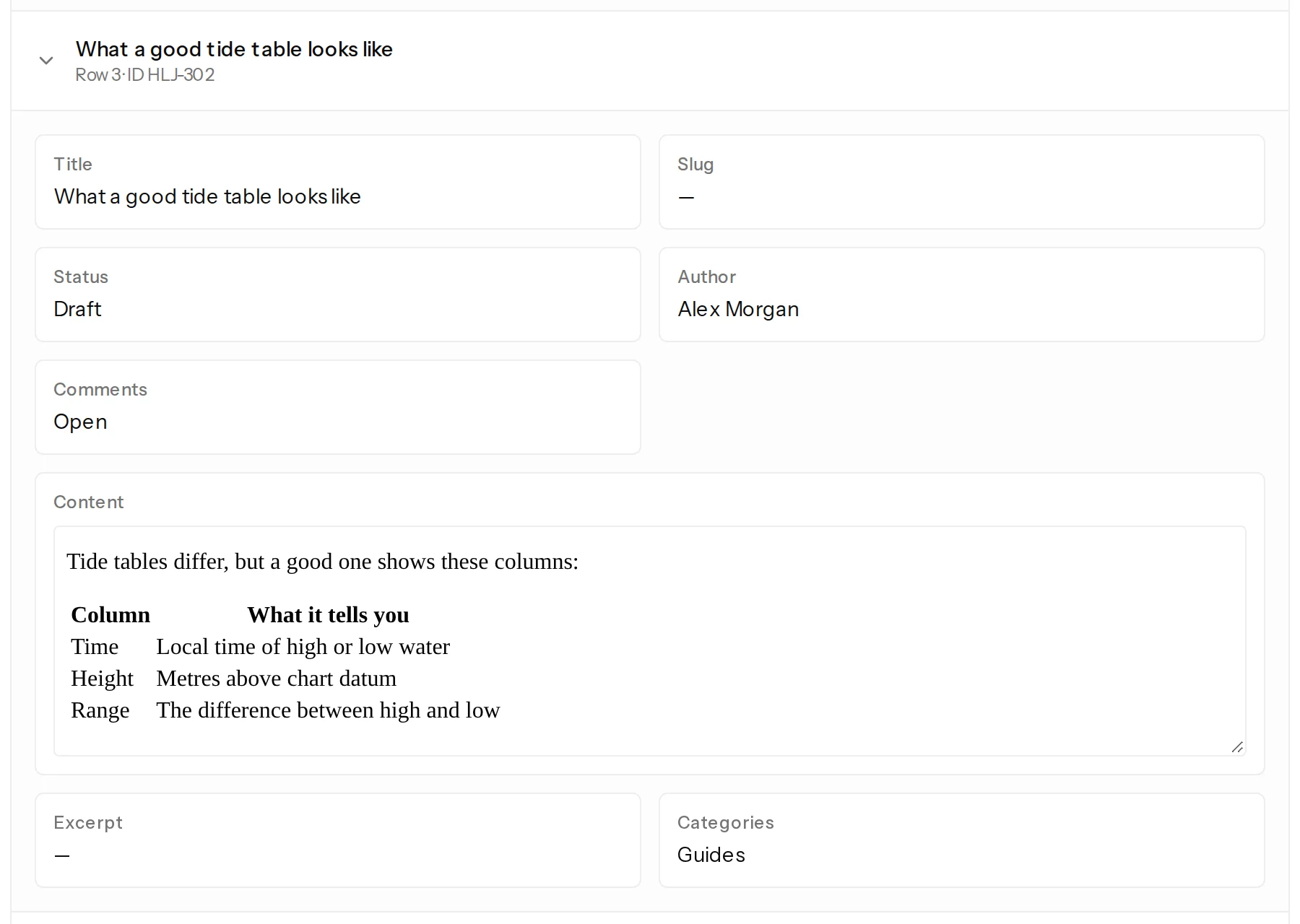
Open the others too. A missing closing tag or a stray quote is easy to see here, long before it is on your site (preview).
Step 3: publish#
Tick I reviewed the changes above and select Publish 6 changes. Six posts are written in the background (publish your changes).
Step 4: check WordPress#
Posts → All Posts has six new drafts. We compared what WordPress stored for each post with its cell:
- HLJ-301, 302, 303, 304 and 306: the stored text is identical to the cell: the headings, the lists, the table, the quotation, the link, the bold and italic words and the
<code>word are all there, with the line breaks as written. - HLJ-305, the plain text: the line break is kept, and the ampersand is stored as
&, which still shows as & on the page. The curly quotes are unchanged.
What the site removes#
Your site filters HTML as it does when a person pastes it into the editor, so a script never reaches a page. We tested one cell with a script, an iframe, a click handler, a style, an image, a javascript: link and a form on both platforms: the results are in the table in HTML in cells. WordPress kept every tag of this tutorial's six bodies. Joomla's filter depends on the text filter of the publishing account's group.
Joomla#
Choose a Joomla site and Articles instead, and set Intro Text to Source column with Body. Joomla applies the text filter of the publishing account's group: the test cell was stored with the form kept and the link's address removed (the publishing account). To split the text with a Read more link, map a second column to Full Text (article fields).
Part 2: a body built with a template#
The example data#
13-template-body.csv has the columns ID, Title, Summary and Details, and three rows. The Details of the second row, Fuel dock hours, holds characters that matter:
Cards are accepted <b>except</b> on Sundays & public holidays.
Step 1: build the template#
-
Create a configuration named Template body with
13-template-body.csvas the sample, for your WordPress site and Posts. -
In Content, choose Template as the mode. The field becomes a rich text editor, with your columns, ID, Title, Summary and Details, listed above it under Source columns.
-
Select HTML source and type this:
<h2>At a glance</h2> <p>{{ Summary }}</p> <h2>Details</h2> <p>{{ Details }}</p> -
Select Visual editor to go back. You see two headings and the two placeholders. (Instead of typing the HTML you can use the toolbar and the column buttons: content, excerpt and HTML bodies.)
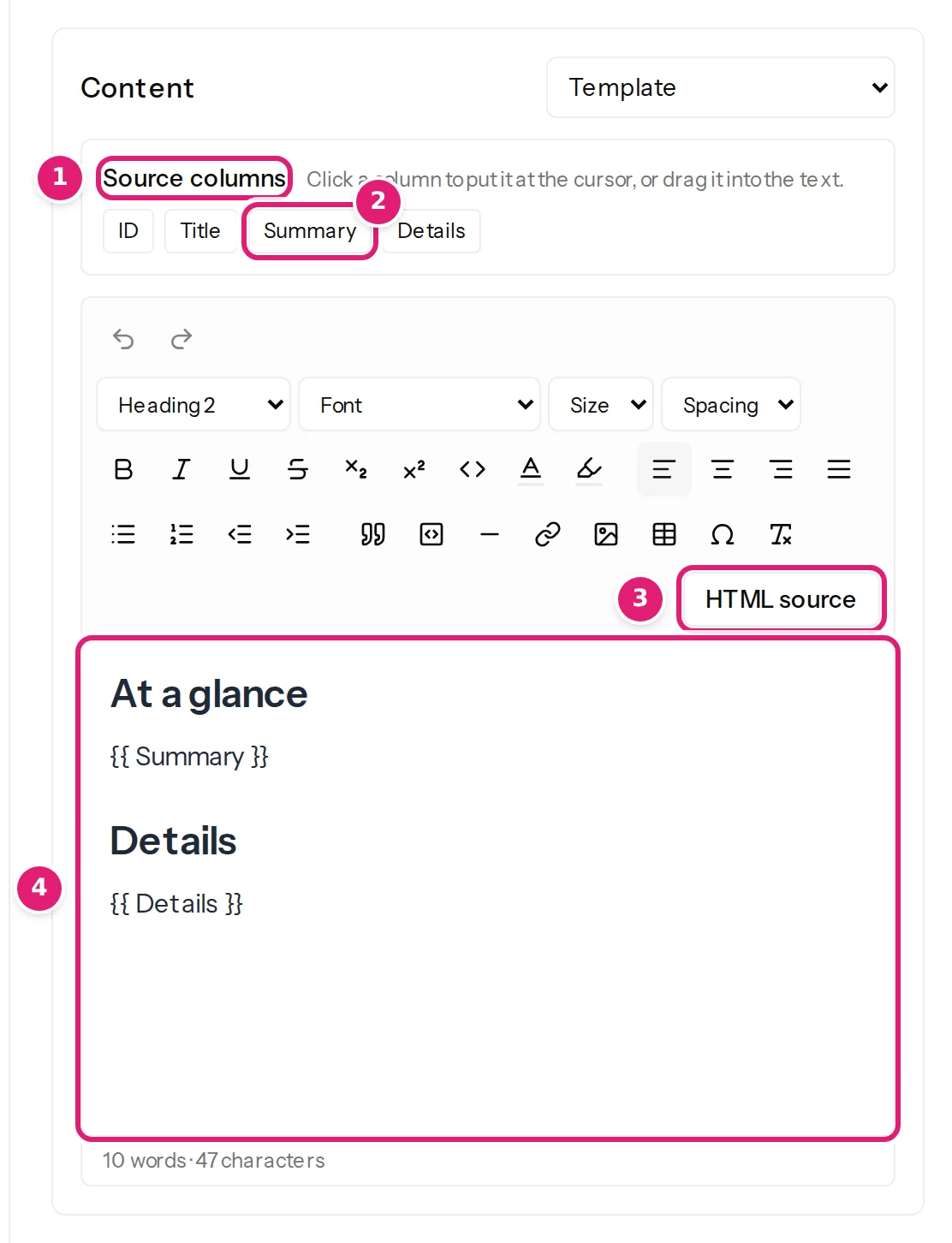
- Save the configuration.
Step 2: drop the file, review and publish#
Drop the file on the card. The review says 3 new, 0 errors. Publish them like the first six.
Step 3: check WordPress#
Open Fuel dock hours. It has the heading At a glance with The fuel dock is open from 8:00 to 18:00., and the heading Details. The details show as:
Cards are accepted <b>except</b> on Sundays & public holidays.
The words are not bold: the <b> tags are visible. WordPress stored Cards are accepted <b>except</b> on Sundays & public holidays., so the page shows the characters as typed. This is the rule for templates: a placeholder inserts text, never tags (templates and placeholders). It is what you want for names, prices and short texts, and it means that nothing in a cell can break the layout around it.
The other two posts, Marina fees at a glance and Checking the weather and the tide, have the same layout with their own texts.
If the Details cell is meant to carry formatting, do not put it in a placeholder. Either put the whole body, tags included, in one column and map it as in part 1, or put the formatting in the template around the placeholder: <p><strong>{{ Summary }}</strong></p>.
If it does not look right#
| What you see | Likely reason | What to do |
|---|---|---|
Tags such as <b> show on the page |
The cell was inserted with a placeholder | Map the field to the column as a Source column (part 1) |
| A tag or an attribute is missing after publishing | The site's filter removed it | See what the site filters; on Joomla, check the text filter of the publishing account's group |
| The row is refused with Cells must contain valid UTF-8 text of at most 32 KB. | A cell is longer than 32 KB | Split the text over two columns and join them with a template, or on Joomla map the second part to Full Text |
| Columns are shifted, or quote marks show in the text | The CSV is quoted wrongly | Open the file in a text editor: a cell with commas, quotes or line breaks needs double quotes around it, and each double quote inside written twice (HTML in cells) |
| An empty placeholder leaves a gap | An empty cell inserts nothing | Build the text from columns that are always filled (empty cells) |
What you have learned#
- A column that holds HTML is mapped as a Source column and goes in as written.
- A template builds a body from plain pieces and escapes what it inserts.
- The review shows the body rendered, before anything is written.
- The site's own filter has the last word on which tags stay.
Was this article helpful?
Related articles
- Preparing your spreadsheetHTML and formatted text in cellsPut paragraphs, headings, links and lists into a body cell: what WordPress and Joomla filter out, why images inside the text stay links, and the cell size limit.
- Mapping columnsContent, excerpt and HTML bodiesMap the body of your items from a column that holds HTML, or build it from several columns with the rich editor. Intro and full text on Joomla, excerpts on WordPress.
- Mapping columnsTemplates and {{ placeholders }}Combine fixed text with column values in titles, slugs, texts and bodies: the {{ placeholder }} syntax, the rich HTML template editor, escaping and what a placeholder inserts.
- Mapping columnsPreview a record before anything is saved or sentSee any of the first 50 rows of your sample as it would be published: every field, the rendered body, terms, images and custom fields. A preview never sends anything.