Columns are missing or not recognised
What to do when the page says the file doesn't match the configuration, a column you expect is not offered, or a field is not filled in from the column with the same name.
- 5 min read
- Updated October 13, 2026
Content Uploader finds your data by column name. If the name it expects is not in the file's first row, it cannot find the data. This page covers the ways that shows up.
Symptoms#
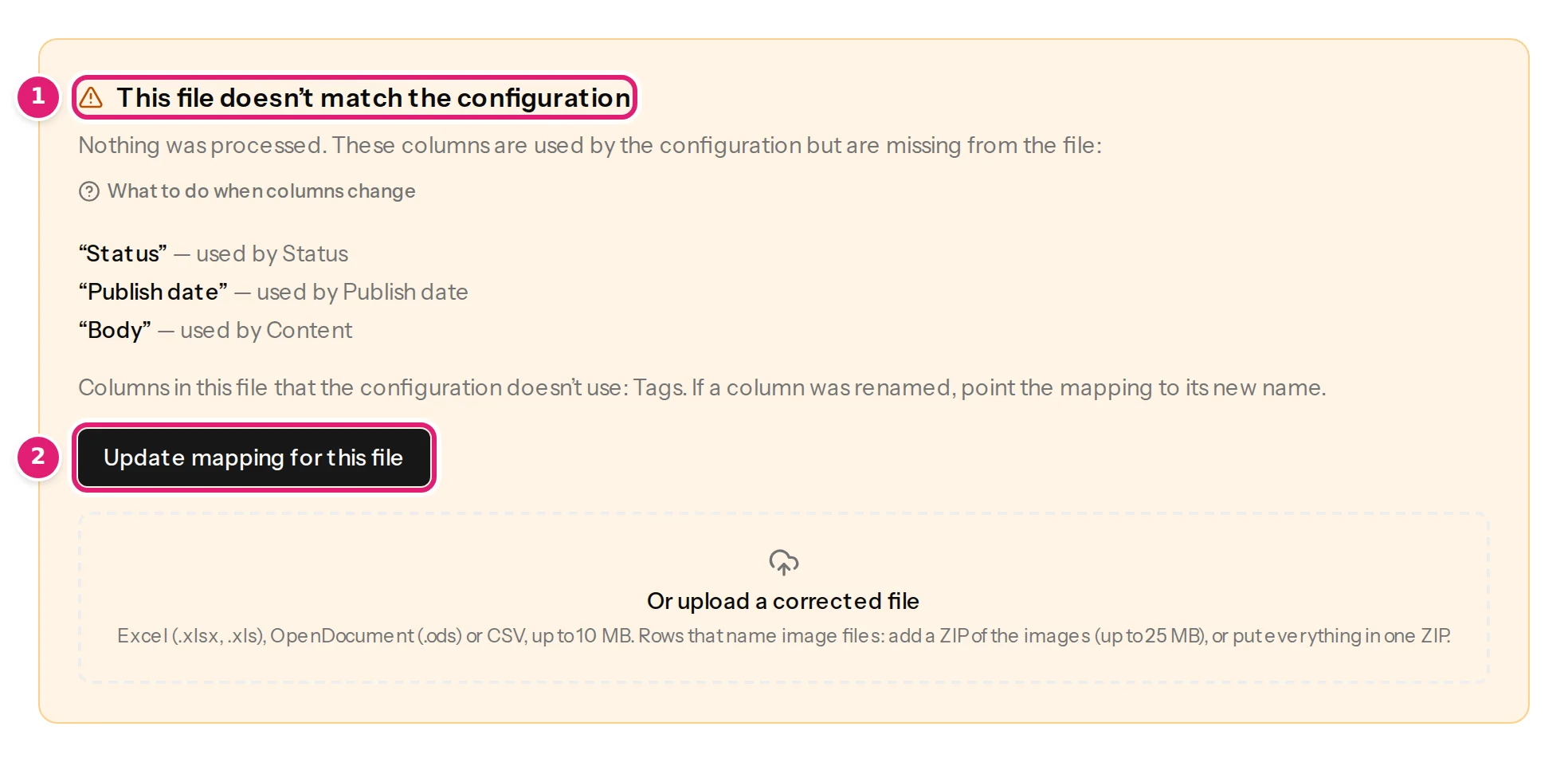
- The file's page shows an amber box, This file doesn't match the configuration, and Nothing was processed. You also get an email, … does not match the configuration, with Missing columns: ….
- In the editor, a field you expected to be filled in automatically says nothing was chosen, even though your file has a column with that name.
- The editor offers odd column names, such as the first article's title in place of Title.
- The editor says Choose an available source column., or a row says The template refers to an unavailable column: Subtitle.
Likely causes#
Confirmed (reproduced in our tests, or read from the program's checks):
- A column was renamed in this week's file (
TitlebecameHeadline), or an export tool changed its names. Names must match exactly, including capitals:Titleandtitleare different names to a configuration that was saved with one of them. - The header is not in row 1. Row 1 is read as the header. A title line, a blank row or a note above the real header makes Content Uploader treat that line as the column names.
- The file has no header row at all, so its first item was read as the column names. The box then also says Row 1 of this file looks like data, not column names.
- A column was removed from the export, so a name that the configuration uses is gone. For a configuration that reads files without a header row, the missing names are positions such as Column F: the file has fewer columns than before.
- The sample file differs from the real file. The configuration was made from a sample with a column that real files do not have.
- The name has no letters or digits from A to Z, for example a column named entirely in another script: automatic matching skips it. You can still choose it by hand.
- A template uses a column name that is not in the file, or is spelled differently (
{{ Sub-title }}againstSubtitle).
Possible (depends on your tools):
- An export that translates column names with the user's language.
- A hidden character in a header, such as a non-breaking space copied from a web page, so that two names look the same but are not: retype the header.
Step-by-step solution#
- Read the box. It lists every missing column, with the field that uses it (“Body” — used by Content), and the columns in the file that the configuration does not use. A renamed column appears in both lists: the old name as missing, the new name as unused.
- Decide which is right, the file or the configuration:
- If the file's name was a slip, rename the column in your spreadsheet and upload the file again.
- If the new name is the one to keep, select Update mapping for this file. The editor opens with a notice naming the missing columns; choose the right column for each field and save. The file is checked again straight away with the new version, with no new upload.
- If the header is not in row 1, delete the rows above it and upload again. If the file has no header row, select Read it without a header row in the box, then Update mapping for this file and choose Column A, Column B and so on (files without a header row).
- If automatic matching skipped a column, open the configuration and choose the column for the field by hand. Matching ignores capitals, spaces and punctuation (
Publish date,publish_dateandPublishDateare the same) but looks only at letters A to Z and digits (column headers). - If a template names an unavailable column, correct the placeholder or add the column (templates).
How to verify#
- The file's page moves on to What will change with the number of rows you expect, instead of the amber box.
- Open a new or updated item: the fields that used the renamed column show real values.
- In the editor's preview, the sample record shows the values from the right columns.
Prevent it#
- Keep the header row the same from file to file. When the source system changes its export, update the configuration first, then upload.
- Name columns by what they hold (
Price), not by when (Price Oct). - Adding a new column is always safe: it is listed as not used until you map it (when a file's columns change).
If it persists#
- Check for characters you cannot see: select the header cell and look at its length, or retype it.
- Save the file again as
.xlsxto rule out a tool that rewrites names. - If the box lists a column that is plainly in your file, contact support with the file's name, the configuration's name and a screenshot of the box.
Was this article helpful?
Related articles
- Importing dataWhen a file's columns changeWhat "This file doesn't match the configuration" means, which columns count as used, how to rename a column back or remap it, and what new or removed columns do to the review.
- Preparing your spreadsheetColumn headers: names, rules and automatic matchingThe first row needs a different, non-empty name in every column. How column names are matched to fields, which names suggest the ID, and what happens when a name changes.
- Preparing your spreadsheetFiles without a header row: columns named by positionWhen an export starts with data instead of column names: read it without a header row, map Column A, Column B and so on, and keep the columns in order.
- Mapping columnsTemplates and {{ placeholders }}Combine fixed text with column values in titles, slugs, texts and bodies: the {{ placeholder }} syntax, the rich HTML template editor, escaping and what a placeholder inserts.