Update existing content from next week's spreadsheet
Upload a second version of the same spreadsheet and watch Content Uploader publish only what changed: two new articles, three updated, five left alone, with no duplicates.
- WordPress
- Difficulty: Beginner
- About 10 minutes
- Updated October 13, 2026
What you will achieve. Your first spreadsheet created eight articles. A week later the spreadsheet has changed: two articles are new, three were edited, five are as before. You will upload it and publish only the five that matter, in place, with no second copies.
You need. A WordPress site that is connected, the configuration and the eight articles from publish your first items (file 01-first-import.csv), and the week-2 file 02-first-import-week-2.csv. Difficulty: beginner. Time: about 10 minutes.
What changed in the file#
Compared with 01-first-import.csv, the week-2 file has:
| ID | Change |
|---|---|
| HLJ-002 | The title is now Six winter projects for your boat (it was Five winter projects…). |
| HLJ-004 | The body has one more sentence. |
| HLJ-006 | Moved from Boat care to Gear, with a new tag. |
| HLJ-009, HLJ-010 | Two new articles. |
| The other five | Exactly as before. |
The IDs are what lets Content Uploader see this: every article keeps the same ID it had last week (record IDs).
Step 1: drop the file on the same configuration#
- On the Dashboard, find the card of your configuration. Its last line says Last: … · 8 published.
- Drop
02-first-import-week-2.csvon the card. The file's page opens and reads, then checks it.
Step 2: read the summary#
When the check is done the page says Ready for review and shows the tiles:
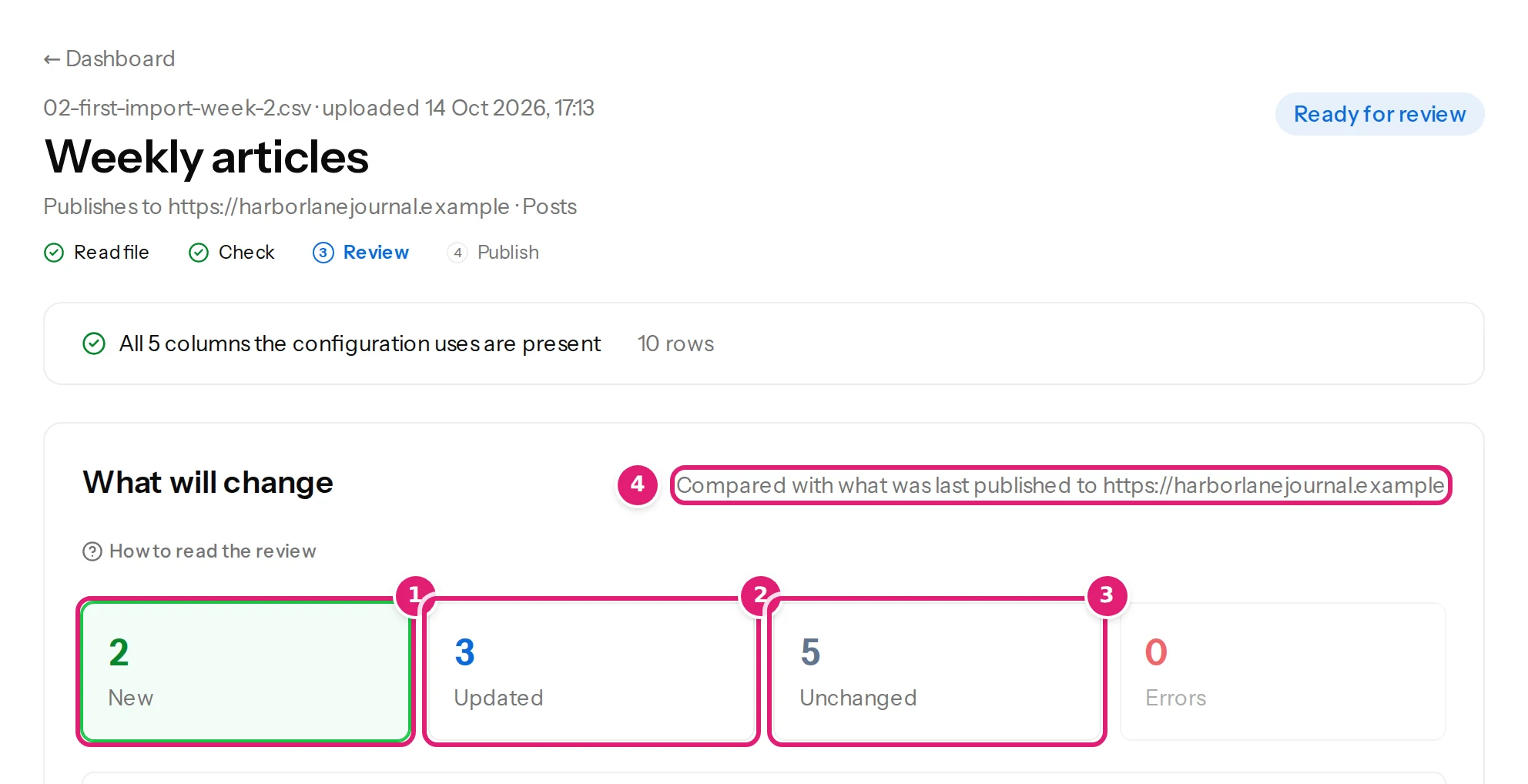
- New 2: HLJ-009 and HLJ-010.
- Updated 3: HLJ-002, HLJ-004 and HLJ-006.
- Unchanged 5: nothing to do for these.
No confirmation box appears this time: the first file already approved this version of the configuration, and the columns are the same (why the first file waits).
Step 3: look at what will change#
Select Updated, then open an item. The table has three columns: Field, Last published (struck through) and This file:
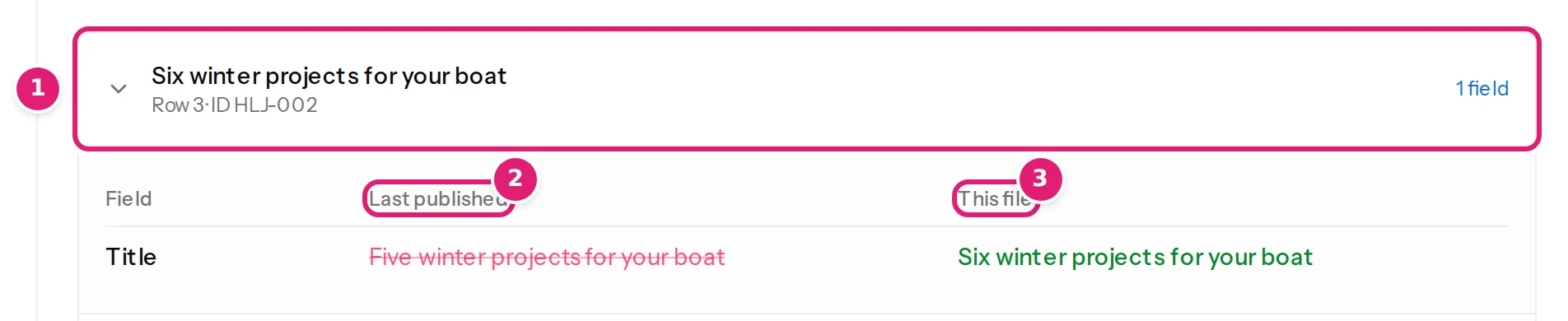
The article about the rope splice shows two changes, Categories and Tags. Only these fields are listed, but when an item is published, every mapped field is sent with it.
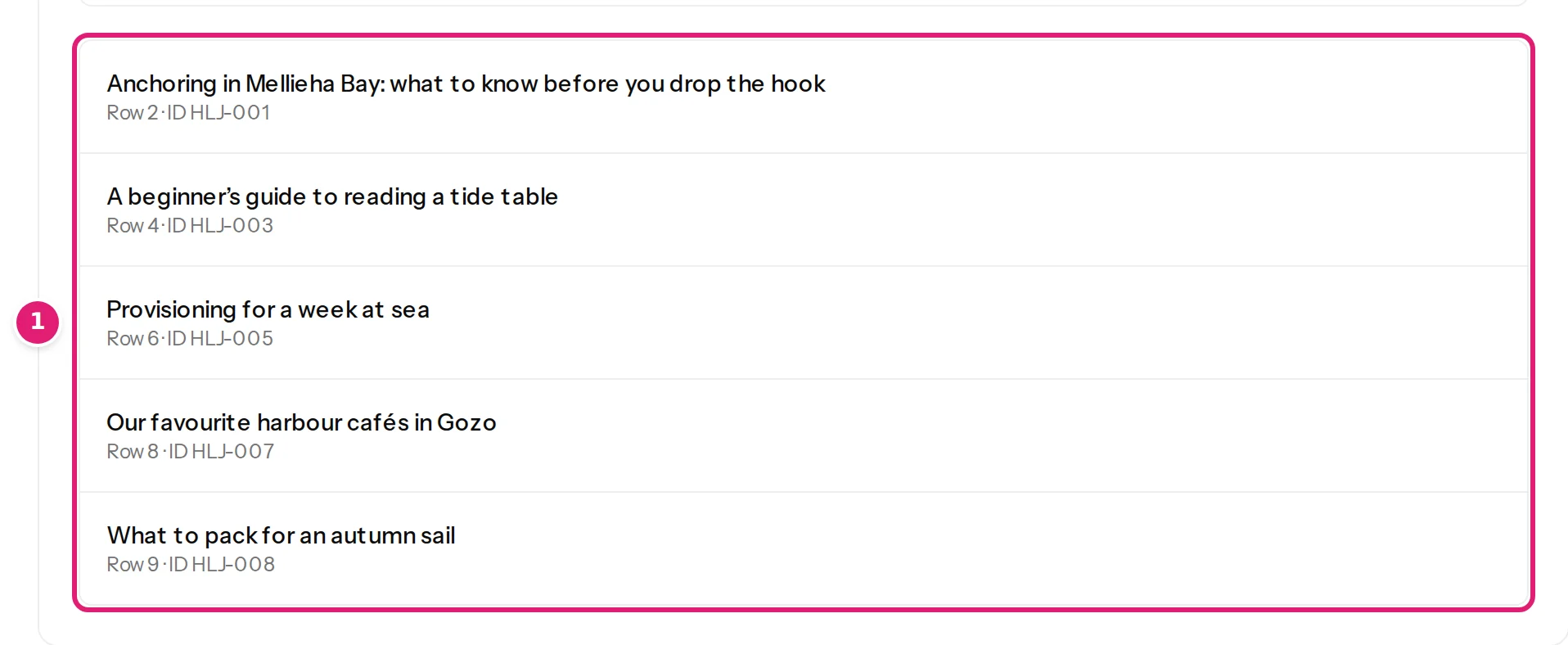
Then select Unchanged and look at the five: they are listed so that you know they were looked at, and they will not be touched.
Step 4: publish#
Select Publish 5 changes. The note beside the button says how many record writes it uses. The page switches to the progress, then to Published:

Step 5: check your site#
Open Posts in WordPress:
- There are ten posts, not eighteen. Nothing was duplicated.
- The retitled article kept its place and its ID; only its title changed.
- The five unchanged posts were not written again: their modified dates are as before.
- All eight articles from last week still have the same IDs on your site.
Step 6: upload the same file again#
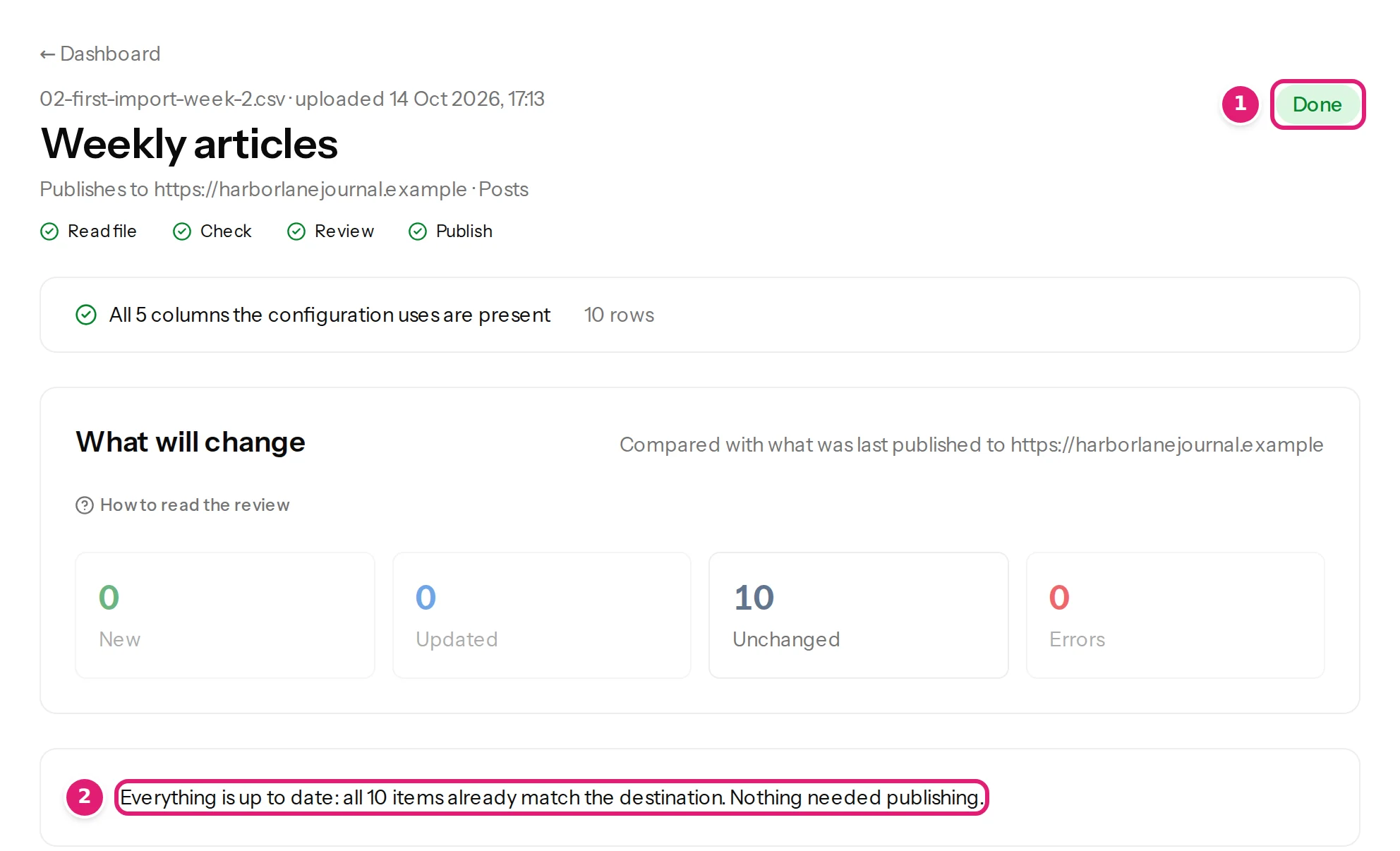
Drop 02-first-import-week-2.csv once more. The review finds every row unchanged, and the page says Everything is up to date: all 10 items already match the destination. Nothing needed publishing.
Where to go next#
- A person edited a post on the site? Updating content that is already published explains what the review notices and what it does not.
- Want to publish a short file with only the changed rows? That works too, and items that are not in the file are left alone (partial files).
- Make this hands-free for a steady file: automatic publishing.
Was this article helpful?
Related articles
- Mapping columnsUpdating content that is already publishedWhat happens to an item you published earlier when its row changes: the review lists the changed fields, every mapped field is sent, and the address and ID stay.
- Reviewing and publishingHow the review worksAfter a file is checked, the review shows what will be created, updated, left alone or skipped before anything is sent to your site. How to read each part of the page.
- Getting startedPublish your first itemsCreate a configuration from your first spreadsheet, drop the file, read the review and publish: the whole first import, with what each screen shows and what lands on the site.
- Importing dataUpload the next fileDrop this week's spreadsheet on its configuration's card, follow the check and publish: how uploads work, adding a ZIP of images, who is emailed and what uploading twice does.