Inviting team members and choosing their sites
Invite colleagues by email, give each person only the connected sites they should use, change or take that access away, and see what a team member can and cannot do.
- 8 min read
- Updated October 14, 2026
A workspace can have more than one person. The owner invites people and decides, site by site, what each of them may use. This is how an agency can give one colleague a client's WordPress site and another colleague a different client's Joomla site, without either seeing the other's.
Owners and team members#
| Owner | Team member | |
|---|---|---|
| Sites they can reach | Every site, including ones connected later | Only the sites they were given |
| Configurations, uploads, review results and publishing results | Of every site | Of their sites only |
| Create a configuration, upload a file, check, review, publish, retry | Yes | Yes, for their sites |
| Renew access to a site and refresh its fields | Yes | Yes, for their sites |
| Connect or disconnect a site, choose which sites stay active under the plan | Yes | No |
| Plan, billing details, withdrawing from the contract, data exports | Yes | No (they can see the plan and usage) |
| Invite people, change what they can use, remove them | Yes | No |
| Leave the workspace | No: a workspace always has its owner | Yes |
A person who joins sees nothing until they are given a site, and a site connected later is not shared with anyone automatically. Changes to someone's access take effect at once: access is checked on every page, in every email and in everything that runs in the background.
How many people a plan allows#
The count includes the owner and the invitations that have not been accepted yet.
| Plan | People in a workspace |
|---|---|
| Free | 1 (the owner alone) |
| Small | 3 |
| Medium | 10 |
| Large | 30 |
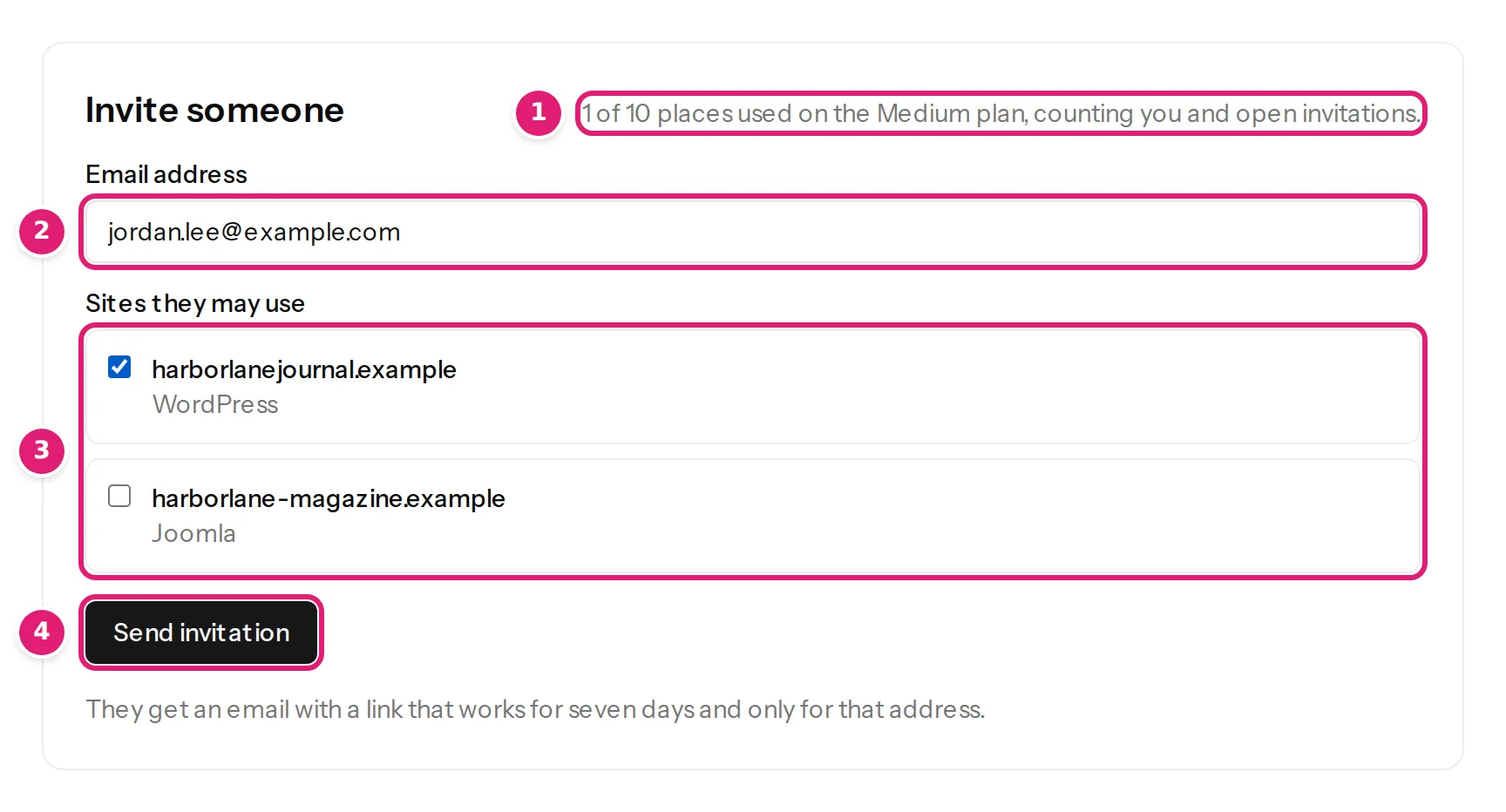
The Team page shows N of M places used on the plan, counting you and open invitations. When the plan is full, the Send invitation button is disabled and the page says Your plan has no room for another person. with a link to the plans; withdraw an invitation or remove someone to make room. A workspace that goes down to a smaller plan keeps everyone it has, and can invite again once it is under the new limit.
Invite someone#
Only an owner sees the invitation form. You need at least one connected site first; without one the page says There is no connected site to give access to yet. and links to the Sites page.
- Open Team in the sidebar.
- Under Invite someone, enter the person's Email address (2) and tick the Sites they may use (3). At least one is required.
- Select Send invitation (4).
The invitation is emailed at once. It works for 7 days, and only for that email address. It appears under Waiting to be accepted, with Send again (a new link and a new 7 days) and Withdraw.
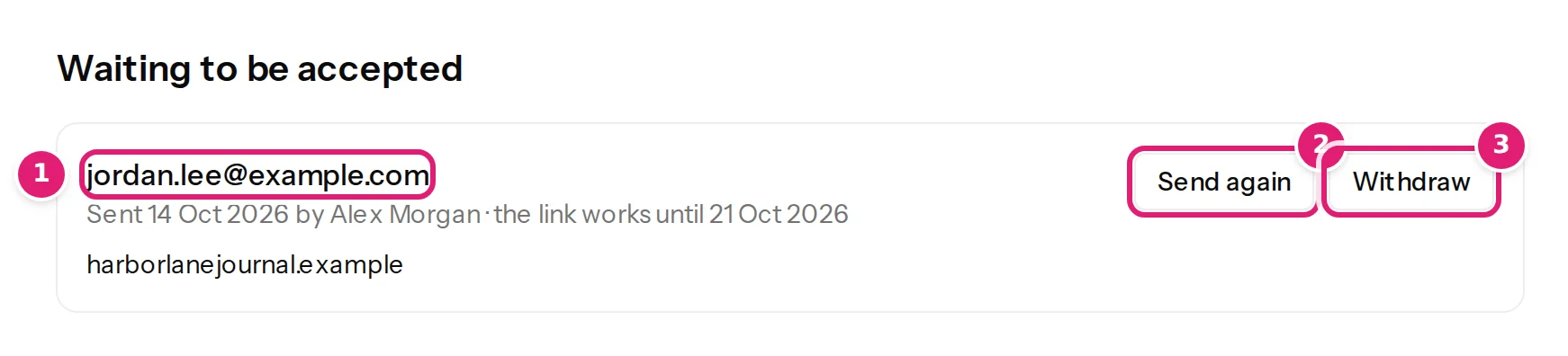
- Inviting an address that already has an open invitation sends a new link, makes the old one stop working and replaces the sites.
- Inviting someone who is already a member is refused: This person is already a member of the workspace. Change which sites they can use instead.
- Each account can send 15 invitations (or resends) an hour and 40 a day. That is more than a team needs; if you reach the limit, wait and try again.
What the person receives#
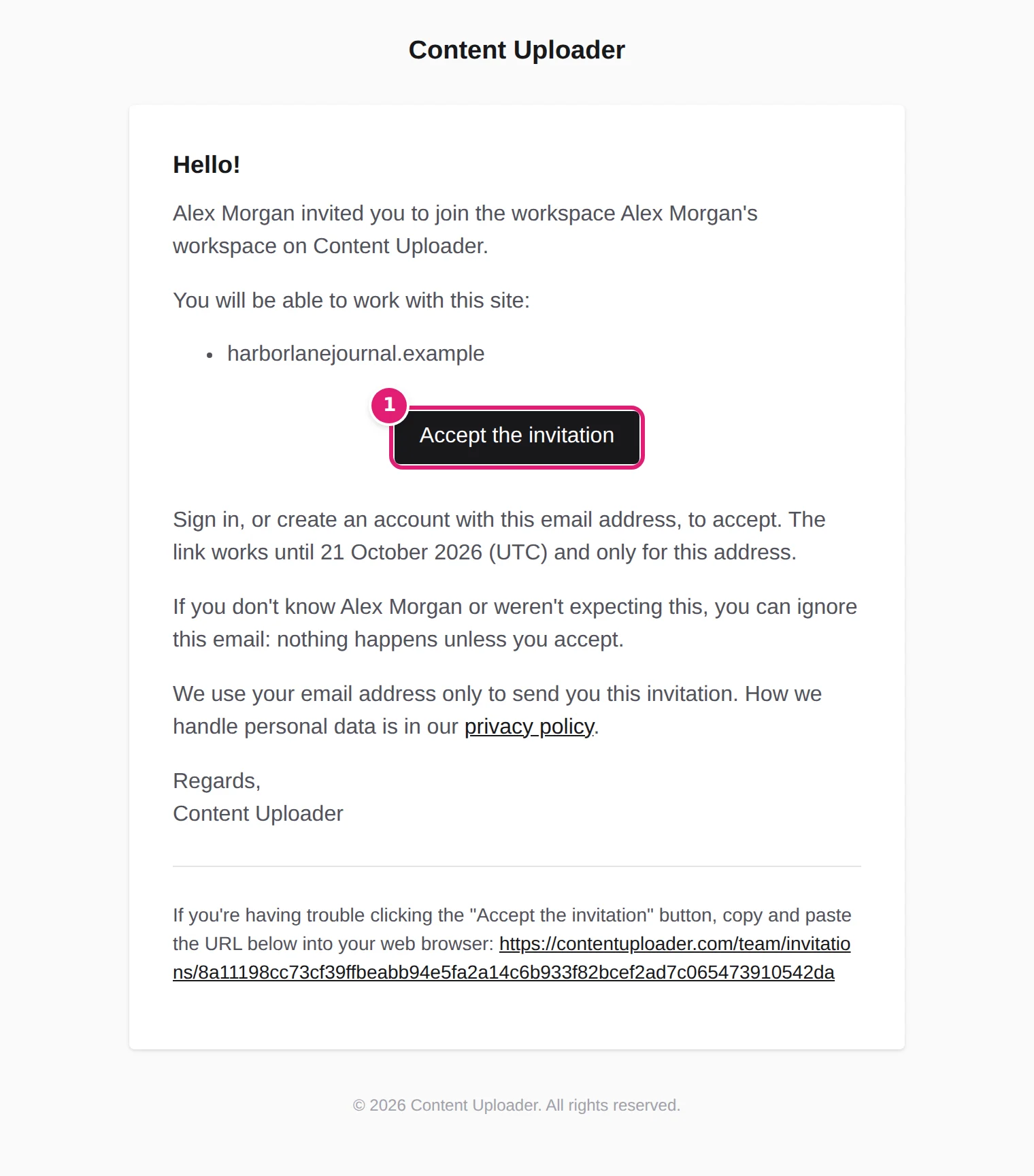
An email titled Your name invited you to Workspace name on Content Uploader, listing the sites they will be able to work with and a button Accept the invitation. It says how long the link works and that it only works for that address. If they do not know you, they can ignore it: nothing happens unless they accept.
Accepting an invitation#
The link opens a page that says who invited whom and what it is for. What happens next depends on whether the person already has an account.
-
Not signed in. The page offers Sign in and Create an account. They must use the address the invitation was sent to.
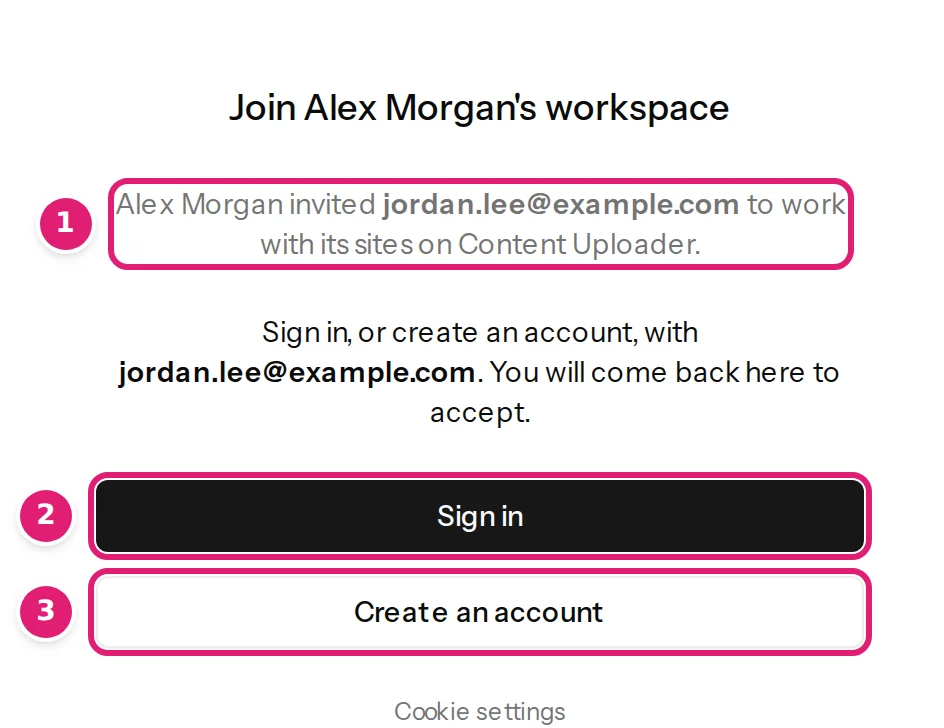
The invitation page. It shows the workspace, who invited and for which address. -
New account. After they create it, the app brings them back to the invitation and asks them to confirm the address first: we sent you an email with a link when you created the account. Then open this invitation again. The confirmation email is the one described in creating your account.
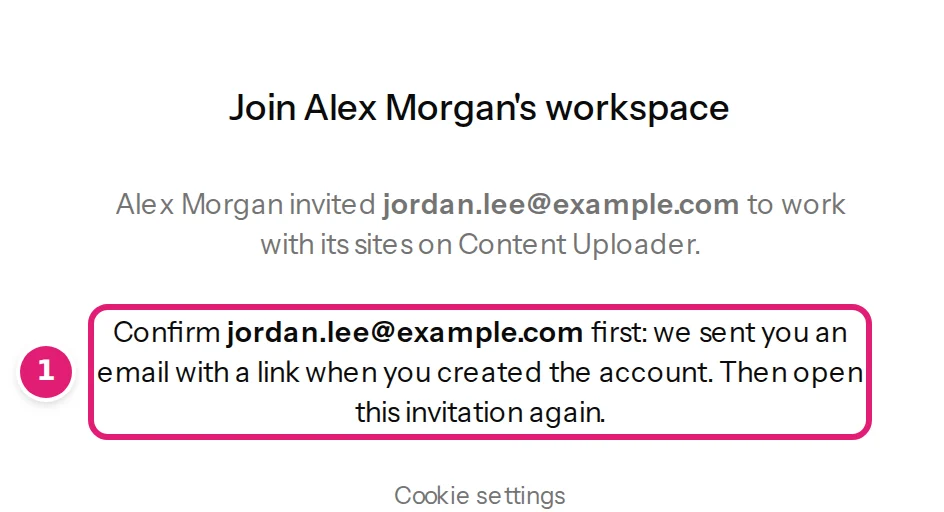
Until the address is confirmed, the invitation cannot be accepted: the page asks for it first (1). -
Signed in with the right address. The page lists You will be able to use the sites, and Accept the invitation adds them to the workspace.
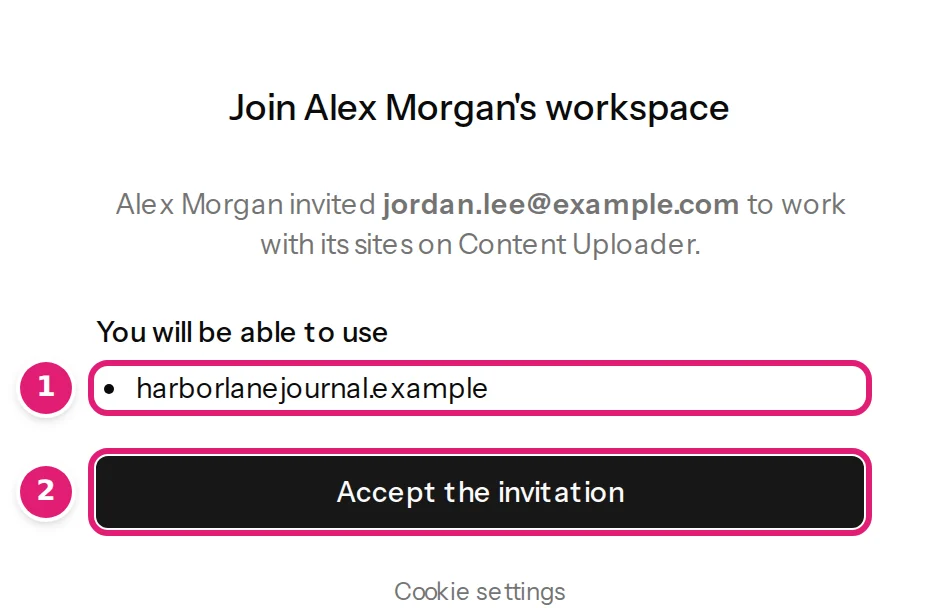
Accept: the person joins as a team member with exactly these sites. -
Signed in with a different address. The page says You are signed in as … but this invitation is for …. Sign out and sign in with that address to accept it. A forwarded link therefore opens nothing for anyone else.
Everyone who joins also keeps a workspace of their own: the sidebar shows a switcher, and invited people belong to at least two workspaces.
An invitation that has expired, was withdrawn or was used already opens a page titled This invitation can’t be used: It has expired, was withdrawn, or has been used already. Ask the person who invited you to send a new one.
The people list#
Team → People shows everyone in the workspace: name, email, role, when they joined and the sites they use. For each team member the owner can:
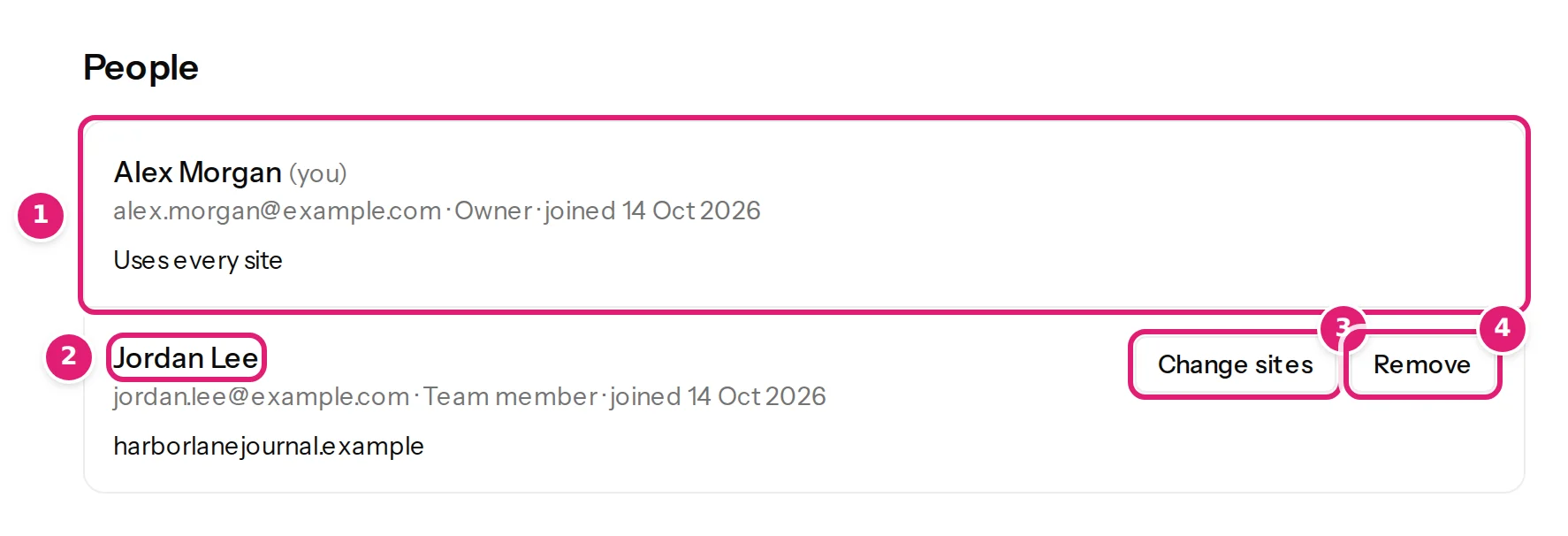
-
Change sites opens a window with the sites ticked; ticked sites can be used, the rest are taken away as soon as you select Save.
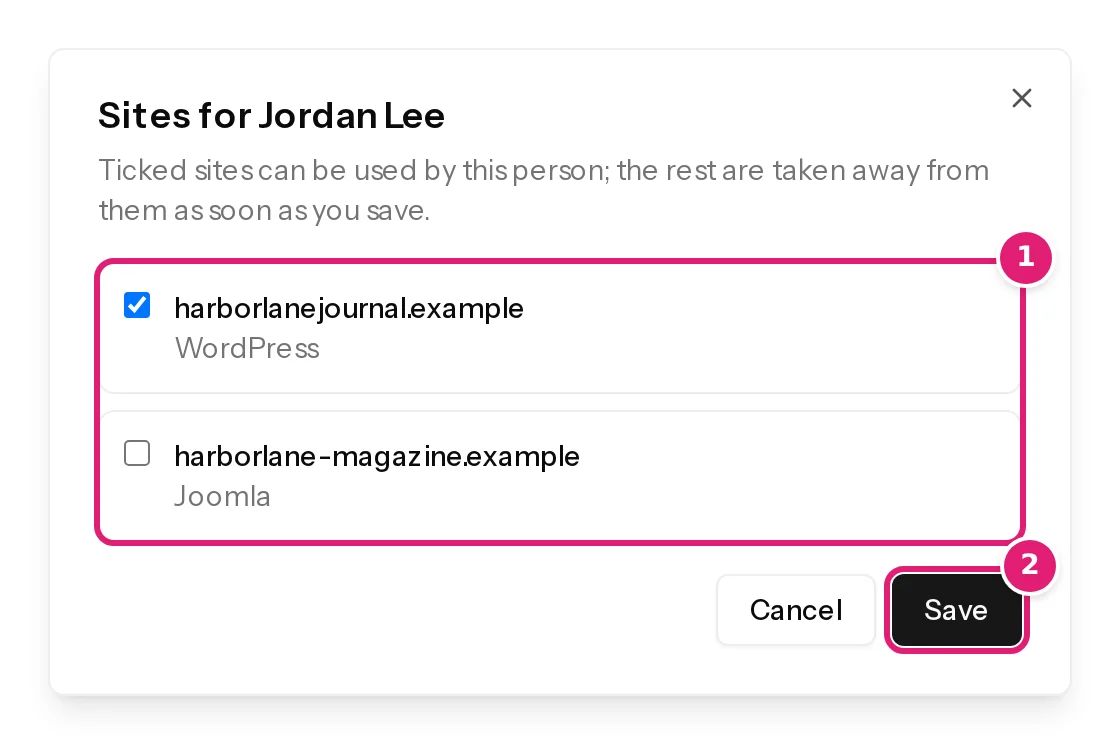
Ticking and unticking sites. Removed sites disappear from that person's screens at once. -
Remove takes the person out of the workspace immediately. Their account stays, and what they did stays in the history. You can invite them again later.
A person with No site yet can sign in but sees nothing.
What a team member sees#
A team member's Dashboard lists only the configurations that publish to their sites. Sites lists only their sites and the publishing results for them, without the boxes for connecting a site. Team shows what they can use, whom to ask for more, and Leave this workspace. Billing shows the plan and usage but nothing to change.
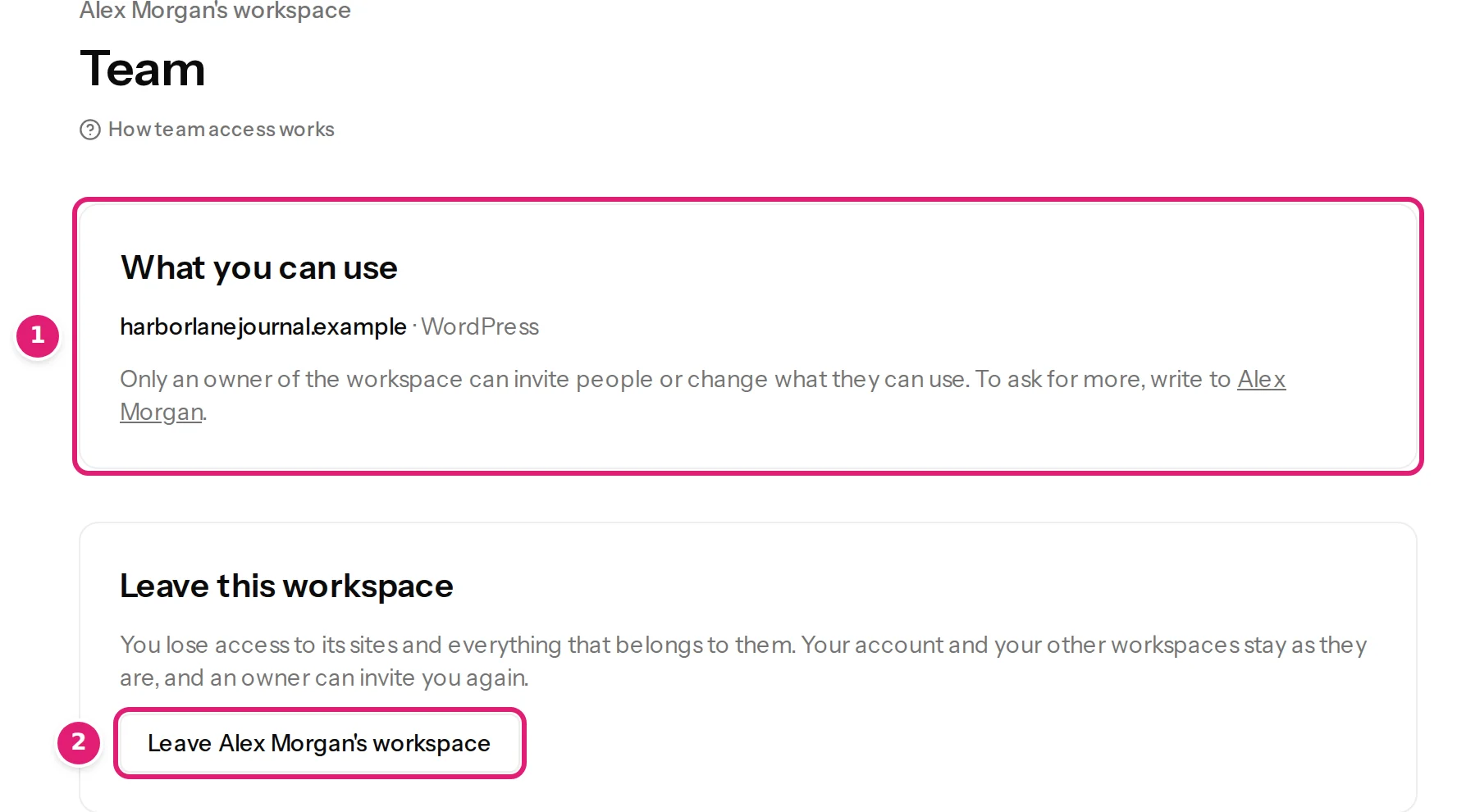
A configuration that a team member created but never saved with a mapping has no site yet. Only that member and the owners can see it.
Leaving a workspace#
A team member can leave under Team → Leave this workspace. They lose access to its sites and everything that belongs to them. Their account and their other workspaces stay as they are, and an owner can invite them again. An owner cannot leave or be removed; the owner of a workspace stays its owner, and moving a workspace to a new owner is not available.
Good to know#
- Everyone accepts the Terms of Service for their own account, and the subscription stays the owner's.
- Access to a site also decides who is emailed about it: someone who loses a site stops getting emails about it.
- The invited address is kept with the invitation and deleted 30 days after the invitation ended (accepted, withdrawn or expired). The privacy policy describes this.
- If an invitation does not arrive, see an invitation does not work.
Was this article helpful?
Related articles
- Account and workspaceWorkspaces, owners and the workspace switcherWhat a workspace is, what belongs to it, how to move between several workspaces, and what the notices about a paused, suspended, locked or deleted workspace mean.
- Account and workspaceManaging your connected sitesThe Sites page explained: status, when access ends, renewing, refreshing fields, disconnecting, sites paused by your plan, and publishing results with their attempt history.
- Account and workspacePlans, allowances and what happens at a limitWhat each plan includes, what counts as a record write and as image transfer, when allowances renew, and what the review offers when a file needs more than what is left.
- TroubleshootingAn invitation does not workWhat to do when a team invitation cannot be sent or accepted: no room on the plan, no site to give, an expired or used link, the wrong address, or an email that never arrives.