Files without a header row: columns named by position
When an export starts with data instead of column names: read it without a header row, map Column A, Column B and so on, and keep the columns in order.
- 6 min read
- Updated October 13, 2026
Most spreadsheets start with a row of column names, the header row, and Content Uploader reads row 1 that way unless you tell it otherwise. Some exports have no header row: a shop, a database or an older system writes only the records, so row 1 is already the first item. Read such a file without a header row, and its columns are named by their position instead.
What happens when a file without a header row is read with one#
Content Uploader cannot know for sure what row 1 is, so it reads it as column names and tells you when it looks like data:
- If row 1 has two equal values or a text longer than 200 bytes, the file is refused with The first row must contain unique column names of at most 200 bytes. When its cells look like values, the message goes on: Row 1 looks like data, not column names: if the file has no header row, read it again as a file without one.
- Otherwise the first item becomes the column names, its empty cells named by position. When its cells look like values, the editor warns that Row 1 (…) looks like data, not column names, and names its first three cells. Read like this, that item would never be imported, and next week's file, which starts with another item, would not match the configuration.
Cells that look like values are numbers and amounts, dates and times, web and email addresses, file names such as p12.jpg, HTML, text with line breaks and text longer than 80 characters.
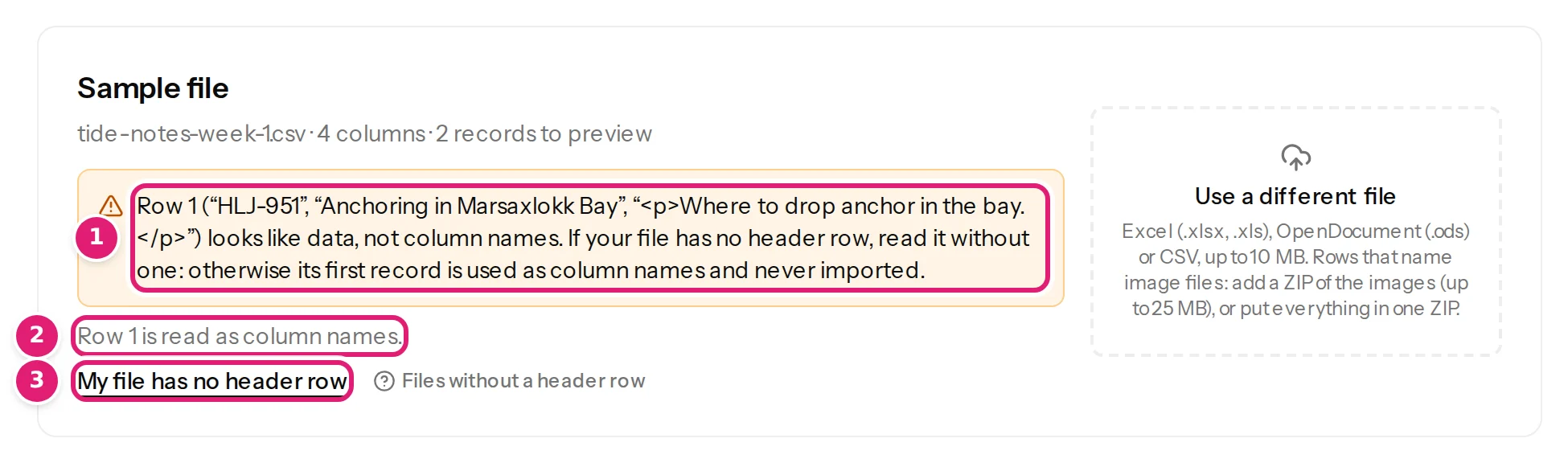
Read a file without a header row#
- In the configuration editor, under Sample file, select My file has no header row.
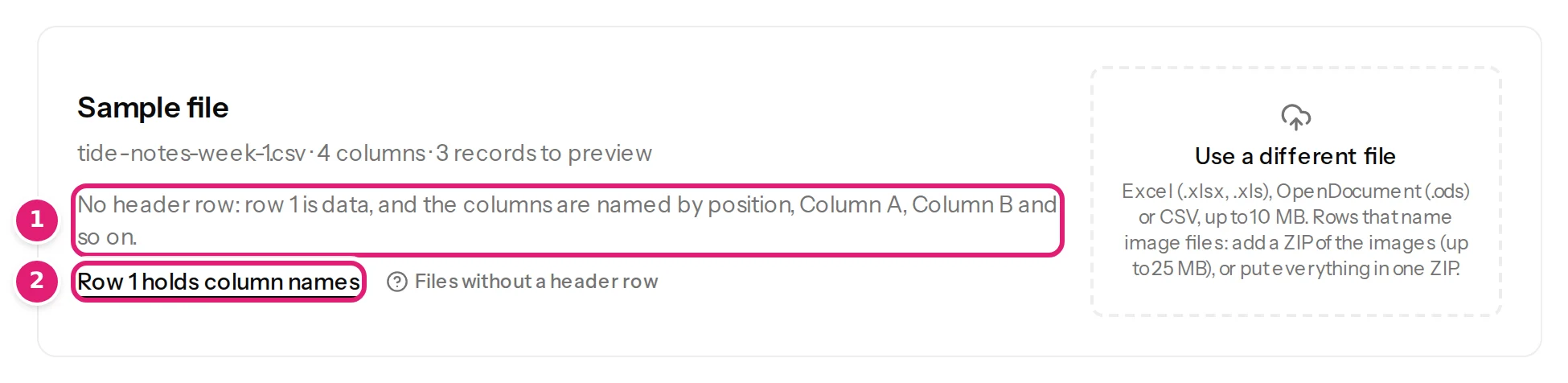
- The file is read again (Reading your file…). The line under the file name now says No header row: row 1 is data, and the columns are named by position, Column A, Column B and so on.
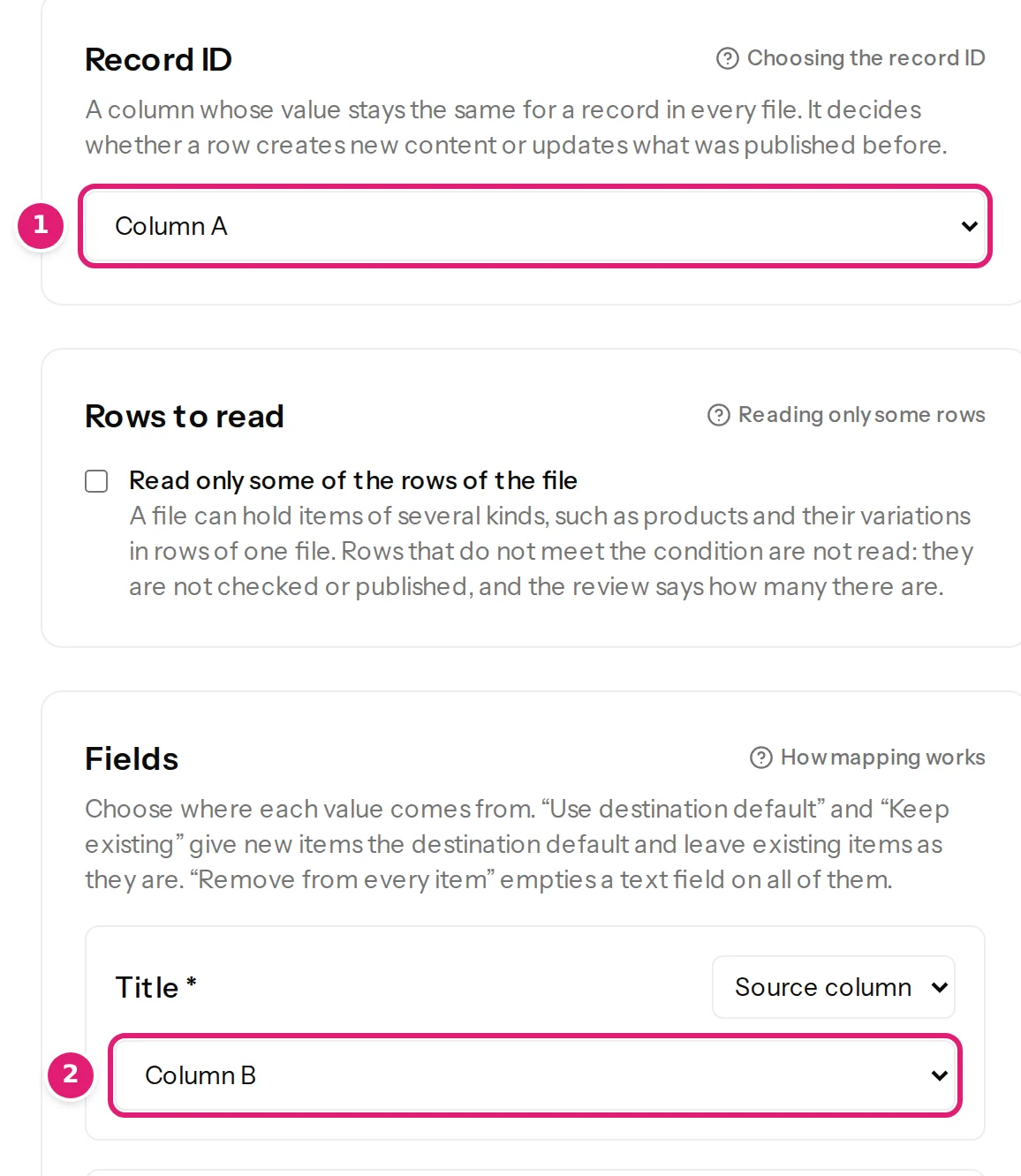
- Map the fields as usual, choosing Column A, Column B and so on as source columns. The preview offers row 1 as the first record. In templates, write
{{ Column B }}. - Choose a Record ID column if one of the columns holds IDs, or let Content Uploader match items by slug or title (choosing the record ID).
- Save. Every later file of this configuration is read without a header row: drop it on the configuration's card as usual.
On a file's page, the same choice is at the bottom: First row, with Column names or Data (no header row), then Read again (which button does what). A file that could not be read because its first row looks like data also offers Read it without a header row next to Retry.
How the columns are named and counted#
- By position, as Excel, LibreOffice and Google Sheets show them: the first column is Column A, the 27th Column AA. A file may have up to 100 columns.
- The widest row decides how many columns there are. A row with fewer cells is empty in the others.
- Row numbers are your spreadsheet's. The first item is row 1 in previews, errors and the review. Blank rows are skipped, also at the top of the file.
- Every row is a data row, so a file may have 10,000 rows, not one more for a header.
Keep the columns in their order#
With a header row, the order of the columns does not matter, because each is found by its name. Without one, the position is the name. If next week's export puts a new column between the second and the third, what was in Column C is now in Column D, and its values go to the wrong fields. Content Uploader cannot tell that this happened, because the file still has the columns the configuration uses.
If you can, add a header row to the export instead: names are safer than positions.
When the first row looks like the other kind#
The two checks are hints, not errors: Content Uploader cannot be sure, so it points out what it sees and lets you decide.
- Read with a header row, row 1 looks like data. The editor shows the warning above. A later file that does not match the configuration says, under its missing columns, Row 1 of this file looks like data, not column names, with Read it without a header row.
- Read without a header row, row 1 looks like column names. At least two cells of row 1 are filled, all different and short, while the row below holds values such as numbers or dates in the same columns. The editor warns that row 1 would be published as an item. On a later file's review this is one of the reasons to confirm: Row 1 looks like column names, but this configuration reads files without a header row, so row 1 is published as an item. Automatic publishing waits, and Read row 1 as column names reads the file again with its header row.

Change your mind#
Select Row 1 holds column names under Sample file to read the file with its header row again, and point the fields at the names. Saving a configuration whose sample is read the other way makes a new version, and the line under the file name says Saving changes this for every later file. Files that were already checked keep the way they were read; Read again on a file's page reads one of them the other way.
A file that was already published cannot be read again, and neither can one whose original was deleted after 30 days. The editor then says To change this, upload the file again. Use Use a different file, and change it on the new sample.
Was this article helpful?
Related articles
- Preparing your spreadsheetColumn headers: names, rules and automatic matchingThe first row needs a different, non-empty name in every column. How column names are matched to fields, which names suggest the ID, and what happens when a name changes.
- Importing dataCreate a configurationA configuration remembers a destination, a record ID column and how each column maps to fields: how to create one, what the editor's parts do and how versions work.
- Importing dataRetry, Check again, Read again: which button does whatWhat the buttons for doing something again do: Retry, Check this file again, Check again with version, Read again and Retry safely, and when each is available.
- Reviewing and publishingWhat needs your attention before you publishThe review asks you to tick "I reviewed the changes above" for a new version, changed fields or columns, a doubtful first row, products taken over or a large price change.