Publish your changes: exactly when and how your site is changed
What happens when you press Publish: the checks made at that moment, the background publishing, the progress and the result, and what can and cannot be undone.
- 6 min read
- Updated October 13, 2026
Your site is changed at one moment only: when you press Publish (or, with automatic publishing, when nothing needs your review). Everything before that, from upload to review, only reads.
The button#
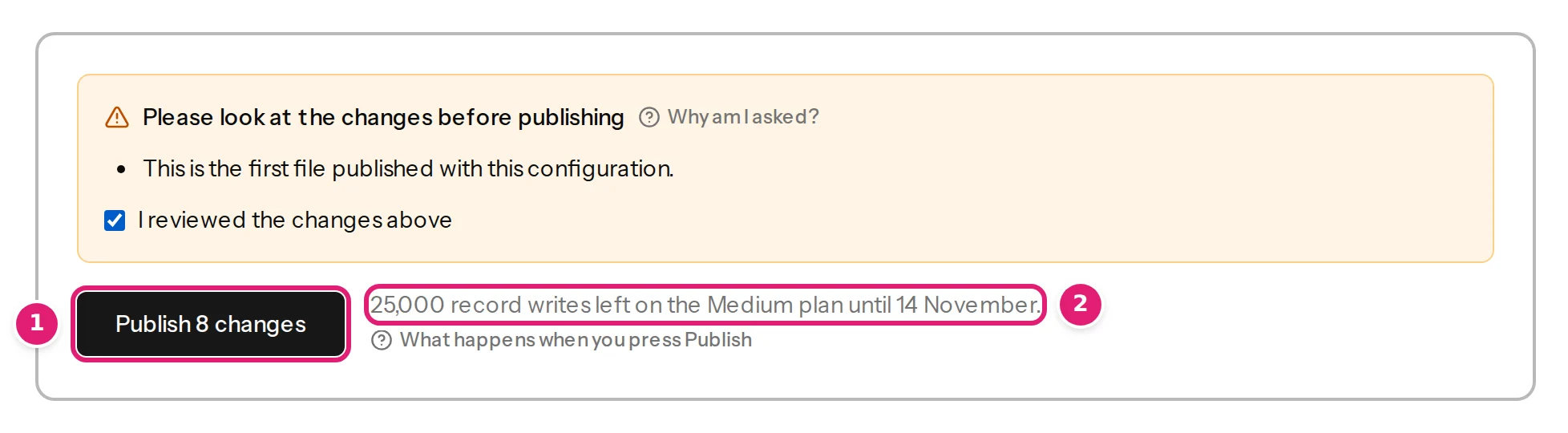
Publish N changes: N is the number of new + updated items. Unchanged items, rows with errors and skipped items are not counted. The button is available when:
- the review is ready and you are looking at the latest check;
- you ticked I reviewed the changes above, when the box Please look at the changes before publishing is shown (what needs your attention);
- there is something to publish (it says Nothing to publish otherwise);
- your plan allows it: the allowance is enough, or you chose Publish the first N changes, and the site is not paused by your plan (plans and allowances).
Beside the button, a few lines say what it will do: 12 record writes left on the Medium plan until 3 November; their images come to 4.1 MB (18 GB left). (the allowance), 4 rows with errors will be skipped., 2 items can't be published right now and will be skipped. and 5 items are already up to date.
What happens when you press it#
-
A last check, in a fraction of a second. Content Uploader makes sure that:
- you are approving the latest check, not an older page (This file was checked again after you opened it. Review the new results before publishing. with Show the new results);
- the file has not been published or re-checked in the meantime;
- the site is connected and not paused by your plan, and its fields have not changed since the check;
- no other file published the same items since (Another file was published after this one was checked.);
- what your site holds still matches what was reviewed: Content Uploader asks the site about the items it is going to update, so an item that was deleted is created again, and an item that already has this content is not written.
If any of that is no longer true, nothing is queued and a message says why, with Check this file again (when publishing is refused).
-
The allowance is reserved for what will be written, so two files approved at the same moment cannot both exceed it. Items that fail give their share back.
-
Each item is queued. The page shows a message: 8 changes queued for publishing. It adds 2 already matched and were skipped. for items another file has just published, 1 are still being published by another upload. for items in progress elsewhere, and N more changes were left for later. when you chose to publish only the first part. When there is nothing to write it says Nothing was queued: the destination already matches this file.
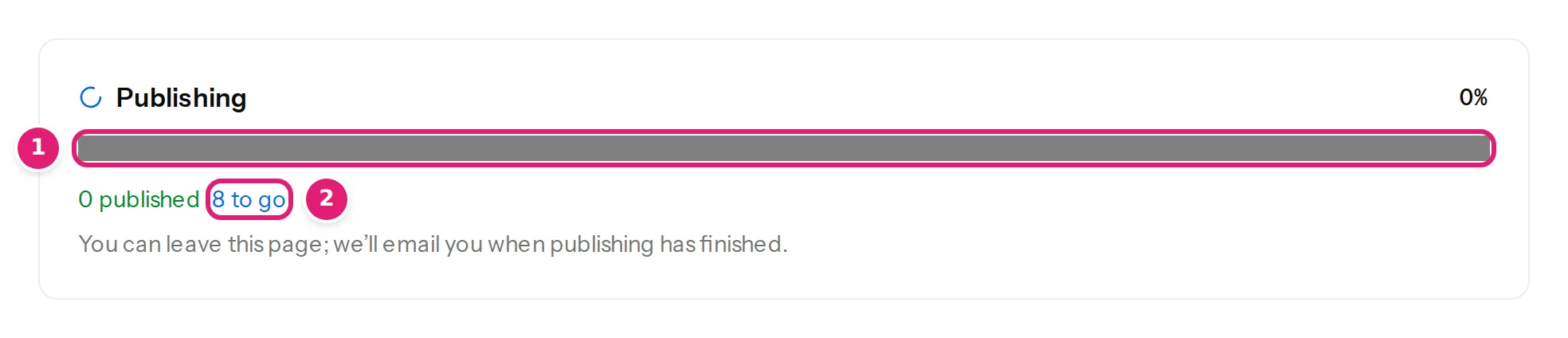
From here you can close the page. Publishing continues in the background and, unless you switched emails off, you are emailed when it has finished (emails).
While it runs#
The page shows Publishing, a percentage, a progress bar and the numbers: 8 published · 3 to go · 1 without a new image · 1 failed. Items are sent to your site one at a time for each site, in the order of the file. For each item, the connector on your site:
- receives the content together with an operation ID that makes the request safe to repeat (a replay never creates a second item),
- first receives any images, once per distinct image per site (images and how they reach your site),
- creates or updates the item through the site's own functions, as the publishing account, so other plugins and the CMS's history see an ordinary save,
- answers with the item's ID on the site, which Content Uploader keeps as the item's result.
A temporary problem (the site does not answer, a server error, a busy site) is retried by Content Uploader itself, three times, after about 15 seconds, one minute and three minutes. A problem that will not go away by waiting fails the item at once. The other items continue either way (retrying failed items).
How long it takes depends on your site: each item is one save through your CMS, with all its plugins. Items go one at a time, so a large file takes longer than a small one, and a busy or slow site is slower still. Nothing is lost if it is.
When it is finished#
The heading says Published (all went well) or Published with errors (some items failed), with the final numbers, and the file is marked Done.

- N published counts the items written. N already matched counts items the site already had in this state. N without a new image counts the items published without an image that could not be used (missing images). N failed counts the items that could not be written, with the link See why they failed and retry them safely.
- The Sites page keeps one result for each item, with its ID on the site and the history of attempts (publishing results).
- Whoever pressed Publish gets an email: … was published, or … finished with errors.
What publishing never does#
- It never deletes anything: not an article, not a file, not a category.
- It never changes an item that is not in the file.
- It never publishes an item that was skipped or has an error.
- It never sends more than you reviewed: the content sent is exactly what the review showed.
Can I undo it?#
There is no undo button, because every item lives on your site, and your site is the place that keeps the history:
- An updated item can be put back by uploading a file with its previous values: the review shows the change in reverse, and publishing restores it. Or use your CMS's own history: WordPress's post revisions or Joomla's Versions, where they are switched on.
- A created item can be removed on your site like any other.
- Categories, tags and images that were created are ordinary ones and can be edited or deleted on the site.
For this reason the review exists: look at the first file with care (review first or publish automatically).
Was this article helpful?
Related articles
- Reviewing and publishingHow the review worksAfter a file is checked, the review shows what will be created, updated, left alone or skipped before anything is sent to your site. How to read each part of the page.
- Reviewing and publishingPublishing results: what happened to each itemThe Publishing results list on the Sites page: one result per item with its status, its ID on your site, the attempts, the error or warning, and what each status means.
- Reviewing and publishingWhen Publish is refused: every message and what to doThe messages shown when Publish does nothing: out-of-date review, changed destination, reconnect, paused site, too small an allowance, paused workspace.
- Reviewing and publishingRetry failed items safelyHow to find the items that failed to publish, fix the cause, and send them again with Retry safely without creating duplicates, and when to upload the file again instead.